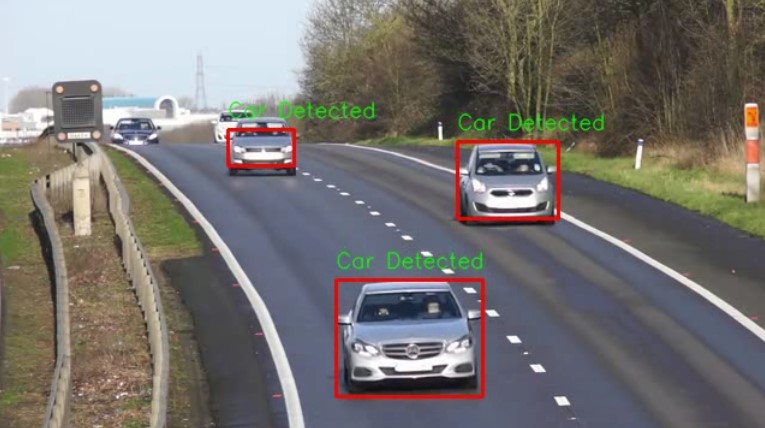
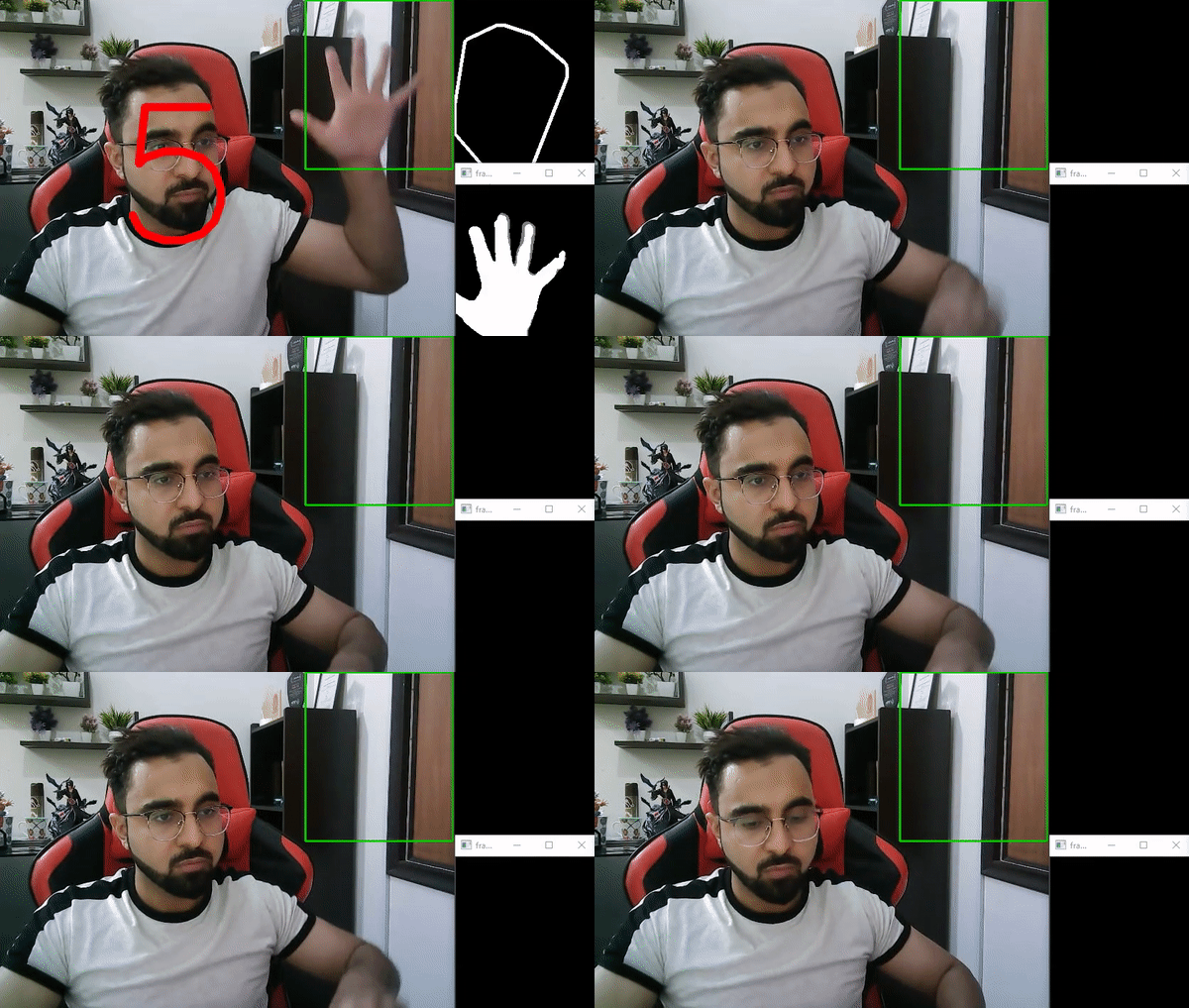
Let’s say you have been tasked to design a system capable of detecting vehicles on a road such as the one below,
Surely, this seems like a job for a Deep Neural Network, right?
This means you have to get a lot of data, label them, then train a model, tune its performance and serve it on a system capable of running it in real-time.
This sounds like a lot of work and it begs the question: Is deep learning the only way to do so?
What if I tell you that you can solve this problem and many others like this using a much simpler approach, and with this approach, you will not have to spend days collecting data or training deep learning models. And the approach is also lightweight so it will run on almost any machine!
Alright, what exactly are we talking about here?
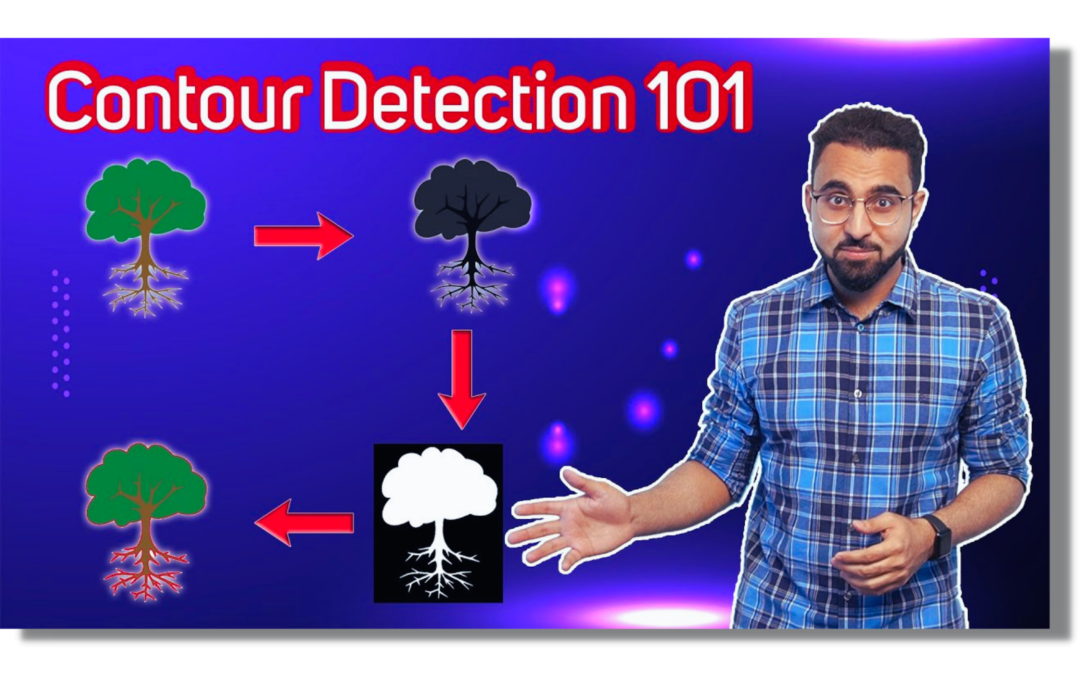
This simpler approach relies on a popular Computer Vision technique called Contour Detection. A handy technique that can save the day when dealing with vision problems such as the one above. Although not as generalizable as Deep Neural Networks, contour detection can prove robust under controlled circumstances, requiring minimum time investment and effort to build vision applications.
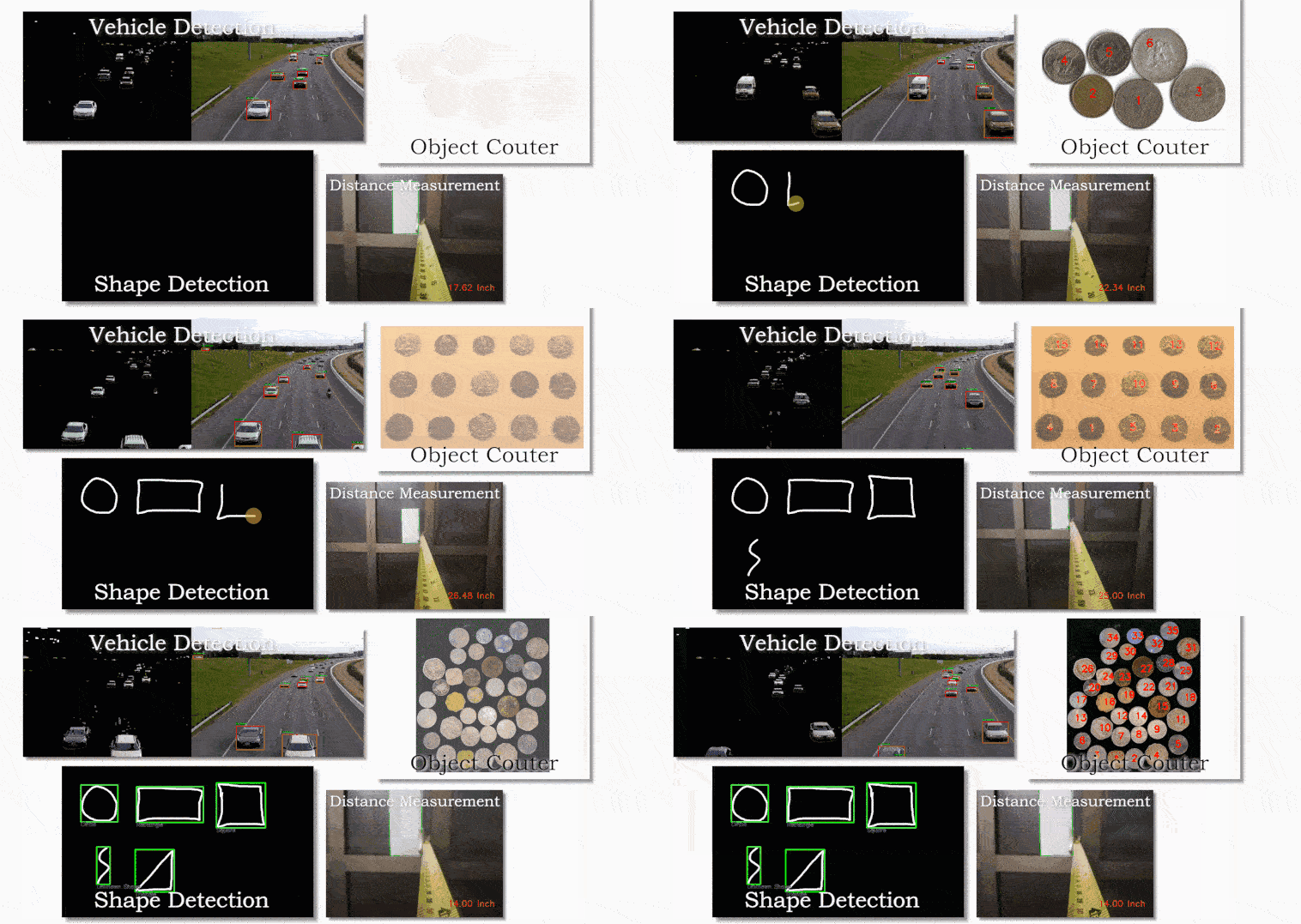
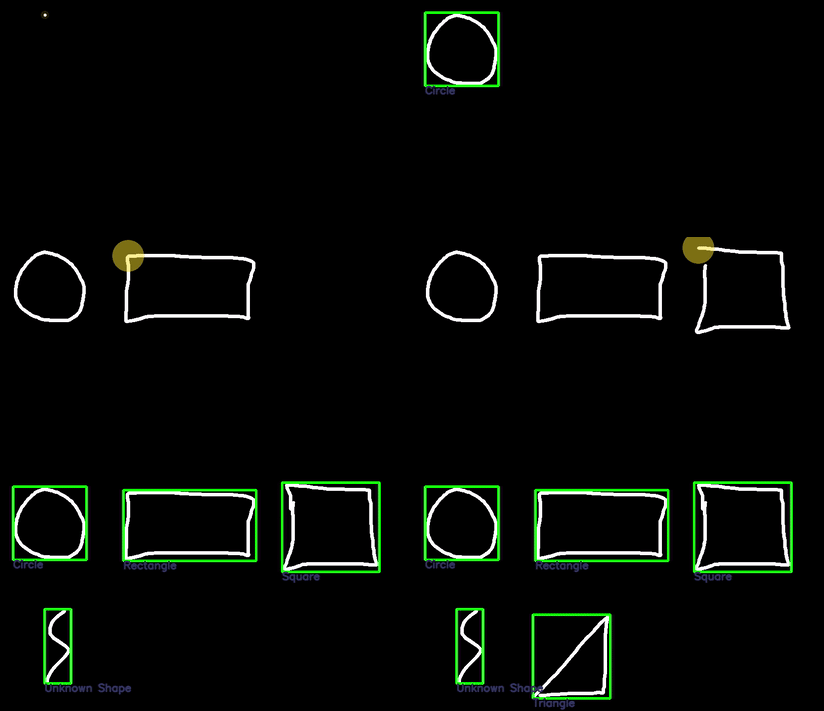
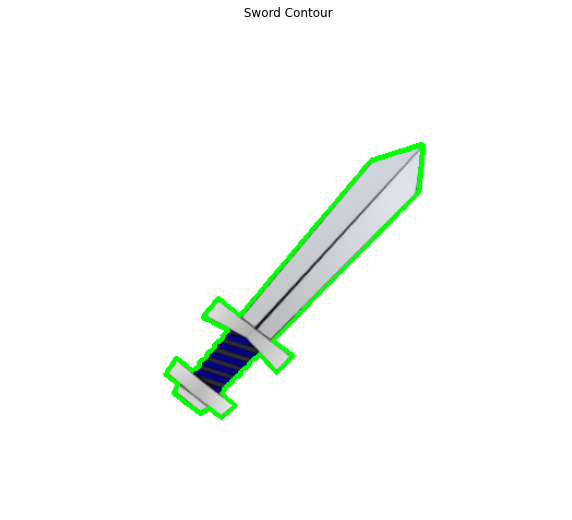
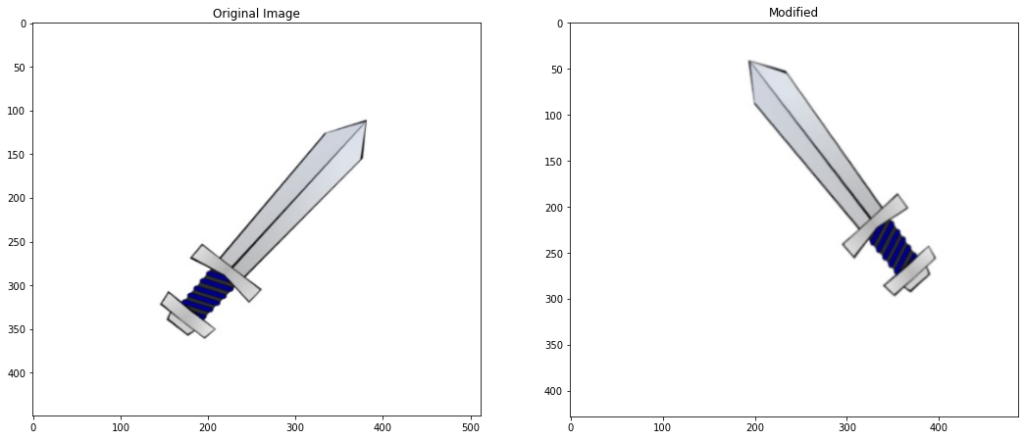
Just to give you a glimpse of what you can build with contour detection, have a look at some of the applications that I made using contour detection.
and there are many other applications that you can build too, once you learn about what contour Detection is and how you can use it, in fact, I have an entire course that will help you master contours for building computer vision applications.
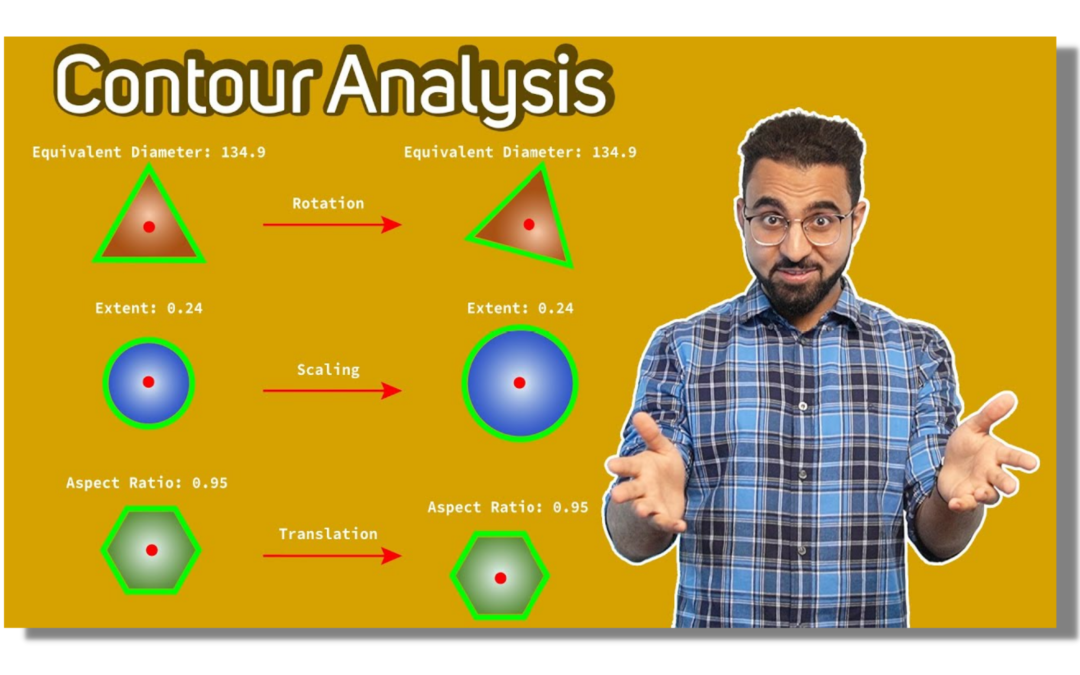
Since Contours is a lengthy topic, I’ll be breaking down Contours into a 4 parts series. This is the first part where we discuss the basics of contour detection in OpenCV, how to use it, and go over various preprocessing techniques required for Contour Detection.
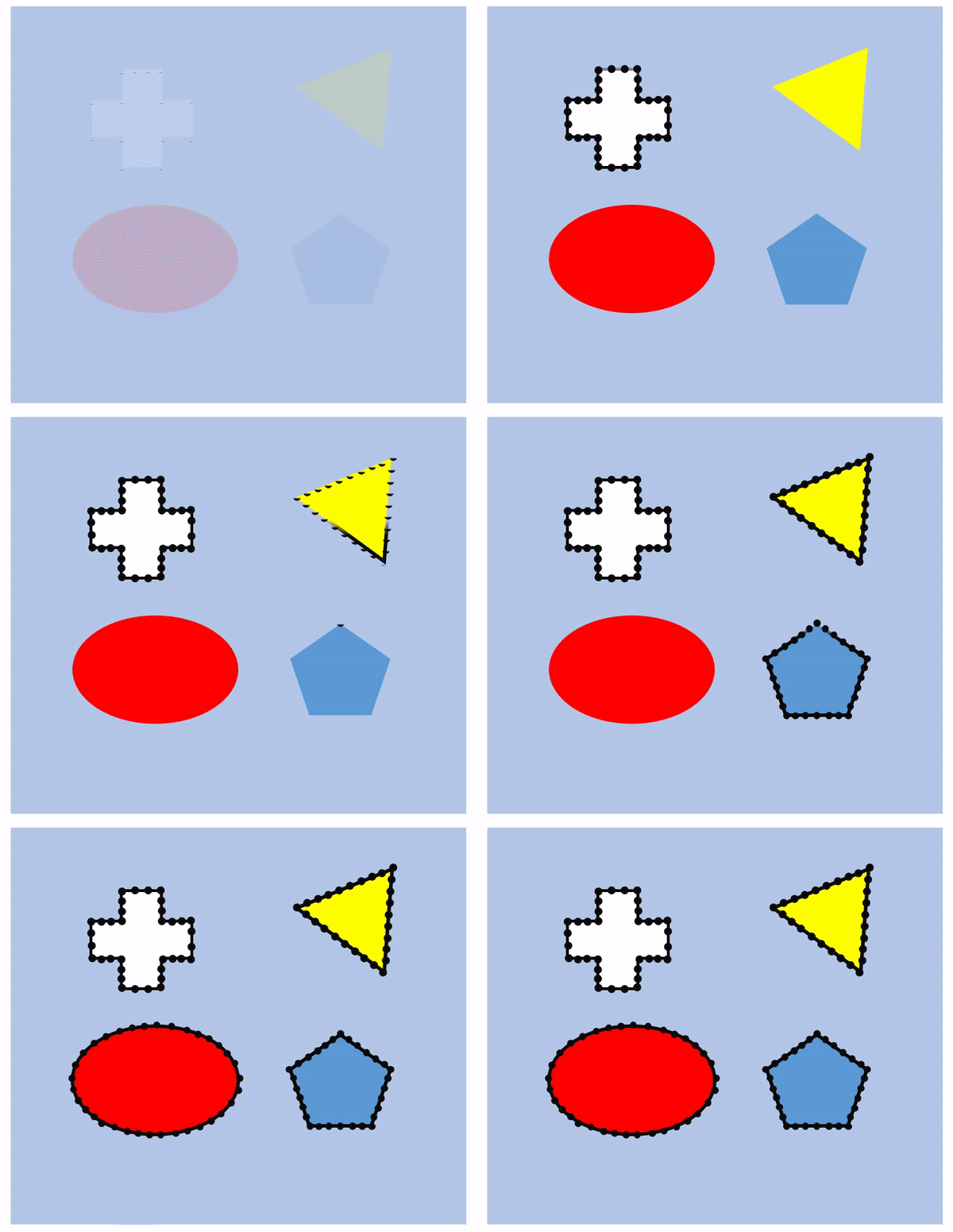
A contour can be simply defined as a curve that joins a set of points enclosing an area having the same color or intensity. This area of uniform color or intensity forms the object that we are trying to detect, and the curve enclosing this area is the contour representing the shape of the object. So essentially, contour detection works similarly to edge-detection but with the restriction that the edges detected must form a closed path.
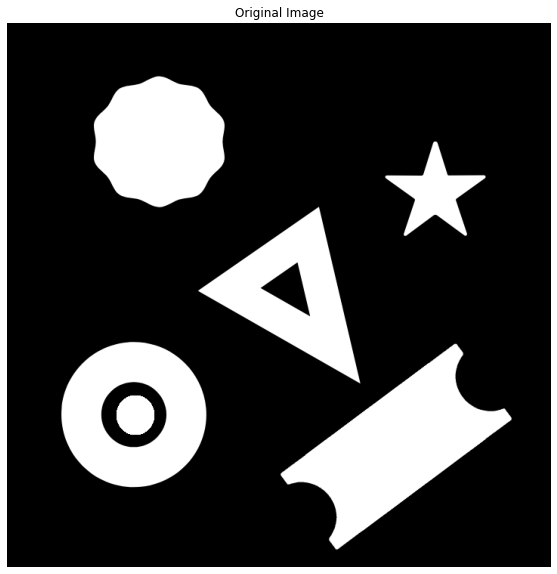
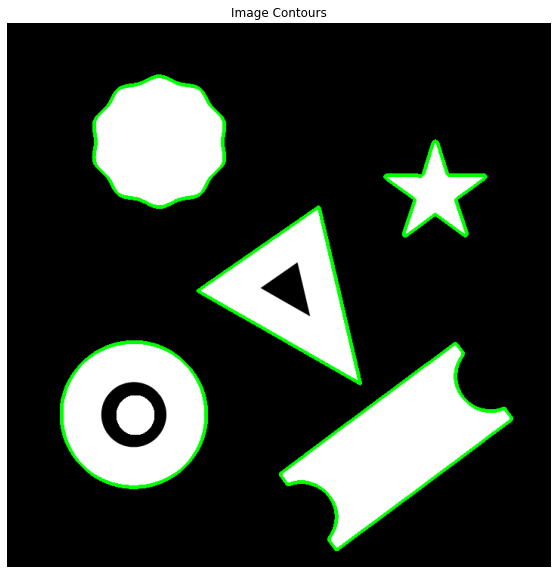
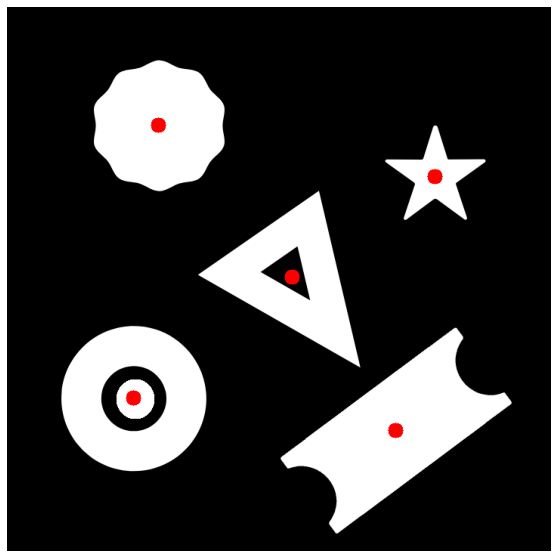
Still confused? Just have a look at the GIF below. You can see four shapes, which on a pixel level forms when certain pixels share the same color which is distinct from the background color. Contour detection identifies each of the border pixels that is distinct from the background forming an enclosed, continuous path of pixels that form the line representing the contour.
Now, let’s see how this works in OpenCV.
Import the Libraries
Let’s start by importing the required libraries.
import cv2
import numpy as np
import matplotlib.pyplot as plt
Read an Image
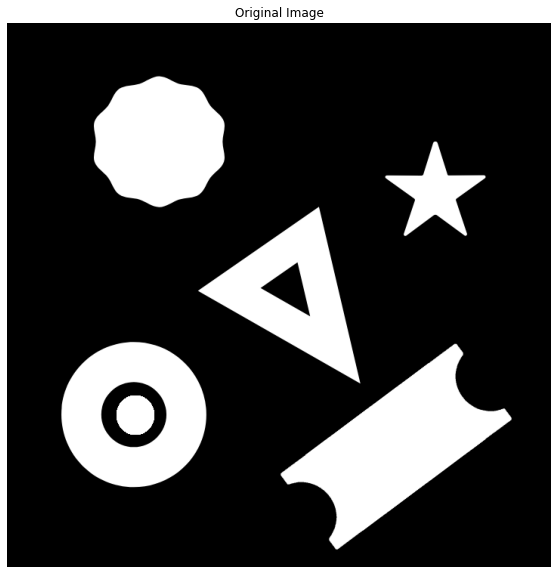
Next, we will read an image below containing a bunch of shapes for which we will find the contours.
# Read the image
Gray_image = cv2.imread('media/image.png', 0)

# Display the image
plt.figure(figsize=[10,10])
plt.imshow(image1, cmap='gray');plt.title("Original Image");plt.axis("off");
OpenCV saves us the trouble of writing lengthy algorithms for contour detection and provides a handy function findContours() that analyzes the topological structure of the binary image by border following, a contour detection technique developed in 1985.
The findContours() function takes a binary image as input. The foreground is assumed to be white, and the background is assumed to be black. If that is not the case, then you can invert the image pixels using the cv2.bitwise_not() function.
image – It is the input image (8-bit single-channel). Non-zero pixels are treated as 1’s. Zero pixels remain 0’s, so the image is treated as binary. You can use compare, inRange, threshold, adaptiveThreshold, Canny, and others to create a binary image out of a grayscale or color one.
mode – It is the contour retrieval mode, ( RETR_EXTERNAL, RETR_LIST, RETR_CCOMP, RETR_TREE )
method – It is the contour approximation method. ( CHAIN_APPROX_NONE, CHAIN_APPROX_SIMPLE, CHAIN_APPROX_TC89_L1, etc )
offset – It is the optional offset by which every contour point is shifted. This is useful if the contours are extracted from the image ROI, and then they should be analyzed in the whole image context.
Returns:
contours – It is the detected contours. Each contour is stored as a vector of points.
hierarchy – It is the optional output vector containing information about the image topology. It has been described in detail in the video above.
We will go through all the important parameters in a while. For now, let’s detect some contours in the image that we read above.
Since the image read above only contains a single channel instead of three, and even that channel is in the binary state (black & white) so it can be directly passed to the findContours() function without requiring any preprocessing.
# Find all contours in the image.
contours, hierarchy = cv2.findContours(Gray_image, cv2.RETR_EXTERNAL, cv2.CHAIN_APPROX_SIMPLE)

# Display the total number of contours found.
print("Number of contours found = {}".format(len(contours)))
Number of contours found = 5
Visualizing the Contours detected
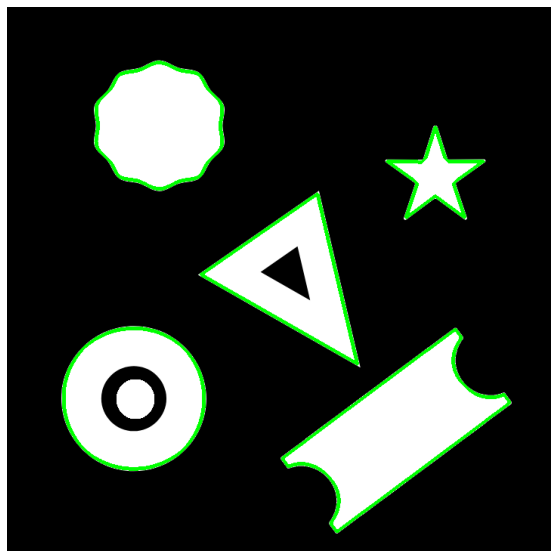
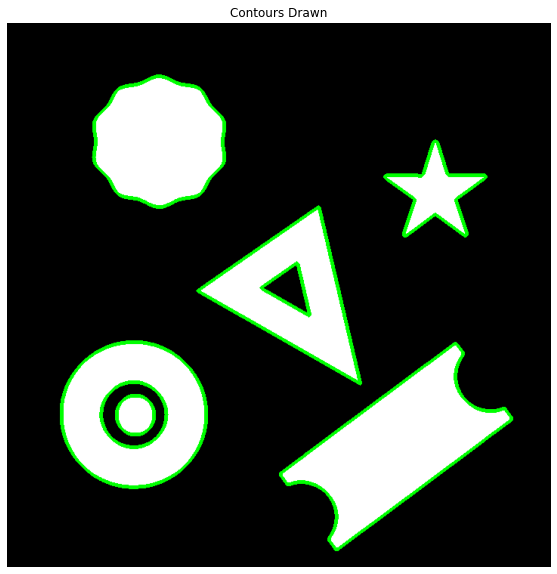
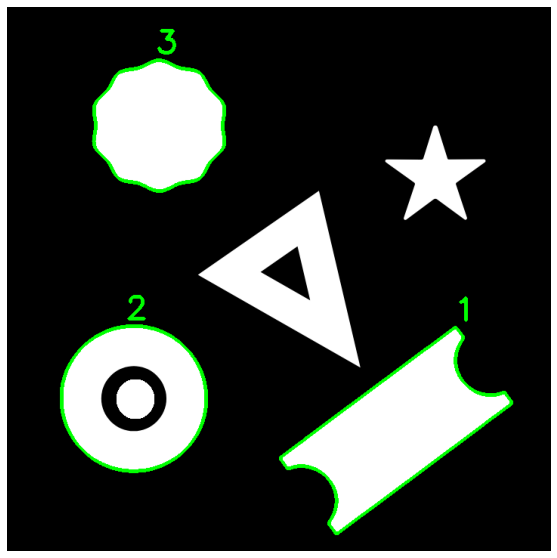
As you can see the cv2.findContours() function was able to correctly detect the 5 external shapes in the image. But how do we know that the detections were correct? Thankfully we can easily visualize the detected contours using the cv2.drawContours() function which simply draws the detected contours onto an image.
image – It is the image on which contours are to be drawn.
contours – It is point vector(s) representing the contour(s). It is usually an array of contours.
contourIdx – It is the parameter, indicating a contour to draw. If it is negative, all the contours are drawn.
color – It is the color of the contours.
thickness – It is the thickness of lines the contours are drawn with. If it is negative (for example, thickness=FILLED ), the contour interiors are drawn.
lineType – It is the type of line. You can find the possible options here.
hierarchy – It is the optional information about hierarchy. It is only needed if you want to draw only some of the contours (see maxLevel ).
maxLevel – It is the maximal level for drawn contours. If it is 0, only the specified contour is drawn. If it is 1, the function draws the contour(s) and all the nested contours. If it is 2, the function draws the contours, all the nested contours, all the nested-to-nested contours, and so on. This parameter is only taken into account when there is a hierarchy available.
offset – It is the optional contour shift parameter. Shift all the drawn contours by the specified offset=(dx, dy).
Let’s see how it works.
# Read the image in color mode for drawing purposes.
image1 = cv2.imread('media/image.png')

# Make a copy of the source image.
image1_copy = image1.copy()

# Draw all the contours.
cv2.drawContours(image1_copy, contours, -1, (0,255,0), 3)

# Display the result
plt.figure(figsize=[10,10])
plt.imshow(image1_copy[:,:,::-1]);plt.axis("off");
This seems to have worked nicely. But again, this is a pre-processed image that is easy to work with, which will not be the case when working with a real-world problem where you will have to pre-process the image before detecting contours. So let’s have a look at some common pre-processing techniques below.
Pre-processing images For Contour Detection
As you have seen above that the cv2.findContours() functions takes in as input a single channel binary image, however, in most cases the original image will not be a binary image. Detecting contours in colored images require pre-processing to produce a single-channel binary image that can be then used for contour detection. Ideally, this processed image should have the target objects in the foreground.
The two most commonly used techniques for this pre-processing are:
Thresholding based Pre-processing
Edge Based Pre-processing
Below we will see how you can accurately detect contours using these techniques.
Thresholding based Pre-processing For Contours
So to detect contours in colored images we can perform fixed level image thresholding to produce a binary image, that can be then used for contour detection. Let’s see how this works.
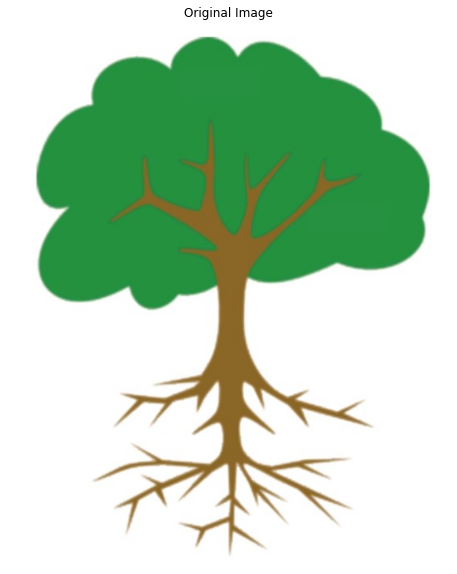
First, read a sample image using the function cv2.imread() and display the image using the matplotlib library.
# Read the image
image2 = cv2.imread('media/tree.jpg')

# Display the image
plt.figure(figsize=[10,10])
plt.imshow(image2[:,:,::-1]);plt.title("Original Image");plt.axis("off");
We will try to find the contour for the tree above, first without using any thresholding to see how the result will look like.
The first step is to convert the 3-channel BGR image to a single-channel image using the cv2.cvtColor() function.
# Make a copy of the source image.
image2_copy = image2.copy()

# Convert the image to gray-scale
gray = cv2.cvtColor(image2_copy, cv2.COLOR_BGR2GRAY)

# Display the result
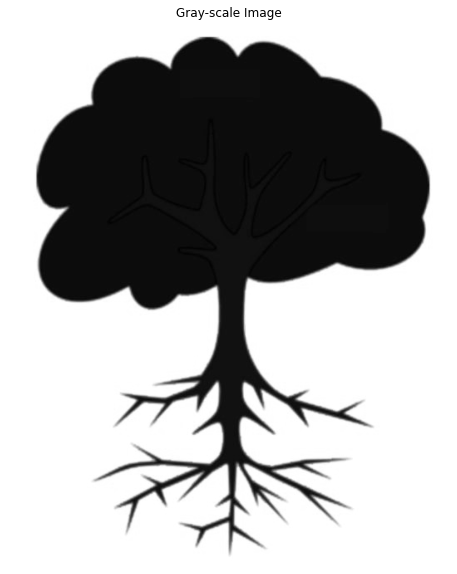
plt.imshow(gray, cmap="gray");plt.title("Gray-scale Image");plt.axis("off");
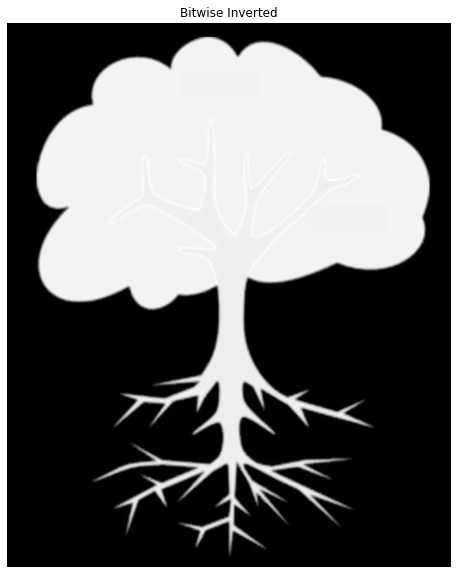
Contour detection on the image above will only result in a contour outlining the edges of the image. This is because the cv2.findContours() function expects the foreground to be white, and the background to be black, which is not the case above so we need to invert the colors using cv2.bitwise_not().
# Invert the colours
gray_inverted = cv2.bitwise_not(gray)

# Display the result
plt.figure(figsize=[10,10])
plt.imshow(gray_inverted ,cmap="gray");plt.title("Bitwise Inverted");plt.axis("off");
The inverted image with a black background and white foreground can now be used for contour detection.
# Find the contours from the inverted gray-scale image
contours, hierarchy = cv2.findContours(gray_inverted, cv2.RETR_EXTERNAL, cv2.CHAIN_APPROX_NONE)

# draw all contours
cv2.drawContours(image2_copy, contours, -1, (0, 255, 0), 2)

# Display the result
plt.figure(figsize=[10,10])
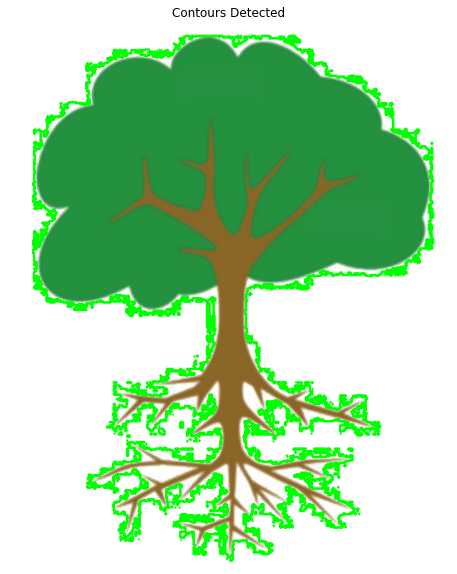
plt.imshow(image2_copy[:,:,::-1]);plt.title("Contours Detected");plt.axis("off");
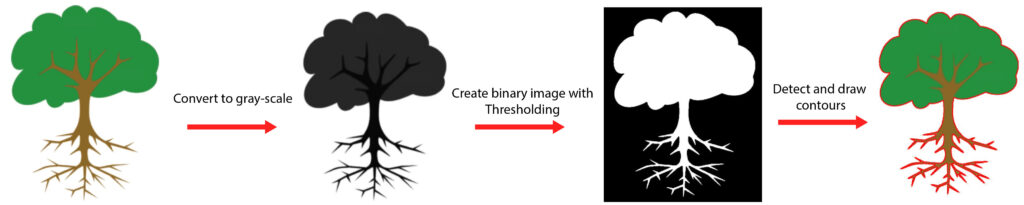
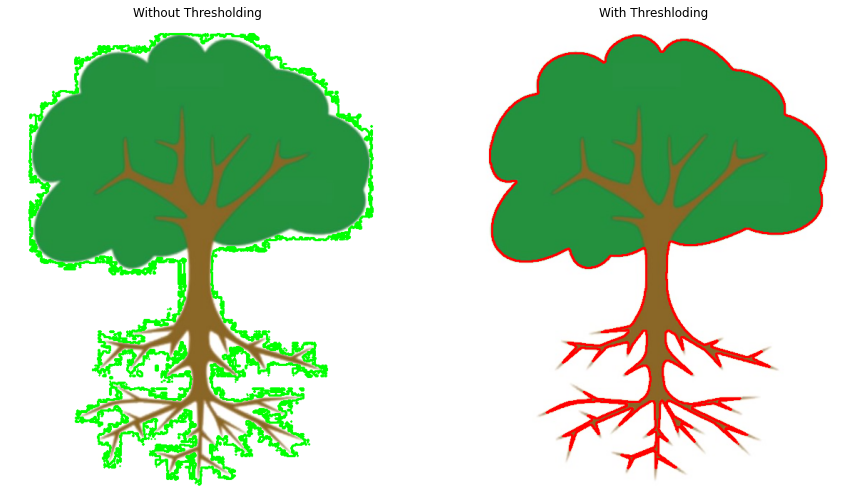
The result is far from ideal. As you can see the contours detected poorly align with the boundary of the tree in the image. This is because we only fulfilled the requirement of a single-channel image, but we did not make sure that the image was binary in colors, leaving noise along the edges. This is why we need thresholding to provide us a binary image.
Thresholding the image
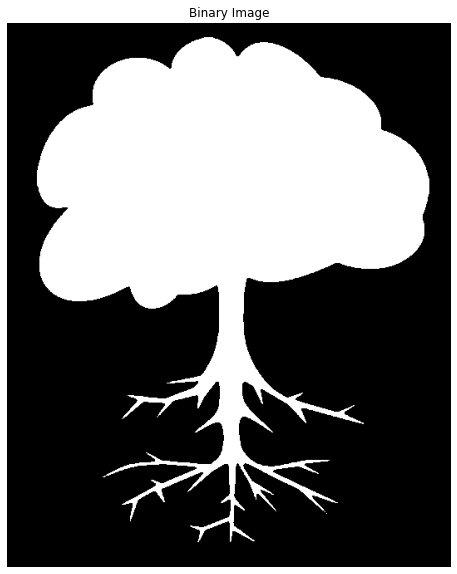
We will use the function cv2.threshold() to perform thresholding. The function takes in as input the gray-scale image, applies fixed level thresholding, and returns a binary image. In this case, all the pixel values below 100 are set to 0(black) while the ones above are set to 255(white). Since the image has already been inverted, cv2.THRESH_BINARY is used, but if the image is not inverted, cv2.THRESH_BINARY_INV should be used. Also, the fixed level used must be able to correctly segment the target object as foreground(white).
# Create a binary thresholded image
_, binary = cv2.threshold(gray_inverted, 100, 255, cv2.THRESH_BINARY)

# Display the result
plt.figure(figsize=[10,10])
plt.imshow(binary, cmap="gray");plt.title("Binary Image");plt.axis("off");
The resultant image above is ideally what the cv2.findContours() function is expecting. A single-channelbinary image with Black background and white foreground.
# Make a copy of the source image.
image2_copy2 = image2.copy()

# find the contours from the thresholded image
contours, hierarchy = cv2.findContours(binary, cv2.RETR_LIST, cv2.CHAIN_APPROX_SIMPLE)

# draw all the contours found
image2_copy2 = cv2.drawContours(image2_copy2, contours, -1, (0, 0, 255), 2)

# Plot both of the resuts for comparison
plt.figure(figsize=[15,15])
plt.subplot(121);plt.imshow(image2_copy[:,:,::-1]);plt.title("Without Thresholding");plt.axis('off')
plt.subplot(122);plt.imshow(image2_copy2[:,:,::-1]);plt.title("With Threshloding");plt.axis('off');
The difference is clear. Binarizing the image helps get rid of all the noise at the edges of objects, resulting in accurate contour detection.
Edge Based Pre-processing For Contours
Thresholding works well for simple images with fewer variations in colors, however, for complex images, it’s not always easy to do background-foreground segmentation using thresholding. In these cases creating the binary image using edge detection yields better results.
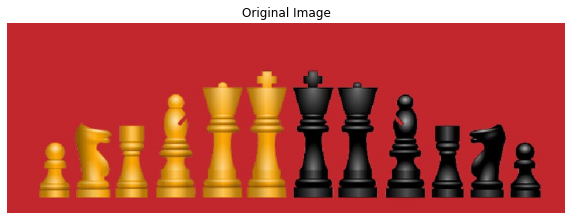
Let’s read another sample image.
# Read the image
image3 = cv2.imread('media/chess.jpg')

# Display the image
plt.figure(figsize=[10,10])
plt.imshow(image3[:,:,::-1]);plt.title("Original Image");plt.axis("off");
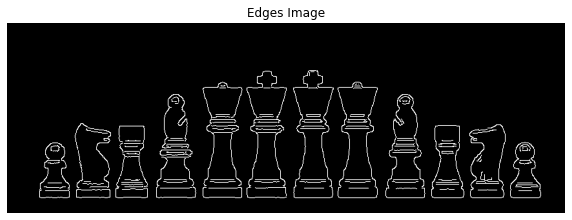
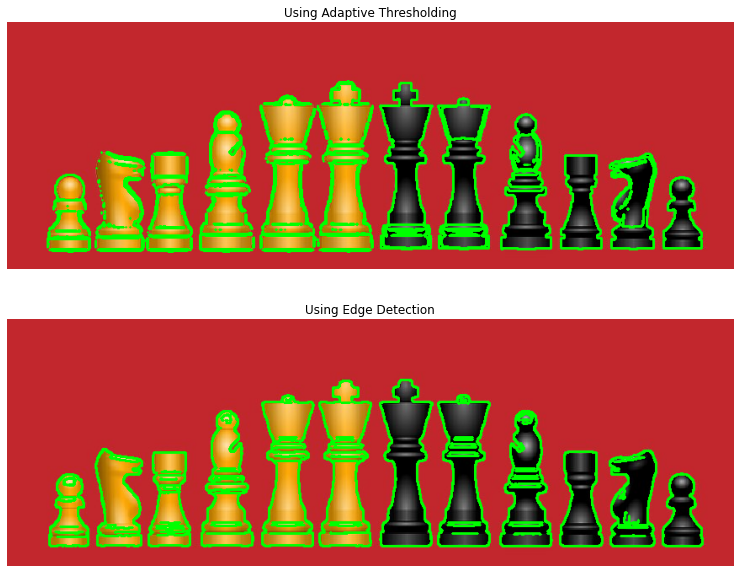
It’s obvious that simple fixed level thresholding wouldn’t work for this image. You will always end up with only half the chess pieces in the foreground only. So instead we will use the function cv2.Canny() for detecting the edges in the image. cv2.Canny() returns a single channel binary image which is all we need to perform contour detection in the next step. We also make use of the cv2.GaussianBlur() function to smoothen any noise in the image.
# Blur the image to remove noise
blurred_image = cv2.GaussianBlur(image3.copy(),(5,5),0)

# Apply canny edge detection
edges = cv2.Canny(blurred_image, 100, 160)

# Display the resultant binary image of edges
plt.figure(figsize=[10,10])
plt.imshow(edges,cmap='Greys_r');plt.title("Edges Image");plt.axis("off");
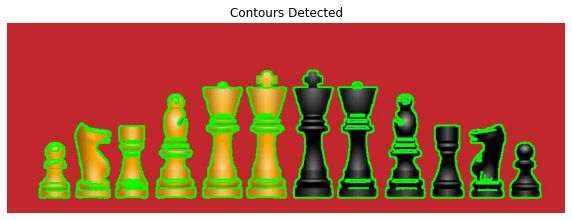
Now, using the edges detected, we can perform contour detection.
# Detect the contour using the edges
contours, hierarchy = cv2.findContours(edges, cv2.RETR_EXTERNAL, cv2.CHAIN_APPROX_SIMPLE)

# Draw the contours
image3_copy = image3.copy()
cv2.drawContours(image3_copy, contours, -1, (0, 255, 0), 2)

# Display the drawn contours
plt.figure(figsize=[10,10])
plt.imshow(image3_copy[:,:,::-1]);plt.title("Contours Detected");plt.axis("off");
In comparison, if we were to use thresholding as before it would yield a poor result that will only manage to correctly outline half of the chess pieces in the image at a time. So for a fair comparison, we will use cv2.adaptiveThreshold() to perform adaptive thresholding which adjusts to different color intensities in the image.
image3_copy2 = image3.copy()

# Remove noise from the image
blurred = cv2.GaussianBlur(image3_copy2,(3,3),0)

# Convert the image to gray-scale
gray = cv2.cvtColor(blurred, cv2.COLOR_BGR2GRAY)

# Perform adaptive thresholding
binary = cv2.adaptiveThreshold(gray,255,cv2.ADAPTIVE_THRESH_GAUSSIAN_C,cv2.THRESH_BINARY_INV, 11, 5)

# Detect and Draw contours
contours, hierarchy = cv2.findContours(binary, cv2.RETR_EXTERNAL, cv2.CHAIN_APPROX_SIMPLE)
cv2.drawContours(image3_copy2, contours, -1, (0, 255, 0), 2)

# Plotting both results for comparison
plt.figure(figsize=[14,10])
plt.subplot(211);plt.imshow(image3_copy2[:,:,::-1]);plt.title("Using Adaptive Thresholding");plt.axis('off')
plt.subplot(212);plt.imshow(image3_copy[:,:,::-1]);plt.title("Using Edge Detection");plt.axis('off');
As can be seen above, using canny edge detection results in finer contour detection.
Drawing a selected Contour
So far we have only drawn all of the detected contours in an image, but what if we want to only draw certain contours?
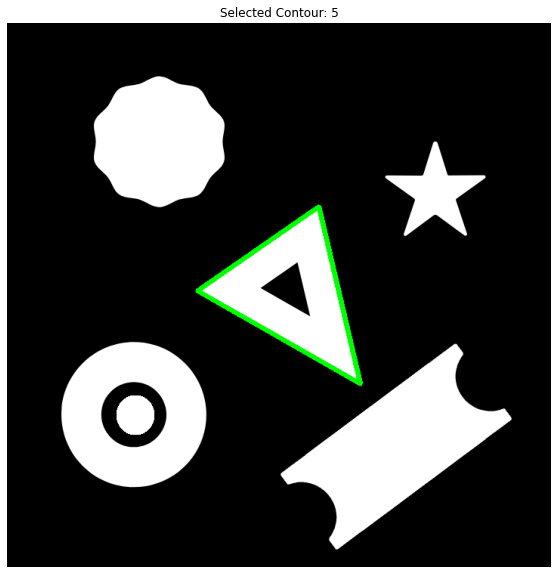
The contours returned by the cv2.findContours() is a python list where the ith element is the contour for a certain shape in the image. Therefore if we are interested in just drawing one of the contours we can simply index it from the contours list and draw the selected contour only.
image1_copy = image1.copy()

# Find all contours in the image.
contours, hierarchy = cv2.findContours(Gray_image, cv2.RETR_LIST, cv2.CHAIN_APPROX_NONE)

# Select a contour
index = 5
contour_selected = contours[index]

# Draw the selected contour
cv2.drawContours(image1_copy, contour_selected, -1, (0,255,0), 6);

# Display the result
plt.figure(figsize=[10,10])
plt.imshow(image1_copy[:,:,::-1]);plt.axis("off");plt.title('Selected Contour: ' + str(index));
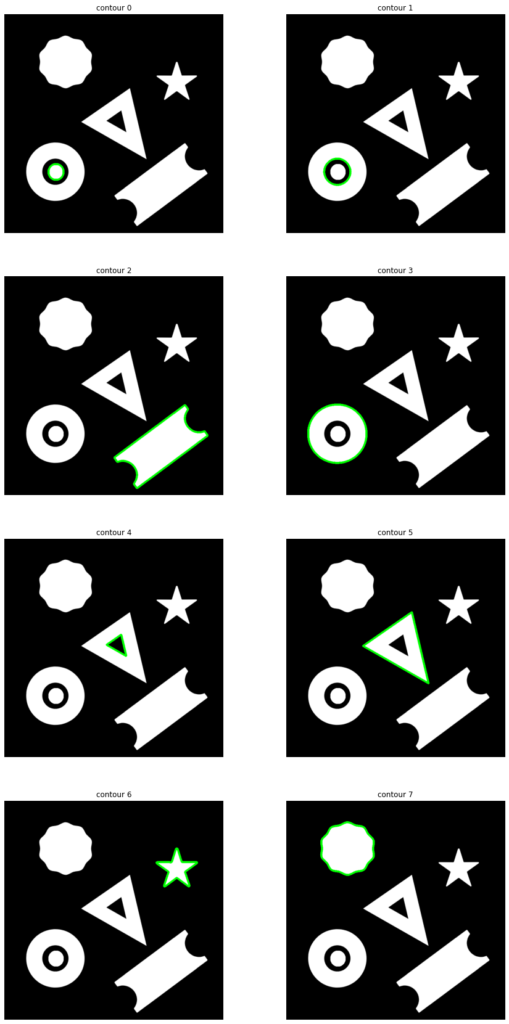
Now let’s modify our code using a for loop to draw all of the contours separately.
image1_copy = image1.copy()

# Create a figure object for displaying the images
plt.figure(figsize=[15,30])

# Convert to grayscale.
imageGray = cv2.cvtColor(image1_copy,cv2.COLOR_BGR2GRAY)

# Find all contours in the image
contours, hierarchy = cv2.findContours(imageGray, cv2.RETR_LIST, cv2.CHAIN_APPROX_NONE)

# Loop over the contours
for i,cont in enumerate(contours):

        # Draw the ith contour
        image1_copy = cv2.drawContours(image1.copy(), cont, -1, (0,255,0), 6)

        # Add a subplot to the figure
        plt.subplot(4, 2, i+1)

        # Turn off the axis
        plt.axis("off");plt.title('contour ' +str(i))

        # Display the image in the subplot
        plt.imshow(image1_copy)
Retrieval Modes
Function cv2.findContours() does not only returns the contours found in an image but also returns valuable information about the hierarchy of the contours in the image. This hierarchy encodes how the contours may be arranged in the image, e.g, they may be nested within another contour. Often we are more interested in some contours than others. For example, you may only want to retrieve the external contour of an object.
Using the Retrieval Modes specified, the cv2.findContours() function can determine how the contours are to be returned or arranged in a hierarchy.
For more information on Retrieval modes and contour hierarchy Read here.
Some of the important retrieval modes are:
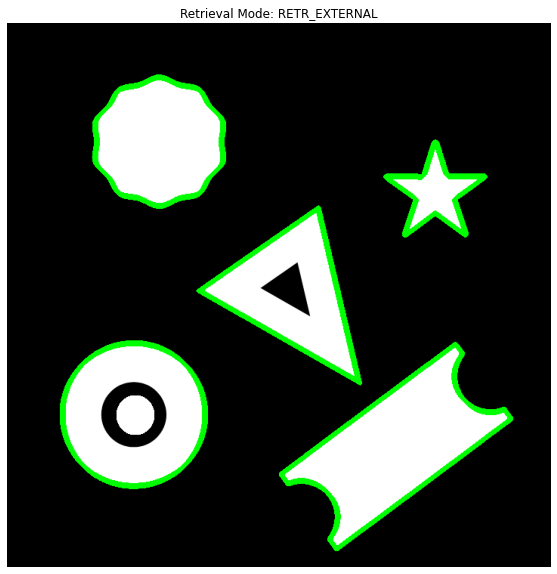
cv2.RETR_EXTERNAL – retrieves only the extreme outer contours.
cv2.RETR_LIST – retrieves all of the contours without establishing any hierarchical relationships.
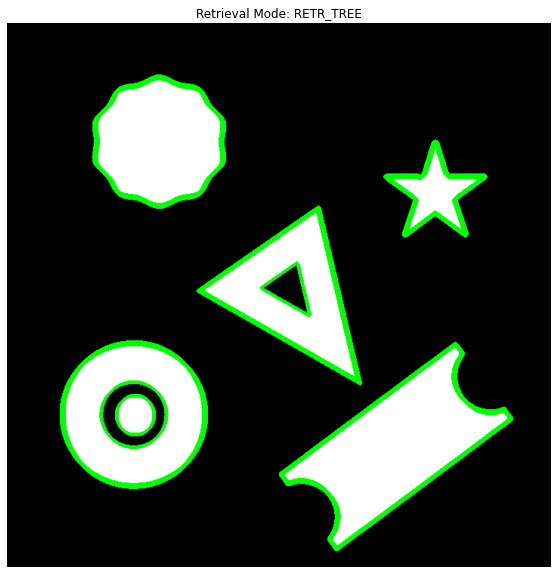
cv2.RETR_TREE – retrieves all of the contours and reconstructs a full hierarchy of nested contours.
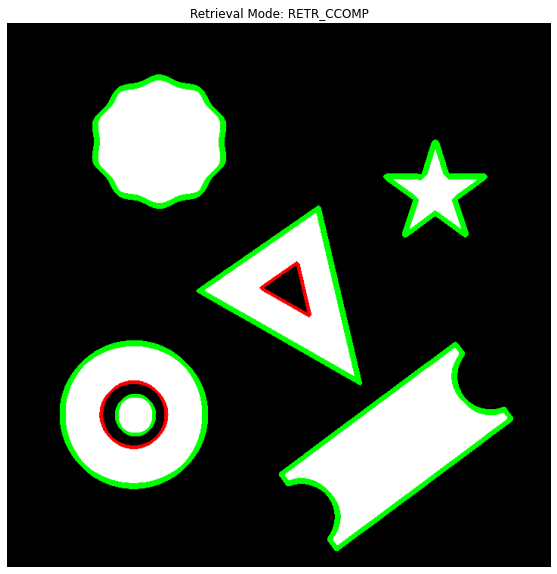
cv2.RETR_CCOMP – retrieves all of the contours and organizes them into a two-level hierarchy. At the top level, there are external boundaries of the components. At the second level, there are boundaries of the holes. If there is another contour inside a hole of a connected component, it is still put at the top level.
Below we will have a look at how each of these modes return the contours.
cv2.RETR_LIST
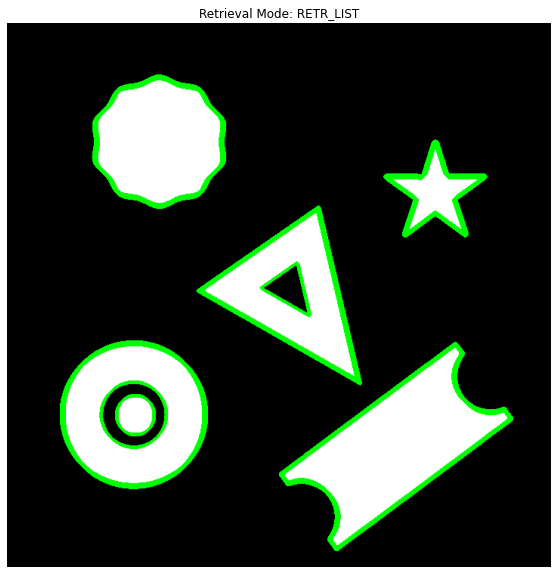
cv2.RETR_LIST simply retrieves all of the contours without establishing any hierarchical relationships between them. All of the contours can be said to have no parent or child relationship with another contour.
image1_copy = image1.copy()

# Convert to gray-scale
imageGray = cv2.cvtColor(image1_copy, cv2.COLOR_BGR2GRAY)

# Find and return all contours in the image using the RETR_LIST mode
contours, hierarchy = cv2.findContours(imageGray, cv2.RETR_LIST, cv2.CHAIN_APPROX_SIMPLE)

# Draw all contours.
cv2.drawContours(image1_copy, contours, -1, (0,255,0), 3);

# Print the number of Contours returned
print("Number of Contours Returned: {}".format(len(contours)))

# Display the results.
plt.figure(figsize=[10,10])
plt.imshow(image1_copy);plt.axis("off");plt.title('Retrieval Mode: RETR_LIST');
Number of Contours Returned: 8
cv2.RETR_EXTERNAL
cv2.RETR_EXTERNAL retrieves only the extreme outer contours i.e the contours not having any parent contour.
image1_copy = image1.copy()

# Find all contours in the image.
contours, hierarchy = cv2.findContours(imageGray, cv2.RETR_EXTERNAL, cv2.CHAIN_APPROX_SIMPLE)

# Draw all the contours.
cv2.drawContours(image1_copy, contours, -1, (0,255,0), 3);

# Print the number of Contours returned
print("Number of Contours Returned: {}".format(len(contours)))

# Display the results.
plt.figure(figsize=[10,10])
plt.imshow(image1_copy);plt.axis("off");plt.title('Retrieval Mode: RETR_EXTERNAL');
Number of Contours Returned: 5
cv2.RETR_TREE
cv2.RETR_TREE retrieves all of the contours and constructs a full hierarchy of nested contours.
src_copy = image1.copy()

# Convert to gray-scale
imageGray = cv2.cvtColor(src_copy,cv2.COLOR_BGR2GRAY)

# Find all contours in the image while maintaining a hierarchy
contours, hierarchy = cv2.findContours(imageGray, cv2.RETR_TREE, cv2.CHAIN_APPROX_SIMPLE)

# Draw all the contours.
contour_image = cv2.drawContours(src_copy, contours, -1, (0,255,0), 3);

# Print the number of Contours returned
print("Number of Contours Returned: {}".format(len(contours)))

# Display the results.
plt.figure(figsize=[10,10])
plt.imshow(contour_image);plt.axis("off");plt.title('Retrieval Mode: RETR_TREE');
Number of Contours Returned: 8
cv2.RETR_CCOMP
cv2.RETR_CCOMP retrieves all of the contours and organizes them into a two-level hierarchy. At the top level, there are external boundaries of the object. At the second level, there are boundaries of the holes in object. If there is another contour inside that hole, it is still put at the top level.
To visualize the two levels we check for the contours that do not have any parent i.e the fourth value in their hierarchy [Next, Previous, First_Child, Parent] is set to -1. These contours form the first level and are represented with green color while all other are second-level contours represented in red.
src_copy = image1.copy()
imageGray = cv2.cvtColor(src_copy,cv2.COLOR_BGR2GRAY)

# Find all contours in the image using RETE_CCOMP method
contours, hierarchy = cv2.findContours(imageGray, cv2.RETR_CCOMP, cv2.CHAIN_APPROX_NONE)

# Loop over all the contours detected
for i,cont in enumerate(contours):

    # If the contour is at first level draw it in green
    if hierarchy[0][i][3] == -1:
        src_copy = cv2.drawContours(src_copy, cont, -1, (0,255,0), 3)

    # else draw the contour in Red
    else:
        src_copy = cv2.drawContours(src_copy, cont, -1, (255,0,0), 3)

# Print the number of Contours returned
print("Number of Contours Returned: {}".format(len(contours)))

# Display the results.
plt.figure(figsize=[10,10])
plt.imshow(src_copy);plt.axis("off");plt.title('Retrieval Mode: RETR_CCOMP');
Number of Contours Returned: 8
[optin-monster slug=”d8wgq6fdm5mppdb5fi99″]
Summary
Alright, In the first part of the series we have unpacked a lot of important things about contour detection and how it works. We discussed what types of applications you can build using Contour Detection and the circumstances under which it works most effectively.
We saw how you can effectively detect contours and visualize them too using OpenCV.
The post also went over some of the most common pre-processing techniques used prior to contour detection.
Thresholding based Pre-processing
Edge Based Pre-processing
which will help you get accurate results with contour detection. But these are not the only contour detection techniques, ultimately, it depends on what type of problem you are trying to solve, and figuring out the appropriate pre-processing to use is the key to contour detection. Start by asking what properties distinguish the target object from the rest of the image? Then figure out the best way you can use to isolate those properties.
We also went over the important Retrieval Modes that can be used to change how the hierarchy of the detected contours works or even change what type of contours are detected. Additionally, you can always use the hierarchy to only extract the contours you want, e.g. retrieve only the contours at level three.
This was the first part of the series but there are four more to come in which we will dive deeper into contour detection with OpenCV and also build a cool vision application using contour Detection!
You can reach out to me personally for a 1 on 1 consultation session in AI/computer vision regarding your project. Our talented team of vision engineers will help you every step of the way. Get on a call with me directlyhere.
Ready to seriously dive into State of the Art AI & Computer Vision? Then Sign up for these premium Courses by Bleed AI
In the previous tutorial we learned how the DNN module in OpenCV works, we went into a lot of details regarding different aspects of the module including where to get the models, how to configure them, etc.
This Tutorial will build on top of the previous one so if you haven’t read the previous post then you can read that here.
Today’s post is the second tutorial in our brand new 3 part Deep Learning with OpenCV series. All three posts are titled as:
In this post, we will train a custom image classifier with Tensorflow’s Keras API. So if you want to learn how to get started creating a Convolutional Neural Network using Tensorflow, then this post is for you, and not only that but afterward, we will also convert our trained .h5 model to ONNX format and then use it with OpenCV DNN module.
Converting your model to onnx will give you more than a 3x reduction in model size.
This whole process shows you how to train models in Tensorflow and then deploy them directly in OpenCV.
What’s the advantage of using the trained model in OpenCV vs using it in Tensorflow?
So here are some points you may want to consider.
By using OpenCV’s DNN module, the final code is a lot compact and simpler.
Someone who’s not familiar with the training framework like TensorFlow can also use this model.
Besides supporting CUDA based NVIDIA’s GPU, OpenCV’s DNN module also supports OpenCL based Intel GPUs.
Most Importantly by getting rid of the training framework (Tensorflow) not only makes the code simpler but it ultimately gets rid of a whole framework, this means you don’t have to build your final application with a heavy framework like TensorFlow. This is a huge advantage when you’re trying to deploy on a resource-constrained edge device, e.g. a Raspberry pie
So this way you’re getting the best of both worlds, a framework like Tensorflow for training and OpenCV DNN for faster inference during deployment.
This tutorial can be split into 3 parts.
Training a Custom Image Classifier in OpenCV with Tensorflow
Converting Our Classifier to ONNX format.
Using the ONNX model directly in the OpenCV DNN module.
Let’s start with the Code
Download Code
[optin-monster slug=”scb99lhehb40udr0ckhj”]
Part 1: Training a Custom Image Classifier with Tensorflow:
For this tutorial you need OpenCV4.0.0.21 and Tensorflow 2.2
So you should do:
pip install opencv-contrib-python==4.0.0.21 (Or install from Source, Make sure to change the version)
Note: The reason I’m asking you to install version 4.0 instead of the latest 4.3 version of OpenCV is that later on, we’ll be using a function called readNetFromONNX() now with our model this function was giving an error in 4.3 and 4.2, possibly due to some bug in those versions. This does not mean that you can’t use custom models with those versions but that for my specific case there was an issue. Converting models only takes 2-3 lines of code but sometimes you get ambiguous errors that are hard to diagnose, but it can be done.
Hopefully, the conversion process will get better in the future.
One thing you can do is create a custom environment (with Anaconda or virtualenv) in which you can install version 4.0 without affecting your root environment and if you’re using google colab for this tutorial then you don’t need to worry about that.
You can go ahead and download the source code from the download code section. After downloading the zip folder, unzip it and you will have the following directory structure.
# Import Required libraries
import tensorflow as tf
from tensorflow.keras.models import Sequential, load_model, Model
from tensorflow.keras.layers import Dense, Conv2D, Dropout, MaxPooling2D, GlobalAveragePooling2D, Activation
from tensorflow.keras.preprocessing.image import ImageDataGenerator
from tensorflow.keras.optimizers import Adam
import os
import numpy as np
import cv2
import matplotlib.pyplot as plt
import urllib.request
import tarfile
Let’s see how you would go about training a basic Convolutional Network in Tensorflow. I assume you know some basics of deep learning. Also in this tutorial, I will be teaching how to construct and train a classifier using a real-world dataset, not a toy one, I will not go in-depth and explain the theory behind neural networks. If you want to start learning deep learning then you can take a look at Andrew Ng’s Deep Learning specialization, although this specialization is basic and covers mostly foundational things now if your end goal is to specialize in computer Vision then I would strongly recommend that you first learn Image Processing and Classical Computer Vision techniques from my 3-month comprehensive course here.
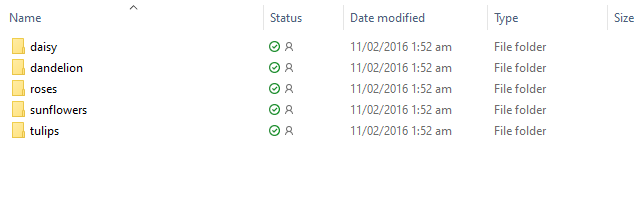
The Dataset we’re going to use here is a dataset of 5 different flowers, namely rose, tulips, sunflower, daisy, and dandelion. I avoided the usual cats and dogs dataset.
You can download the dataset from a URL, you just have to run this cell
After extracting you can check the folder named flower_photos in your current directory which will contain these 5 subfolders.
You can check the number of images in each class using the code below.
# This is the directory path where all the class folders are
dir_path =  'flower_photos'

# Initialize classes list, this list will contain the names of our classes.
classes = []

# Iterate over the names of each class
for class_name in os.listdir(dir_path):

   # Get the full path of each class
  class_path = os.path.join(dir_path, class_name)

  # Check if the class is a directory/folder
  if os.path.isdir(class_path):

      # Get the number of images in each class and print them
      No_of_images = len(os.listdir(class_path))
      print("Found {} images of {}".format(No_of_images , class_name))

      # Also store the name of each class
      classes.append(class_name)

# Sort the list in alphabatical order and print it
classes.sort()
print(classes)
Found 699 images of sunflowers Found 898 images of dandelion Found 633 images of daisy Found 799 images of tulips Found 641 images of roses [‘daisy’, ‘dandelion’, ‘roses’, ‘sunflowers’, ‘tulips’]
Generate Images:
Now it’s time to load up the data, now since the data is approx 218 MB, we can actually load it in RAM but most real datasets are large several GBs in size, and will fit in your RAM. In those scenarios, you use data generators to fetch batches of data and feed it to the neural network during training, so today we’ll also be using a data generator to load the data.
Before we can pass the images to a deep learning model, we need to do some preprocessing, like resizing the image in the required shape, converting them to floating-point tensors, rescale the pixel values from 0-255 to 0-1 range as this helps in training.
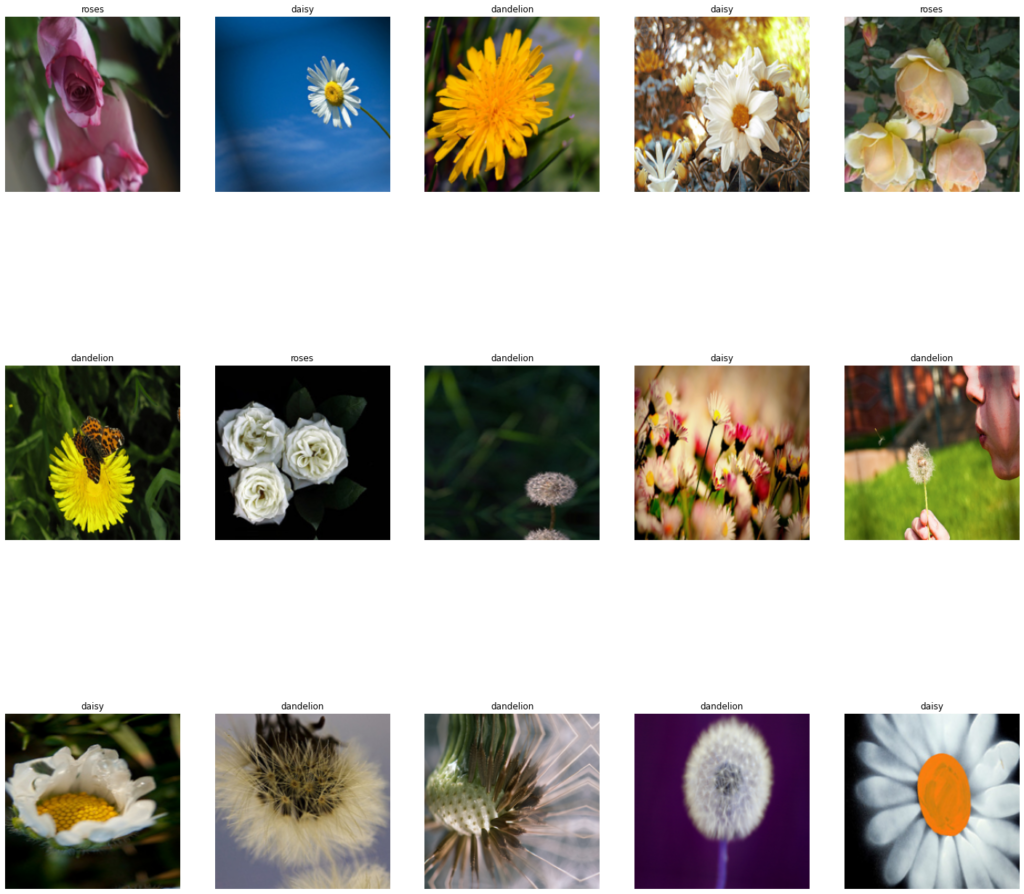
Fortunately, all of this can be done by the ImageDataGenerator class in tf.keras. Not only that but the ImageDataGenerator Class can also perform data augmentation. Data augmentation means that the generator takes your image and performs random transformations like randomly rotating, zooming, translating, and performing other such operations to the image. This is really effective when you don’t have much data as this increases your dataset size on the fly and your dataset contains more variation which helps in generalization.
As you’ve already seen that each flower class has less than 1000 examples, so in our case data augmentation will help a lot. It will expand our dataset.
When training a Neural Network, we normally use 2 datasets, a training dataset, and a validation dataset. The neural network tunes its parameters using the training dataset and the validation dataset is used for the evaluation of the Network’s performance.
# Set the batch size, width, height and the percentage of the validation split.
batch_size = 60
IMG_HEIGHT = 224
IMG_WIDTH = 224
split = 0.2


#  Setup the ImagedataGenerator for training, pass in any supported augmentation schemes, notice that we're also splitting the data with split argument.
datagen_train = tf.keras.preprocessing.image.ImageDataGenerator(
    rescale=1./255,
    validation_split= split,
    rotation_range=20,
    width_shift_range=0.1,
    height_shift_range=0.1,
    shear_range=0.2,
    zoom_range=0.2,
    horizontal_flip=True,
    vertical_flip=True,
    fill_mode='reflect')

# Setup the ImagedataGenerator for validation, no augmentation is done, only rescaling is done, notice that we're also splitting the data with split argument.
datagen_val = tf.keras.preprocessing.image.ImageDataGenerator(
    rescale=1./255,
    validation_split=split)


# Data Generation for Training with a constant seed valued 40, notice that we are specifying the subset as 'training'
train_data_generator = datagen_train.flow_from_directory(batch_size=batch_size,
                                                           directory=dir_path,
                                                           shuffle=True,
                                                           seed = 40,
                                                           subset= 'training',
                                                           interpolation = 'bicubic',
                                                           target_size=(IMG_HEIGHT, IMG_WIDTH))

# Data Generator for validation images with the same seed to make sure there is no data overlap, notice that we are specifying the subset as 'validation'
vald_data_generator = datagen_val.flow_from_directory(batch_size=batch_size,
                                                           directory=dir_path,
                                                           shuffle=True,
                                                           seed = 40,
                                                           subset = 'validation',
                                                           interpolation = 'bicubic',
                                                           target_size=(IMG_HEIGHT, IMG_WIDTH))

# The "subset" variable tells the Imagedatagerator class which generator gets 80% and which gets 20% of the data
Found 2939 images belonging to 5 classes. Found 731 images belonging to 5 classes.
Note: Usually when using an ImageDataGenerator to read from a directory with data augmentation we usually have two folders for each class because data augmentation is done only to the training dataset, not the validation set as this set is only used for evaluation. So I’ve actually created two data generators instances for the same directory with a validation split of 20% and used a constant random seed on both generators so there is no data overlap.
I’ve rarely seen people split with augmentation this way but this approach actually works and saves us the time of splitting data between two directories.
Visualize Images:
It’s always a good idea to see what images look like in your dataset, so here’s a function that will plot new images from the dataset each time you run it.
# Here we are creating a function for displaying images of flowers from the data generators

def display_images(data_generator, no = 15):
    sample_training_images, labels = next(data_generator)

    plt.figure(figsize=[25,25])

    # By default we're displaying 15 images, you can show more examples
    total_samples = sample_training_images[:no]

    cols = 5
    rows  =   np.floor( len(total_samples) / cols )

    for i, img in enumerate(total_samples, 1):

            plt.subplot(rows, cols, i );plt.imshow(img);

            # Converting One hot encoding labels to string labels and displaying it.
            class_name = classes[np.argmax(labels[i-1])]
            plt.title(class_name);plt.axis('off');
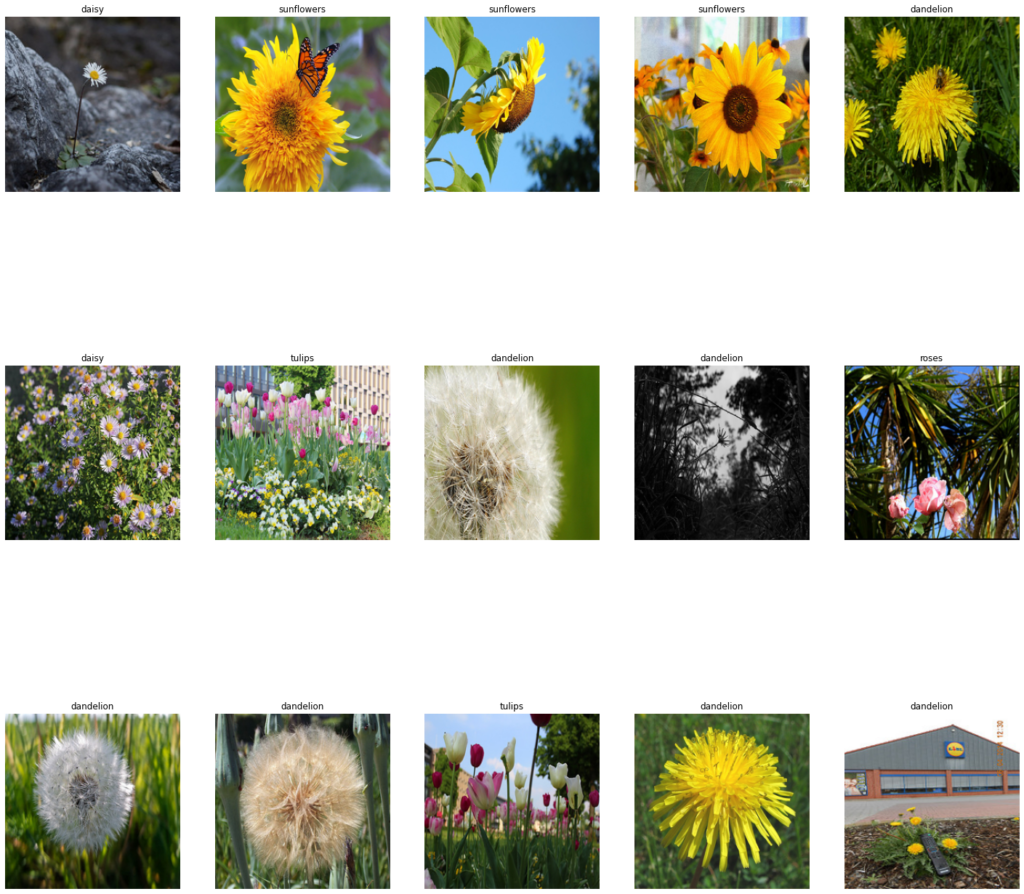
Alright, now we’ll use the above function to first display a few of the original images using the validation generator.
# Display Original Images
display_images(vald_data_generator)
Now we will generate some Augmented images using the trained generator. Notice how images are rotated, zoomed, etc.
Since we’re using Tensorflow 2 (TF2) and in TF2the most popular way to go about creating neural networks is by using the Keras API. Previously Keras used to be a separate framework (it still is) but not so long ago because of Keras’ popularity in the community it was included in TensorFlow as the default high-level API. This abstraction allows developers to use TensorFlow’s low-level functionality with high-level Keras code.
This way you can design powerful neural networks in just a few lines of code. E.g. take a look at how we have created effective Convolutional Networks.
# First Reset the generators, since we used the first batch to display the images.
vald_data_generator.reset()
train_data_generator.reset()

# Here we are creating Sequential model also defing its layers
model = Sequential([
      Conv2D(16, 3, padding='same', activation='relu', input_shape=(IMG_HEIGHT, IMG_WIDTH ,3)),
      MaxPooling2D(),
      Dropout(0.10),

      Conv2D(32, 3, padding='same', activation='relu'),
      MaxPooling2D(),

      Conv2D(64, 3, padding='same', activation='relu'),
      MaxPooling2D(),

      Conv2D(128, 3, padding='same', activation='relu'),
      MaxPooling2D(),

      Conv2D(256, 3, padding='same', activation='relu'),
      MaxPooling2D(),

      GlobalAveragePooling2D(),
      Dense(1024, activation='relu'),
      Dropout(0.10),
      Dense(len(classes), activation ='softmax')
  ])
A typical neural network has a bunch of layers, in a Convolutional network, you’ll see convolutional layers. These layers are created with the Conv2d function. Take a look at the first layer:
The number `16` refers to the number of filters in that layer, normally we increase the number of filters as you add more layers. You should notice that I double the number of filters in each subsequent convolutional layer i.e. 16, 32, 64 …, this is common practice. In the first layer, you also specify a fixed input shape that the model will accept, which we have already set as 200x200
Another thing you’ll see is that typically a convolutional layer is followed by a pooling layer. So the Conv layer outputs a number offeature maps and the pooling layer reduces the spatial size (width and height) of these feature maps which effectively reduces the number of parameters in the network thus reducing computation.
So you’ll commonly have a convolutional layer followed by a pooling layer, this is normally repeated several times, at each stage the size is reduced and the no of filters is increased. We are using a MaxPooling layer there are other pooling types too e.g. AveragePooling.
The Dropout layer randomly drops x% percentage of parameters from the network, this allows the network to learn robust features. In the network above I’m using dropout twice and so in those stages I’m dropping 10% of the parameters. The whole purpose of the Dropout layer is to reduce overfitting.
Now before we add the final layer we need to flatten the output in a single-dimensional vector, this can be done by the flatten layer but a better method is using the GlobalAveragePooling2D Layer, which flattens the output while reducing the parameters.
Finally, before our last layer, we also use a Dense layer (A fully connected layer) with 1024 units. The final layer contains the number of units equal to the number of classes. The activation function here is softmax as I want the network to produce class probabilities at the end.
Compile the model
Before we can start training the network we need to compile it, this is the step where we define our loss function, optimizer, and metrics.
For this example, we are using the ADAM optimizer and a categorical cross-entropy loss function as we’re dealing with a multi-class classification problem. The only metric we care about right now is the accuracy of the model.
# Compile the model
model.compile(optimizer=Adam(learning_rate=0.001), loss='categorical_crossentropy', metrics=['accuracy'])
Model summary
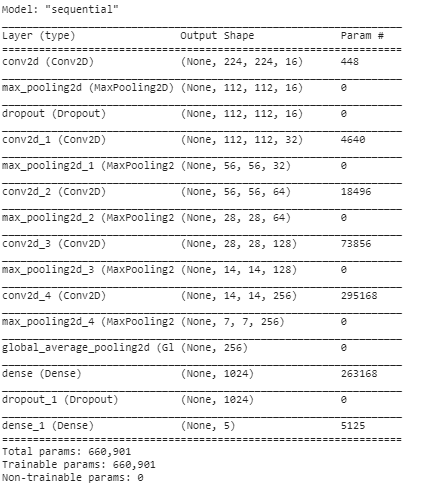
By using the built-in method called summary() we can see the whole architecture of the model that we just created. You can see the total parameter count and the number of params in each layer.
model.summary()
Notice how the number of params is `0` in all layers except the Conv and Dense layers, this is because these are the only two types of layers here which are actually involved in learning.
Training the Model:
You can start training the model using the model.fit() method but first, specify the number of epochs, and the steps per epoch.
Epoch: A single epoch means 1 pass of the whole data meaning an epoch is considered done when the model goes over all the images in the training data and uses it for gradient calculation and optimizations. So this number decides how many times the model will go over your whole data.
Steps per epoch: A single step means the model goes over a single batch of the data, so steps per epoch tells, after how many steps should an epoch be considered done. This should be set to `dataset_size / batch_size` which is the number of steps required to go over the whole data once.
Let’s train our model for `60` epochs.
# Define the epoch number
epochs = 60

# Start Training
history = model.fit( train_data_generator,  steps_per_epoch= train_data_generator.samples // batch_size, epochs=epochs, validation_data= vald_data_generator,
    validation_steps = vald_data_generator.samples // batch_size )

# Use model.fit_generator() if using TF version < 2.2
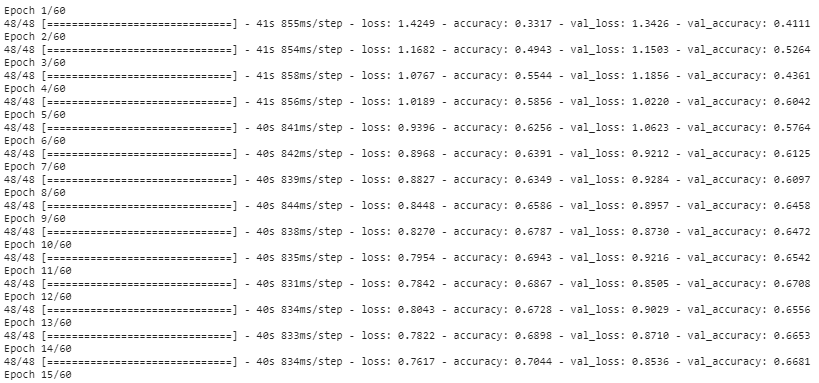
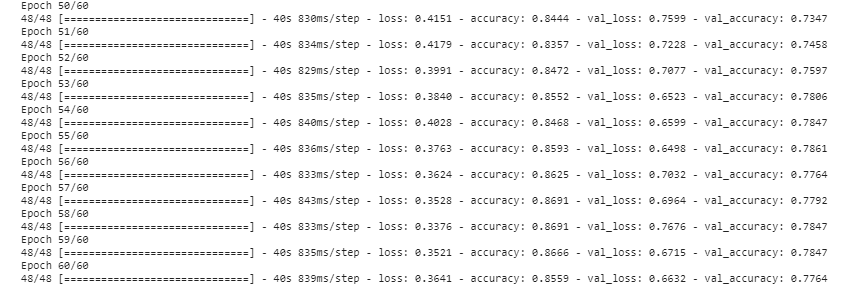
………………………………….. …………………………………..
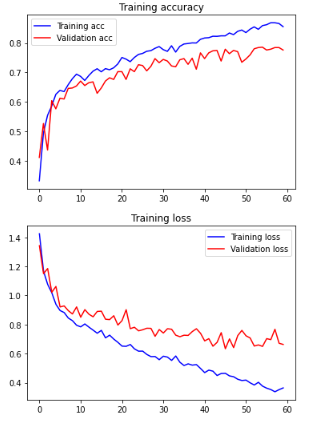
You can see in the last epoch that our validation loss is low and accuracy is high so our model has successfully converged, we can further verify this by plotting the loss and accuracy graphs.
After you’re done training it’s a good practice to plot accuracy and loss graphs.
# Plot the accuracy and loss curves for both training and validation

acc = history.history['accuracy']
val_acc = history.history['val_accuracy']
loss = history.history['loss']
val_loss = history.history['val_loss']

epochs = range(len(acc))

plt.plot(epochs, acc, 'b', label='Training acc')
plt.plot(epochs, val_acc, 'r', label='Validation acc')
plt.title('Training accuracy')
plt.legend()

plt.figure()

plt.plot(epochs, loss, 'b', label='Training loss')
plt.plot(epochs, val_loss, 'r', label='Validation loss')
plt.title('Training loss')
plt.legend()

plt.show()
The model has slightly overfitted at the end but that is okay considering the number of images we used and our model’s capacity.
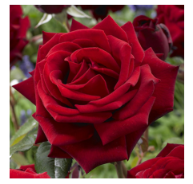
You can test out the trained model on a single test image using this code. Make sure to carry out the same preprocessing steps you used before training for e.g. since we trained on normalized images in range 0-1, we will need to divide any new image with 255 before passing it to the model for prediction.
# Read the rose image
img = cv2.imread('rose.jpg')

# Resize the image to the size you trained on.
imgr= cv2.resize(img,(224,224))

# Convert image BGR TO RGB, since OpenCV works with BGR and tensorflow in RGB.
imgrgb = cv2.cvtColor(imgr, cv2.COLOR_BGR2RGB)

# Normalize the image to be in range 0-1 and then convert to a float array.
final_format = np.array([imgrgb]).astype('float64') / 255.0

# Perform the prediction
pred = model.predict(final_format)

# Get the index of top prediction
index = np.argmax(pred[0])

# Get the max probablity for that prediction
prob = np.max(pred[0])

# Get the name of the predicted class using the index
label = classes[index]

# Display the image and print the predicted class name with its confidence.
print("Predicted Flowers is : {} {:.2f}%".format(label, prob*100))
plt.imshow(img[:,:,::-1]);plt.axis("off");
Predicted Flowers is : roses, 85.61%
Notice that we are converting our model from BGR to RGB color format. This is because TensorFlow has trained the model using images in RGB format whereas OpenCV reads images in BGR format, so we have to reverse channels before we can perform prediction.
Finally, when you’re satisfied with the model you save it in .h5 format using the model.save function.
# Saving your model to disk allows you to use it later
model.save('flowers.h5')

# Later on you can load your model this way
#model = load_model('Model/flowers.h5')
Part 2: Converting Our Classifier to ONNX format
Now that we have trained our model, it’s time to convert it to ONNX format.
What is ONNX?
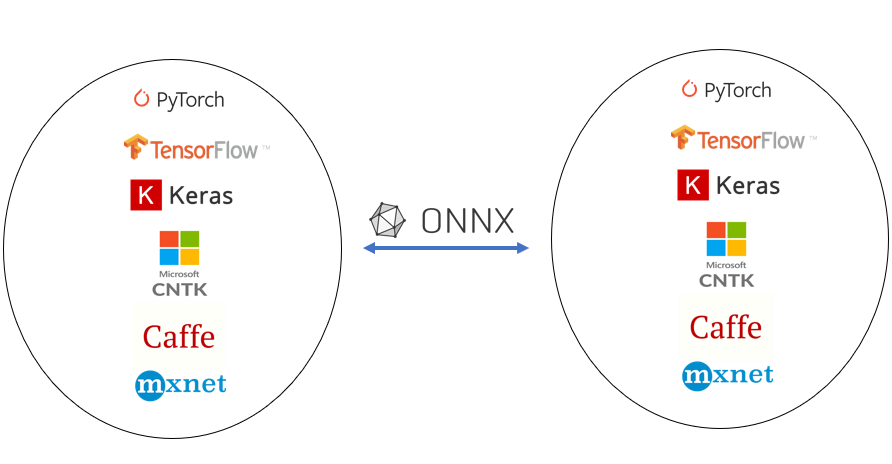
ONNX stands for Open neural network exchange. ONNX is an industry-standard format for changing model frameworks, this means you can train a model in PyTorch or any other common frameworks and then convert to onnx and then convert back to TensorFlow or any other framework.
So ONNX allows developers to move models between different frameworks such as CNTK, Caffe2, Tensorflow, PyTorch, etc.
So why are we converting to ONNX?
Remember our goal is to use the above custom trained model in the DNN module but the issue is the DNN module does not support using the .h5 Keras model directly. So we have to convert our .h5 model to a .onnx model after doing this we will be able to take the onnx model and plug it into the DNN module.
Note: Even if you saved the model in saved_model format then you still can’t use it directly
You need to use keras2onnx module to perform the conversion so you should go ahead and install the keras2onnx module.
pip install keras2onnx
You also need to install onnx so that you can save .onnx models to disk.
pip install onnx
After installing keras2onnx, you can use its convert_keras function to convert the model, we will also serialize the model to disk using keras2onnx.save_model so we can use it later.
# Import keras2onnx and onnx
import onnx
import keras2onnx

# Load the keras model
model = load_model('flowers.h5')

# Convert it into onnx
onnx_model = keras2onnx.convert_keras(model, model.name)

# Save the model as flower.onnx
onnx.save_model(onnx_model, 'flowers_model.onnx')
tf executing eager_mode: True tf.keras model eager_mode: False The ONNX operator number change on the optimization: 57 -> 25
Now we’re ready to use this model in the DNN module. Check how your ~7.5 MB .h5 model now has reduced to ~2.5 MB .onnx model, a 3x reduction in size. Make sure to check out keras2onnx repo for more details.
Note: You can even use this model with just ONNX using onnxruntimemodule which itself is pretty powerful considering the support of multiple hardware accelerations.
Using the ONNX model in the OpenCV DNN module:
Now we will take this ONNX model and use it directly in our DNN module.
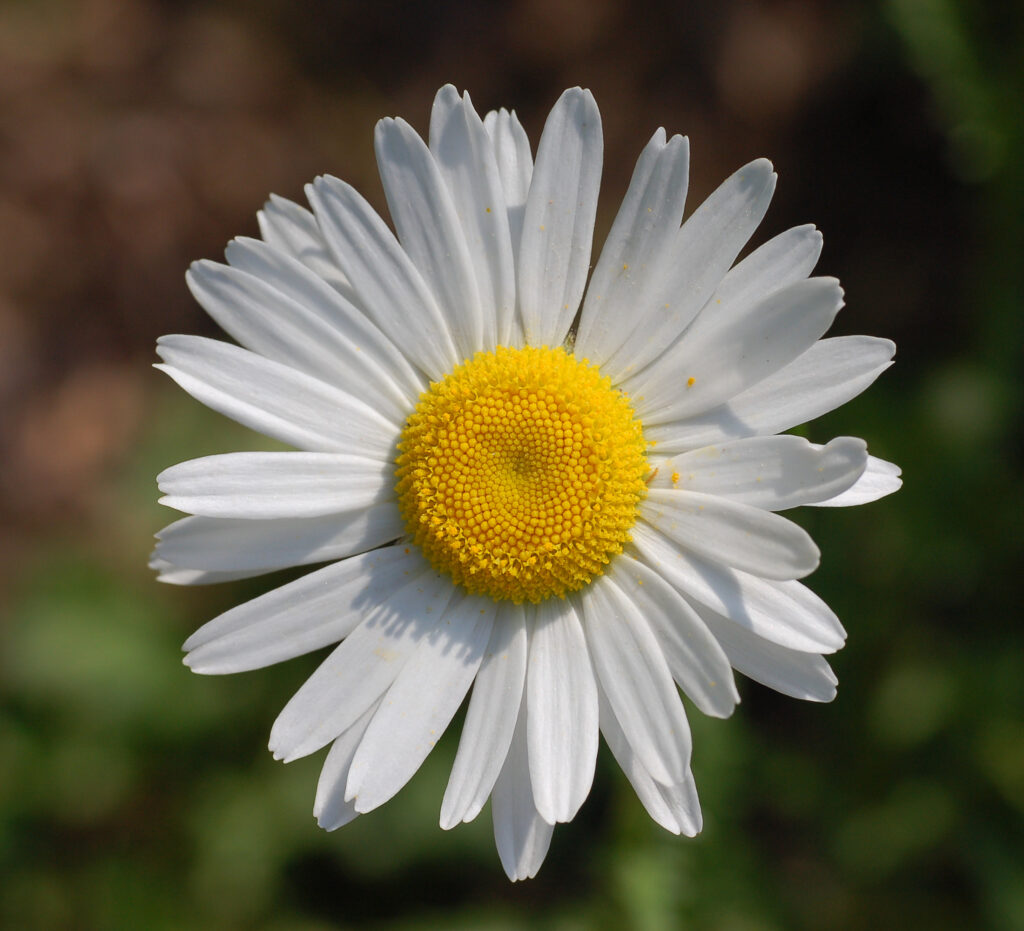
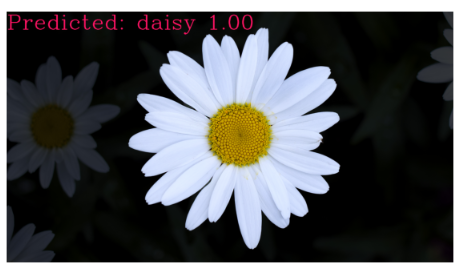
Let’s use this as a test image.
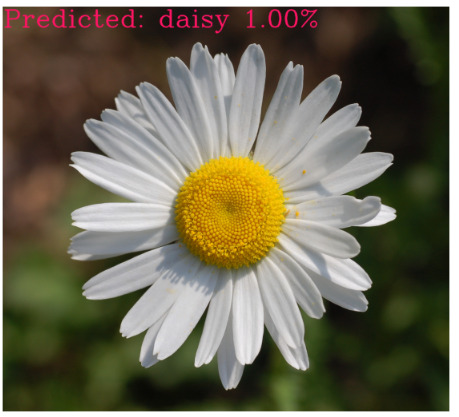
Here’s the code to test the ONNX model on the image.
# Make sure your version is 4.0.0
import cv2
import numpy as np

# Define class names and sort them alphabatically as this is how tf.keras remembers them
label_names = ['daisy','dandelion','roses','sunflowers','tulips']
label_names.sort()

# Read the ONNX model
net = cv2.dnn.readNetFromONNX('flowers_model.onnx')

# Read the image
img_original = cv2.imread('daisy.jpg')

img = img_original.copy()
# Resize Image
img = cv2.resize(img_original,(224,224))

# Convert BGR TO RGB
img = cv2.cvtColor(img, cv2.COLOR_BGR2RGB)

# Normalize the image and format it
img = np.array([img]).astype('float64') / 255.0

# Input Image to the network
net.setInput(img)

# Perform a Forward pass
Out = net.forward()

# Get the top predicted index
index = np.argmax(Out[0])

# Get the probability of the class.
prob = np.max(Out[0])

# Get the class name by putting index number
label =  label_names[index]
text = "Predicted: {} {:.2f}%".format(label, prob)

# Write predicted flower on image
cv2.putText(img_original, text, (5, 4*26),  cv2.FONT_HERSHEY_COMPLEX, 4, (100, 20, 255), 6)

# Display image
plt.figure(figsize=(10,10))
plt.imshow(img_original[:,:,::-1]);
plt.axis("off");
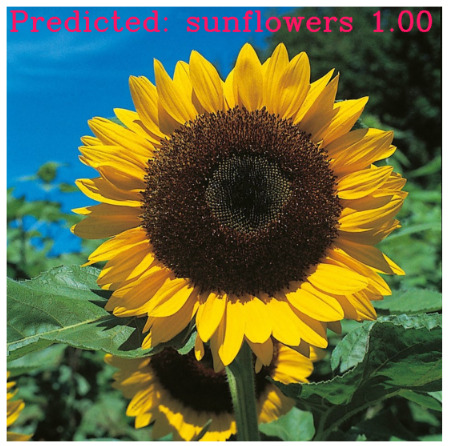
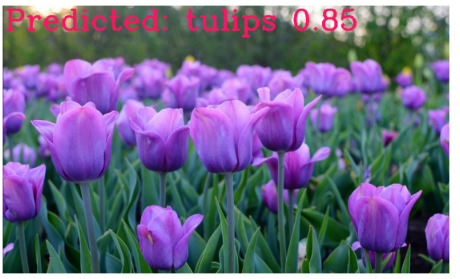
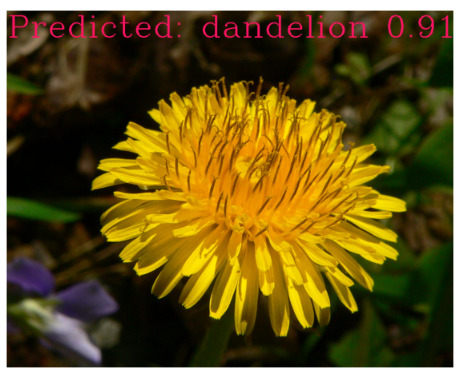
Here’s the result of a few images which I took from google, I’m using my custom function classify_flower() to classify these images. You can find this function’s code inside the downloaded Notebook.
# Initialize the Network
init_classify()

# Classify on image
img = cv2.imread("Images/sunflower.jpg");
classify_flower(img,size=8);
If you want to learn about doing image classification using the DNN module in detail then make to read the previous post, Deep learning with OpenCV DNN module. Where I have explained each step in detail.
Summary:
In today’s post we first learned how to train an image classifier with tf.keras, after that we learned how to convert our trained .h5 model to .onnx model.
Finally, we learned to use this onnx model using OpenCV’s DNN module.
Although the model we converted today was quite basic but this same pipeline can be used for converting complex models too.
A word of Caution: I personally have faced some issues while converting some types of models so the whole process is not foolproof yet but it’s still pretty good. Make sure to look at keras2onnx repo and this excellent repo of ONNX conversion tutorials.
You can reach out to me personally for a 1 on 1 consultation session in AI/computer vision regarding your project. Our talented team of vision engineers will help you every step of the way. Get on a call with me directlyhere.
Ready to seriously dive into State of the Art AI & Computer Vision? Then Sign up for these premium Courses by Bleed AI
You can reach out to me personally for a 1 on 1 consultation session in AI/computer vision regarding your project. Our talented team of vision engineers will help you every step of the way. Get on a call with me directlyhere.
In the previous post of this series, we introduced you to contour detection, a popular computer vision technique that you must have in your bag of tricks when dealing with computer vision problems. We discussed how we can detect contours for an object in an image, the pre-processing steps involved to prepare the image for contour detection, and we also went over many of the useful retrieval modes that you can use when detecting contours.
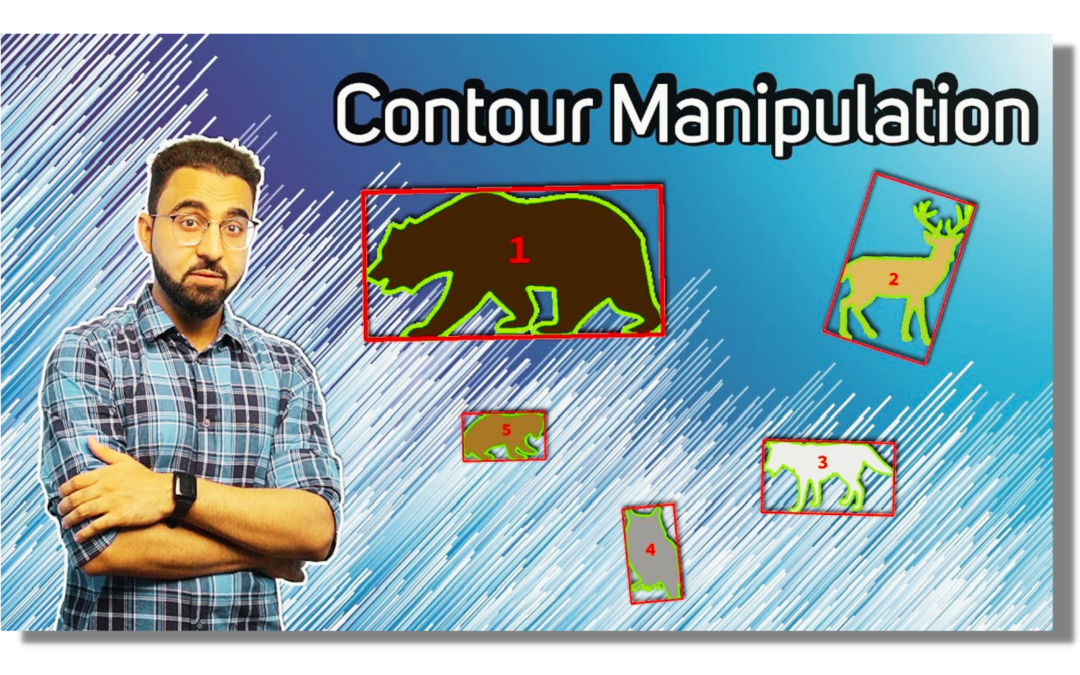
But detecting and drawing contours alone won’t cut it if you want to build powerful computer vision applications. Once detected, the contours need to be processed to make them useful for building cool applications such as the one below.
This is why in this second part of the series we will learn how we can perform different contour manipulations to extract useful information from the detected contours. Using this information you can build application such as the one above and many others, once you learn about how to effectively use and manipulate contours, in fact, I have an entire course that will help you master contours for building computer vision applications.
This post will be the second part of our new Contour Detection 101 series. All 4 posts in the series are titled as:
So if you haven’t seen the previous post and you are new to contour detection make sure you do check it out.
In part two of the series, the contour manipulation techniques we are going to learn will enable us to perform some important tasks such as extracting the largest contour in an image, sorting contours in terms of size, extracting bounding box regions of a targeted contour, etc. These techniques also form the building blocks for building robust classical vision applications.
So without further Ado, let’s get started.
[optin-monster slug=”sidmzfsvlmvh8o3kc5c1″]
Import the Libraries
Let’s start by importing the required libraries.
import cv2
import numpy as np
import matplotlib.pyplot as plt
Read an Image
# Read the image
image1 = cv2.imread('media/image.png')

# Display the image
plt.figure(figsize=[10,10])
plt.imshow(image1[:,:,::-1]);plt.title("Original Image");plt.axis("off");
Detect and draw Contours
Next, we will detect and draw contours on the image as before using the cv2.findContours()andcv2.drawContours()functions.
# Make a copy of the original image so it is not overwritten
image1_copy = image1.copy()

# Convert to grayscale.
image_gray = cv2.cvtColor(image1_copy,cv2.COLOR_BGR2GRAY)

# Find all contours in the image.
contours, hierarchy = cv2.findContours(image_gray, cv2.RETR_CCOMP, cv2.CHAIN_APPROX_NONE)

# Draw the selected contour
cv2.drawContours(image1_copy, contours, -1, (0,255,0), 3);

# Display the result
plt.figure(figsize=[10,10])
plt.imshow(image1_copy[:,:,::-1]);plt.axis("off");plt.title('Contours Drawn');
Extracting the Largest Contour in the image
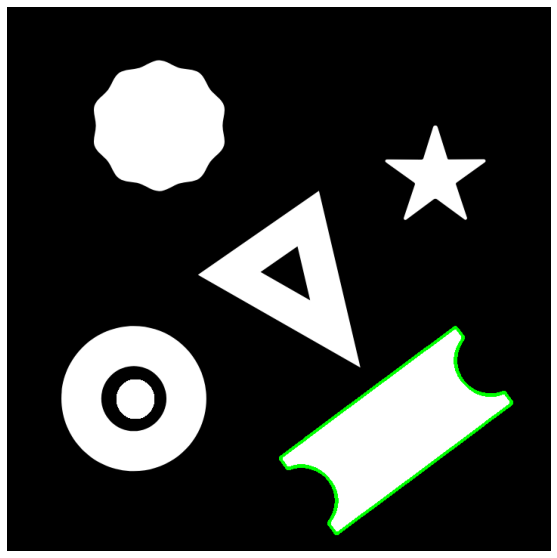
When building vision applications using contours, often we are interested in retrieving the contour of the largest object in the image and discard others as noise. This can be done using the built-in python’s max() function with the contours list. The max() function takes in as input the contours list along with a key parameter which refers to the single argument function used to customize the sort order. The function is applied to each item on the iterable. So for retrieving the largest contour we use the key cv2.contourArea which is a function that returns the area of a contour. It is applied to each contour in the list and then the max() function returns the largest contour based on its area.
image1_copy = image1.copy()

# Convert to grayscale
gray_image = cv2.cvtColor(image1_copy,cv2.COLOR_BGR2GRAY)

# Find all contours in the image.
contours, hierarchy = cv2.findContours(gray_image, cv2.RETR_LIST, cv2.CHAIN_APPROX_NONE)

# Retreive the biggest contour
biggest_contour = max(contours, key = cv2.contourArea)

# Draw the biggest contour
cv2.drawContours(image1_copy, biggest_contour, -1, (0,255,0), 4);

# Display the results
plt.figure(figsize=[10,10])
plt.imshow(image1_copy[:,:,::-1]);plt.axis("off");
Sorting Contours in terms of size
Extracting the largest contour worked out well, but sometimes we are interested in more than one contour from a sorted list of contours. In such cases, another built-in python function sorted() can be used instead. sorted() function also takes in the optional key parameter which we use as before for returning the area of each contour. Then the contours are sorted based on area and the resultant list is returned. We also specify the order of sort reverse = True i.e in descending order of area size.
image1_copy = image1.copy()

# Convert to grayscale.
imageGray = cv2.cvtColor(image1_copy,cv2.COLOR_BGR2GRAY)

# Find all contours in the image.
contours, hierarchy = cv2.findContours(imageGray, cv2.RETR_CCOMP, cv2.CHAIN_APPROX_NONE)

# Sort the contours in decreasing order
sorted_contours = sorted(contours, key=cv2.contourArea, reverse= True)

# Draw largest 3 contours
for i, cont in enumerate(sorted_contours[:3],1):

    # Draw the contour
    cv2.drawContours(image1_copy, cont, -1, (0,255,0), 3)

    # Display the position of contour in sorted list
    cv2.putText(image1_copy, str(i), (cont[0,0,0], cont[0,0,1]-10), cv2.FONT_HERSHEY_SIMPLEX, 1.4, (0, 255, 0),4)


# Display the result
plt.figure(figsize=[10,10])
plt.imshow(image1_copy[:,:,::-1]);plt.axis("off");
Drawing a rectangle around the contour
Bounding rectangles are often used to highlight the regions of interest in the image. If this region of interest is a detected contour of a shape in the image, we can enclose it within a rectangle. There are two types of bounding rectangles that you may draw:
Straight Bounding Rectangle
Rotated Rectangle
For both types of bounding rectangles, their vertices are calculated using the coordinates in the contour list.
Straight Bounding Rectangle
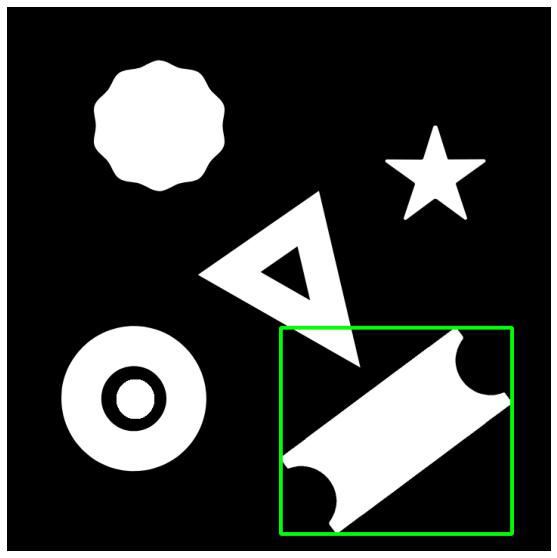
A straight bounding rectangle is simply an upright rectangle that does not take into account the rotation of the object. Its vertices can be calculated using the cv2.boundingRect() function which calculates the vertices for the minimal up-right rectangle possible using the extreme coordinates in the contour list. The coordinates can then be drawn as rectangle using cv2.rectangle() function.
array – It is the Input gray-scale image or 2D point set from which the bounding rectangle is to be created
Returns:
x – It is X-coordinate of the top-left corner
y – It is Y-coordinate of the top-left corner
w – It is the width of the rectangle
h – It is the height of the rectangle
image1_copy = image1.copy()

# Convert to grayscale.
gray_scale = cv2.cvtColor(image1_copy,cv2.COLOR_BGR2GRAY)

# Find all contours in the image.
contours, hierarchy = cv2.findContours(gray_scale, cv2.RETR_CCOMP, cv2.CHAIN_APPROX_NONE)

# Get the bounding rectangle
x, y, w, h = cv2.boundingRect(contours[1])

# Draw the rectangle around the object.
cv2.rectangle(image1_copy, (x, y), (x+w, y+h), (0, 255, 0), 3)

# Display the result
plt.figure(figsize=[10,10])
plt.imshow(image1_copy[:,:,::-1]);plt.axis("off");
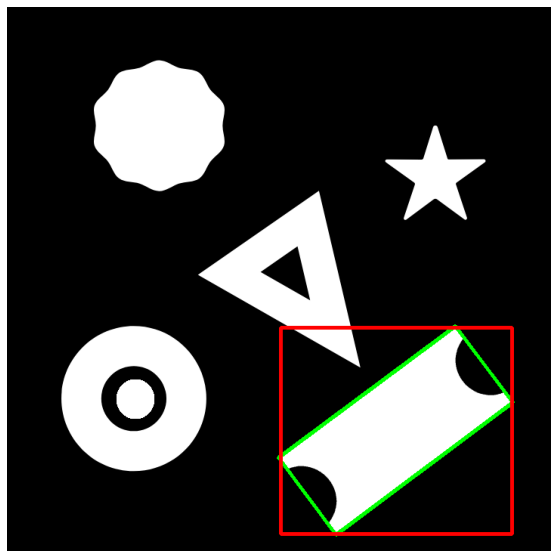
However, the bounding rectangle created is not a minimum area bounding rectangle often causing it to overlap with any other objects in the image. But what if the rectangle is rotated so that the area can be minimized to tightly fit the shape.
Rotated Rectangle
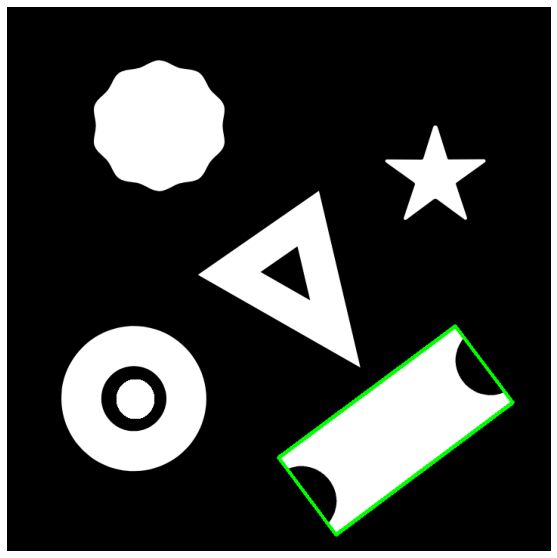
As the name suggests the rectangle drawn is rotated at an angle so that the area it occupies to enclose the contour is minimum. The function you can use to calculate the vertices of the rotated rectangle is cv2.minAreaRect(), which uses the contour point set to calculate the coordinates of the top left corner of the rectangle, its width, height, and the angle of rotation of the rectangle.
array – It is the Input gray-scale image or 2D point set from which the bounding rectangle is to be created
Returns:
retval – A tuple consisting of:
x,y coordinates of the top-left vertex
width, height of the rectangle
angle of rotation of the rectangle
Since the cv2.rectangle() function can only draw up-right rectangles we cannot use it to draw the rotated rectangle. Instead, we can calculate the 4 vertices of the rectangle using the cv2.boxPoints() function which takes the rect tuple as input. Once we have the vertices, the rectangle can be simply drawn using the cv2.drawContours() function.
image1_copy = image1.copy()
# Convert to grayscale
gray_scale = cv2.cvtColor(image1_copy,cv2.COLOR_BGR2GRAY)
# Find all contours in the image
contours, hierarchy = cv2.findContours(gray_scale, cv2.RETR_CCOMP, cv2.CHAIN_APPROX_NONE)
# calculate the minimum area Bounding rect
rect = cv2.minAreaRect(contours[1])
# Check out the rect object
print(rect)
# convert the rect object to box points
box = cv2.boxPoints(rect).astype('int')
# Draw a rectangle around the object
cv2.drawContours(image1_copy,
This is the minimum area bounding rectangle possible. Let’s see how it compares to the straight bounding box.
# Draw the up-right rectangle
cv2.rectangle(image1_copy, (x, y), (x+w, y+h), (0,0, 255), 3)

# Display the result
plt.figure(figsize=[10,10])
plt.imshow(image1_copy[:,:,::-1]);plt.axis("off");
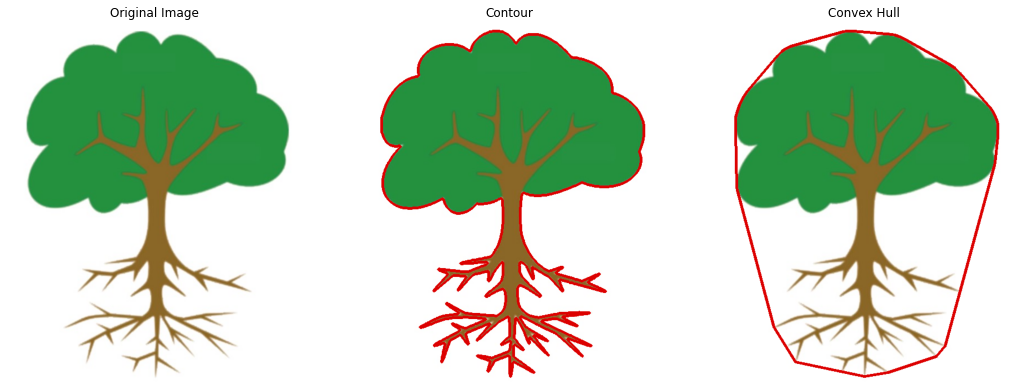
Drawing Convex Hull
A convex hull is another useful way to represent the contour onto the image. The function cv2.convexHull() checks a curve for convexity defects and corrects it. Convex curves are curves that are bulged out. And if it is bulged inside (Concave), it is called convexity defects.
Finding the convex hull of a contour can be very useful when working with shape matching techniques. This is because the convex hull of a contour highlights its prominent features while discarding smaller variations in the shape.
points – Input 2D point set. This is a single contour.
clockwise – Orientation flag. If it is true, the output convex hull is oriented clockwise. Otherwise, it is oriented counter-clockwise. The assumed coordinate system has its X axis pointing to the right, and its Y axis pointing upwards.
returnPoints – Operation flag. In case of a matrix, when the flag is true, the function returns convex hull points. Otherwise, it returns indices of the convex hull points. By default it is True.
Returns:
hull – Output convex hull. It is either an integer vector of indices or vector of points. In the first case, the hull elements are 0-based indices of the convex hull points in the original array (since the set of convex hull points is a subset of the original point set). In the second case, hull elements are the convex hull points themselves.
image2 = cv2.imread('media/tree.jpg')

hull_img = image2.copy()
contour_img = image2.copy()

# Convert the image to gray-scale
gray = cv2.cvtColor(image2, cv2.COLOR_BGR2GRAY)

# Create a binary thresholded image
_, binary = cv2.threshold(gray, 230, 255, cv2.THRESH_BINARY_INV)

# Find the contours from the thresholded image
contours, hierarchy = cv2.findContours(binary, cv2.RETR_EXTERNAL, cv2.CHAIN_APPROX_SIMPLE)

# Since the image only has one contour, grab the first contour
cnt = contours[0]

# Get the required hull
hull = cv2.convexHull(cnt)

# draw the hull
cv2.drawContours(hull_img, [hull], 0 , (0,0,220), 3)

# draw the contour
cv2.drawContours(contour_img, [cnt], 0, (0,0,220), 3)

plt.figure(figsize=[18,18])
plt.subplot(131);plt.imshow(image2[:,:,::-1]);plt.title("Original Image");plt.axis('off')
plt.subplot(132);plt.imshow(contour_img[:,:,::-1]);plt.title("Contour");plt.axis('off');
plt.subplot(133);plt.imshow(hull_img[:,:,::-1]);plt.title("Convex Hull");plt.axis('off');
[optin-monster slug=”d8wgq6fdm5mppdb5fi99″]
Summary
In today’s post, we familiarized ourselves with many of the contour manipulation techniques. These manipulations help make contour detection an even more useful tool applicable to a wider variety of problems
We saw how you can filter out contours based on their size using the built-in max() and sorted() functions, allowing you to extract the largest contour or a list of contours sorted by size.
Then we learned how you can highlight contour detections with bounding rectangles of two types, the straight bounding rectangle and the rotated one.
Lastly, we learned about convex hulls and how you can find them for detected contours. A very handy technique that can prove to be useful for object detection with shape matching.
This sums up the second post in the series. In the next post, we’re going to learn various analytical techniques to analyze contours in order to classify and distinguish between different Objects.
So if you found this lesson useful, let me know in the comments and you can also support me and the Bleed AI team on patreon here.
If you need 1 on 1 Coaching in AI/computer vision regarding your project, or your career then you reach out to mepersonally here
Hire Us
Let our team of expert engineers and managers build your next big project using Bleeding Edge AI Tools & Technologies
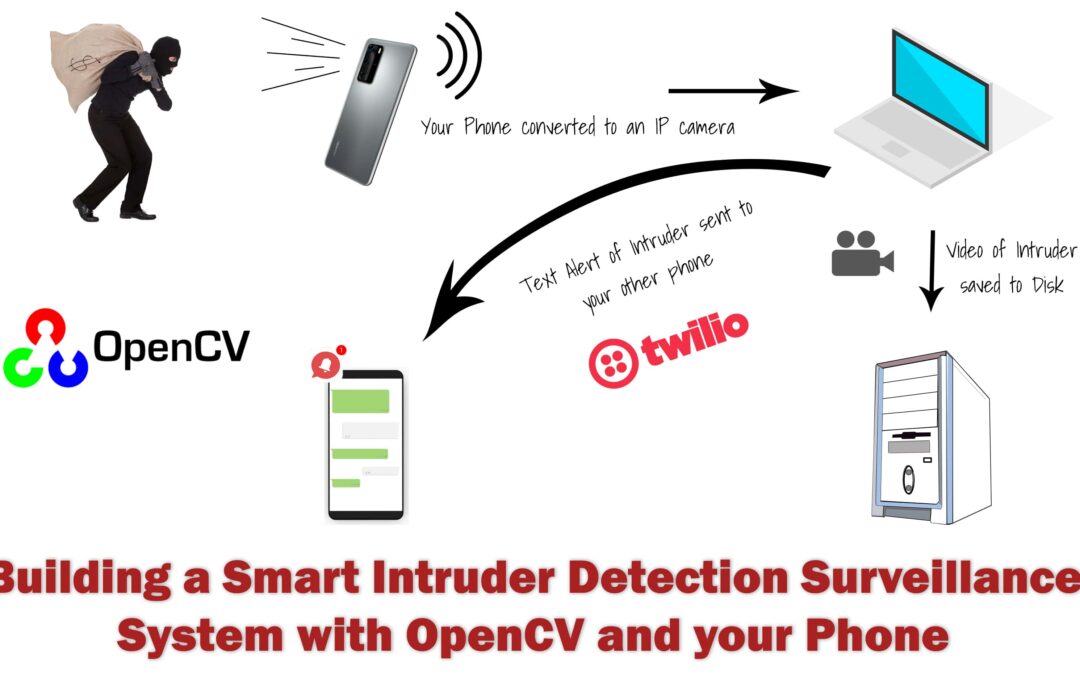
Did you know that you can actually stream a Live Video wirelessly from your phone’s camera to OpenCV’s cv2.VideoCapture() function in your PC and do all sorts of image processing on the spot like build an intruder detection system?
Cool huh?
In today’s post not only we will do just that but we will also build a robust Intruder Detection surveillance system on top of that, this will record video samples whenever someone enters your room and will also send you alert messages via Twilio API.
This post will serve as your building blocks for making a smart intruder detection system with computer vision. Although I’m making this tutorial for a home surveillance experiment, you can easily take this setup and swap the mobile camera with multiple IP Cams to create a much larger system.
Today’s tutorial can be split into 4 parts:
Accessing the Live stream from your phone to OpenCV.
Learning how to use the Twilio API to send Alert messages.
Building a Motion Detector with Background Subtraction and Contour detection.
Making the Final Application
You can watch the full application demo here
So most of the people have used the cv2.videocapture() function to read from a webcam or a video recording from a disk but only a few people know how easy it is to stream a video from a URL, in most cases this URL is from an IP camera.
By the way with cv2.VideoCapture() you can also read a sequence of images, so yeah a GIF can be read by this.
So let me list out all 4 ways to use VideoCapture() class depending upon what you pass inside the function.
1. Using Live camera feed: You pass in an integer number i.e. 0,1,2 etc e.g. cap = cv2.VideoCapture(0), now you will be able to use your webcam live stream. The number depends upon how many USB cams you attach and on which port.
2.Playing a saved Video on Disk: You pass in the path to the video file e.g. cap = cv2.VideoCapture(Path_To_video).
3. Live Streaming from URL using Ip camera or similar: You can stream from a URL e.g. cap = cv2.VideoCapture( protocol://host:port/video) Note: that each video stream or IP camera feed has its own URL scheme.
4.Read a sequence of Images: You can also read sequences of images, e.g. GIF.
Part 1: Accessing the Live stream from your phone to OpenCV For The Intruder Detection System:
For those of you who have an Android phone can go ahead and install this IP Camera application from playstore.
For people that want to try a different application or those of you who want to try on their iPhone I would say that although you can follow along with this tutorial by installing a similar IP camera application on your phones but one issue that you could face is that the URL Scheme for each application would be different so you would need to figure that out, some application makes it really simple like the one I’m showing you today.
You can also use the same code I’m sharing here to work with an actual IP Camera, again the only difference will be the URL scheme, different IP Cameras have different URL schemes. For our IP Camera, the URL Scheme is: protocol://host:port/video
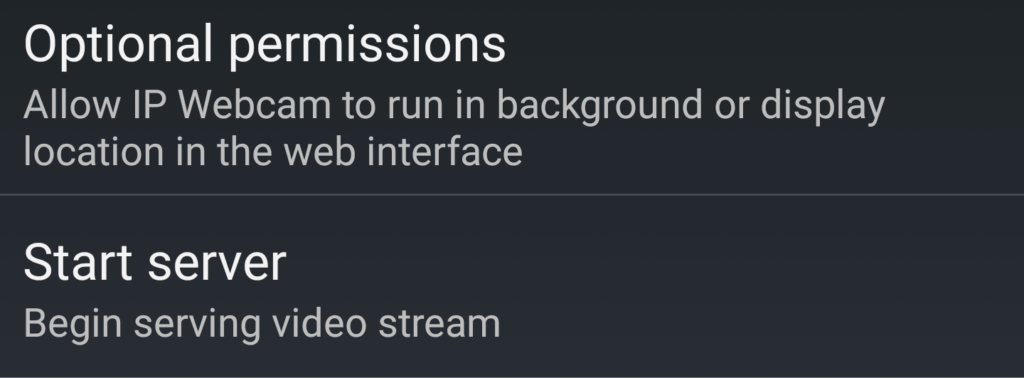
After installing the IP Camera application, open it and scroll all the way down and click start server.
After starting the server the application will start streaming the video to the highlighted URL:
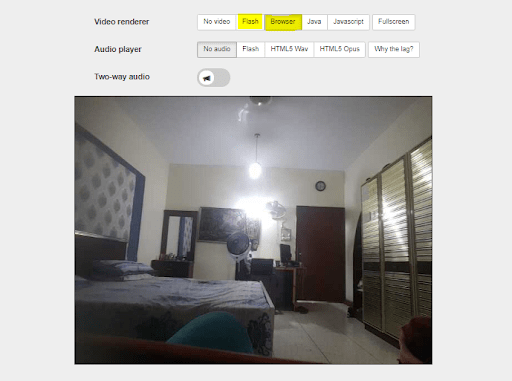
If you paste this URL in the browser of your computer then you would see this:
Note: Your computer and mobile must be connected to the same Network
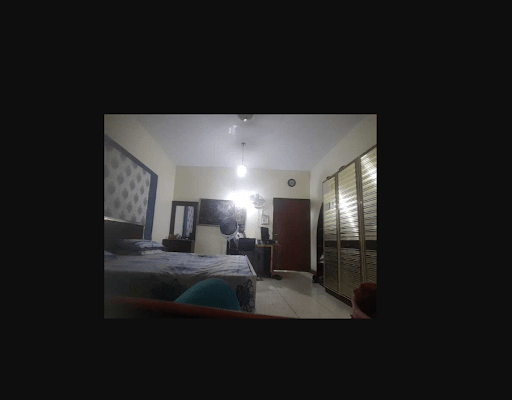
Click on the Browser or the Flash button and you’ll see a live stream of your video feed:
Below the live feed, you’ll see many options on how to stream your video, you can try changing these options and see effects take place in real-time.
Some important properties to focus on are the video Quality, FPS, and the resolution of the video. All these things determine the latency of the video. You can also change front/back cameras.
Try copying the image Address of the frame:
If you try pasting the address in a new tab then you will only see the video stream. So this is the address that will go inside the VideoCapture function.
So the URL scheme in our case is : protocol://host:port/video, where protocol is “http” , host is: “192.168.18.4” and port is: “8080”
All you have to do is paste the above address inside the VideoCapture function and you’re all set.
Download Code
[optin-monster slug=”yi4hfsyqpz8k693x41yc”]
Here’s the Full Code:
# Import the required libraries
import numpy as np
import cv2
import time
import datetime
from collections import deque
# Set Window normal so we can resize it
cv2.namedWindow('frame', cv2.WINDOW_NORMAL)

# Note the starting time
start_time = time.time()

# Initialize these variables for calculating FPS
fps = 0
frame_counter = 0

# Read the video steram from the camera
cap = cv2.VideoCapture('http://192.168.18.4:8080/video')

while(True):

    ret, frame = cap.read()
    if not ret:
        break

    # Calculate the Average FPS
    frame_counter += 1
    fps = (frame_counter / (time.time() - start_time))

    # Display the FPS
    cv2.putText(frame, 'FPS: {:.2f}'.format(fps), (20, 20), cv2.FONT_HERSHEY_SIMPLEX, 0.6, (0, 0, 255),1)

    # Show the Frame
    cv2.imshow('frame',frame)

    # Exit if q is pressed.
    if cv2.waitKey(1) == ord('q'):
        break

# Release Capture and destroy windows
cap.release()
cv2.destroyAllWindows()
As you can see I’m able to stream video from my phone.
Now there are some options you may want to consider, for e.g you may want to change the resolution, in my case I have set the resolution to be `640×480`. Since I’m not using the web interface so I have used the app to set these settings.
There are also other useful settings that you may want to do, like settings up a password and a username so your stream is protected. Setting up a password would, of course, change the URL to something like:
I’ve also enabled background mode so even when I’m out of the app or my phone screen is closed the camera is recording secretly, now this is super stealth mode.
Finally here are some other URL Schemes to read this IP Camera stream, with these URLs you can even load audio and images from the stream:
http://19412.168.3.:8080/video is the MJPEG URL.
http://192.168.43.1:8080/shot.jpg fetches the latest frame.
http://192.168.43.1:8080/audio.wav is the audio stream in Wav format.
http://192.168.43.1:8080/audio.aac is the audio stream in AAC format (if supported by hardware).
Part 2: Learning how to use the Twilio API to send Alert messages for the Intruder Detection System:
What is Twilio?
Twilio is an online service that allows us to programmatically make and receive phone calls, send and receive SMS, MMS and even Whatsapp messages, using its web APIs.
Today we’ll just be using it to send an SMS, you won’t need to purchase anything since you get some free credits after you have signed up here.
So go ahead and sign up, after signing up go to the console interface and grab these two keys and your trial Number:
ACCOUNT SID
AUTH TOKEN
After getting these keys you would need to insert them in the credentials.txt file provided in the source code folder. You can download the folder from above.
Make sure to replace the `INSERT_YOUR_ACCOUNT_SID` with your ACCOUNT SID and also replace`INSERT_YOUR_AUTH_TOKEN` with your`AUTH TOKEN.`
There are also two other things you need to insert in the text file, this is your trail Number given to by the Twilio API and your personal number where you will receive the messages.
So replace `PERSONAL_NUMBER` with your number and `TRIAL_NUMBER` with the Twilio number, make sure to include the country code for your personal number.
Note: in the trail account the personal number can’t be any random number but its verified number. After you have created the account you can add verified numbers here.
Now you’re ready to use the twilio api, you first have to install the API by doing:
pip install twilio
Now just run this code to send a message:
from twilio.rest import Client

# Read text from the credentials file and store in data variable
with open('credentials.txt', 'r') as myfile:
  data = myfile.read()

# Convert data variable into dictionary
info_dict = eval(data)

# Your Account SID from twilio.com/console
account_sid = info_dict['account_sid']

# Your Auth Token from twilio.com/console
auth_token  = info_dict['auth_token']

# Set client and send the message
client = Client(account_sid, auth_token)
message = client.messages.create( to =info_dict['your_num'], from_ = info_dict['trial_num'], body= "What's Up Man")
Check your phone you would have received a message. Later on we’ll properly fill up the body text.
Part 3: Building a Motion Detector with Background Subtraction and Contour detection:
Now in OpenCV, there are multiple ways to detect and track a moving object, but we’re going to go for a simple background subtraction method.
What are Background Subtraction methods?
Basically these kinds of methods separate the background from the foreground in a video so for e.g. if a person walks in an empty room then the background subtraction algorithm would know there’s disturbance by subtracting the previously stored image of the room (without the person ) and the current image (with the person).
So background subtraction can be used as effective motion detectors and even object counters like a people counter, how many people went in or out of a shop.
Now what I’ve described above is a very basic approach to background subtraction, In OpenCV, you would find a number of complex algorithms that use background subtraction to detect motion, In my Computer Vision & Image Processing Course I have talked about background subtraction in detail. I have taught how to construct your own custom background subtraction methods and how to use the built-in OpenCV ones. So make sure to check out the course if you want to study computer vision in depth.
For this tutorial, I will be using a Gaussian Mixture-based Background / Foreground Segmentation Algorithm. It is based on two papers by Z.Zivkovic, “Improved adaptive Gaussian mixture model for background subtraction” in 2004 and “Efficient Adaptive Density Estimation per Image Pixel for the Task of Background Subtraction” in 2006
Here’s the code to apply background subtraction:
# load a video
cap = cv2.VideoCapture('sample_video.mp4')

# Create the background subtractor object
foog = cv2.createBackgroundSubtractorMOG2( detectShadows = True, varThreshold = 50, history = 2800)

while(1):

    ret, frame = cap.read()
    if not ret:
        break

    # Apply the background object on each frame
    fgmask = foog.apply(frame)

    # Get rid of the shadows
    ret, fgmask = cv2.threshold(fgmask, 250, 255, cv2.THRESH_BINARY)

    # Show the background subtraction frame.
    cv2.imshow('All three',fgmask)
    k = cv2.waitKey(10)
    if k == 27:
        break

cap.release()
cv2.destroyAllWindows()
The `cv2.createBackgroundSubtractorMOG2()` takes in 3 arguments:
detectsSadows: Now this algorithm will also be able to detect shadows, if we pass in `detectShadows=True` argument in the constructor. The ability to detect and get rid of shadows will give us smooth and robust results. Enabling shadow detection slightly decreases speed.
history: This is the number of frames that is used to create the background model, increase this number if your target object often stops or pauses for a moment.
varThreshold: This threshold will help you filter out noise present in the frame, increase this number if there are lots of white spots in the frame. Although we will also use morphological operations like erosion to get rid of the noise.
Now after we have our background subtraction done then we can further refine the results by getting rid of the noise and enlarging our target object.
We can refine our results by using morphological operations like erosion and dilation. After we have cleaned our image then we can apply contour detection to detect those moving big white blobs (people) and then draw bounding boxes over those blobs.
If you don’t know about Morphological Operations or Contour Detection then you should go over this Computer Vision Crash course post, I published a few weeks back.
# initlize video capture object
cap = cv2.VideoCapture('sample_video.mp4')

# you can set custom kernel size if you want
kernel= None

# initilize background subtractor object
foog = cv2.createBackgroundSubtractorMOG2( detectShadows = True, varThreshold = 50, history = 2800)

# Noise filter threshold
thresh = 1100

while(1):
    ret, frame = cap.read()
    if not ret:
        break

    # Apply background subtraction
    fgmask = foog.apply(frame)

    # Get rid of the shadows
    ret, fgmask = cv2.threshold(fgmask, 250, 255, cv2.THRESH_BINARY)

    # Apply some morphological operations to make sure you have a good mask
  # fgmask = cv2.erode(fgmask,kernel,iterations = 1)
    fgmask = cv2.dilate(fgmask,kernel,iterations = 4)

    # Detect contours in the frame
    contours, hierarchy = cv2.findContours(fgmask,cv2.RETR_EXTERNAL,cv2.CHAIN_APPROX_SIMPLE)

    if contours:

        # Get the maximum contour
        cnt = max(contours, key = cv2.contourArea)


        # make sure the contour area is somewhat hihger than some threshold to make sure its a person and not some noise.
        if cv2.contourArea(cnt) > thresh:

            # Draw a bounding box around the person and label it as person detected
            x,y,w,h = cv2.boundingRect(cnt)
            cv2.rectangle(frame,(x ,y),(x+w,y+h),(0,0,255),2)
            cv2.putText(frame,'Person Detected',(x,y-10), cv2.FONT_HERSHEY_SIMPLEX, 0.3, (0,255,0), 1, cv2.LINE_AA)


    # Stack both frames and show the image
    fgmask_3 = cv2.cvtColor(fgmask, cv2.COLOR_GRAY2BGR)
    stacked = np.hstack((fgmask_3,frame))
    cv2.imshow('Combined',cv2.resize(stacked,None,fx=0.65,fy=0.65))

    k = cv2.waitKey(40) & 0xff
    if k == ord('q'):
        break

cap.release()
cv2.destroyAllWindows()
So in summary 4 major steps are being performed above:
Step 1: We’re Extracting moving objects with Background Subtraction and getting rid of the shadows
Step 2: Applying morphological operations to improve the background subtraction mask
Step 3: Then we’re detecting Contours and making sure you’re not detecting noise by filtering small contours
Step 4: Finally we’re computing a bounding box over the max contour, drawing the box, and displaying the image.
Part 4: Creating the Final Intruder Detection System Application:
Finally, we will combine all the things above, we will also use the cv2.VideoWriter() class to save the images as a video in our disk. We will alert the user via Twilio API whenever there is someone in the room.
#time.sleep(15)

# Set Window normal so we can resize it
cv2.namedWindow('frame', cv2.WINDOW_NORMAL)

# This is a test video
cap = cv2.VideoCapture('sample_video.mp4')

# Read the video steram from the camera
#cap = cv2.VideoCapture('http://192.168.18.4:8080/video')

# Get width and height of the frame
width = int(cap.get(3))
height = int(cap.get(4))

# Read and store the credentials information in a dict
with open('credentials.txt', 'r') as myfile:
  data = myfile.read()

info_dict = eval(data)

# Initialize the background Subtractor
foog = cv2.createBackgroundSubtractorMOG2( detectShadows = True, varThreshold = 100, history = 2000)

# Status is True when person is present and False when the person is not present.
status = False

# After the person disapears from view, wait atleast 7 seconds before making the status False
patience = 7

# We don't consider an initial detection unless its detected 15 times, this gets rid of false positives
detection_thresh = 15

# Initial time for calculating if patience time is up
initial_time = None

# We are creating a deque object of length detection_thresh and will store individual detection statuses here
de = deque([False] * detection_thresh, maxlen=detection_thresh)

# Initialize these variables for calculating FPS
fps = 0
frame_counter = 0
tart_time = time.time()


while(True):

    ret, frame = cap.read()
    if not ret:
        break

    # This function will return a boolean variable telling if someone was present or not, it will also draw boxes if it
    # finds someone
    detected, annotated_image = is_person_present(frame)

    # Register the current detection status on our deque object
    de.appendleft(detected)

    # If we have consectutively detected a person 15 times then we are sure that soemone is present
    # We also make this is the first time that this person has been detected so we only initialize the videowriter once
    if sum(de) == detection_thresh and not status:
            status = True
            entry_time = datetime.datetime.now().strftime("%A, %I-%M-%S %p %d %B %Y")
            out = cv2.VideoWriter('outputs/{}.mp4'.format(entry_time), cv2.VideoWriter_fourcc(*'XVID'), 15.0, (width, height))

    # If status is True but the person is not in the current frame
    if status and not detected:

        # Restart the patience timer only if the person has not been detected for a few frames so we are sure it was'nt a
        # False positive
        if sum(de) > (detection_thresh/2):

            if initial_time is None:
                initial_time = time.time()

        elif initial_time is not None:

            # If the patience has run out and the person is still not detected then set the status to False
            # Also save the video by releasing the video writer and send a text message.
            if  time.time() - initial_time >= patience:
                status = False
                exit_time = datetime.datetime.now().strftime("%A, %I:%M:%S %p %d %B %Y")
                out.release()
                initial_time = None

                body = "Alert: n A Person Entered the Room at {} n Left the room at {}".format(entry_time, exit_time)
                send_message(body, info_dict)

    # If significant amount of detections (more than half of detection_thresh) has occured then we reset the Initial Time.
    elif status and sum(de) > (detection_thresh/2):
        initial_time = None

    # Get the current time in the required format
    current_time = datetime.datetime.now().strftime("%A, %I:%M:%S %p %d %B %Y")

    # Display the FPS
    cv2.putText(annotated_image, 'FPS: {:.2f}'.format(fps), (510, 450), cv2.FONT_HERSHEY_COMPLEX, 0.6, (255, 40, 155),2)

    # Display Time
    cv2.putText(annotated_image, current_time, (310, 20), cv2.FONT_HERSHEY_COMPLEX, 0.5, (0, 0, 255),1)

    # Display the Room Status
    cv2.putText(annotated_image, 'Room Occupied: {}'.format(str(status)), (10, 20), cv2.FONT_HERSHEY_SIMPLEX, 0.6,
                (200, 10, 150),2)

    # Show the patience Value
    if initial_time is None:
        text = 'Patience: {}'.format(patience)
    else:
        text = 'Patience: {:.2f}'.format(max(0, patience - (time.time() - initial_time)))

    cv2.putText(annotated_image, text, (10, 450), cv2.FONT_HERSHEY_COMPLEX, 0.6, (255, 40, 155) , 2)

    # If status is true save the frame
    if status:
        out.write(annotated_image)

    # Show the Frame
    cv2.imshow('frame',frame)

    # Calculate the Average FPS
    frame_counter += 1
    fps = (frame_counter / (time.time() - start_time))


    # Exit if q is pressed.
    if cv2.waitKey(30) == ord('q'):
        break

# Release Capture and destroy windows
cap.release()
cv2.destroyAllWindows()
out.release()
Here are the final results:
This is the function that detects if someone is present in the frame or not.
def is_person_present(frame, thresh=1100):

    global foog

    # Apply background subtraction
    fgmask = foog.apply(frame)

    # Get rid of the shadows
    ret, fgmask = cv2.threshold(fgmask, 250, 255, cv2.THRESH_BINARY)

    # Apply some morphological operations to make sure you have a good mask
    fgmask = cv2.dilate(fgmask,kernel,iterations = 4)

    # Detect contours in the frame
    contours, hierarchy = cv2.findContours(fgmask,cv2.RETR_EXTERNAL,cv2.CHAIN_APPROX_SIMPLE)

    # Check if there was a contour and the area is somewhat higher than some threshold so we know its a person and not noise
    if contours and cv2.contourArea(max(contours, key = cv2.contourArea)) > thresh:

            # Get the max contour
            cnt = max(contours, key = cv2.contourArea)

            # Draw a bounding box around the person and label it as person detected
            x,y,w,h = cv2.boundingRect(cnt)
            cv2.rectangle(frame,(x ,y),(x+w,y+h),(0,0,255),2)
            cv2.putText(frame,'Person Detected',(x,y-10), cv2.FONT_HERSHEY_SIMPLEX, 0.3, (0,255,0), 1, cv2.LINE_AA)

            return True, frame


    # Otherwise report there was no one present
    else:
        return False, frame
This function uses twilio to send messages.
def send_message(body, info_dict):

    # Your Account SID from twilio.com/console
    account_sid = info_dict['account_sid']

    # Your Auth Token from twilio.com/console
    auth_token  = info_dict['auth_token']


    client = Client(account_sid, auth_token)

    message = client.messages.create( to = info_dict['your_num'], from_ = info_dict['trial_num'], body= body)
Explanation of the Final Application Code:
The function is_person_present() is called on each frame and it tells us if a person is present in the current frame or not, if it is then we append True to a deque list of length 15, now if the detection has occurred 15 times consecutively we then change the Room occupied status to True. The reason we don’t change the Occupied status to True on the first detection is to avoid our system being triggered by false positives. As soon as the room status is true the VideoWriter is initialized and the video starts recording.
Now when the person is not detected anymore then we wait for `7` seconds before turning the room status to False, this is because the person may disappear from view for a moment and then reappear or we may miss detecting the person for a few seconds.
Now when the person disappears and the 7-second timer ends then we make the room status to False, we release the VideoWriter in order to save the video and then send an alert message via send_message() function to the user.
Also I have designed the code in a way that our patience timer (7 second timer) is not affected by False positives.
Here’s a high level explanation of the demo:
See how I have placed my mobile, while the screen is closed it’s actually recording and sending live feed to my PC. No one would suspect that you have the perfect intruder detection system setup in the room.
Improvements:
Right now your IP Camera has a dynamic IP so you may be interested in learning how to make your device have a static IP address so you don’t have to change the address each time you launch your IP Camera.
Another limitation you have right now is that you can only use this setup when your device and your PC are connected to the same network/WIFI so you may want to learn how to get this setup to run globally.
Both of these issues can be solved by some configuration, All the instructions for that are in a manual which you can get by downloading the source code from above for the intruder detection system.
Summary:
In this tutorial you learned how to turn your phone into a smart IP Camera, you learned how to work with URL video feeds in general.
After that we went over how to create a background subtraction based motion detector.
We also learned how to connect the twilio api to our system to enable alert messages. Right now we are sending alert messages every time there is motion so you may want to change this and make the api send you a single message each day containing a summary of all movements that happened in the room throughout the day.
Finally we created a complete application where we also saved the recording snippets of people moving about in the room.
This post was just a basic template for a surveillance system, you can actually take this and make more enhancements to it, for e.g. for each person coming in the room you can check with facial recognition if it’s actually an intruder or a family member. Similarly there are lots of other things you can do with this.
If you enjoyed this tutorial then I would love to hear your opinion on it, please feel free to comment and ask questions, I’ll gladly answer them.
You can reach out to me personally for a 1 on 1 consultation session in AI/computer vision regarding your project. Our talented team of vision engineers will help you every step of the way. Get on a call with me directlyhere.
Ready to seriously dive into State of the Art AI & Computer Vision? Then Sign up for these premium Courses by Bleed AI
You can reach out to me personally for a 1 on 1 consultation session in AI/computer vision regarding your project. Our talented team of vision engineers will help you every step of the way. Get on a call with me directlyhere.
So far in our Contour Detection 101 series, we have made significant progress unpacking many of the techniques and tools that you will need to build useful vision applications. In part 1, we learned the basics, how to detect and draw the contours, in part 2 we learned to do some contour manipulations.
Now in the third part of this series, we will be learning about analyzing contours. This is really important because by doing contour analysis you can actually recognize the object being detected and differentiate one contour from another. We will also explore how you can identify different properties of contours to retrieve useful information. Once you start analyzing the contours, you can do all sorts of cool things with them. The application below that I made, uses contour analysis to detect the shapes being drawn!
So if you haven’t seen any of the previous posts make sure you do check them out since in this part we are going to build upon what we have learned before so it will be helpful to have the basics straightened out if you are new to contour detection.
Alright, now we can get started with the Code.
Download Code
[optin-monster slug=”lrrdqnjzfuycvuetarn2″]
Import the Libraries
Let’s start by importing the required libraries.
import cv2
import math
import numpy as np
import pandas as pd
import transformations
import matplotlib.pyplot as plt
Read an Image
Next, let’s read an image containing a bunch of shapes.
# Read the image
image1 = cv2.imread('media/image.png')

# Display the image
plt.figure(figsize=[10,10])
plt.imshow(image1[:,:,::-1]);plt.title("Original Image");plt.axis("off");
Detect and draw Contours
Next, we will detect and draw external contours on the image usingcv2.findContours() and cv2.drawContours() functions that we have also discussed thoroughly in the previous posts.
image1_copy = image1.copy()

# Convert to grayscale
gray_scale = cv2.cvtColor(image1_copy,cv2.COLOR_BGR2GRAY)

# Find all contours in the image
contours, hierarchy = cv2.findContours(gray_scale, cv2.RETR_EXTERNAL, cv2.CHAIN_APPROX_NONE)

# Draw all the contours.
contour_image = cv2.drawContours(image1_copy, contours, -1, (0,255,0), 3);

# Display the results.
plt.figure(figsize=[10,10])
plt.imshow(contour_image[:,:,::-1]);plt.title("Image Contours");plt.axis("off");
The result is a list of detected contours that can now be further analyzed for their properties. These properties are going to prove to be really useful when we build a vision application using contours. We will use them to provide us with valuable information about an object in the image and distinguish it from the other objects.
Below we will look at how you can retrieve some of these properties.
Image Moments
Image moments are like the weighted average of the pixel intensities in the image. They help calculate some features like the center of mass of the object, area of the object, etc. Finding image moments is a simple process in OpenCV which we can get by using the function cv2.moments() that returns a dictionary of various properties to use.
The values returned represent different kinds of image movements including raw moments, central moments, scale/rotation invariant moments, and so on.
For more information on image moments and how they are calculated, you can read this Wikipedia article. Below we will discuss how some of the image moments can be used to analyze the contours detected.
Find the center of a contour
Let’s start by finding the centroid of the object in the image using the contour’s image moments. The X and Y coordinates of the Centroid are given by two relations of the central image moments, Cx=M10/M00 and Cy=M01/M00.
# Calculate the X-coordinate of the centroid
cx = int(M['m10'] / M['m00'])

# Calculate the Y-coordinate of the centroid
cy = int(M['m01'] / M['m00'])

# Print the centroid point
print('Centroid: ({},{})'.format(cx,cy))
Centroid: (167,517)
Let’s repeat the process for the rest of the contours detected and draw a circle using cv2.circle() to indicate the centroids on the image.
image1_copy = image1.copy()

# Loop over the contours
for contour in contours:

    # Get the image moments for the contour
    M = cv2.moments(contour)

    # Calculate the centroid
    cx = int(M['m10'] / M['m00'])
    cy = int(M['m01'] / M['m00'])

    # Draw a circle to indicate the contour
    cv2.circle(image1_copy,(cx,cy), 10, (0,0,255), -1)

# Display the results
plt.figure(figsize=[10,10])
plt.imshow(image1_copy[:,:,::-1]);plt.axis("off");
Finding Contour Area
We are already familiar with one way of finding the area of contour in the last post, using function cv2.contourArea().
# Select a contour
contour = contours[1]

# Get the area of the selected contour
area_method1 = cv2.contourArea(contour)

print('Area:',area_method1)
Area: 28977.5
Additionally, you can also find the area using the m00 moment of the contour which contains the contour’s area.
# get selected contour moments
M = cv2.moments(contour)

# Get the moment containing the Area
area_method2 = M['m00']

print('Area:',area_method2)
Area: 28977.5
As you can see, both of the methods give the same result.
Contour Properties
When building an application using contours, information about the properties of a contour is vital. These properties are often invariant to one or more transformations such as translation, scaling, and rotation. Below, we will have a look at some of these properties.
Let’s start by detecting the external contours of an image.
# Read the image
image4 = cv2.imread('media/sword.jpg')

# Create a copy
image4_copy = image4.copy()

# Convert to gray-scale
imageGray = cv2.cvtColor(image4_copy,cv2.COLOR_BGR2GRAY)

# create a binary thresholded image
_, binary = cv2.threshold(imageGray, 220, 255, cv2.THRESH_BINARY_INV)

# Detect and draw external contour
contours, hierarchy = cv2.findContours(binary, cv2.RETR_EXTERNAL, cv2.CHAIN_APPROX_NONE)

# Select a contour
contour = contours[0]

# Draw the selected contour
cv2.drawContours(image4_copy, contour, -1, (0,255,0), 3)

# Display the result
plt.figure(figsize=[10,10])
plt.imshow(image4_copy[:,:,::-1]);plt.title("Sword Contour");plt.axis("off");
Now using a custom transform() function from the transformation.py module which you will find included with the code for this post, we can conveniently apply and display different transformations to an image.
Applied Translation of x: 44, y: 30 Applied rotation of angle: 80 Image resized to: 95.0
Aspect ratio
Aspect ratio is the ratio of width to height of the bounding rectangle of an object. It can be calculated as AR=width/height. This value is always invariant to translation.
# Get the up-right bounding rectangle for the image
x,y,w,h = cv2.boundingRect(contour)

# calculate the aspect ratio
aspect_ratio = float(w)/h
print("Aspect ratio intitially {}".format(aspect_ratio))

# Apply translation to the image and get its detected contour
modified_contour = transformations.transform(translate=True)

# Get the bounding rectangle for the detected contour
x,y,w,h = cv2.boundingRect(modified_contour)

# Calculate the aspect ratio for the modified contour
aspect_ratio = float(w)/h
print("Aspect ratio After Modification {}".format(aspect_ratio))
Aspect ratio initially 0.9442231075697212 Applied Translation of x: -45 , y: -49 Aspect ratio After Modification 0.9442231075697212
Extent
Another useful property is the extent of a contour which is the ratio of contour area to its bounding rectangle area. Extent is invariant to Translation & Scaling.
To find the extend we start by calculating the contour area for the selected contour using the function cv2.contourArea(). Next, the bounding rectangle is found using cv2.boundingRect(). The area of the bounding rectangle is calculated using rectarea=width×height. Finally, the extent is then calculated as extent=contourarea/rectarea.
# Calculate the area for the contour
original_area = cv2.contourArea(contour)

# find the bounding rectangle for the contour
x,y,w,h = cv2.boundingRect(contour)

# calculate the area for the bounding rectangle
rect_area = w*h

# calcuate the extent
extent = float(original_area)/rect_area
print("Extent intitially {}".format(extent))

# apply scaling and translation to the image and get the contour
modified_contour = transformations.transform(translate=True,scale = True)

# Get the area of modified contour
modified_area = cv2.contourArea(modified_contour)

# Get the bounding rectangle
x,y,w,h = cv2.boundingRect(modified_contour)

# Calculate the area for the bounding rectangle
modified_rect_area = w*h

# calcuate the extent
extent = float(modified_area)/modified_rect_area

print("Extent After Modification {}".format(extent))
Extent intitially 0.2404054667406324 Applied Translation of x: 38 , y: 44 Image resized to: 117.0% Extent After Modification 0.24218788234718347
Equivalent Diameter
Equivalent Diameter is the diameter of the circle whose area is the same as the contour area. It is Invariant to Translation & Rotation. The equivalent diameter can be calculated by first getting the area of contour with cv2.boundingRect(), the area of the circle is given by area=2×π×d2/4 where d is the diameter of the circle.
So to find the diameter we just have to make d the subject in the above equation, giving us: d= √(4×rectArea/π).
# Calculate the diameter
equi_diameter = np.sqrt(4*original_area/np.pi)
print("Equi diameter intitially {}".format(equi_diameter))

# Apply rotation and transformation
modified_contour = transformations.transform(rotate= True)

# Get the area of modified contour
modified_area = cv2.contourArea(modified_contour)

# Calculate the diameter
equi_diameter = np.sqrt(4*modified_area/np.pi)
print("Equi diameter After Modification {}".format(equi_diameter))
Equi diameter intitially 134.93924087995146 Applied Translation of x: -39 , y: 38 Applied rotation of angle: 38 Equi diameter After Modification 135.06184863765444
Orientation
Orientation is simply the angle at which an object is rotated.
# Rotate and translate the contour
modified_contour = transformations.transform(translate=True,rotate= True,display = True)
Applied Translation of x: 48 , y: -37 Applied rotation of angle: 176
Now Let’s take a look at an elliptical angle on the sword contour above
# Fit and ellipse onto the contour similarly to minimum area rectangle
(x,y),(MA,ma),angle = cv2.fitEllipse(modified_contour)

# Print the angle of rotation of ellipse
print("Elliptical Angle is {}".format(angle))
Elliptical Angle is 46.882904052734375
Below method also gives the angle of the contour by fitting a rotated box instead of an ellipse
(x,y),(w,mh),angle = cv2.minAreaRect(modified_contour)
print("RotatedRect Angle is {}".format(angle))
RotatedRect Angle is 45.0
Note:Don’t be confused by why all three angles are showing different results, they all calculate angles differently, for e.g ellipse fits an ellipse and then calculates the angle that an ellipse makes, similarly the rotated rectangle calculates the angle the rectangle makes. For triggering decisions based on the calculated angle you would first need to find what angle the respective method is making at the given orientations of the object.
Hu moments
Hu moments are a set of 7 numbers calculated using the central moments. What makes these 7 moments special is the fact that out of these 7 moments, the first 6 of the Hu moments are invariant to translation, scaling, rotation and reflection. The 7th Hu moment is also invariant to these transformations, except that it changes its sign in case of reflection. Below we will calculate the Hu moments for the sword contour, using the moments of the contour.
You can read this paper if you want to know more about hu-moments and how they are calculated.
# Calculate moments
M = cv2.moments(contour)

# Calculate Hu Moments
hu_M = cv2.HuMoments(M)

print(hu_M)
As you can see the different hu-moments have varying ranges (e.g. compare hu-moment 1 and 7) so to make the Hu-moments more comparable with each other, we will transform them to log-scale and bring them all to the same range.
# Log scale hu moments
for i in range(0,7):
    hu_M[i] = -1* math.copysign(1.0,  hu_M[i]) * math.log10(abs(hu_M[i]))

df = pd.DataFrame(hu_M,columns=['Hu-moments of original Image'])
df
Next up let’s apply transformations to the image and find the Hu-moments again.
# Apply translation to the image and get its detected contour
modified_contour = transformations.transform(translate = True, scale = True, rotate = True)
Applied Translation of x: -31 , y: 48 Applied rotation of angle: 122 Image resized to: 87.0%
# Calculate moments
M_modified = cv2.moments(modified_contour)

# Calculate Hu Moments
hu_Modified = cv2.HuMoments(M_modified)

# Log scale hu moments
for i in range(0,7):
    hu_Modified[i] = -1* math.copysign(1.0, hu_Modified[i]) * math.log10(abs(hu_Modified[i]))

df['Hu-moments of Modified Image'] = hu_Modified
df
The difference is minimal because of the invariance of Hu-moments to the applied transformations.
[optin-monster slug=”d8wgq6fdm5mppdb5fi99″]
Summary
In this post, we saw how useful contour detection can be when you analyze the detected contour for its properties, enabling you to build applications capable of detecting and identifying objects in an image.
We learned how image moments can provide us useful information about a contour such as the center of a contour or the area of contour.
We also learned how to calculate different contour properties invariant to different transformations such as rotation, translation, and scaling.
Lastly, we also explored seven unique image moments called Hu-moments which are really helpful for object detection using contours since they are invariant to translation, scaling, rotation, and reflection at once.
This concludes the third part of the series. In the next and final part of the series, we will be building a Vehicle Detection Application using many of the techniques we have learned in this series.
You can reach out to me personally for a 1 on 1 consultation session in AI/computer vision regarding your project. Our talented team of vision engineers will help you every step of the way. Get on a call with me directlyhere.
Ready to seriously dive into State of the Art AI & Computer Vision? Then Sign up for these premium Courses by Bleed AI