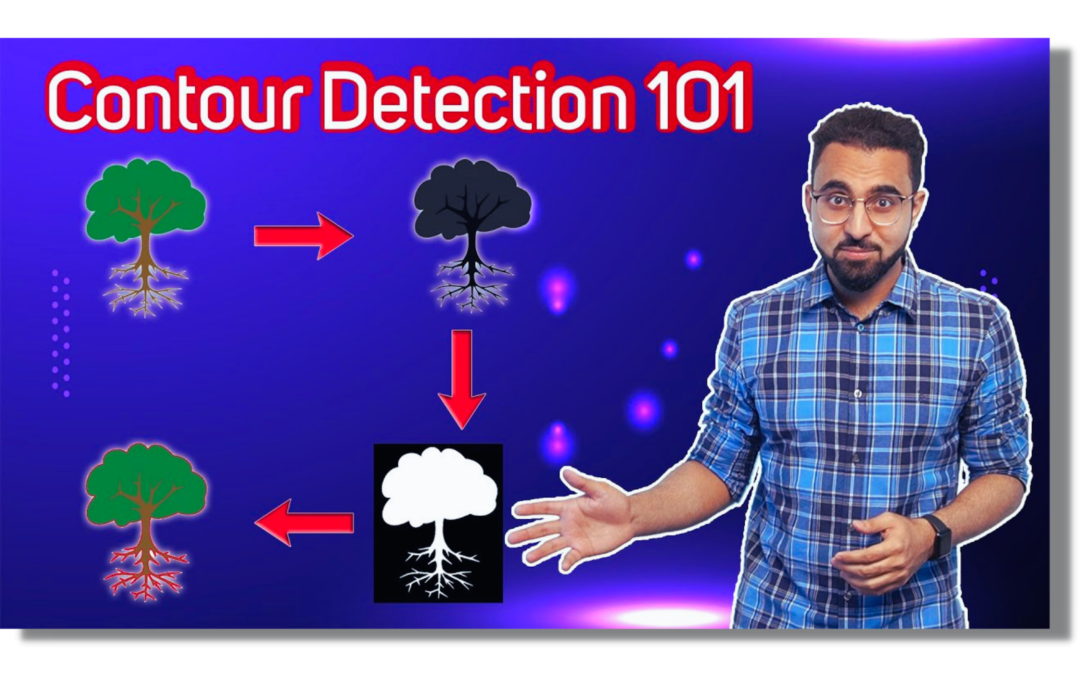
This video is a part of our upcoming Building Vision Applications with Contours and OpenCV course. In this video, I’ve covered all the basics of contours you need to know. You will learn how to detect and visualize contours, the various image pre-processing techniques required before detecting contours, and a lot more.
The course will be released in a couple of weeks on our site and will contain quizzes, assignments, and walkthroughs of high-level Jupyter notebooks which will teach you a variety of concepts.
Download the code for the video by clicking the button below:
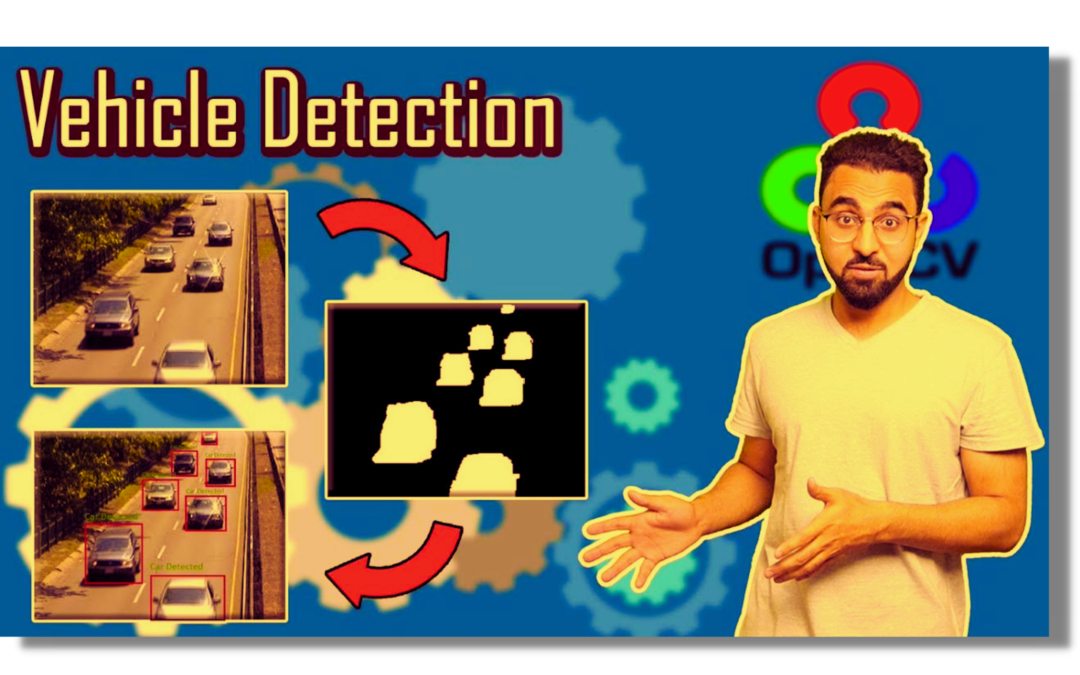
In this video we will explore how you can perform tasks like vehicle detection using a simple but yet an effective approach of background-foreground subtraction. You will be learning about using background-foreground subtraction along with contour detection in OpenCV and how you tune different parameters to achieve better results.
Download the code for the video by clicking the button below:
Today’s Video tutorial is the one I wish I had access to when I was starting out in OpenCV, in this video I reveal to you some very interesting information about the opencv including great tips regarding when to find the right resources, tutorials for the library.
I’ll start by briefly going over the history of OpenCV and then talk about other exciting topics.
Some of the things I will go through in this video
👉How to navigate the opencv docs to find what you’re looking for. 👉How to get details regarding any OpenCV function. 👉The differences between the C++ and python version of OpenCV and which one you should work with. 👉Pip installation of OpenCV vs Source installation. 👉Where to ask questions regarding OpenCV when you’re stuck.
You can reach out to me personally for a 1 on 1 consultation session in AI/computer vision regarding your project. Our talented team of vision engineers will help you every step of the way. Get on a call with me directlyhere.
Ready to seriously dive into State of the Art AI & Computer Vision? Then Sign up for these premium Courses by Bleed AI
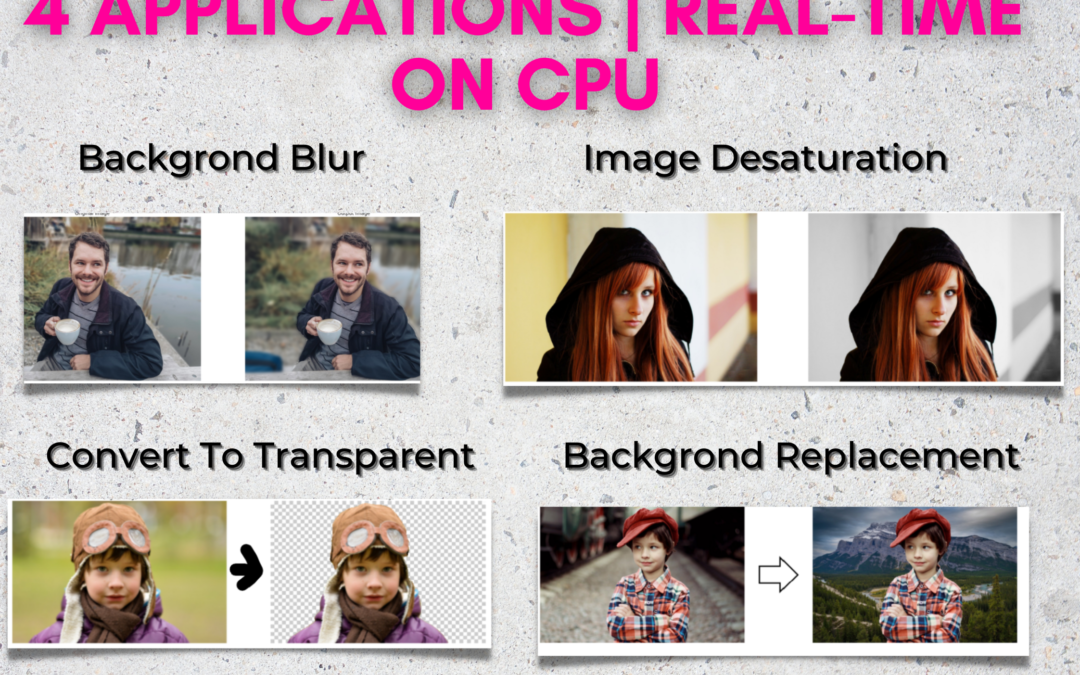
In this tutorial, you’ll learn how to do Real-Time Selfie Segmentation using Mediapipe in Python and then build the following 4 applications.
Background Removal/Replacement
Background Blur
Background Desaturation
Convert Image to Transparent PNG
And not only will these applications work on images but I’ll show you how to apply these to your real-time webcam feed running on a CPU.
Also, the model that we’ll use is almost the same one that Google Hangouts is currently using to segment people, So Yes! We’re going to be learning a State of the Art approach for segmentation.
And on top of that, the code for building all 4 applications will be ridiculously simple.
Interested yet? Then keep reading this full post.
In the first part of this post, we’ll understand the problem of image segmentation and its types, then we’ll understand what selfie segmentation is. After that, we’ll take a look at Mediapipeand how to do selfie segmentation with it. And finally how to build all those 4 applications.
What is Image Segmentation?
If you’re somewhat familiar with computer vision basics then you might be familiar with image segmentation, a very popular problem in Computer Vision.
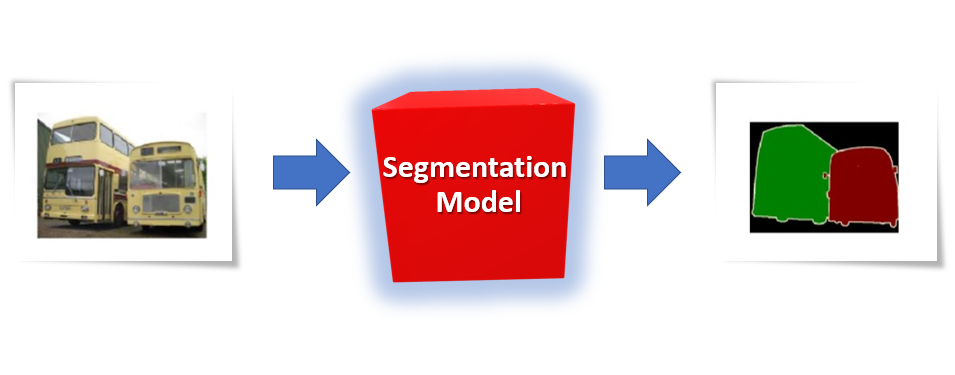
Just like in an object detection task where you localize objects in the image and draw boxes around it, in a segmentation task, you’re almost doing the same thing, but here instead of drawing a bounding box around each object, you’re trying to segment or draw out the exact boundary of each target Object.
Figure 2: A segmentation model is trying to segment out the busses in the image above
In other words, in segmentation, you’re trying to divide the image into groups of pixels based on some specific criteria.
So an image segmentation algorithm will take an input image and output groups of pixels, each group will belong to some class. Normally this output is actually an image mask where each pixel consists of a single number indicating the class it belongs to.
Now the task of image segmentation can be divided into several categories, let’s understand each of them.
Semantic Segmentation.
Instance Segmentation
Panoptic Segmentation
Saliency Detection.
What is Semantic Segmentation?
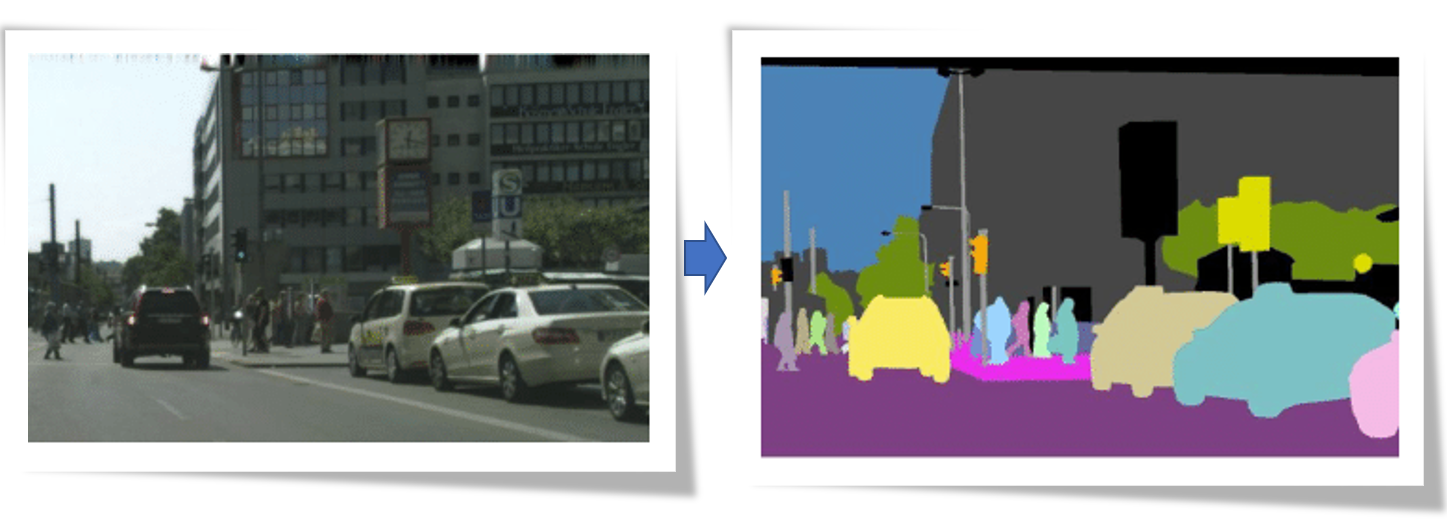
In this type of segmentation, our task is to assign a class label (pedestrian, car, road, tree etc.) to every pixel in the image.
Figure 3
As you can see all the objects in the image, including the buildings, sky, sidewalk are labeled by a certain color indicating that they belong to a certain class e.g all cars are labeled blue, people are labeled red, and so on.
It’s worth noting that although we can extract any individual class, for e.g. we can say extract all cars by looking for blue pixels but we cannot distinguish between different instances of the same class, for e.g. you can’t reliably say which blue pixel belongs to which car.
What is Instance Segmentation?
Another common category of segmentation is called Instance Segmentation. Here the goal is not to label all pixels in the image but only label some selective classes, for which the model was trained on ( for e.g. cars, pedestrians, etc. ).
Figure 4
As you can see in the image, the algorithm ignored the roads, sky, buildings etc. so here we’re only interested in labeling specific classes.
One other major difference in this approach is that we’re also differentiating between different instances of the same classes i.e. you can tell which pixel belongs to which class and so on.
What is Panoptic Segmentation?
If you’re a curious cat like me, you might wonder, well isn’t there an approach that,
A) Labels all pixels in the image like semantic segmentation.
B) And also differentiates between instances of the same class like instance segmentation.
Well, Yes there is! And it’s called PanopticSegmentation. Where not only every pixel is assigned a class but we can also differentiate between different instances of the same class, i.e. we can tell which pixel belongs to which car.
Figure 5
This type of segmentation is the combination of both instance and semantic segmentation.
What is Saliency Detection?
Don’t be confused by the word “Detection” here, although Saliency Detection is not generally considered as one of the core segmentation methods but it’s still essentially a major segmentation technique.
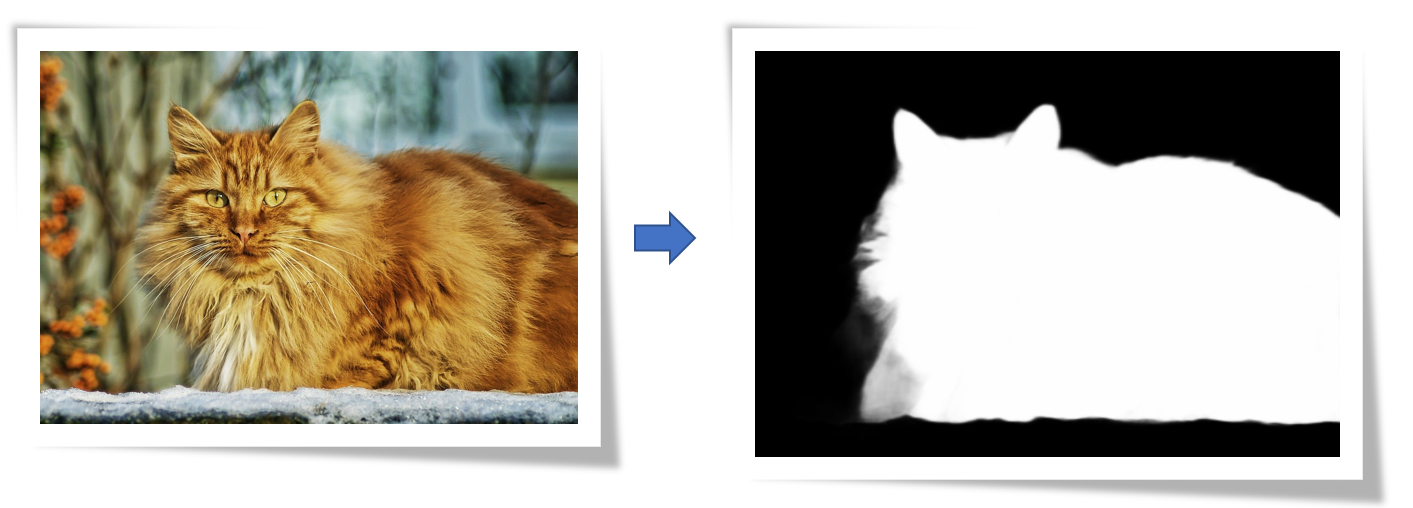
So here the goal is to segment out the most salient/prominent (things that stand out ) features in the image.
Figure 6
And this is done regardless of the class of the object. Here’s another example.
Figure 7
As you can see the most obvious object in the above image is the cat, which is exactly what’s being segmented out here.
So in saliency detection where trying to segment out the most standing out features in the image.
Selfie Segmentation:
Alright now that we have understood the fundamental segmentation techniques out there, let’s try to understand what selfie segmentation is.
Figure 8
Well, obviously it’s a no brainer, it’s a segmentation technique that segments out people in images.
Figure 9
You might think, how is this different from semantic or instance Segmentation?
Well, to put it simply, you can consider selfie segmentation as a sort of a mix between semantic segmentation and Saliency detection.
What do I mean by that?
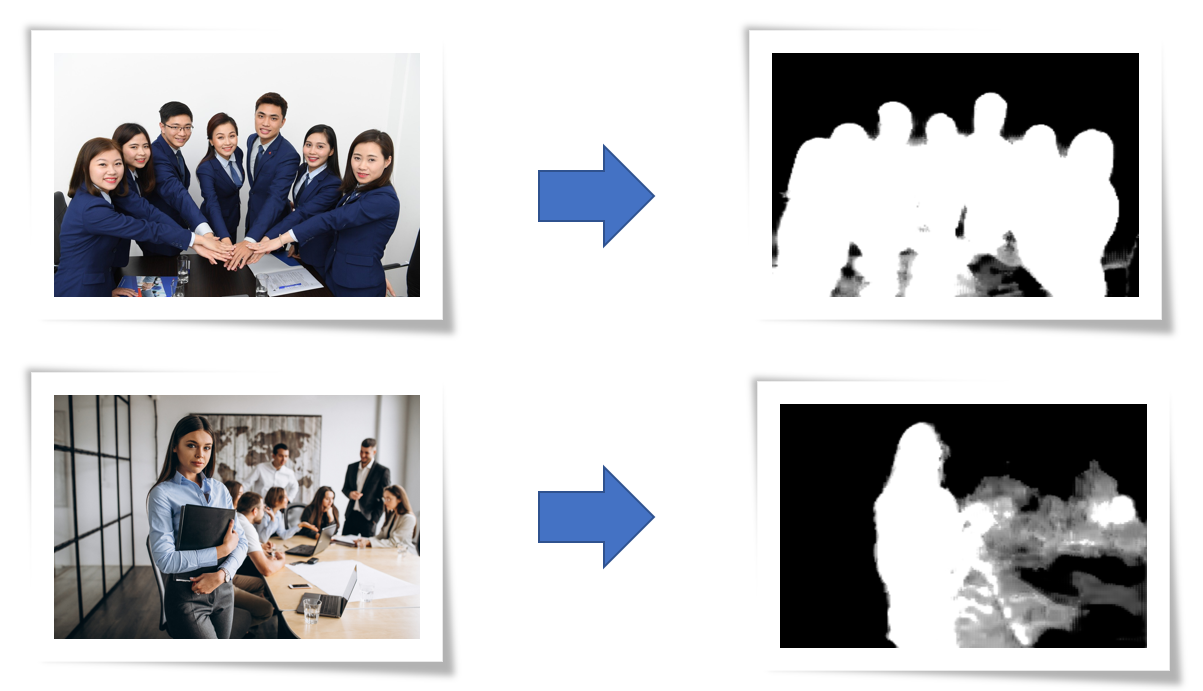
Take a look at the example output of Selfie segmentation on two images below.
Figure 8
In the first image (top) the segmentation is done perfectly, as every person is on a similar scale and prominent in the image, whereas in the second image (bottom) the woman is prominent and is segmented out correctly while her colleagues in the background are not segmented properly.
This is why the technique is called selfie segmentation, it tries to segment out prominent people in the image, ideally everyone to be segmented should be on a similar scale in the image.
This is why I said that this technique is sort of a mix between saliency detection and semantic segmentation.
Now, you might think why do we even need to use another segmentation technique, why not just segment people using semantic or instance segmentation methods.
Well, Actually we could do that. Models like Mask-RCNN, DeepLabv3, and others are really good at segmenting people.
But here’s the problem.
These models although provide State of the Art results but are actually really slow, they aren’t a good fit when it comes to real-time applications especially on CPUs.
This is why the Selfie segmentation model that we’ll use today is specifically designed to segment people and also run at real-time speed on CPU and other low-end hardware. It’s built on a slight modification of the MobielNetv3 model. This model itself contains clever algorithmic innovations for maximum speed and performance gains. To understand more about these algorithmic advances in this model, you can read Google AI’s Blog post on this model.
So what are the use cases for Selfie Segmentation?
The most popular use case for this problem is Video Conferencing. In fact, Google Hangouts is using approximately the same model that we’re going to learn to use today.
Besides Video Conferencing, there are several other use cases for this model that we’re going to explore today.
MediaPipe:
Mediapipe is a cross-platform tool that allows you to run a variety of machine learning models in real-time. It’s designed primarily for facilitating the use of ML in streaming media.
This is the tool that we’ll be using today in order to use the selfie segmentation model. In future tutorials I’ll also be covering the usage of a few other models and make interesting applications out of them. So Stay tuned for those blog posts at Bleed AI.
Alright Now let’s start with the Code!
Selfie Segmentation Code:
[optin-monster slug=”o79lb1j7tdwib0khs6fc”]
To get started with Mediapipe, you first need to run the following command to install it
Now let’s start by importing the required libraries.
import os
import cv2
import numpy as np
import mediapipe as mp
import matplotlib.pyplot as plt
from time import time
Initialize the Selfie Segmentation Model
The first thing that you need to do is initialize the selfie segmentation class using the mp.solutions.selfie_segmentation function and then you need to call the setup function using .SelfieSegmentation(0) now there are two models for segmentation in mediapipe, by passing in 0 you will be using the general model i.e. input is resized to: 256x256x3 (Height, width, columns) and by passing 1 you will be using the landscape model i.e. input resized to: 144x256x3 (Height, width, columns).
You should select the type of model by taking into account the aspect ratio of the original image, although the landscape model is a bit faster. These models automatically resize the input image before passing it through the network and the size of the output image representing the segmentation mask for both models will be the same as the input that is 256x256x1 or 144x256x1.
Now let’s read a sample image using the function cv2.imread() and display the image using the matplotlib library.
# Read an image from the specified path.
sample_img = cv2.imread('media/sample.jpg')

# Specify a size of the figure.
plt.figure(figsize = [10, 10])

# Display the sample image, also convert BGR to RGB for display.
plt.title("Sample Image");plt.axis('off');plt.imshow(sample_img[:,:,::-1]);plt.show()
Application 1: Remove/Replace Background
We will start by learning to use selfie segmentation to change the background of images. But first, we will have to convert the image into RGB format as the MediaPipe library expects the images in this format but the function cv2.imread() reads the images in BGR format and we will use the function cv2.cvtColor() to do this conversion.
Then we will pass the image to the MediaPipe Segmentation function which will perform the segmentation process and will return a probability map with pixel values near 1 for the indexes where the person is located in the image and pixel values near 0 for the background.
# Convert the sample image from BGR to RGB format.
RGB_sample_img = cv2.cvtColor(sample_img, cv2.COLOR_BGR2RGB)

# Perform the segmentation.
result = segment.process(RGB_sample_img)

# Specify a size of the figure.
plt.figure(figsize=[22,22])

# Display the original sample image and the segmentation result with appropriate titles.
plt.subplot(121);plt.imshow(sample_img[:,:,::-1]);plt.title("Original Image");plt.axis('off');
plt.subplot(122);plt.imshow(result.segmentation_mask, cmap='gray');plt.title("Probability Map");plt.axis('off');
Notice that we have some gray areas in the map, this signifies that there are areas where the model was not sure if it was the background or the person. So now what we need to do is do some thresholding and set all pixels above certain confidence to white and all other pixels to black.CodeText
So in this step, we’re going to be thresholding the mask above to get a binary black and white mask with a pixel value 1 for the indexes where the person is located and 0 for the background.CodeText
# Get a binary mask having pixel value 1 for the person and 0 for the background.
# Pixel values greater than the threshold value 0.9 (90% Confidence) will become 1 and the remaining will become 0.
binary_mask = result.segmentation_mask > 0.9


# Display the original sample image and the binary mask with appropriate titles.
plt.figure(figsize=[22,22])
plt.subplot(121);plt.imshow(sample_img[:,:,::-1]);plt.title("Original Image");plt.axis('off');
plt.subplot(122);plt.imshow(binary_mask, cmap='gray');plt.title("Binary Mask");plt.axis('off');
Now we will use the numpy.where() function to create a new image which will have the pixel values from the original sample image at the indexes where the mask image have value 1 (white areas) and replace areas where mask have value 0 (black areas) with 255, to give a white background to the object of the sample image. Right now we’re just adding whtie (255) background but later on we’ll add a separate image as background.
But to create the required output image we will first have to convert the mask image (one channel) into a three-channel image using the function numpy.dstack() as the function numpy.where() will need to have all images to have equal number of channels.
# Stack the same mask three times to make it a three channel image.
binary_mask_3 = np.dstack((binary_mask,binary_mask,binary_mask))

# Create the output image to have white background where ever black is present in the mask.
output_image = np.where(binary_mask_3, sample_img, 255)

# Specify a size of the figure.
plt.figure(figsize=[22,22])

# Display the original sample image and the resultant image.
plt.subplot(121);plt.imshow(sample_img[:,:,::-1]);plt.title("Original Image");plt.axis('off');
plt.subplot(122);plt.imshow(output_image[:,:,::-1]);plt.title("Output Image");plt.axis('off');
Now instead of having a white background if you need to add another background image, you just need to replace 255 with a background image in np.where function
# Read a background image from the specified path.
bg_img = cv2.imread('media/background.jpg')

# Create an output image with the pixel values from the original sample image at the indexes where the mask have
# value 1 and replace the other pixel values (where mask have zero) with the new background image.
output_image = np.where(binary_mask_3, sample_img, bg_img)

# Display the original sample image and the segmentation result
plt.figure(figsize=[22,22])
plt.subplot(131);plt.imshow(sample_img[:,:,::-1]);plt.title("Original Image");plt.axis('off');
plt.subplot(132);plt.imshow(binary_mask, cmap='gray');plt.title("Binary Mask");plt.axis('off');
plt.subplot(133);plt.imshow(output_image[:,:,::-1]);plt.title("Output Image");plt.axis('off');
Create a Background Modification Function
Now we will create a function that will use the selfie segmentation to modify the background of an image depending upon the passed arguments. The followings will be the modifications that the function will be capable of:
Change Background: The function will replace the background of the image with a different provided background image OR it will make the background white for the cases when a separate background image is not provided.
Blur Background: The function will segment out the prominent person and then blur out the background.
Desaturate Background: The function will desaturate (convert to grayscale) the background of the image, giving the image a very interesting effect.
Transparent Background: The function will make the background of the image transparent.
def modifyBackground(image, background_image = 255, blur = 95, threshold = 0.3, display = True, method='changeBackground'):
    '''
    This function will replace, blur, desature or make the background transparent depending upon the passed arguments.
    Args:
        image: The input image with an object whose background is required to modify.
        background_image: The new background image for the object in the input image.
        threshold: A threshold value between 0 and 1 which will be used in creating a binary mask of the input image.
        display: A boolean value that is if true the function displays the original input image and the resultant image
                 and returns nothing.
        method: The method name which is required to modify the background of the input image.
    Returns:
        output_image: The image of the object from the input image with a modified background.
        binary_mask_3: A binary mask of the input image.
    '''

    # Convert the input image from BGR to RGB format.
    RGB_img = cv2.cvtColor(image, cv2.COLOR_BGR2RGB)

    # Perform the segmentation.
    result = segment.process(RGB_img)

    # Get a binary mask having pixel value 1 for the object and 0 for the background.
    # Pixel values greater than the threshold value will become 1 and the remainings will become 0.
    binary_mask = result.segmentation_mask > threshold

    # Stack the same mask three times to make it a three channel image.
    binary_mask_3 = np.dstack((binary_mask,binary_mask,binary_mask))

    if method == 'changeBackground':

        # Resize the background image to become equal to the size of the input image.
        background_image = cv2.resize(background_image, (image.shape[1], image.shape[0]))

        # Create an output image with the pixel values from the original sample image at the indexes where the mask have
        # value 1 and replace the other pixel values (where mask have zero) with the new background image.
        output_image = np.where(binary_mask_3, image, background_image)

    elif method == 'blurBackground':

        # Create a blurred copy of the input image.
        blurred_image = cv2.GaussianBlur(image, (blur, blur), 0)

        # Create an output image with the pixel values from the original sample image at the indexes where the mask have
        # value 1 and replace the other pixel values (where mask have zero) with the new background image.
        output_image = np.where(binary_mask_3, image, blurred_image)

    elif method == 'desatureBackground':

        # Create a gray-scale copy of the input image.
        grayscale = cv2.cvtColor(src = image, code = cv2.COLOR_BGR2GRAY)

        # Stack the same grayscale image three times to make it a three channel image.
        grayscale_3 = np.dstack((grayscale,grayscale,grayscale))

        # Create an output image with the pixel values from the original sample image at the indexes where the mask have
        # value 1 and replace the other pixel values (where mask have zero) with the new background image.
        output_image = np.where(binary_mask_3, image, grayscale_3)

    elif method == 'transparentBackground':

        # Stack the input image and the mask image to get a four channel image.
        # Here the mask image will act as an alpha channel.
        # Also multiply the mask with 255 to convert all the 1s into 255.
        output_image = np.dstack((image, binary_mask * 255))

    else:
        # Display the error message.
        print('Invalid Method')

        # Return
        return

    # Check if the original input image and the resultant image are specified to be displayed.
    if display:

        # Display the original input image and the resultant image.
        plt.figure(figsize=[22,22])
        plt.subplot(121);plt.imshow(image[:,:,::-1]);plt.title("Original Image");plt.axis('off');
        plt.subplot(122);plt.imshow(output_image[:,:,::-1]);plt.title("Output Image");plt.axis('off');

    # Otherwise
    else:

        # Return the output image and the binary mask.
        # Also convert all the 1s in the mask into 255 and the 0s will remain the same.
        # The mask is returned in case you want to troubleshoot.
        return output_image, (binary_mask_3 * 255).astype('uint8')
Now we will utilize the function created above with the argument method='changeBackground' to change the backgrounds of a few sample images and check the results.
# Read a sample image and change background
image2 = cv2.imread('media/sample5.jpg')
modifyBackground(image2, bg_img.copy(), method='changeBackground')
# Read another sample image and a new background and change it.
image3 = cv2.imread('media/sample6.jpg')
bg_img2 = cv2.imread('media/backgroundimages/2.jpg')
modifyBackground(image3, bg_img2, 0.7, method='changeBackground')
# Read another sample image and a new background and change it.
image4 = cv2.imread('media/sample4.jpg')
bg_img3 = cv2.imread('media/backgroundimages/3.jpg')
modifyBackground(image4, bg_img3, 0.55, method='changeBackground')
Change Background On Real-Time Web-cam Feed
The results on the images look great, but how will the function we created above fare when applied to our real-time webcam feed. Well, let’s check it out. In the code below we will swap out different background images by pressing the key b on keyboard.
 Initialize the VideoCapture object to read from the webcam.
camera_video = cv2.VideoCapture(0)

# Set width of the frames in the video stream.
camera_video.set(3, 1280)

# Set height of the frames in the video stream.
camera_video.set(4, 720)

# Initialize a list to store the background images.
background_images = []

# Specify the path of the folder which contains the background images.
background_folder = 'media/backgroundimages/'

# Iterate over the images in the background folder.
for img_path in os.listdir(background_folder):

    # Read a image.
    image = cv2.imread(f"{background_folder}/{img_path}")

    # Append the image into the list.
    background_images.append(image)

# Initialize a variable to store the index of the background image.
bg_img_index = 0

# Initialize a variable to store the time of the previous frame.
time1 = 0

# Iterate until the webcam is accessed successfully.
while camera_video.isOpened():

    # Read a frame.
    ok, frame = camera_video.read()

    # Check if frame is not read properly.
    if not ok:

        # Continue to the next iteration to read the next frame.
        continue

    # Flip the frame horizontally for natural (selfie-view) visualization.
    frame = cv2.flip(frame, 1)

    # Change the background of the frame.
    output_frame,_ = modifyBackground(frame, background_image = background_images[bg_img_index % len(background_images)],
                                      threshold = 0.3, display = False, method='changeBackground')

    # Set the time for this frame to the current time.
    time2 = time()

    # Check if the difference between the previous and this frame time > 0 to avoid division by zero.
    if (time2 - time1) > 0:

        # Calculate the number of frames per second.
        frames_per_second = 1.0 / (time2 - time1)

        # Write the calculated number of frames per second on the frame.
        cv2.putText(output_frame, 'fps: {}'.format(int(frames_per_second)), (10, 30),cv2.FONT_HERSHEY_PLAIN, 2, (0, 255, 0), 3)

    # Update the previous frame time to this frame time.
    # As this frame will become previous frame in next iteration.
    time1 = time2

    # Display the frame with changed background.
    cv2.imshow('Video', output_frame)

    # Wait until a key is pressed.
    # Retreive the ASCII code of the key pressed
    k = cv2.waitKey(1) & 0xFF

    # Check if 'ESC' is pressed.
    if (k == 27):

        # Break the loop.
        break

    elif (k == ord('b')):
        bg_img_index = bg_img_index + 1


# Release the VideoCapture Object.
camera_video.release()

# Close the windows.
cv2.destroyAllWindows()
Output:
Woah! that was Cool, not only the results are great but the model is pretty fast.
Video on Video Background Replacement:
Let’s take this one step further and instead of changing the background by an image, let’s replace it with a video loop.
# Initialize the VideoCapture object to read from the webcam.
camera_video = cv2.VideoCapture(0)

# Set width of the frames in the video stream.
camera_video.set(3, 1280)

# Set height of the frames in the video stream.
camera_video.set(4, 720)

# Initialize the VideoCapture object to read from the background video stored in the disk.
background_video = cv2.VideoCapture('media/backgroundvideos/1.mp4')

# Set the background video frame counter to zero.
background_frame_counter = 0

# Initialize a variable to store the time of the previous frame.
time1 = 0

# Iterate until the webcam is accessed successfully.
while camera_video.isOpened():

    # Read a frame.
    ok, frame = camera_video.read()

    # Check if frame is not read properly.
    if not ok:

        # Continue to the next iteration to read the next frame.
        continue

    # Read a frame from background video
    _, background_frame = background_video.read()

    # Increment the background video frame counter.
    background_frame_counter = background_frame_counter + 1

    # Check if the current frame is the last frame of the background video.
    if background_frame_counter == background_video.get(cv2.CAP_PROP_FRAME_COUNT):

        # Set the current frame position to first frame to restart the video.
        background_video.set(cv2.CAP_PROP_POS_FRAMES, 0)

        # Set the background video frame counter to zero.
        background_frame_counter = 0

    # Flip the frame horizontally for natural (selfie-view) visualization.
    frame = cv2.flip(frame, 1)

    # Change the background of the frame.
    output_frame,_ = modifyBackground(frame, background_image=background_frame, threshold=0.3,
                                      display=False, method='changeBackground')

    # Set the time for this frame to the current time.
    time2 = time()

    # Check if the difference between the previous and this frame time > 0 to avoid division by zero.
    if (time2 - time1) > 0:

        # Calculate the number of frames per second.
        frames_per_second = 1.0 / (time2 - time1)

        # Write the calculated number of frames per second on the frame.
        cv2.putText(output_frame, 'fps: {}'.format(int(frames_per_second)), (10, 30),cv2.FONT_HERSHEY_PLAIN, 2, (0, 255, 0), 3)

    # Update the previous frame time to this frame time.
    # As this frame will become previous frame in next iteration.
    time1 = time2


    # Display the frame with changed background.
    cv2.imshow('Video', output_frame)

    # Wait until a key is pressed.
    # Retreive the ASCII code of the key pressed
    k = cv2.waitKey(1) & 0xFF

    # Check if 'ESC' is pressed.
    if (k == 27):

        # Break the loop.
        break

# Release the VideoCapture Object.
camera_video.release()

# Close the windows.
cv2.destroyAllWindows()
Output:
That was pretty interesting, now that you’ve learned how to segment the background successfully it’s time to make use of this skill and create some other exciting applications out of it.
Application 2: Apply Background Blur
Now this application will actually save you a lot of money.
How?
Well, remember those expensive DSLR or mirrorless cameras that blur out the background, today you’ll learn to achieve the same effect, infact even better by just using your webcam.
So now we will use the function created above to segment out the prominent person and then blur out the background.
All we need to do is just blur the original image using cv2.GaussianBlur() and then instead of replacing the background with a new image (like we did in the previous application) we’ll just replace it with this blur version of the image. This way the segmented person will retain it’s original form but the rest of the parts will be blurred out.
Now let’s call the function with the argument method='blurBackground' over some samples. You can control the amount of blur by controling the blur variable.
# Read another sample image and blur the background
image2 = cv2.imread('media/sample2.jpg')
modifyBackground(image2, method='blurBackground')
# Read another sample image and blur the background
image3 = cv2.imread('media/sample.jpg')
modifyBackground(image3, method='blurBackground')
# Read another sample image and blur the background
image4 = cv2.imread('media/sample1.jpg')
modifyBackground(image4, blur=51, method='blurBackground')
Background Blur On Video
Now we will utilize the function created above in a real-time webcam feed where we will be able to blur the background.
# Initialize the VideoCapture object to read from the webcam.
camera_video = cv2.VideoCapture(0)

# Set width of the frames in the video stream.
camera_video.set(3, 1280)

# Set height of the frames in the video stream.
camera_video.set(4, 720)

# Initialize a variable to store the time of the previous frame.
time1 = 0

# Iterate until the webcam is accessed successfully.
while camera_video.isOpened():

    # Read a frame.
    ok, frame = camera_video.read()

    # Check if frame is not read properly.
    if not ok:

        # Continue to the next iteration to read the next frame.
        continue

    # Flip the frame horizontally for natural (selfie-view) visualization.
    frame = cv2.flip(frame, 1)

    # Blur the background of the frame.
    output_frame,_ = modifyBackground(frame, threshold = 0.3, display = False, method='blurBackground')

    # Set the time for this frame to the current time.
    time2 = time()

    # Check if the difference between the previous and this frame time > 0 to avoid division by zero.
    if (time2 - time1) > 0:

        # Calculate the number of frames per second.
        frames_per_second = 1.0 / (time2 - time1)

        # Write the calculated number of frames per second on the frame.
        cv2.putText(output_frame, 'fps: {}'.format(int(frames_per_second)), (10, 30),cv2.FONT_HERSHEY_PLAIN, 2,
                    (0, 255, 0), 3)

    # Update the previous frame time to this frame time.
    # As this frame will become previous frame in next iteration.
    time1 = time2

    # Display the frame with blurred background.
    cv2.imshow('Video', output_frame)

    # Wait until a key is pressed.
    # Retreive the ASCII code of the key pressed
    k = cv2.waitKey(1) & 0xFF

    # Check if 'ESC' is pressed.
    if (k == 27):

        # Break the loop.
        break


# Release the VideoCapture Object.
camera_video.release()

# Close the windows.
cv2.destroyAllWindows()
Output:
Application 3: Desaturate Background
Now we will use the function created above to desaturate (convert to grayscale) the background of the image. Again the only new thing that we’re doing here is just replacing the black parts of the segmented mask with the grayscale version of the original image.
We will have to pass the argument method='desatureBackground' this time, to desaturate the backgrounds of a few sample images.
# Read a sample image and apply the desaturation effect.
image2 = cv2.imread('media/sample6.jpg')
modifyBackground(image2, method='desatureBackground')
# Read a sample image and apply the desaturation effect.
image3 = cv2.imread('media/sample4.jpg')
modifyBackground(image3, method='desatureBackground')
# Read a sample image and apply the desaturation effect.
image4 = cv2.imread('media/sample5.jpg')
modifyBackground(image4, method='desatureBackground')
Background Desaturation On Video
Now we will utilize the function created above in a real-time webcam feed where we will be able to desaturate the background of the video.
# Initialize the VideoCapture object to read from the webcam.
camera_video = cv2.VideoCapture(0)

# Set width of the frames in the video stream.
camera_video.set(3, 1280)

# Set height of the frames in the video stream.
camera_video.set(4, 720)

# Initialize a variable to store the time of the previous frame.
time1 = 0

# Iterate until the webcam is accessed successfully.
while camera_video.isOpened():

    # Read a frame.
    ok, frame = camera_video.read()

    # Check if frame is not read properly.
    if not ok:

        # Continue to the next iteration to read the next frame.
        continue

    # Flip the frame horizontally for natural (selfie-view) visualization.
    frame = cv2.flip(frame, 1)

    # Desature the background of the frame.
    output_frame,_ = modifyBackground(frame, threshold = 0.3, display = False, method='desatureBackground')

    # Set the time for this frame to the current time.
    time2 = time()

    # Check if the difference between the previous and this frame time > 0 to avoid division by zero.
    if (time2 - time1) > 0:

        # Calculate the number of frames per second.
        frames_per_second = 1.0 / (time2 - time1)

        # Write the calculated number of frames per second on the frame.
        cv2.putText(output_frame, 'fps: {}'.format(int(frames_per_second)), (10, 30),cv2.FONT_HERSHEY_PLAIN, 2,
                    (0, 255, 0), 3)

    # Update the previous frame time to this frame time.
    # As this frame will become previous frame in next iteration.
    time1 = time2

    # Display the frame with desatured background.
    cv2.imshow('Video', output_frame)

    # Wait until a key is pressed.
    # Retreive the ASCII code of the key pressed
    k = cv2.waitKey(1) & 0xFF

    # Check if 'ESC' is pressed.
    if (k == 27):

        # Break the loop.
        break

# Release the VideoCapture Object.
camera_video.release()

# Close the windows.
cv2.destroyAllWindows()
Output:
Application 4: Convert an Image to have a Transparent Background
Now we will use the function created above to segment out the prominent person and then make the background of the image transparent and after that we will store the resultant image into the disk using the function cv2.imwrite().
To create an image with a transparent background (four-channel image) we will need to add another channel called alpha channel to the original image, this channel is a mask which decides which part of the image needs to be transparent and can have values from 0 (black) to 255 (white) which determine the level of visibility. Black (0) acts as the transparent area and white (255) acts as the visible area.
So we just need to add the segmentation mask to the original image.
We will have to pass the argument method='transparentBackground' to the function to get an image with transparent background.
# Specify the path of a sample image.
img_path = 'media/sample.jpg'

# Read the input image from the specified path.
image = cv2.imread(img_path)

# Make the background of the sample image transparent.
trans_background_img, _ = modifyBackground(image, threshold = 0.9, display=False, method='transparentBackground')

# Specify the path to store the resultant image
resultant_img_path = 'output/transparent background ' + img_path.split('/')[-1].split('.')[0]

# Store the resultant image into the disk. Make sure it's stored as `PNG`
cv2.imwrite(resultant_img_path + ".png", trans_background_img)

# Show a success message.
print('The Image with transparent background is successfully stored in the disk')
You can go to the location where the image is saved, open it up with an image viewer and you’ll see that the background is transparent.
Note: These models work best for the scenarios where the person is close (< 2m) to the camera.
Bleed AI Needs Your Support!
Hi Everyone, Taha Anwar (Founder Bleed AI) here. If my blog posts or videos have helped you in any way in your Computer Vision/AI/ML/DL Learning journey then remember you can help us out too.
Publishing Free high-quality Computer Vision tutorials for you guys so that you can build projects, or land your dream job, or maybe build a startup is our core mission at Bleed AI. But every single post takes a lot of effort and man-hours, and in order to keep publishing Free high-end Tutorials, and me & my team need your support on Patreon, plus you will get some extra perks too.
Summary:
Alright, So today we did a lot!
We Understand the basic terminology regarding different segmentation techniques, in summary:
Image Segmentation: The task of dividing pixels into groups of pixels based on some criteria
Semantic Segmentation: In this type we assign a class label to every pixel in the image.
Instance Segmentation: Here we assign a class label to only selective classes in the image.
Panoptic Segmentation: This approach combines both semantic and instance segmentation.
Saliency Detection: Here we’re just interested in segmenting prominent objects in the image regardless of the class.
Selfie Segmentation: Here we want to segment prominent people in the image.
We also learned that Mediapipe is an awesome tool to use various ML models in real-time. Then we learned how to perform selfie segmentation with this tool and build 4 different useful applications from it. These applications were:
How to remove/replace backgrounds in images & videos.
How to desaturate the background to make the person pop out in an image or a video.
How to blur out the background.
How to give an image a transparent background and save it.
This was my first Mediapipe tutorial and I’m planning to write a tutorial on a few other models too. If you enjoyed this tutorial then do let me know in the comments! You’ll definitely get a reply from me
Hire Us
Let our team of expert engineers and managers build your next big project using Bleeding Edge AI Tools & Technologies
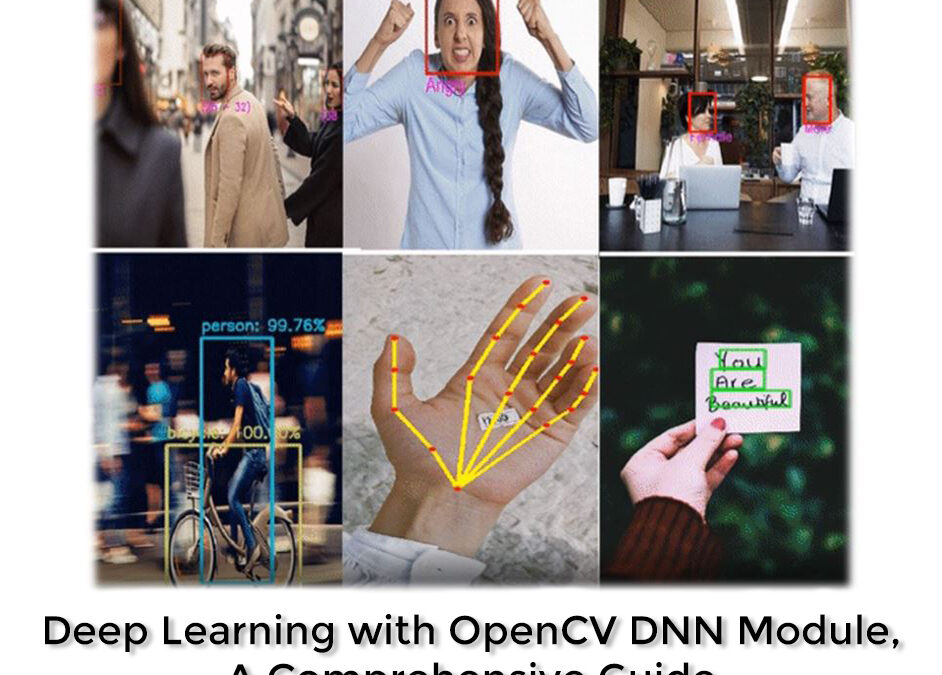
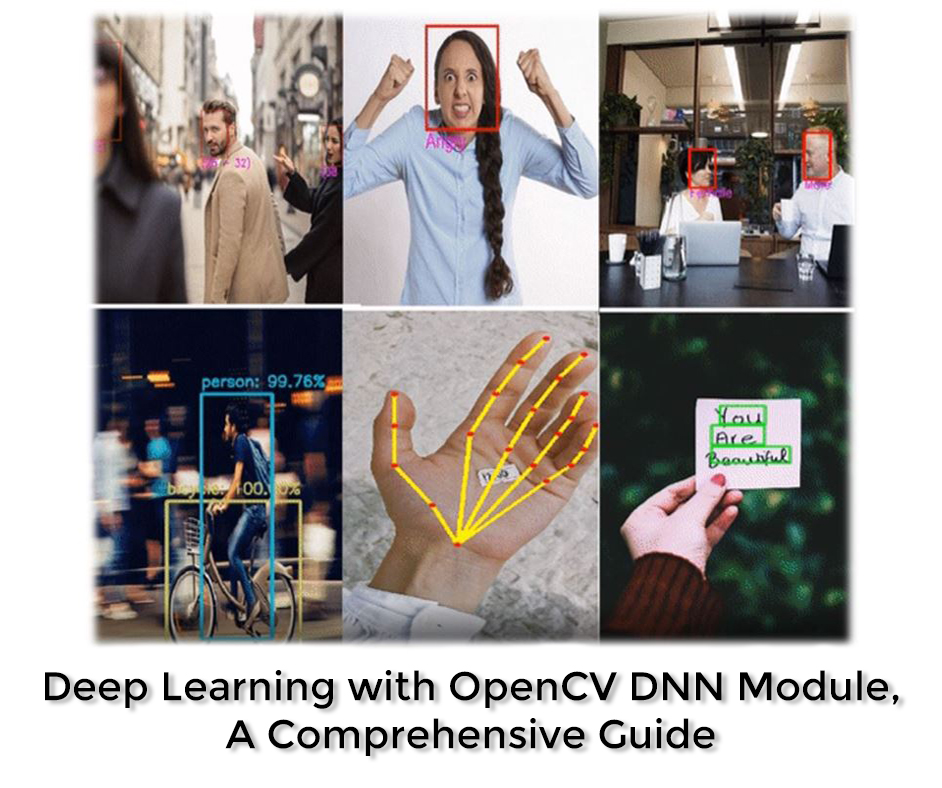
In this tutorial we will go over Deep learning using OpenCV’s DNN module in detail, I plan to cover various important details of the DNN module that is never discussed, things that usually trip of people like, selecting preprocessing params correctly and designing pre and postprocessing pipelines for different models.
This post is the first of 3 in our brand new Deep Learning with OpenCV series. All three posts are titled as:
Using a Caffe DenseNet121 model for classification.
Important Details regarding the DNN module, e.g. where to get models, how to configure them, etc.
If you’re just interested in the image classification part then you can skip to the second section or you can even read this great classification with DNN module post by Adrian. However, if you’re interested in getting to know the DNN module in all its glory then keep reading.
Introduction to OpenCV’s DNN module
First let me start by introducing the DNN module for all those people who are new to it, so as you can probably guess, the DNN module stands for Deep Neural Network module. This is the module in OpenCV which is responsible for all things deep learning related.
It was introduced in OpenCV version 3 and now in version 4.3, it has evolved a lot. This module lets you use pre-trained neural networks from popular frameworks like TensorFlow, PyTorch etc, and use those models directly in OpenCV.
This means you can train models using a popular framework like Tensorflow and then do inference/prediction with just OpenCV.
So what are the benefits here?
Here are some advantages you might want to consider when using OpenCV for inference.
By using OpenCV’s DNN module for inference the final code is a lot compact and simpler.
Someone who’s not familiar with the training framework can also use the model.
There are cases where using OpenCV’s DNN module will give you faster inference results for the CPU. See these results by Satya.
Beside supporting CUDA based NVIDIA’s GPU, OpenCV’s DNN module also supports OpenCL based Intel GPUs.
Most Importantly by getting rid of the training framework not only makes the code simpler but it ultimately gets rid of a whole framework, this means you don’t have to build your final application with a heavy framework like TensorFlow. This is a huge advantage when you’re trying to deploy on a resource-constrained edge device, e.g. a Raspberry pie.
One thing that might put you off is the fact that OpenCV can’t be used for training deep learning networks. This might sound like a bummer but fret not, for training neural networks you shouldn’t use OpenCV there are other specialized libraries like Tensorflow, PyTorch, etc for that task.
So which frameworks can you use to train Neural Networks:
These are the frameworks that are currently supported with the DNN module.
Now there are many interesting pre-trained models already available in the OpenCV Model Zoo that you can use, to keep things simple for this tutorial, I will be using an image classification network to do classification.
Details regarding other types of models are discussed in the 3rd section. By the way, I actually go over 13-14 different types of models in our Computer Vision and Image processing Course. These contain notebooks tutorials and video walk-throughs.
Image Classification pipeline with OpenCV DNN
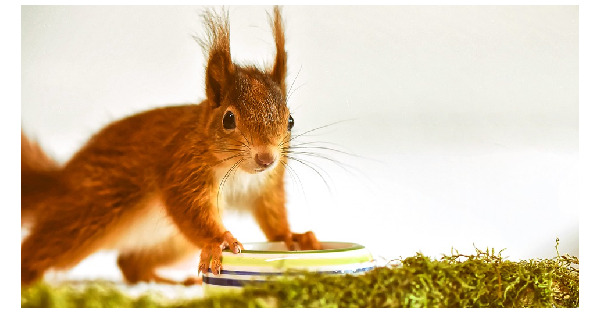
Now we will be using a DenseNet121 model, which is a Caffe model trained on 1000 classes of ImageNet. The model is from the paper Densely Connected Convolutional Networks by Gap Huang et al.
Generally, there are 4 steps you need to perform when doing deep learning with the DNN module.
Read the image and the target classes.
Initialize the DNN module with an architecture and model parameters.
Perform the forward pass on the image with the module
Post-process the results.
The pre and post-processing steps are different for different tasks.
Let’s start with the code
Download Code
[optin-monster slug=”ag6ktwkaclnxqrmfitmo”]
You can go ahead and download the source code from the download code section. After downloading the zip folder, unzip it and you will have the following directory structure.
Now run the Image Classification with DenseNet121.ipynb notebook, and start executing the cells.
Import Libraries
First, we will import the required libraries.
# Importing Required libraries
import numpy as np
import time
import cv2
import matplotlib.pyplot as plt
import os
import sys
Loading Class Labels
Now we’ll start by loading class names, In this notebook, we are going to classify among 1000 classes defined in ImageNet.
All these classes are in the text file named synset_words.txt. In this text file, each class is in on a new line with its unique id, Also each class has multiple labels for e.g look at the first 3 lines in the text file:
‘n01440764 tench, Tinca tinca’
‘n01443537 goldfish, Carassius auratus’
‘n01484850 great white shark, white shark
So for each line, we have the Class ID, then there are multiple class names, they all are valid names for that class and we’ll just use the first one. So in order to do that we’ll have to extract the second word from each line and create a new list, this will be our labels list.
# Split all the classes by a new line and store it in variable called rows.
rows = open('model/synset_words.txt').read().strip().split("n")

# Check the number of classes.
print("Number of Classes "+str(len(rows)))

# Show the first 5 rows
print(rows[0:5])
Number of Classes 1000
[‘n01440764 tench, Tinca tinca’, ‘n01443537 goldfish, Carassius auratus’, ‘n01484850 great white shark, white shark, man-eater, man-eating shark, Carcharodon carcharias’, ‘n01491361 tiger shark, Galeocerdo cuvieri’, ‘n01494475 hammerhead, hammerhead shark’]
Extract the Label
Here we will extract the labels (2nd element from each line) and create a labels list.
# Split by comma after first space is found and grabb the first element and store it in a new list.
CLASSES = [r[r.find(" ") + 1:].split(",")[0] for r in rows]

# Print the first 20 processed class labels
print(CLASSES[0:20])
prototxt: Path to the .prototxt file, this is the text description of the architecture of the model.
caffeModel: path to the .caffemodel file, this is your actual trained neural network model, it contains all the weights/parameters of the model. This is usually several MBs in size.
Note: If you load the model and proto file via readNetFromTensorFlow then the order of architecture and model inputs are reversed.
# Load the Model Weights.
weights = 'model/DenseNet_121.caffemodel'

# Load the Model Architecture.
architecture ='model/DenseNet_121.prototxt.txt'

# Here we are reading pre-trained caffe model with its architecture
net = cv2.dnn.readNetFromCaffe(architecture,weights)
Read An Image
Let’s read an example image and display it with matplotlib imshow
# Load the input image
image = cv2.imread('images/jemma2.jpg')

# Display the image
plt.figure(figsize=(10,10))
plt.imshow(image[:,:,::-1]);plt.axis("off");
Pre-processing the image
Now before you pass an image in the network you need to preprocess it, this means resizing the image to the size it was trained on, for many networks, this is 224×224, in pre-processing step you also do other things like Normalize the image (make the range of intensity values between 0-1) and mean subtraction, etc. These are all the steps the authors did on the images that were used during model training.
Fortunately, In OpenCV, you have a function called cv2.dnn.blobFromImage() which most of the time takes care of all the pre-processing for you.
Scalefactor Used to normalize the image. This value is multiplied by the image, value of 1 means no scaling is done.
Size The size to which the image will be resized to, this depends upon the each model.
Mean These are mean R,G,B Channel values from the whole dataset and these are subtracted from the image’s R,G,B respectively, this gives illumination invariance to the model.
swapRB Boolean flag (false by default) this indicates weather swap first and last channels in 3-channel image is necessary.
crop flag which indicates whether the image will be cropped after resize or not. If crop is true, input image is resized so one side after resize is equal to the corresponding dimension in size and another one is equal or larger. Then, a crop from the center is performed. If crop is false, direct resize without cropping and preserving aspect ratio is performed.
So After this function, we get a 4d blob, this is what we’ll pass to the network.
print(blob.shape)
(1, 3, 224, 224)
Note: There is also blobFromImages() which does the same thing but with multiple images.
Input the Blob Image to the Network
Here you’re setting up the blob image as the input to the network.
# Passing the blob as input through the network
net.setInput(blob)
Forward Pass
Here the actual computation will take place, Most of the time in your whole pipeline will be taken here. Here your image will go through all the model parameters and in the end, you will get the output of the classifier.
%%time
Output = net.forward()
Wall time: 166 ms
# Length of the number of predictions
print("Total Number of Predictions are: {}".format(len(Output[0])))
By looking at the output, you can tell that the model has returned a set of scores for each class but we need Probabilities between 0-1 for each class. We can get them by applying a softmax function on the scores.
# Reshape the Output so its a single dimensional vector
new_Output = Output.reshape(len(Output[0][:]))

# Convert the scores to class probabilities between 0-1 by applying softmax
expanded = np.exp(new_Output - np.max(new_Output))
prob =  expanded / expanded.sum()
Now that we have understood step by step how to create the pipeline for classification using OpenCV’s DNN module, we’ll now create functions that do all the above in a single step. In short, we will be creating the following two functions.
Initialization Function: This function will contain parts of the network that will be set once, like loading the model.
Main Function: This function will contain all the rest of the code from preprocessing to postprocessing, it will also have the option to either return the image or display it with matplotlib.
Initialization Function
This method will be run once and it will initialize the network with the required files.
def init_classify(weights_name = 'DenseNet_121.caffemodel', architecture_name = 'DenseNet_121.prototxt.txt'):

    # Set global variables
    global net, classes

    base_path = 'model'

    # Read the Classes
    rows = open(os.path.join(base_path,'synset_words.txt')).read().strip().split("n")

    # Load and split  the classes
    classes = [r[r.find(" ") + 1:].split(",")[0] for r in rows]

    # Load the wieght and architeture of the model
    weights = os.path.join(base_path, weights_name)
    architecture = os.path.join(base_path, architecture_name)

    # Intialize the model
    net = cv2.dnn.readNetFromCaffe(architecture, weights)
Main Method
returndata is set to `True` when we want to perform classification on video.
def classify(image, returndata=False, size=1,):

    # Pre-process the image
    blob = cv2.dnn.blobFromImage(image, 0.017, (224, 224), (103.94,116.78,123.68))

    # Input blob image into network
    net.setInput(blob)

    # Forward pass
    Output = net.forward()

    # Reshape the Output so its a single dimensional vector
    new_Output = Output.reshape(len(Output[0][:]))

    # Convert the scores to class probabilities between 0-1.
    expanded = np.exp(new_Output - np.max(new_Output))
    prob =  expanded / expanded.sum()

    # Get Highest probable class.
    conf= np.max(prob)

    # Index of Class with the maximum Probability.
    index = np.argmax(prob)

    # Name of the Class with the maximum probability
    label = classes[index]

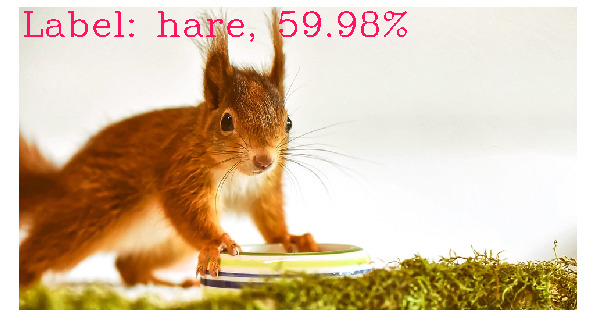
    text = "Label: {}, {:.2f}%".format(label, conf*100)

    cv2.putText(image, text, (5, size*26),  cv2.FONT_HERSHEY_COMPLEX, size, (100, 20, 255), 3)

    if  returndata:
        return image, text

    else:
        plt.figure(figsize=(10,10))
        plt.imshow(image[:,:,::-1]);plt.axis("off");
Initialize the Classifier
Calling our initializer to initialize the network.
init_classify()
Using our Classifier Function
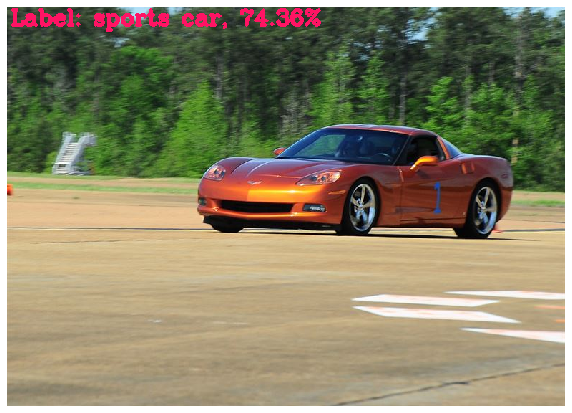
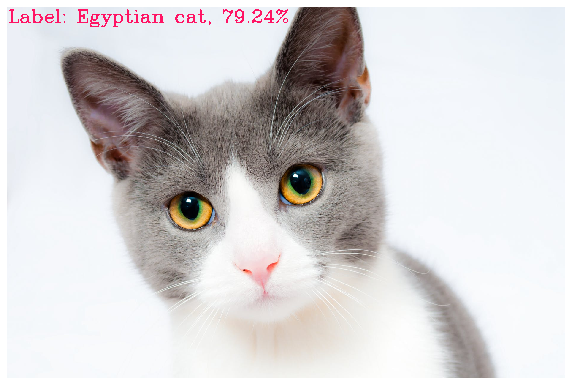
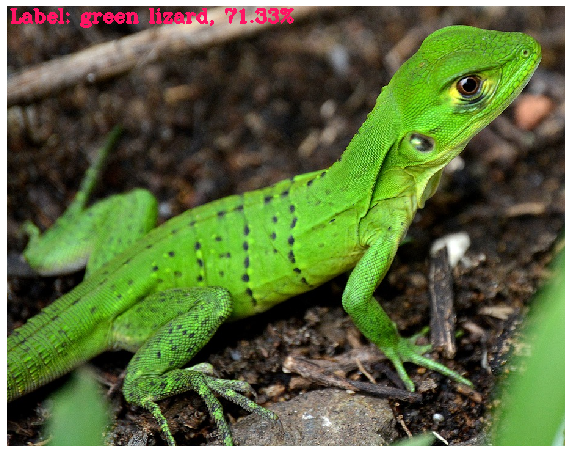
Now we can call our classifier function and test on multiple images.
If you want to this classifier in real-time then here is the code for that.
# Initialize fps to 0
fps = 0

# Load the classes and model
init_classify()

# Initialize the webcame
cap=cv2.VideoCapture(0)

while(True):

    # Fetch the inital time in order to find FPS
    start_time = time.time()

    # Read the frame from camera
    ret, frame=cap.read()

    # If camera is not working break the loop
    if not ret:
        break

    # Flip the frame, laterally
    image = cv2.flip(frame,1)

    # Classify the objects in frames
    image,_ = classify(image, returndata=True)

    # Display the classified object of frames
    cv2.putText(image, 'FPS: {:.2f}'.format(fps), (470, 20), cv2.FONT_HERSHEY_COMPLEX,0.8, (255, 20, 55), 2)

    # Display the window
    cv2.imshow("Image",image)

    # Calculate FPS
    fps = (1.0 / (time.time() - start_time))

    # Press `q` in order to close the window
    k = cv2.waitKey(1)
    if k == ord('q'):
        break

# Release the camera and destroy all opened windows
cap.release()
cv2.destroyAllWindows()
Important Details Regarding the DNN module
Let’s discuss some interesting details and some tips to fully utilize the DNN module.
Where to get the pre-trained Models:
Earlier I mentioned that you can get other pre-trained models, so where are they?
The best place to get pre-trained models is here. This page is a wiki for Deep learning with OpenCV, you will find models that have been tested by the OpenCV team.
There are a variety of models present here, for things like Classification, Pose Detection, Colorization, Segmentation, Face recognition, text detection, style transfer, and more. You can take models from any of the above 5 frameworks.
Just click on the models to go to their repo and download them from there. Note: The models listed on the page above are only the tested models, in theory, you can almost take any pre-trained model and use it in OpenCV.
A faster and easier way to download models is to go here. Now, this is a python script that will let you download not only the most commonly used models but also some State of the Art ones like Yolo v4 etc. You can download this script and then run from the command line. Alternatively, if you’re in a rush and just one specific model then you can take the downloadable URL of any model and download it.
After downloading the model, you will need a couple of more things before you can actually use the model in the OpenCV dnn module.
You’re now probably familiar with those things, so yeah you will need the model configuration file like the prototxt file we just used with our Caffe model above. You will also need class labels, now for classification problems, models are usually trained on the ImageNet dataset so we needed synset_word.txt file, for Object detection you will find models trained on COCO or Pascal VOC dataset. And similarly, other tasks may require other files.
So where are all these files present?
You will find most of these configuration files present here and the class names here. If the configuration file you’re looking for is not present in the above links then I would recommend that you look at the GitHub repo of the model, the files would be present there. Otherwise, you have to create it yourself. (More on this later)
After getting the configuration files, the only thing you need is the pre-processing parameters that go in blobFromImage. E.g. the mean subtraction values, scaling params, etc.
You can get that information from here. Now, this script only contains parameter details for a few popular models.
So how do you get the details for other models?
For that you would need to go to the repo of the model and look in the ReadMe section, the authors usually put that information there.
For e.g. If I visit the GitHub repo of the Human Pose Estimation model using this link which I got from the model downloading script.
By scrolling down the readme I can find these details here:
Note: These details are not always present in the Readme and sometimes you have to do quite some digging before you can find these parameters.
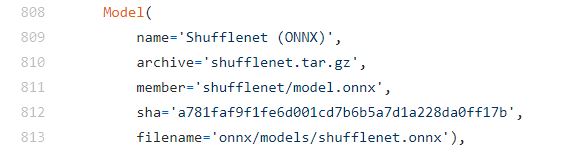
What to do if there is no GitHub repo link with the model, for e.g. this shuffleNet model does not have a GitHub link, in that case, I can see that the framework is ONNX.
So now I will visit the ONNX model zoo repo and find that model.
After clicking on the model I will find its readme and then its preprocessing steps.
Notice that this model contains some preprocessing steps that are not supported by blobfromImage function. So this could happen and at times you would need to write custom preprocessing steps without using blobfromImage function, for e.g. in our Super Resolution post, I had to write a custom pre-processing pipeline for the network.
How to use our own Custom Trained Networks
Now that we have learned to use different models, you might wonder exactly how can we use our own custom-trained models. So the thing is you can’t directly plug a trained network in a DNN module but you need to perform some operations to get a configuration file, which is why we needed a prototxt file along with the model.
Fortunately, In the next two blog posts, I plan to cover exactly this topic and show you how to use a custom trained classifier and a custom trained Detection network.
For now, you can take a look at this page which briefly describes how you can use models trained with Tensorflow Object Detection API in OpenCV.
One thing to note is that not all networks are supported by the DNN module, this is because the DNN module supports some 30+ layer types, these layer names can be found at the wiki here. So if a model contains layers that are not among the supported layers then it won’t run, this is not a major issue as most common layers used in deep learning models are supported.
Using GPU’s and Faster Backends to speed up OpenCV DNN Module
By default OpenCV’s DNN deep learning module runs on the default C++ implementation which itself is pretty fast but OpenCV further allows you to change this backend to increase the speed even more.
Option 1: Use NVIDIA GPU with CUDA backend in the DNN module:
If you have an Nvidia GPU present then great, you can use that with the DNN module, you can follow my OpenCV source installation guide to configure your NVIDIA GPU for OpenCV and learn how to use it. This will make your networks run several times faster.
Option 2: Use OpenCL based INTEL GPU’s:
If you have an OpenCL-based GPU then you can use that as a backend, although this increases speed but in my experience, I’ve seen speed gains only in 32 bit systems. To use the OpenCL as a backend you can see the last section of my OpenCV source installation section linked above.
Option 3: Use Halide Backend:
As described in this post from learnOpenCV.com, for some time in the past using the halide backend increased the speed but then OpenCV engineer’s optimized the default C++ implementation so much that the default implementation actually got faster. So I don’t see a reason to use this backend now, Still here’s how you configure halide as a backend.
Option 4: Use Intel’s Deep Learning Inference Engine backend:
Intel’s Deep Learning Inference Engine backend is part of the OpenVINO toolkit, OpenVINO stands for Open Visual Inferencing and Neural Network Optimization. OpenVINO is designed by Intel to speed up inference with neural networks, especially for tasks like classification, detection, etc. OpenVINO speeds up by optimizing the model in a hardware-agnostic way. You can learn to install OpenVINO here and here’s a nice tutorial for it.
Hire Us
Let our team of expert engineers and managers build your next big project using Bleeding Edge AI Tools & Technologies
In today’s tutorial, we went over a number of things regarding OpenCV’s DNN module. From using pre-trained models to Optimizing for faster inference speed.
We also learned to perform a classification pipeline using densenet121.
This post should serve as an excellent guide for anyone trying to get started in Deep learning using OpenCV’s DNN module.
Finally, OpenCV’s DNN repo contains an example python script to run common networks like classification, text, object detection, and more. You can start utilizing the DNN module by using these scripts and here are a few DNN Tutorials by OpenCV.
The main contributor for the DNN module in OpenCV is Dmitry Kurtaev and formerly it was Aleksandr Rybnikov, so big thanks to them and the rest of the contributors for making such a great module.
I hope you enjoyed today’s tutorial, feel free to comment and ask questions.
You can reach out to me personally for a 1 on 1 consultation session in AI/computer vision regarding your project. Our talented team of vision engineers will help you every step of the way. Get on a call with me directlyhere.
Ready to seriously dive into State of the Art AI & Computer Vision? Then Sign up for these premium Courses by Bleed AI
You can reach out to me personally for a 1 on 1 consultation session in AI/computer vision regarding your project. Our talented team of vision engineers will help you every step of the way. Get on a call with me directlyhere.