In the previous tutorial of this series, we had covered Look Up Tables in-depth and utilized them to create some interesting lighting effects on images/videos. Now in this one, we are gonna level up the game by creating 10 very interesting and cool Instagram filters.
The Filters which are gonna be covered are; Warm Filter, Cold Filter, Gotham Filter, GrayScale Filter, Sepia Filter, Pencil Sketch Filter, Sharpening Filter, Detail Enhancing Filter, Invert Filter, and Stylization Filter.
You must have used at least one of these and maybe have wondered how these are created, what’s the magic (math) behind these. We are gonna cover all this in-depth in today’s tutorial and you will learn a ton of cool image transformation techniques with OpenCV so buckle up and keep reading the tutorial.
This is the last tutorial of our 3 part Creating Instagram Filters series. All three posts are titled as:
Part 3: Designing Advanced Image Filters in OpenCV (Current tutorial)
3-4 Filters in this tutorial use Look Up Tables (LUT) which were explained in the previous tutorial, so make sure to go over that one if you haven’t already. Also, we have used mouse events to switch between filters in real-time and had covered mouse events in the first post of the series, so go over that tutorial as well if you don’t know how to use mouse events in OpenCV.
The tutorial is pretty simple and straightforward, but for a detailed explanation you can check out the YouTube video above, although this blog post alone does have enough details to help you follow along.
We will start by importing the required libraries.
import cv2
import pygame
import numpy as np
import matplotlib.pyplot as plt
from scipy.interpolate import UnivariateSpline
Creating Warm Filter-like Effect
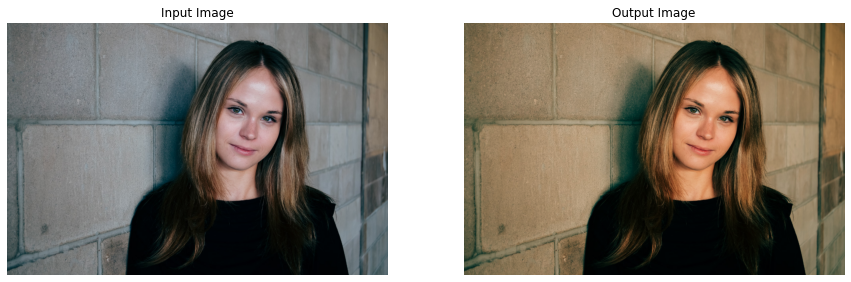
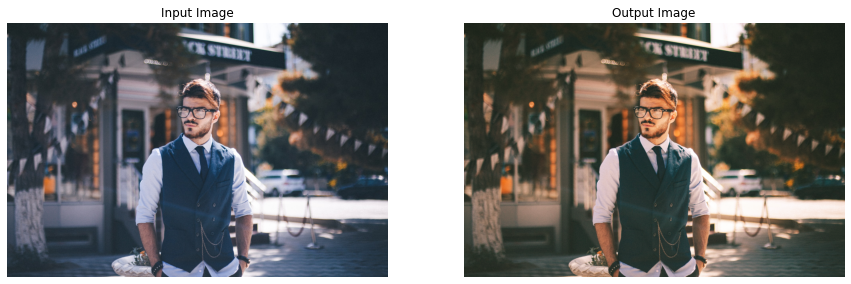
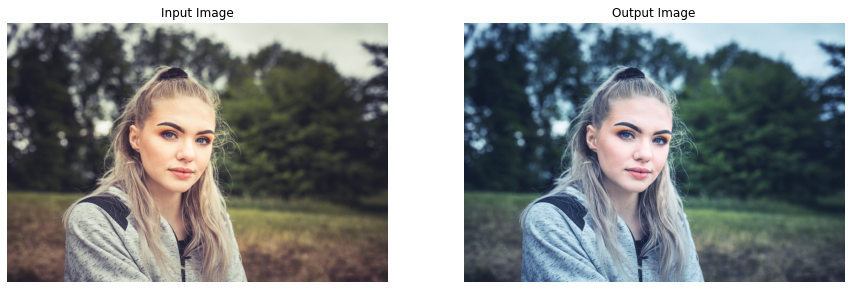
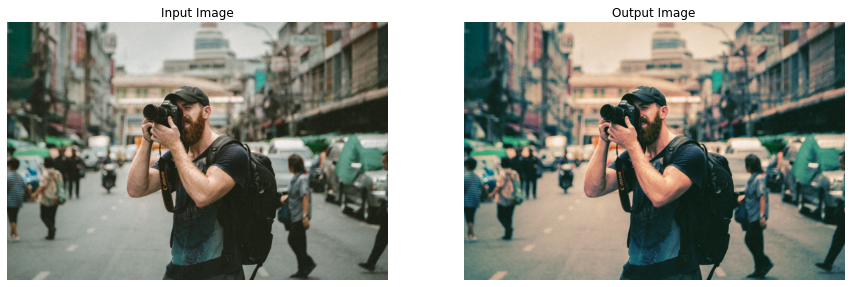
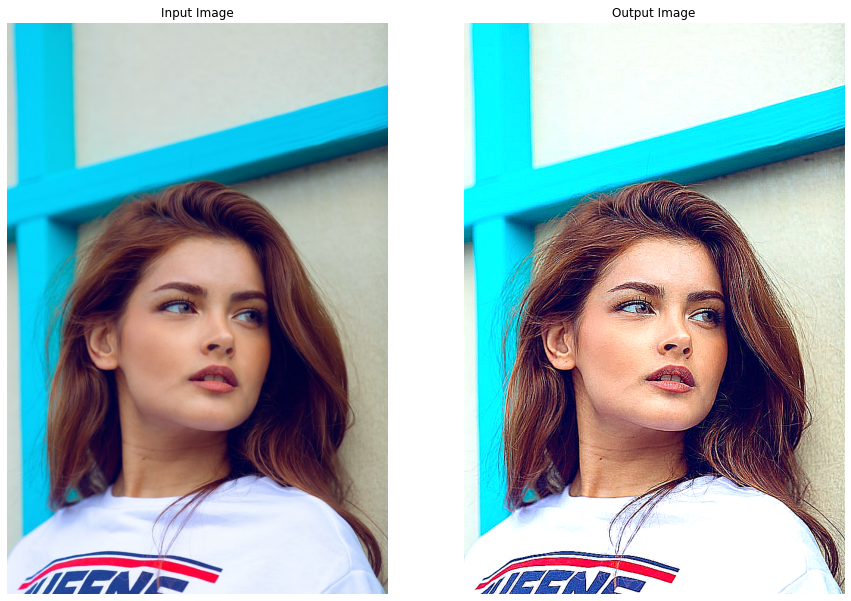
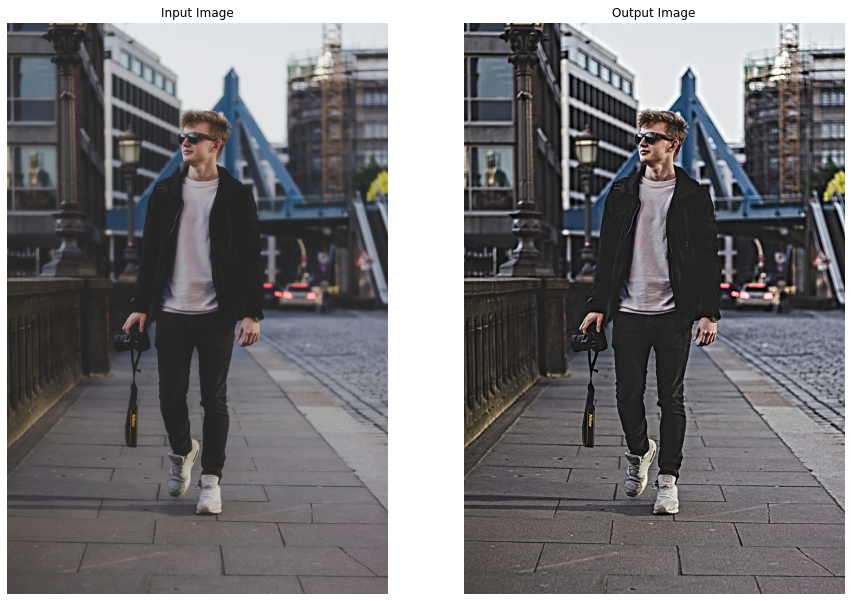
The first filter is gonna be the famous Warm Effect, it absorbs blue cast in images, often caused by electronic flash or outdoor shade, and improves skin tones. This gives a kind of warm look to images that’s why it is called the Warm Effect. To apply this to images and videos, we will create a function applyWarm() that will decrease the pixel intensities of the blue channel and increase the intensities of the red channel of an image/frame by utilizing Look Up tables ( that we learned about in the previous tutorial).
So first, we will have to construct the Look Up Tables required to increase/decrease pixel intensities. For this purpose, we will be using the scipy.interpolate.UnivariateSpline() function to get the required input-output mapping.
# Construct a lookuptable for increasing pixel values.
# We are giving y values for a set of x values.
# And calculating y for [0-255] x values accordingly to the given range.
increase_table = UnivariateSpline(x=[0, 64, 128, 255], y=[0, 75, 155, 255])(range(256))

# Similarly construct a lookuptable for decreasing pixel values.
decrease_table = UnivariateSpline(x=[0, 64, 128, 255], y=[0, 45, 95, 255])(range(256))

# Display the first 10 mappings from the constructed tables.
print(f'First 10 elements from the increase table: \n {increase_table[:10]}\n')
print(f'First 10 elements from the decrease table:: \n {decrease_table[:10]}')
Output:
First 10 elements from the increase table: [7.32204295e-15 1.03827895e+00 2.08227359e+00 3.13191257e+00 4.18712454e+00 5.24783816e+00 6.31398207e+00 7.38548493e+00 8.46227539e+00 9.54428209e+00]
First 10 elements from the decrease table:: [-5.69492230e-15 7.24142824e-01 1.44669675e+00 2.16770636e+00 2.88721627e+00 3.60527107e+00 4.32191535e+00 5.03719372e+00 5.75115076e+00 6.46383109e+00]
Now that we have the Look Up Tables we need, we can move on to transforming the red and blue channel of the image/frame using the function cv2.LUT(). And to split and merge the channels of the image/frame, we will be using the function cv2.split() and cv2.merge() respectively. The applyWarm() function (like every other function in this tutorial) will display the resultant image along with the original image or return the resultant image depending upon the passed arguments.
def applyWarm(image, display=True):
    '''
    This function will create instagram Warm filter like effect on an image.
    Args:
        image:  The image on which the filter is to be applied.
        display: A boolean value that is if set to true the function displays the original image,
                 and the output image, and returns nothing.
    Returns:
        output_image: A copy of the input image with the Warm filter applied.
    '''

    # Split the blue, green, and red channel of the image.
    blue_channel, green_channel, red_channel  = cv2.split(image)

    # Increase red channel intensity using the constructed lookuptable.
    red_channel = cv2.LUT(red_channel, increase_table).astype(np.uint8)

    # Decrease blue channel intensity using the constructed lookuptable.
    blue_channel = cv2.LUT(blue_channel, decrease_table).astype(np.uint8)

    # Merge the blue, green, and red channel.
    output_image = cv2.merge((blue_channel, green_channel, red_channel))

    # Check if the original input image and the output image are specified to be displayed.
    if display:

        # Display the original input image and the output image.
        plt.figure(figsize=[15,15])
        plt.subplot(121);plt.imshow(image[:,:,::-1]);plt.title("Input Image");plt.axis('off');
        plt.subplot(122);plt.imshow(output_image[:,:,::-1]);plt.title("Output Image");plt.axis('off');

    # Otherwise.
    else:

        # Return the output image.
        return output_image
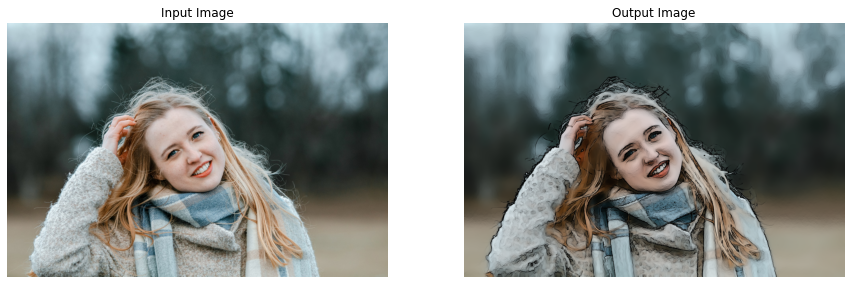
Now, let’s utilize the applyWarm() function created above to apply this warm filter on a few sample images.
# Read a sample image and apply Warm filter on it.
image = cv2.imread('media/sample1.jpg')
applyWarm(image)
# Read another sample image and apply Warm filter on it.
image = cv2.imread('media/sample2.jpg')
applyWarm(image)
Woah! Got the same results as the Instagram warm filter, with just a few lines of code. Now let’s move on to the next one.
Creating Cold Filter-like Effect
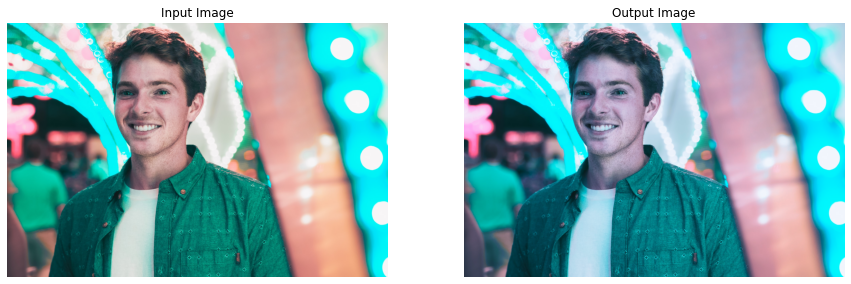
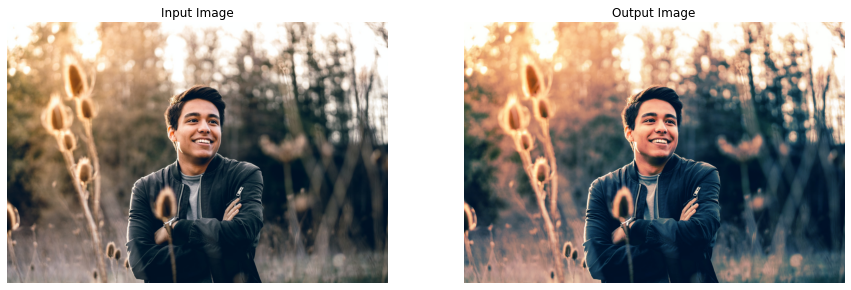
This one is kind of the opposite of the above filter, it gives coldness look to images/videos by increasing the blue cast. To create this filter effect, we will define a function applyCold() that will increase the pixel intensities of the blue channel and decrease the intensities of the red channel of an image/frame by utilizing the same LookUp tables, we had constructed above.
For this one too, we will be using the cv2.split(), cv2.LUT() and cv2.merge() functions to split, transform, and merge the channels.
def applyCold(image, display=True):
    '''
    This function will create instagram Cold filter like effect on an image.
    Args:
        image:  The image on which the filter is to be applied.
        display: A boolean value that is if set to true the function displays the original image,
                 and the output image, and returns nothing.
    Returns:
        output_image: A copy of the input image with the Cold filter applied.
    '''

    # Split the blue, green, and red channel of the image.
    blue_channel, green_channel, red_channel = cv2.split(image)

    # Decrease red channel intensity using the constructed lookuptable.
    red_channel = cv2.LUT(red_channel, decrease_table).astype(np.uint8)

    # Increase blue channel intensity using the constructed lookuptable.
    blue_channel = cv2.LUT(blue_channel, increase_table).astype(np.uint8)

    # Merge the blue, green, and red channel.
    output_image = cv2.merge((blue_channel, green_channel, red_channel))

    # Check if the original input image and the output image are specified to be displayed.
    if display:

        # Display the original input image and the output image.
        plt.figure(figsize=[15,15])
        plt.subplot(121);plt.imshow(image[:,:,::-1]);plt.title("Input Image");plt.axis('off');
        plt.subplot(122);plt.imshow(output_image[:,:,::-1]);plt.title("Output Image");plt.axis('off');

    # Otherwise.
    else:

        # Return the output image.
        return output_image
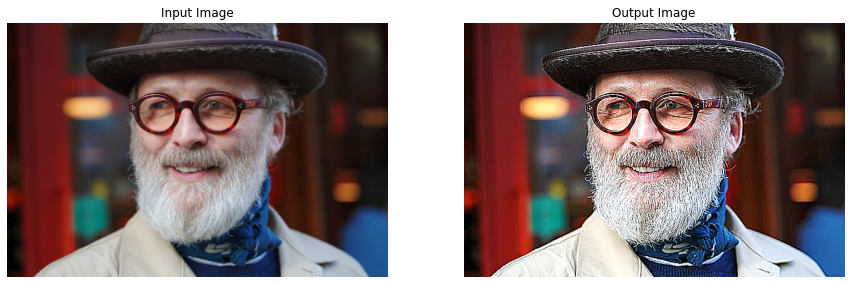
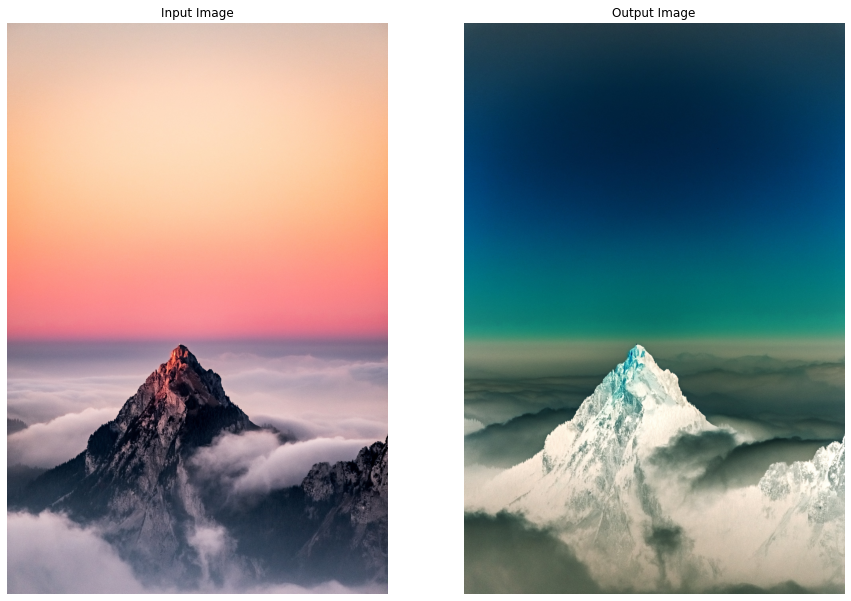
Now we will test this cold filter effect utilizing the applyCold() function on some sample images.
# Read a sample image and apply cold filter on it.
image = cv2.imread('media/sample3.jpg')
applyCold(image)
# Read another sample image and apply cold filter on it.
image = cv2.imread('media/sample4.jpg')
applyCold(image)
Now we’ll use the look up table creat
Nice! Got the expected results for this one too.
Creating Gotham Filter-like Effect
Now the famous Gotham Filter comes in, you must have heard or used this one on Instagram, it gives a warm reddish type look to images. We will try to apply a similar effect to images and videos by creating a function applyGotham(), that will utilize LookUp tables to manipulate image/frame channels in the following manner.
Increase mid-tone contrast of the red channel
Boost the lower-mid values of the blue channel
Decrease the upper-mid values of the blue channel
But again first, we will have to construct the Look Up Tables required to perform the manipulation on the red and blue channels of the image. We will again utilize the scipy.interpolate.UnivariateSpline() function to get the required mapping.
# Construct a lookuptable for increasing midtone contrast.
# Meaning this table will decrease the difference between the midtone values.
# Again we are giving Ys for some Xs and calculating for the remaining ones ([0-255] by using range(256)).
midtone_contrast_increase = UnivariateSpline(x=[0, 25, 51, 76, 102, 128, 153, 178, 204, 229, 255],
                                             y=[0, 13, 25, 51, 76, 128, 178, 204, 229, 242, 255])(range(256))

# Construct a lookuptable for increasing lowermid pixel values.
lowermids_increase = UnivariateSpline(x=[0, 16, 32, 48, 64, 80, 96, 111, 128, 143, 159, 175, 191, 207, 223, 239, 255],
                                      y=[0, 18, 35, 64, 81, 99, 107, 112, 121, 143, 159, 175, 191, 207, 223, 239, 255])(range(256))

# Construct a lookuptable for decreasing uppermid pixel values.
uppermids_decrease = UnivariateSpline(x=[0, 16, 32, 48, 64, 80, 96, 111, 128, 143, 159, 175, 191, 207, 223, 239, 255],
                                      y=[0, 16, 32, 48, 64, 80, 96, 111, 128, 140, 148, 160, 171, 187, 216, 236, 255])(range(256))

# Display the first 10 mappings from the constructed tables.
print(f'First 10 elements from the midtone contrast increase table: \n {midtone_contrast_increase[:10]}\n')
print(f'First 10 elements from the lowermids increase table: \n {lowermids_increase[:10]}\n')
print(f'First 10 elements from the uppermids decrease table:: \n {uppermids_decrease[:10]}')
First 10 elements from the midtone contrast increase table: [0.09416024 0.75724879 1.39938782 2.02149343 2.62448172 3.20926878 3.77677071 4.32790362 4.8635836 5.38472674]
First 10 elements from the lowermids increase table: [0.15030475 1.31080448 2.44957754 3.56865611 4.67007234 5.75585842 6.82804653 7.88866883 8.9397575 9.98334471]
First 10 elements from the uppermids decrease table:: [-0.27440589 0.8349419 1.93606131 3.02916902 4.11448171 5.19221607 6.26258878 7.32581654 8.38211602 9.4317039 ]
Now that we have the required mappings, we can move on to creating the function applyGotham() that will utilize these LookUp tables to apply the required effect.
def applyGotham(image, display=True):
    '''
    This function will create instagram Gotham filter like effect on an image.
    Args:
        image:   The image on which the filter is to be applied.
        display: A boolean value that is if set to true the function displays the original image,
                 and the output image, and returns nothing.
    Returns:
        output_image: A copy of the input image with the Gotham filter applied.
    '''

    # Split the blue, green, and red channel of the image.
    blue_channel, green_channel, red_channel = cv2.split(image)

    # Boost the mid-tone red channel contrast using the constructed lookuptable.
    red_channel = cv2.LUT(red_channel, midtone_contrast_increase).astype(np.uint8)

    # Boost the Blue channel in lower-mids using the constructed lookuptable.
    blue_channel = cv2.LUT(blue_channel, lowermids_increase).astype(np.uint8)

    # Decrease the Blue channel in upper-mids using the constructed lookuptable.
    blue_channel = cv2.LUT(blue_channel, uppermids_decrease).astype(np.uint8)

    # Merge the blue, green, and red channel.
    output_image = cv2.merge((blue_channel, green_channel, red_channel))

    # Check if the original input image and the output image are specified to be displayed.
    if display:

        # Display the original input image and the output image.
        plt.figure(figsize=[15,15])
        plt.subplot(121);plt.imshow(image[:,:,::-1]);plt.title("Input Image");plt.axis('off');
        plt.subplot(122);plt.imshow(output_image[:,:,::-1]);plt.title("Output Image");plt.axis('off');

    # Otherwise.
    else:

        # Return the output image.
        return output_image
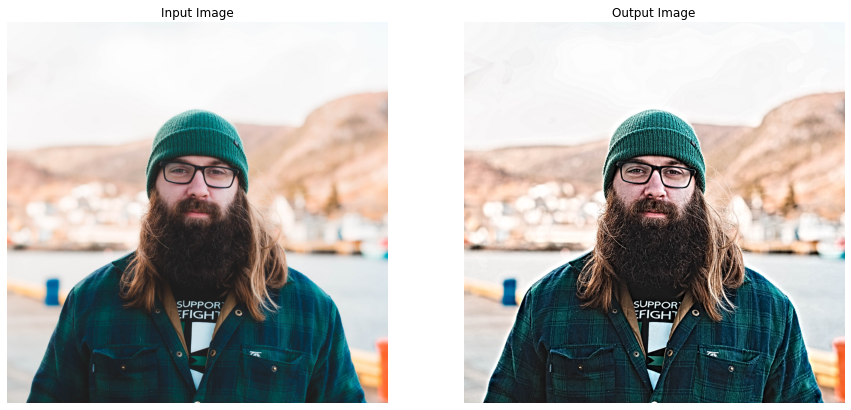
Now, let’s test this Gotham effect utilizing the applyGotham() function on a few sample images and visualize the results.
# Read a sample image and apply Gotham filter on it.
image = cv2.imread('media/sample5.jpg')
applyGotham(image)
# Read another sample image and apply Gotham filter on it.
image = cv2.imread('media/sample6.jpg')
applyGotham(image)
Now w
Stunning results! Now, let’s move to a simple one.
Creating Grayscale Filter-like Effect
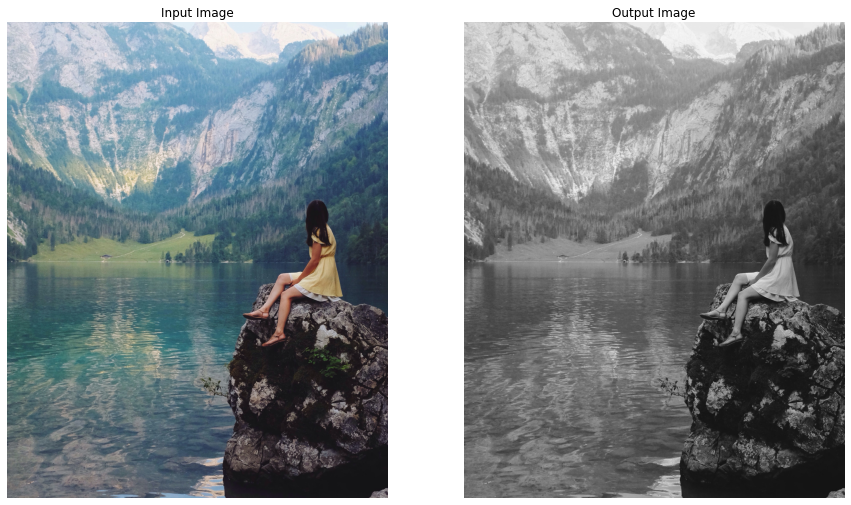
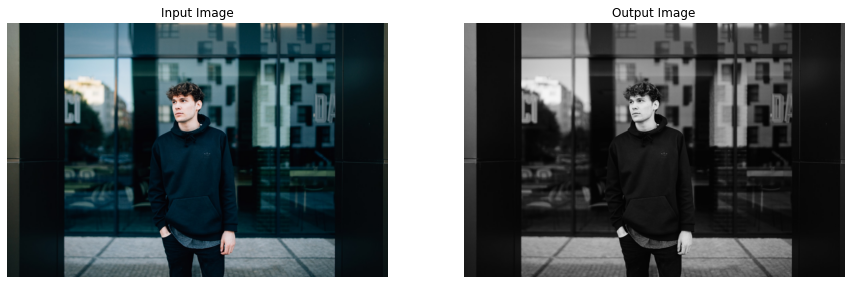
Instagram also has a Grayscale filter also known as 50s TV Effect, it simply converts a (RGB) color image into a Grayscale (black and white) image. We can easily create a similar effect in OpenCV by using the cv2.cvtColor() function. So let’s create a function applyGrayscale() that will utilize cv2.cvtColor() function to apply this Grayscale filter-like effect on images and videos.
def applyGrayscale(image, display=True):
    '''
    This function will create instagram Grayscale filter like effect on an image.
    Args:
        image:  The image on which the filter is to be applied.
        display: A boolean value that is if set to true the function displays the original image,
                 and the output image, and returns nothing.
    Returns:
        output_image: A copy of the input image with the Grayscale filter applied.
    '''

    # Convert the image into the grayscale.
    gray = cv2.cvtColor(image, cv2.COLOR_BGR2GRAY)

    # Merge the grayscale (one-channel) image three times to make it a three-channel image.
    output_image = cv2.merge((gray, gray, gray))

    # Check if the original input image and the output image are specified to be displayed.
    if display:

        # Display the original input image and the output image.
        plt.figure(figsize=[15,15])
        plt.subplot(121);plt.imshow(image[:,:,::-1]);plt.title("Input Image");plt.axis('off');
        plt.subplot(122);plt.imshow(output_image[:,:,::-1]);plt.title("Output Image");plt.axis('off');

    # Otherwise.
    else:

        # Return the output image.
        return output_image
Now let’s utilize this applyGrayscale() function to apply the grayscale effect on a few sample images and display the results.
# Read a sample image| and apply Grayscale filter on it.
image = cv2.imread('media/sample7.jpg')
applyGrayscale(image)
# Read another sample image and apply Grayscale filter on it.
image = cv2.imread('media/sample8.jpg')
applyGrayscale(image)
Cool! Working as expected. Let’s move on to the next one.
Creating Sepia Filter-like Effect
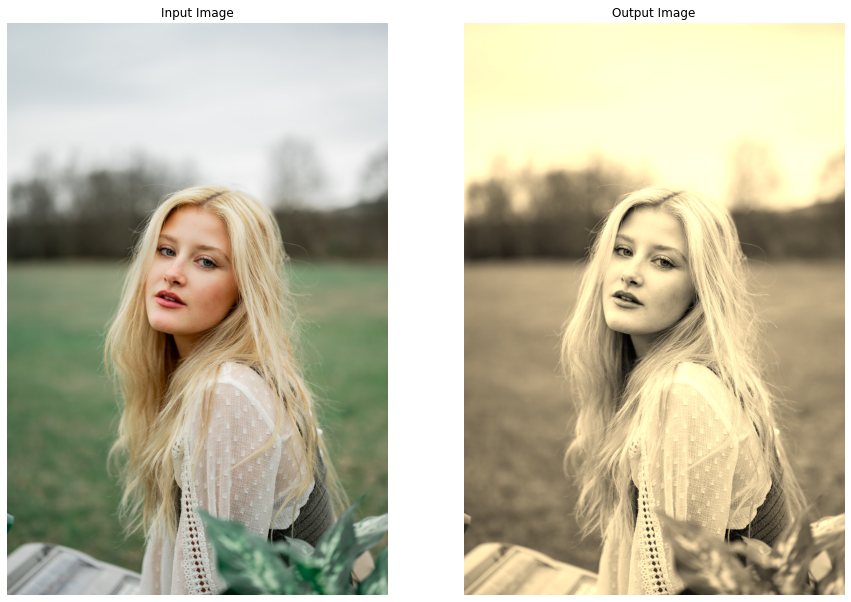
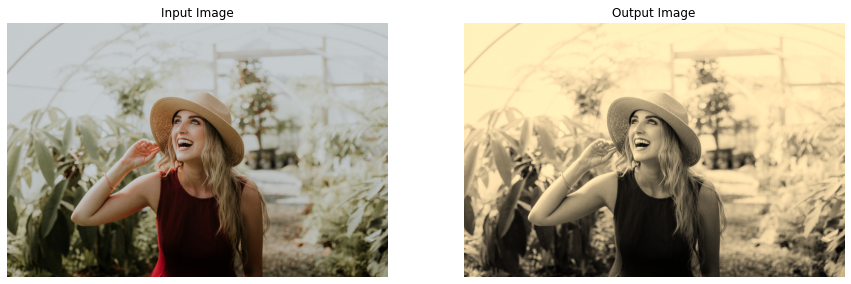
I think this one is the most famous among all the filters we are creating today. This gives a warm reddish-brown vintage effect to images which makes the images look a bit ancient which is really cool. To apply this effect, we will create a function applySepia() that will utilize the cv2.transform() function and the fixed sepia matrix (standardized to create this effect, that you can easily find online) to serve the purpose.
def applySepia(image, display=True):
    '''
    This function will create instagram Sepia filter like effect on an image.
    Args:
        image:  The image on which the filter is to be applied.
        display: A boolean value that is if set to true the function displays the original image,
                 and the output image, and returns nothing.
    Returns:
        output_image: A copy of the input image with the Sepia filter applied.
    '''

    # Convert the image into float type to prevent loss during operations.
    image_float = np.array(image, dtype=np.float64)


    # Manually transform the image to get the idea of exactly whats happening.
    ##################################################################################################

    # Split the blue, green, and red channel of the image.
    blue_channel, green_channel, red_channel = cv2.split(image_float)

    # Apply the Sepia filter by perform the matrix multiplication between
    # the image and the sepia matrix.
    output_blue = (red_channel * .272) + (green_channel *.534) + (blue_channel * .131)
    output_green = (red_channel * .349) + (green_channel *.686) + (blue_channel * .168)
    output_red = (red_channel * .393) + (green_channel *.769) + (blue_channel * .189)

    # Merge the blue, green, and red channel.
    output_image = cv2.merge((output_blue, output_green, output_red))

    ##################################################################################################


        # OR Either create this effect by using OpenCV matrix transformation function.
    ##################################################################################################

    # Get the sepia matrix for BGR colorspace images.
    sepia_matrix = np.matrix([[.272, .534, .131],
                              [.349, .686, .168],
                              [.393, .769, .189]])

    # Apply the Sepia filter by perform the matrix multiplication between
    # the image and the sepia matrix.
    #output_image = cv2.transform(src=image_float, m=sepia_matrix)

    ##################################################################################################


    # Set the values > 255 to 255.
    output_image[output_image > 255] = 255

    # Convert the image back to uint8 type.
    output_image =  np.array(output_image, dtype=np.uint8)

    # Check if the original input image and the output image are specified to be displayed.
    if display:

        # Display the original input image and the output image.
        plt.figure(figsize=[15,15])
        plt.subplot(121);plt.imshow(image[:,:,::-1]);plt.title("Input Image");plt.axis('off');
        plt.subplot(122);plt.imshow(output_image[:,:,::-1]);plt.title("Output Image");plt.axis('off');

    # Otherwise.
    else:

        # Return the output image.
        return output_image
Now let’s check this sepia effect by utilizing the applySepia() function on a few sample images.
# Read a sample image and apply Sepia filter on it.
image = cv2.imread('media/sample9.jpg')
applySepia(image)
# Read another sample image and apply Sepia filter on it.
image = cv2.imread('media/sample18.jpg')
applySepia(image)
Spectacular results! Reminds me of the movies, I used to watch in my childhood ( Yes, I am that old 😜 ).
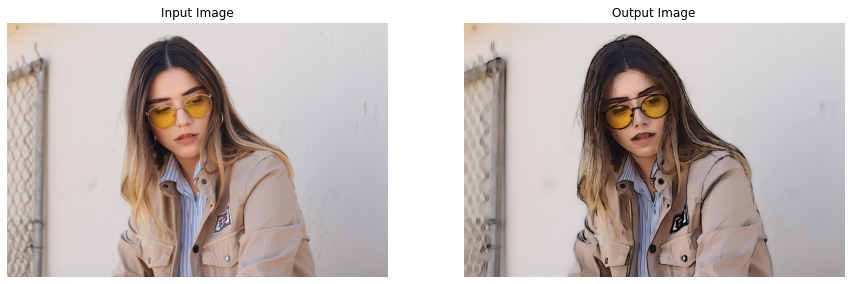
Creating Pencil Sketch Filter-like Effect
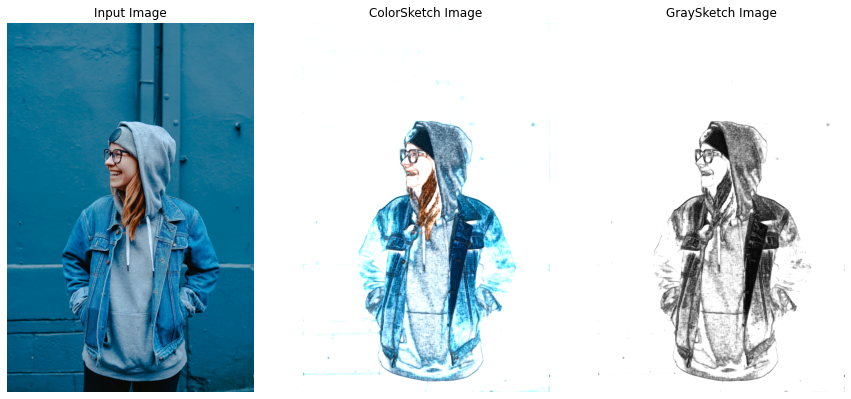
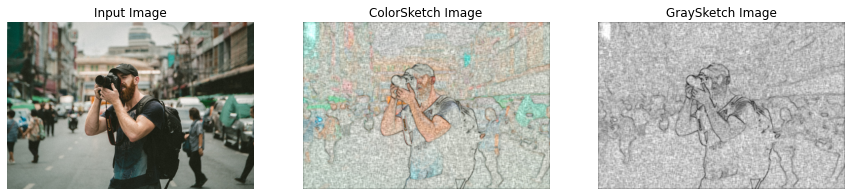
The next one is the Pencil Sketch Filter, creating a Pencil Sketch manually requires hours of hard work but luckily in OpenCV, we can do this in just one line of code by using the function cv2.pencilSketch() that give a pencil sketch-like effect to images. So lets create a function applyPencilSketch() to convert images/videos into Pencil Sketches utilizing the cv2.pencilSketch() function.
We will use the following funciton to applythe pencil sketch filter, this function retruns a grayscale sketch and a colored sketch of the image
This filter is a type of edge preserving filter, these filters have 2 Objectives, one is to give more weightage to pixels closer so that the blurring can be meaningfull and second to average only the similar intensity valued pixels to avoid the edges, so in this both of these objectives are controled by the two following parameters.
sigma_s Just like sigma in other smoothing filters this sigma value controls the area of the neighbourhood (Has Range between 0-200)
sigma_r This param controls the how dissimilar colors within the neighborhood will be averaged. For example a larger value will restrcit color variation and it will enforce that constant color stays throughout. (Has Range between 0-1)
shade_factor This has range 0-0.1 and controls how bright the final output will be by scaling the intensity.
def applyPencilSketch(image, display=True):
    '''
    This function will create instagram Pencil Sketch filter like effect on an image.
    Args:
        image:  The image on which the filter is to be applied.
        display: A boolean value that is if set to true the function displays the original image,
                 and the output image, and returns nothing.
    Returns:
        output_image: A copy of the input image with the Pencil Sketch filter applied.
    '''

    # Apply Pencil Sketch effect on the image.
    gray_sketch, color_sketch = cv2.pencilSketch(image, sigma_s=20, sigma_r=0.5, shade_factor=0.02)

    # Check if the original input image and the output image are specified to be displayed.
    if display:

        # Display the original input image and the output image.
        plt.figure(figsize=[15,15])
        plt.subplot(131);plt.imshow(image[:,:,::-1]);plt.title("Input Image");plt.axis('off');
        plt.subplot(132);plt.imshow(color_sketch[:,:,::-1]);plt.title("ColorSketch Image");plt.axis('off');
        plt.subplot(133);plt.imshow(gray_sketch, cmap='gray');plt.title("GraySketch Image");plt.axis('off');

    # Otherwise.
    else:

        # Return the output image.
        return color_sketch
Now we will apply this pencil sketch effect by utilizing the applyPencilSketch() function on a few sample images and visualize the results.
# Read a sample image and apply PencilSketch filter on it.
image = cv2.imread('media/sample11.jpg')
applyPencilSketch(image)
Now let’s check how the changeIntensity() functi
# Read another sample image and apply PencilSketch filter on it.
image = cv2.imread('media/sample5.jpg')
applyPencilSketch(image)
Amazing right? we created this effect with just a single line of code. So now, instead of spending hours manually sketching someone or something, you can take an image and apply this effect on it to get the results in seconds. And you can further tune the parameters of the cv2.pencilSketch() function to get even better results.
Creating Sharpening Filter-like Effect
Now let’s try to create the Sharpening Effect, this enhances the clearness of an image/video and decreases the blurriness which gives a new interesting look to the image/video. For this we will create a function applySharpening() that will utilize the cv2.filter2D() function to give the required effect to an image/frame passed to it.
 def applySharpening(image, display=True):
    '''
    This function will create the Sharpening filter like effect on an image.
    Args:
        image:  The image on which the filter is to be applied.
        display: A boolean value that is if set to true the function displays the original image,
                 and the output image, and returns nothing.
    Returns:
        output_image: A copy of the input image with the Sharpening filter applied.
    '''

    # Get the kernel required for the sharpening effect.
    sharpening_kernel = np.array([[-1, -1, -1],
                                  [-1, 9.2, -1],
                                  [-1, -1, -1]])

    # Apply the sharpening filter on the image.
    output_image = cv2.filter2D(src=image, ddepth=-1,
                                kernel=sharpening_kernel)

    # Check if the original input image and the output image are specified to be displayed.
    if display:

        # Display the original input image and the output image.
        plt.figure(figsize=[15,15])
        plt.subplot(121);plt.imshow(image[:,:,::-1]);plt.title("Input Image");plt.axis('off');
        plt.subplot(122);plt.imshow(output_image[:,:,::-1]);plt.title("Output Image");plt.axis('off');

    # Otherwise.
    else:

        # Return the output image.
        return output_image
Now, let’s see this in action utilizing the applySharpening() function created above on a few sample images.
# Read a sample image and apply Sharpening filter on it.
image = cv2.imread('media/sample12.jpg')
applySharpening(image)
# Read another sample image and apply Sharpening filter on it.
image = cv2.imread('media/sample13.jpg')
applySharpening(image)
Nice! this filter makes the original images look as if they are out of focus (blur).
Creating a Detail Enhancing Filter
Now this Filter is another type of edge preserving fitler and has the same parameters as the pencil sketch filter.This filter intensifies the details in images/videos, we’ll be using the function called cv2.detailEnhance(). let’s start by creating the a wrapper function applyDetailEnhancing(), that will utilize the cv2.detailEnhance() function to apply the needed effect.
def applyDetailEnhancing(image, display=True):
    '''
    This function will create the HDR filter like effect on an image.
    Args:
        image:  The image on which the filter is to be applied.
        display: A boolean value that is if set to true the function displays the original image,
                 and the output image, and returns nothing.
    Returns:
        output_image: A copy of the input image with the HDR filter applied.
    '''

    # Apply the detail enhancing effect by enhancing the details of the image.
    output_image = cv2.detailEnhance(image, sigma_s=15, sigma_r=0.15)

    # Check if the original input image and the output image are specified to be displayed.
    if display:

        # Display the original input image and the output image.
        plt.figure(figsize=[15,15])
        plt.subplot(121);plt.imshow(image[:,:,::-1]);plt.title("Input Image");plt.axis('off');
        plt.subplot(122);plt.imshow(output_image[:,:,::-1]);plt.title("Output Image");plt.axis('off');

    # Otherwise.
    else:

        # Return the output image.
        return output_image
Now, let’s test the function applyDetailEnhancing() created above on a few sample images.
# Read a sample image and apply Detail Enhancing filter on it.
image = cv2.imread('media/sample14.jpg')
applyDetailEnhancing(image)
# Read another sample image and apply Detail Enhancing filter on it.
image = cv2.imread('media/sample15.jpg')
applyDetailEnhancing(image)
Satisfying results! let’s move on to the next one.
Creating Invert Filter-like Effect
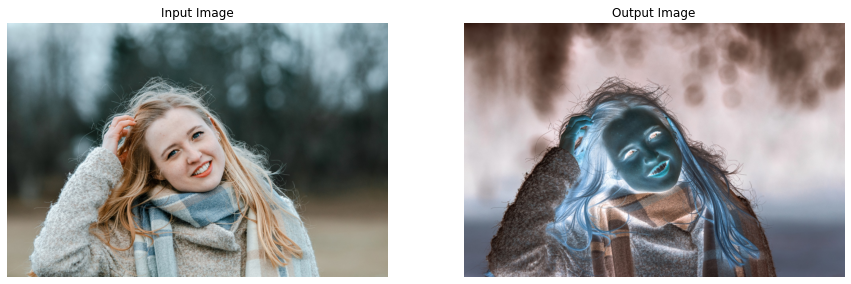
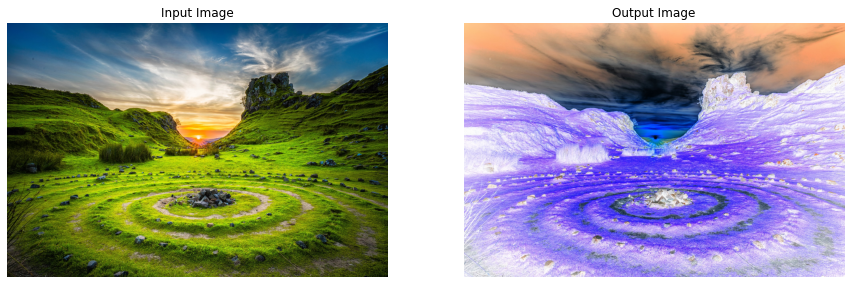
This filter inverts the colors in images/videos meaning changes darkish colors into light and vice versa, which gives a very interesting look to images/videos. This can be accomplished using multiple approaches we can either utilize a LookUp table to perform the required transformation or subtract the image by 255 and take absolute of the results or just simply use the OpenCV function cv2.bitwise_not(). Let’s create a function applyInvert() to serve the purpose.
def applyInvert(image, display=True):
    '''
    This function will create the Invert filter like effect on an image.
    Args:
        image:  The image on which the filter is to be applied.
        display: A boolean value that is if set to true the function displays the original image,
                 and the output image, and returns nothing.
    Returns:
        output_image: A copy of the input image with the Invert filter applied.
    '''

    # Apply the Invert Filter on the image.
    output_image = cv2.bitwise_not(image)

    # Check if the original input image and the output image are specified to be displayed.
    if display:

        # Display the original input image and the output image.
        plt.figure(figsize=[15,15])
        plt.subplot(121);plt.imshow(image[:,:,::-1]);plt.title("Input Image");plt.axis('off');
        plt.subplot(122);plt.imshow(output_image[:,:,::-1]);plt.title("Output Image");plt.axis('off');

    # Otherwise.
    else:

        # Return the output image.
        return output_image
Let’s check this effect on a few sample images utilizing the applyInvert() function.
# Read a sample image and apply invert filter on it.
image = cv2.imread('media/sample16.jpg')
applyInvert(image)
Looks a little scary, lets’s try it on a few landscape images.
# Read a landscape image and apply invert filter on it.
image = cv2.imread('media/sample19.jpg')
applyInvert(image)
# Read another landscape image and apply invert filter on it.
image = cv2.imread('media/sample20.jpg')
applyInvert(image)
Interesting effect! but I will definitely not recommend using this one on your own images, except if your intention is to scare someone xD.
Creating Stylization Filter-like Effect
Now let’s move on to the final one, which gives a painting-like effect to images. We will create a function applyStylization() that will utilize the cv2.stylization() function to apply this effect on images and videos. This one too will only need a single line of code.
def applyStylization(image, display=True):
    '''
    This function will create instagram cartoon-paint filter like effect on an image.
    Args:
        image:  The image on which the filter is to be applied.
        display: A boolean value that is if set to true the function displays the original image,
                 and the output image, and returns nothing.
    Returns:
        output_image: A copy of the input image with the cartoon-paint filter applied.
    '''

    # Apply stylization effect on the image.
    output_image = cv2.stylization(image, sigma_s=15, sigma_r=0.55)

    # Check if the original input image and the output image are specified to be displayed.
    if display:

        # Display the original input image and the output image.
        plt.figure(figsize=[15,15])
        plt.subplot(121);plt.imshow(image[:,:,::-1]);plt.title("Input Image");plt.axis('off');
        plt.subplot(122);plt.imshow(output_image[:,:,::-1]);plt.title("Output Image");plt.axis('off');

    # Otherwise.
    else:

        # Return the output image.
        return output_image
Now, as done for every other filter, we will utilize the function applyStylization() to test this effect on a few sample images.
# Read a sample image and apply Stylization filter on it.
image = cv2.imread('media/sample16.jpg')
applyStylization(image)
# Read another sample image and apply Stylization filter on it.
image = cv2.imread('media/sample17.jpg')
applyStylization(image)
Again got fascinating results! Wasn’t that fun to see how simple it is to create all these effects?
Apply Instagram Filters On a Real-Time Web-cam Feed
Now that we have created the filters and have tested them on images, let’s move to apply these on a real-time webcam feed, first, we will have to create a mouse event callback function mouseCallback(), similar to the one we had created for the Color Filters in the previous tutorial, the function will allow us to select the filter to apply, and capture and store images into the disk by utilizing mouse events in real-time.
def mouseCallback(event, x, y, flags, userdata):
    '''
    This function will update the filter to apply on the frame and capture images based on different mouse events.
    Args:
        event:    The mouse event that is captured.
        x:        The x-coordinate of the mouse pointer position on the window.
        y:        The y-coordinate of the mouse pointer position on the window.
        flags:    It is one of the MouseEventFlags constants.
        userdata: The parameter passed from the `cv2.setMouseCallback()` function.
    '''
    #  Access the filter applied, and capture image state variable.
    global filter_applied, capture_image

    # Check if the left mouse button is pressed.
    if event == cv2.EVENT_LBUTTONDOWN:

        # Check if the mouse pointer is over the camera icon ROI.
        if y >= (frame_height-10)-camera_icon_height and \
        x >= (frame_width//2-camera_icon_width//2) and \
        x <= (frame_width//2+camera_icon_width//2):

            # Update the image capture state to True.
            capture_image = True

        # Check if the mouse pointer y-coordinate is over the filters ROI.
        elif y <= 10+preview_height:

            # Check if the mouse pointer x-coordinate is over the Warm filter ROI.
            if x>(int(frame_width//11.6)-preview_width//2) and \
            x<(int(frame_width//11.6)-preview_width//2)+preview_width:

                # Update the filter applied variable value to Warm.
                filter_applied = 'Warm'

            # Check if the mouse pointer x-coordinate is over the Cold filter ROI.
            elif x>(int(frame_width//5.9)-preview_width//2) and \
            x<(int(frame_width//5.9)-preview_width//2)+preview_width:

                # Update the filter applied variable value to Cold.
                filter_applied = 'Cold'

            # Check if the mouse pointer x-coordinate is over the Gotham filter ROI.
            elif x>(int(frame_width//3.97)-preview_width//2) and \
            x<(int(frame_width//3.97)-preview_width//2)+preview_width:

                # Update the filter applied variable value to Gotham.
                filter_applied = 'Gotham'

            # Check if the mouse pointer x-coordinate is over the Grayscale filter ROI.
            elif x>(int(frame_width//2.99)-preview_width//2) and \
            x<(int(frame_width//2.99)-preview_width//2)+preview_width:

                # Update the filter applied variable value to Grayscale.
                filter_applied = 'Grayscale'

            # Check if the mouse pointer x-coordinate is over the Sepia filter ROI.
            elif x>(int(frame_width//2.395)-preview_width//2) and \
            x<(int(frame_width//2.395)-preview_width//2)+preview_width:

                # Update the filter applied variable value to Sepia.
                filter_applied = 'Sepia'

            # Check if the mouse pointer x-coordinate is over the Normal filter ROI.
            elif x>(int(frame_width//2)-preview_width//2) and \
            x<(int(frame_width//2)-preview_width//2)+preview_width:

                # Update the filter applied variable value to Normal.
                filter_applied = 'Normal'

            # Check if the mouse pointer x-coordinate is over the Pencil Sketch filter ROI.
            elif x>(frame_width//1.715-preview_width//2) and \
            x<(frame_width//1.715-preview_width//2)+preview_width:

                # Update the filter applied variable value to Pencil Sketch.
                filter_applied = 'Pencil Sketch'

            # Check if the mouse pointer x-coordinate is over the Sharpening filter ROI.
            elif x>(int(frame_width//1.501)-preview_width//2) and \
            x<(int(frame_width//1.501)-preview_width//2)+preview_width:

                # Update the filter applied variable value to Sharpening.
                filter_applied = 'Sharpening'

            # Check if the mouse pointer x-coordinate is over the Invert filter ROI.
            elif x>(int(frame_width//1.335)-preview_width//2) and \
            x<(int(frame_width//1.335)-preview_width//2)+preview_width:

                # Update the filter applied variable value to Invert.
                filter_applied = 'Invert'

            # Check if the mouse pointer x-coordinate is over the Detail Enhancing filter ROI.
            elif x>(int(frame_width//1.202)-preview_width//2) and \
            x<(int(frame_width//1.202)-preview_width//2)+preview_width:

                # Update the filter applied variable value to Detail Enhancing.
                filter_applied = 'Detail Enhancing'

            # Check if the mouse pointer x-coordinate is over the Stylization filter ROI.
            elif x>(int(frame_width//1.094)-preview_width//2) and \
            x<(int(frame_width//1.094)-preview_width//2)+preview_width:

                # Update the filter applied variable value to Stylization.
                filter_applied = 'Stylization'
Now that we have a mouse event callback function mouseCallback() to select a filter to apply, we will create another function applySelectedFilter() that we will need, to check which filter is selected at the moment and apply that filter to the image/frame in real-time.
def applySelectedFilter(image, filter_applied):
    '''
    This function will apply the selected filter on an image.
    Args:
        image:          The image on which the selected filter is to be applied.
        filter_applied: The name of the filter selected by the user.
    Returns:
        output_image: A copy of the input image with the selected filter applied.
    '''

    # Check if the specified filter to apply, is the Warm filter.
    if filter_applied == 'Warm':

        # Apply the Warm Filter on the image.
        output_image = applyWarm(image, display=False)

    # Check if the specified filter to apply, is the Cold filter.
    elif filter_applied == 'Cold':

        # Apply the Cold Filter on the image.
        output_image = applyCold(image, display=False)

    # Check if the specified filter to apply, is the Gotham filter.
    elif filter_applied == 'Gotham':

        # Apply the Gotham Filter on the image.
        output_image = applyGotham(image, display=False)

     # Check if the specified filter to apply, is the Grayscale filter.
    elif filter_applied == 'Grayscale':

        # Apply the Grayscale Filter on the image.
        output_image = applyGrayscale(image, display=False)

    # Check if the specified filter to apply, is the Sepia filter.
    if filter_applied == 'Sepia':

        # Apply the Sepia Filter on the image.
        output_image = applySepia(image, display=False)

    # Check if the specified filter to apply, is the Pencil Sketch filter.
    elif filter_applied == 'Pencil Sketch':

        # Apply the Pencil Sketch Filter on the image.
        output_image = applyPencilSketch(image, display=False)

    # Check if the specified filter to apply, is the Sharpening filter.
    elif filter_applied == 'Sharpening':

        # Apply the Sharpening Filter on the image.
        output_image = applySharpening(image, display=False)

    # Check if the specified filter to apply, is the Invert filter.
    elif filter_applied == 'Invert':

        # Apply the Invert Filter on the image.
        output_image = applyInvert(image, display=False)

    # Check if the specified filter to apply, is the Detail Enhancing filter.
    elif filter_applied == 'Detail Enhancing':

        # Apply the Detail Enhancing Filter on the image.
        output_image = applyDetailEnhancing(image, display=False)

    # Check if the specified filter to apply, is the Stylization filter.
    elif filter_applied == 'Stylization':

        # Apply the Stylization Filter on the image.
        output_image = applyStylization(image, display=False)

    # Return the image with the selected filter applied.`
    return output_image
Now that we will the required functions, let’s test the filters on a real-time webcam feed, we will be switching between the filters by utilizing the mouseCallback() and applySelectedFilter() functions created above and will overlay a Camera ROI over the frame and allow the user to capture images with the selected filter applied, by clicking on the Camera ROI in real-time.
# Initialize the VideoCapture object to read from the webcam.
camera_video = cv2.VideoCapture(1, cv2.CAP_DSHOW)
camera_video.set(3,1280)
camera_video.set(4,960)

# Create a named resizable window.
cv2.namedWindow('Instagram Filters', cv2.WINDOW_NORMAL)

# Attach the mouse callback function to the window.
cv2.setMouseCallback('Instagram Filters', mouseCallback)

# Initialize a variable to store the current applied filter.
filter_applied = 'Normal'

# Initialize a variable to store the copies of the frame
# with the filters applied.
filters = None

# Initialize the pygame modules and load the image-capture music file.
pygame.init()
pygame.mixer.music.load("media/camerasound.mp3")

# Initialize a variable to store the image capture state.
capture_image = False

# Initialize a variable to store a camera icon image.
camera_icon = None

# Iterate until the webcam is accessed successfully.
while camera_video.isOpened():

    # Read a frame.
    ok, frame = camera_video.read()

    # Check if frame is not read properly then
    # continue to the next iteration to read the next frame.
    if not ok:
        continue

    # Get the height and width of the frame of the webcam video.
    frame_height, frame_width, _ = frame.shape

    # Flip the frame horizontally for natural (selfie-view) visualization.
    frame = cv2.flip(frame, 1)

    # Check if the filters variable doesnot contain the filters.
    if not(filters):

        # Update the filters variable to store a dictionary containing multiple
        # copies of the frame with all the filters applied.
        filters = {'Normal': frame.copy(), 'Warm' : applyWarm(frame, display=False),
                   'Cold'  :applyCold(frame, display=False),
                   'Gotham' : applyGotham(frame, display=False),
                   'Grayscale' : applyGrayscale(frame, display=False),
                   'Sepia' : applySepia(frame, display=False),
                   'Pencil Sketch' : applyPencilSketch(frame, display=False),
                   'Sharpening': applySharpening(frame, display=False),
                   'Invert': applyInvert(frame, display=False),
                   'Detail Enhancing': applyDetailEnhancing(frame, display=False),
                   'Stylization': applyStylization(frame, display=False)}

    # Initialize a list to store the previews of the filters.
    filters_previews = []

    # Iterate over the filters dictionary.
    for filter_name, filtered_frame in filters.items():

        # Check if the filter we are iterating upon, is applied.
        if filter_applied == filter_name:

            # Set color to green.
            # This will be the border color of the filter preview.
            # And will be green for the filter applied and white for the other filters.
            color = (0,255,0)

        # Otherwise.
        else:

            # Set color to white.
            color = (255,255,255)

        # Make a border around the filter we are iterating upon.
        filter_preview = cv2.copyMakeBorder(src=filtered_frame, top=100, bottom=100,
                                            left=10, right=10, borderType=cv2.BORDER_CONSTANT,
                                            value=color)

        # Resize the preview to the 1/12th of its current width and height.
        filter_preview = cv2.resize(filter_preview, (frame_width//12,frame_height//12))

        # Append the filter preview into the list.
        filters_previews.append(filter_preview)

    # Get the new height and width of the previews.
    preview_height, preview_width, _ = filters_previews[0].shape

    # Check if any filter is selected.
    if filter_applied != 'Normal':

        # Apply the selected Filter on the frame.
        frame = applySelectedFilter(frame, filter_applied)

     # Check if the image capture state is True.
    if capture_image:

        # Capture an image and store it in the disk.
        cv2.imwrite('Captured_Image.png', frame)

        # Display a black image.
        cv2.imshow('Instagram Filters', np.zeros((frame_height, frame_width)))

        # Play the image capture music to indicate that an image is captured and wait for 100 milliseconds.
        pygame.mixer.music.play()
        cv2.waitKey(100)

        # Display the captured image.
        plt.close();plt.figure(figsize=[10, 10])
        plt.imshow(frame[:,:,::-1]);plt.title("Captured Image");plt.axis('off');

        # Update the image capture state to False.
        capture_image = False

    # Check if the camera icon variable doesnot contain the camera icon image.
    if not(camera_icon):

        # Read a camera icon png image with its blue, green, red, and alpha channel.
        camera_iconBGRA = cv2.imread('media/cameraicon.png', cv2.IMREAD_UNCHANGED)

        # Resize the camera icon image to the 1/12th of the frame width,
        # while keeping the aspect ratio constant.
        camera_iconBGRA = cv2.resize(camera_iconBGRA,
                                     (frame_width//12,
                                      int(((frame_width//12)/camera_iconBGRA.shape[1])*camera_iconBGRA.shape[0])))

        # Get the new height and width of the camera icon image.
        camera_icon_height, camera_icon_width, _ = camera_iconBGRA.shape

        # Get the first three-channels (BGR) of the camera icon image.
        camera_iconBGR  = camera_iconBGRA[:,:,:-1]

        # Get the alpha channel of the camera icon.
        camera_icon_alpha =  camera_iconBGRA[:,:,-1]

    # Get the region of interest of the frame where the camera icon image will be placed.
    frame_roi = frame[(frame_height-10)-camera_icon_height: (frame_height-10),
                      (frame_width//2-camera_icon_width//2): \
                      (frame_width//2-camera_icon_width//2)+camera_icon_width]

    # Overlay the camera icon over the frame by updating the pixel values of the frame
    # at the indexes where the alpha channel of the camera icon image has the value 255.
    frame_roi[camera_icon_alpha==255] = camera_iconBGR[camera_icon_alpha==255]

    # Overlay the resized preview filter images over the frame by updating
    # its pixel values in the region of interest.
    #######################################################################################

    # Overlay the Warm Filter preview on the frame.
    frame[10: 10+preview_height,
          (int(frame_width//11.6)-preview_width//2): \
          (int(frame_width//11.6)-preview_width//2)+preview_width] = filters_previews[1]

    # Overlay the Cold Filter preview on the frame.
    frame[10: 10+preview_height,
          (int(frame_width//5.9)-preview_width//2): \
          (int(frame_width//5.9)-preview_width//2)+preview_width] = filters_previews[2]

    # Overlay the Gotham Filter preview on the frame.
    frame[10: 10+preview_height,
          (int(frame_width//3.97)-preview_width//2): \
          (int(frame_width//3.97)-preview_width//2)+preview_width] = filters_previews[3]


    # Overlay the Grayscale Filter preview on the frame.
    frame[10: 10+preview_height,
          (int(frame_width//2.99)-preview_width//2): \
          (int(frame_width//2.99)-preview_width//2)+preview_width] = filters_previews[4]

    # Overlay the Sepia Filter preview on the frame.
    frame[10: 10+preview_height,
          (int(frame_width//2.395)-preview_width//2): \
          (int(frame_width//2.395)-preview_width//2)+preview_width] = filters_previews[5]

    # Overlay the Normal frame (no filter) preview on the frame.
    frame[10: 10+preview_height,
          (frame_width//2-preview_width//2): \
          (frame_width//2-preview_width//2)+preview_width] = filters_previews[0]

    # Overlay the Pencil Sketch Filter preview on the frame.
    frame[10: 10+preview_height,
          (int(frame_width//1.715)-preview_width//2): \
          (int(frame_width//1.715)-preview_width//2)+preview_width]=filters_previews[6]

    # Overlay the Sharpening Filter preview on the frame.
    frame[10: 10+preview_height,
          (int(frame_width//1.501)-preview_width//2): \
          (int(frame_width//1.501)-preview_width//2)+preview_width]=filters_previews[7]

    # Overlay the Invert Filter preview on the frame.
    frame[10: 10+preview_height,
          (int(frame_width//1.335)-preview_width//2): \
          (int(frame_width//1.335)-preview_width//2)+preview_width]=filters_previews[8]

    # Overlay the Detail Enhancing Filter preview on the frame.
    frame[10: 10+preview_height,
          (int(frame_width//1.202)-preview_width//2): \
          (int(frame_width//1.202)-preview_width//2)+preview_width]=filters_previews[9]

    # Overlay the Stylization Filter preview on the frame.
    frame[10: 10+preview_height,
          (int(frame_width//1.094)-preview_width//2): \
          (int(frame_width//1.094)-preview_width//2)+preview_width]=filters_previews[10]

    #######################################################################################

    # Display the frame.
    cv2.imshow('Instagram Filters', frame)

    # Wait for 1ms. If a key is pressed, retreive the ASCII code of the key.
    k = cv2.waitKey(1) & 0xFF

    # Check if 'ESC' is pressed and break the loop.
    if(k == 27):
        break

# Release the VideoCapture Object and close the windows.
camera_video.release()
cv2.destroyAllWindows()
Output Video:
Awesome! working as expected on the videos too.
Assignment (Optional)
Create your own Filter with an appropriate name by playing around with the techniques you have learned in this tutorial, and share the results with me in the comments section.
In today’s tutorial, we have covered several advanced image processing techniques and then utilized these concepts to create 10 different fascinating Instagram filters-like effects on images and videos.
This concludes the Creating Instagram Filters series, throughout the series we learned a ton of interesting concepts. In the first post, we learned all about using Mouse and TrackBars events in OpenCV, in the second post we learned to work with Lookup Tables in OpenCV and how to create color filters with it, and in this tutorial, we went even further and created more interesting color filters and other types of effects.
If you have found the series useful, do let me know in the comments section, I might publish some other very cool posts on image filters using deep learning. We also provide AI Consulting at Bleed AI Solutions, by building highly optimized and scalable bleeding-edge solutions for our clients so feel free to contact us if you have a problem or project that demands a cutting-edge AI/CV solution.
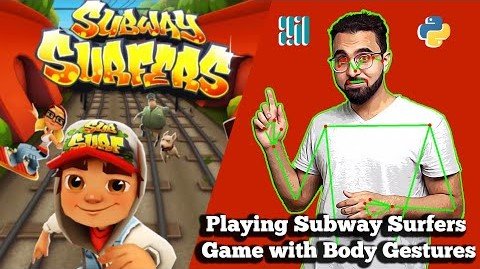
In last Week’s tutorial, we learned how to work with real-time pose detection and created a pose classification system. In this week’s tutorial, we’ll learn to play a popular game called “Subway Surfers”
Of Course, there’s more to it, this is an AI Blog after all.
We will actually be using our body pose to control the game, not keyboard controls, the entire application will work in real-time on your CPU, you don’t even need a depth camera or a Kinect, your webcam will suffice.
Excited yet, let’s get into it, but before that let me tell you a short story that motivated me to build this application today. It starts with me giving a lecture on the importance of physical fitness, I know … I know … how this sounds but just bear with me for a bit.
Hi All, Taha Awnar here, So here’s the thing. One of the best things I enjoyed in my early teenage years was having a fast metabolism due to my involvement in physical activities. I could eat whatever I wanted, not make a conscious effort in exercising and still stay fit.
But as I grew older, and started spending most of my time in front of a computer, I noticed that I was actually gaining weight. So no longer could I afford the luxury of binge unhealthy eating and skipping workouts.
Now I’m a bit of a foodie so although I could compromise a bit on how I eat, I still needed to cut weight some other way, so I quickly realized that unless I wanted to get obese, I needed to consciously make effort to workout.
That’s about when I joined a local gym in my area, and guess what? … it didn’t work out, ( or I didn’t work out … enough 🙁 ) So I quitted after a month.
So what was the reason ?.… Well, I could provide multiple excuses but to be honest, I was just lazy.
A few months later I joined the gym again and again I quitted after just 2 months.
Now I could have just quit completely but instead 8 months back I tried again, this time I even hired a trainer to keep me motivated, and as they say it, 3rd time’s a charm and luckily it was!
8 months in, I’m still at it. I did see results and lost a couple of kgs, although I haven’t reached my personal target so I’m still working towards it.
If you’re reading this post then you’re probably into computer science just like me and you most likely need to spend a lot of time in front of a PC and because of that, your physical and mental fitness must take a toll. And I seriously can’t stress enough how important it is that you take out a couple of hours each week to exercise.
I’m not a fitness guru but I can say working out has many key benefits:
Helps you shed excess weight, keeps you physically fit.
Gives you mental clarity and improves your work quality.
Lots of health benefits.
Helps you get a partner, if you’re still single like me … lol
Because of these reasons, even though I have an introverted personality, I consciously take out a couple of hours each week to go to the gym or the park for running.
But here’s the thing, sometimes I wonder why can’t I combine what I do (working on a PC) with some activity so I could … you know hit 2 birds with one stone.
This thought led me to create this post today, so what I did was I created a vision application that allows me to control a very popular game called Subway Surfers via my body movement by utilizing real-time pose detection.
And so In this tutorial, I’ll show you how to create this application that controls the Subway Surfers game using body gestures and movements so that you can also exercise, code, and have fun at the same time.
How will this Work?
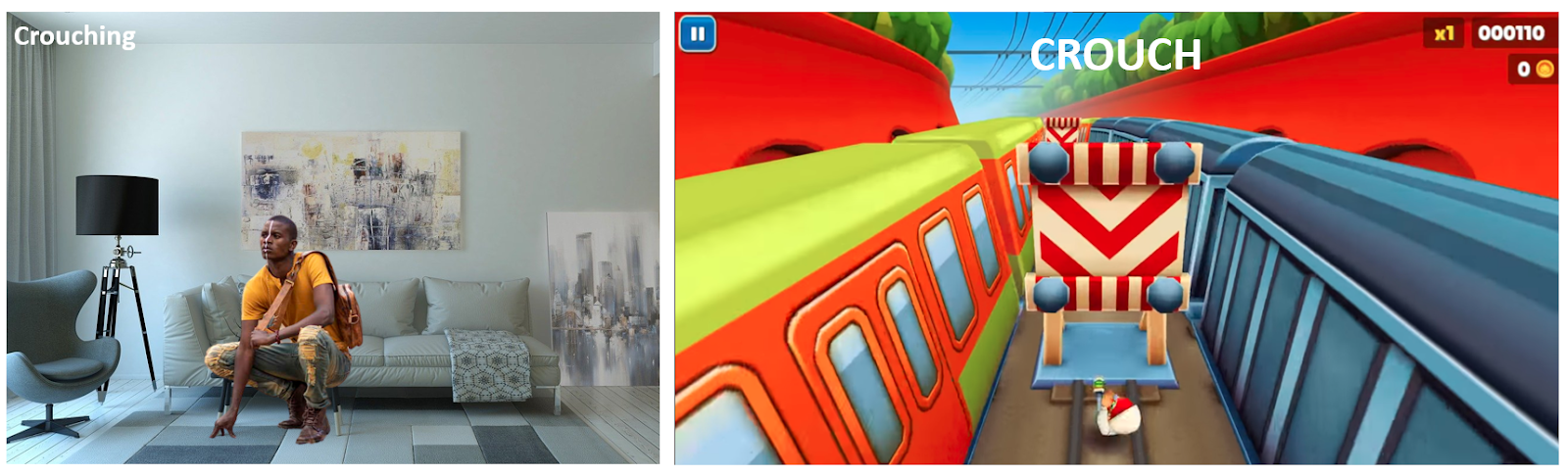
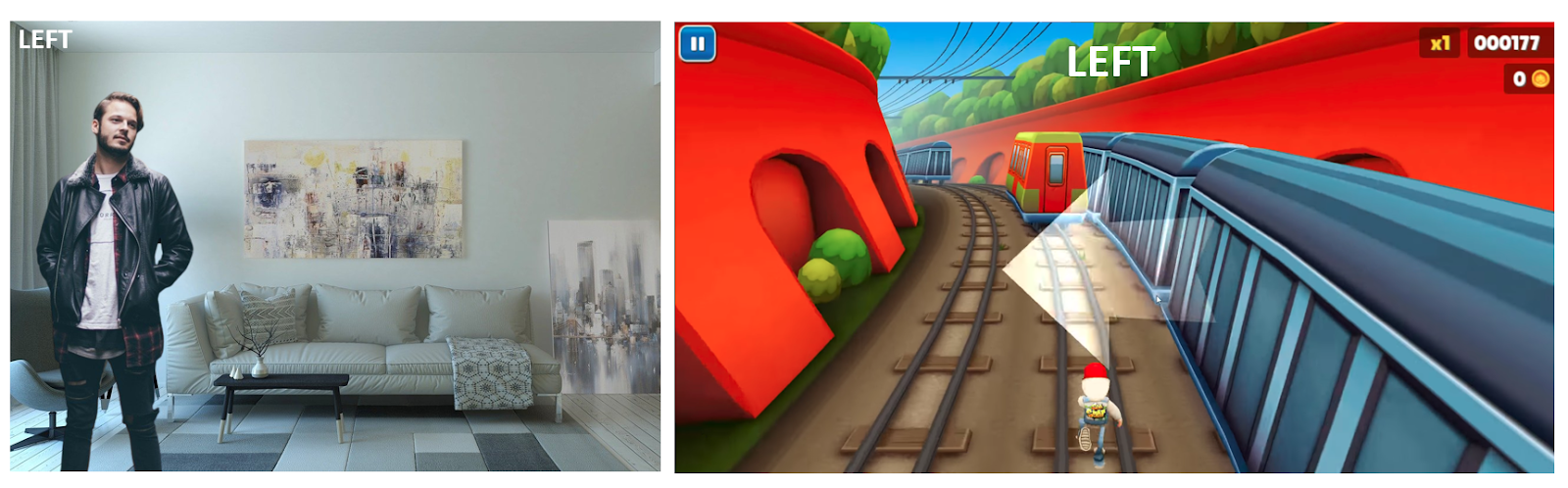
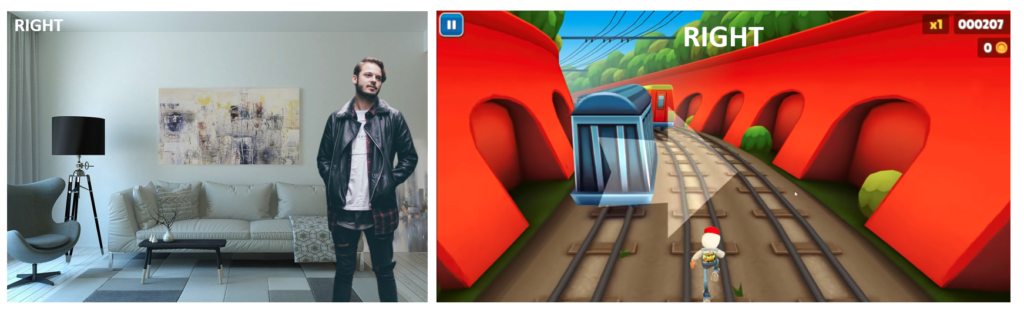
So this game is about a character running from a policeman dodging different hurdles by jumping, crouching, and moving left and right. So we will need to worry about four controls that are normally controlled using a keyboard.
Up arrow key to make the character jump
Down arrow key to make the character crouch
Left arrow key to move the character to left
Right arrow key to move the character to right.
Using the Pyautogui library, we will automatically trigger the required keypress events, depending upon the body movement of the person that we’ll capture using Mediapipe’s Pose Detection model.
I want the game’s character to:
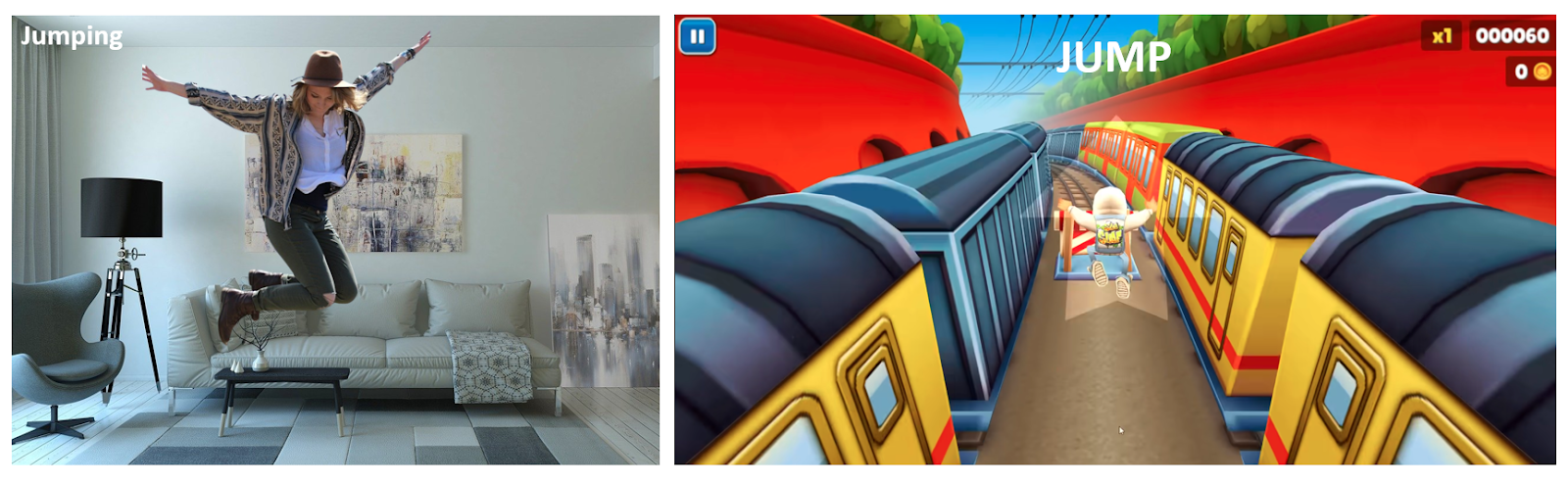
Jump whenever the person controlling the character jumps.
Crouch whenever the person controlling the character crouches.
Move left whenever the person controlling the character moves to the left side of the screen.
Move right whenever the person controlling the character moves to the right on the screen.
You can also use the techniques you’ll learn in this tutorial to control any other game. The simpler the game, the easier it will be to control. I have actually published two tutorials about game control via body gestures.
Alright now that we have discussed the basic mechanisms for creating this application, let me walk you through the exact step-by-step process I used to create this.
Outline
Step 1: Perform Pose Detection
Step 2: Control Starting Mechanism
Step 3: Control Horizontal Movements
Step 4: Control Vertical Movements
Step 5: Control Keyboard and Mouse with PyautoGUI
Step 6: Build the Final Application
Alright, let’s get started.
Download Code
[optin-monster slug=”fosdrzvuquq2gad1pccq”]
Import the Libraries
We will start by importing the required libraries.
import cv2
import pyautogui
from time import time
from math import hypot
import mediapipe as mp
import matplotlib.pyplot as plt
Initialize the Pose Detection Model
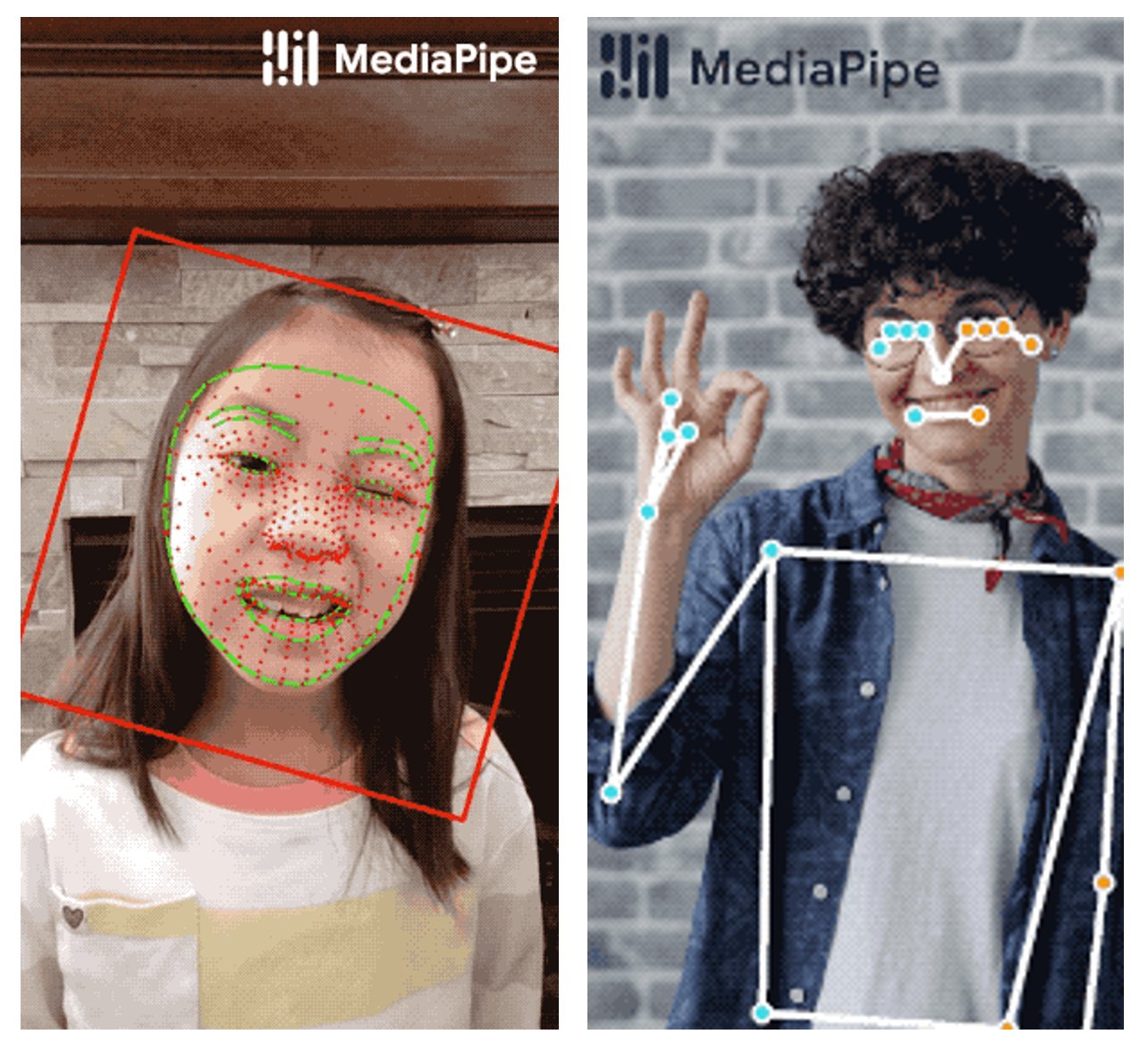
After that we will need to initialize the mp.solutions.pose class and then call the mp.solutions.pose.Pose() function with appropriate arguments and also initialize mp.solutions.drawing_utils class that is needed to visualize the landmarks after detection.
# Initialize mediapipe pose class.
mp_pose = mp.solutions.pose

# Setup the Pose function for images.
pose_image = mp_pose.Pose(static_image_mode=True, min_detection_confidence=0.5, model_complexity=1)

# Setup the Pose function for videos.
pose_video = mp_pose.Pose(static_image_mode=False, model_complexity=1, min_detection_confidence=0.7,
                          min_tracking_confidence=0.7)

# Initialize mediapipe drawing class.
mp_drawing = mp.solutions.drawing_utils
Step 1: Perform Pose Detection
To implement the game control mechanisms, we will need the current pose info of the person controlling the game, as our intention is to control the character with the movement of the person in the frame. We want the game’s character to move left, right, jump and crouch with the identical movements of the person.
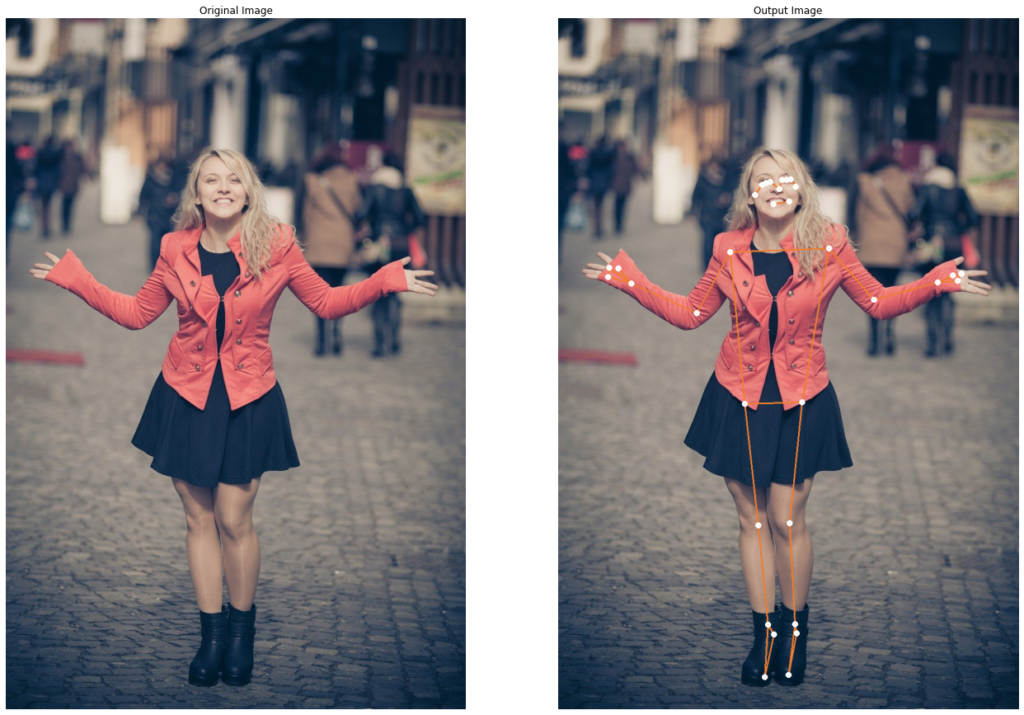
So we will create a function detectPose() that will take an image as input and perform pose detection on the person in the image using the mediapipe’s pose detection solution to get thirty-three 3D landmarks on the body and the function will display the results or return them depending upon the passed arguments.
This function is quite similar to the one we had created in the previous post. The only difference is that we are not plotting the pose landmarks in 3D and we are passing a few more optional arguments to the function mp.solutions.drawing_utils.draw_landmarks() to specify the drawing style.
You probably do not want to lose control of the game’s character whenever some other person comes into the frame (and starts controlling the character), so that annoying scenario is already taken care of, as the solution we are using only detects the landmarks of the most prominent person in the image.
So you do not need to worry about losing control as long as you are the most prominent person in the frame as it will automatically ignore the people in the background.
def detectPose(image, pose, draw=False, display=False):
    '''
    This function performs the pose detection on the most prominent person in an image.
    Args:
        image:   The input image with a prominent person whose pose landmarks needs to be detected.
        pose:    The pose function required to perform the pose detection.
        draw:    A boolean value that is if set to true the function draw pose landmarks on the output image.
        display: A boolean value that is if set to true the function displays the original input image, and the
                 resultant image and returns nothing.
    Returns:
        output_image: The input image with the detected pose landmarks drawn if it was specified.
        results:      The output of the pose landmarks detection on the input image.
    '''

    # Create a copy of the input image.
    output_image = image.copy()

    # Convert the image from BGR into RGB format.
    imageRGB = cv2.cvtColor(image, cv2.COLOR_BGR2RGB)

    # Perform the Pose Detection.
    results = pose.process(imageRGB)

    # Check if any landmarks are detected and are specified to be drawn.
    if results.pose_landmarks and draw:

        # Draw Pose Landmarks on the output image.
        mp_drawing.draw_landmarks(image=output_image, landmark_list=results.pose_landmarks,
                                  connections=mp_pose.POSE_CONNECTIONS,
                                  landmark_drawing_spec=mp_drawing.DrawingSpec(color=(255,255,255),
                                                                               thickness=3, circle_radius=3),
                                  connection_drawing_spec=mp_drawing.DrawingSpec(color=(49,125,237),
                                                                               thickness=2, circle_radius=2))

    # Check if the original input image and the resultant image are specified to be displayed.
    if display:

        # Display the original input image and the resultant image.
        plt.figure(figsize=[22,22])
        plt.subplot(121);plt.imshow(image[:,:,::-1]);plt.title("Original Image");plt.axis('off');
        plt.subplot(122);plt.imshow(output_image[:,:,::-1]);plt.title("Output Image");plt.axis('off');

    # Otherwise
    else:

        # Return the output image and the results of pose landmarks detection.
        return output_image, results
Now we will test the function detectPose() created above to perform pose detection on a sample image and display the results.
# Read a sample image and perform pose landmarks detection on it.
IMG_PATH = 'media/sample.jpg'
image = cv2.imread(IMG_PATH)
detectPose(image, pose_image, draw=True, display=True
It worked pretty well! if you want you can test the function on other images too by just changing the value of the variable IMG_PATH in the cell above, it will work fine as long as there is a prominent person in the image.
Step 2: Control Starting Mechanism
In this step, we will implement the game starting mechanism, what we want is to start the game whenever the most prominent person in the image/frame joins his both hands together. So we will create a function checkHandsJoined() that will check whether the hands of the person in an image are joined or not.
The function checkHandsJoined() will take in the results of the pose detection returned by the function detectPose() and will use the LEFT_WRIST and RIGHT_WRIST landmarks coordinates from the list of thirty-three landmarks, to calculate the euclidean distance between the hands of the person.
And then utilize an appropriate threshold value to compare with and check whether the hands of the person in the image/frame are joined or not and will display or return the results depending upon the passed arguments.
def checkHandsJoined(image, results, draw=False, display=False):
    '''
    This function checks whether the hands of the person are joined or not in an image.
    Args:
        image:   The input image with a prominent person whose hands status (joined or not) needs to be classified.
        results: The output of the pose landmarks detection on the input image.
        draw:    A boolean value that is if set to true the function writes the hands status & distance on the output image.
        display: A boolean value that is if set to true the function displays the resultant image and returns nothing.
    Returns:
        output_image: The same input image but with the classified hands status written, if it was specified.
        hand_status:  The classified status of the hands whether they are joined or not.
    '''

    # Get the height and width of the input image.
    height, width, _ = image.shape

    # Create a copy of the input image to write the hands status label on.
    output_image = image.copy()

    # Get the left wrist landmark x and y coordinates.
    left_wrist_landmark = (results.pose_landmarks.landmark[mp_pose.PoseLandmark.LEFT_WRIST].x * width,
                          results.pose_landmarks.landmark[mp_pose.PoseLandmark.LEFT_WRIST].y * height)

    # Get the right wrist landmark x and y coordinates.
    right_wrist_landmark = (results.pose_landmarks.landmark[mp_pose.PoseLandmark.RIGHT_WRIST].x * width,
                           results.pose_landmarks.landmark[mp_pose.PoseLandmark.RIGHT_WRIST].y * height)

    # Calculate the euclidean distance between the left and right wrist.
    euclidean_distance = int(hypot(left_wrist_landmark[0] - right_wrist_landmark[0],
                                   left_wrist_landmark[1] - right_wrist_landmark[1]))

    # Compare the distance between the wrists with a appropriate threshold to check if both hands are joined.
    if euclidean_distance < 130:

        # Set the hands status to joined.
        hand_status = 'Hands Joined'

        # Set the color value to green.
        color = (0, 255, 0)

    # Otherwise.
    else:

        # Set the hands status to not joined.
        hand_status = 'Hands Not Joined'

        # Set the color value to red.
        color = (0, 0, 255)

    # Check if the Hands Joined status and hands distance are specified to be written on the output image.
    if draw:

        # Write the classified hands status on the image.
        cv2.putText(output_image, hand_status, (10, 30), cv2.FONT_HERSHEY_PLAIN, 2, color, 3)

        # Write the the distance between the wrists on the image.
        cv2.putText(output_image, f'Distance: {euclidean_distance}', (10, 70),
                    cv2.FONT_HERSHEY_PLAIN, 2, color, 3)

    # Check if the output image is specified to be displayed.
    if display:

        # Display the output image.
        plt.figure(figsize=[10,10])
        plt.imshow(output_image[:,:,::-1]);plt.title("Output Image");plt.axis('off');

    # Otherwise
    else:

        # Return the output image and the classified hands status indicating whether the hands are joined or not.
        return output_image, hand_status
Now we will test the function checkHandsJoined() created above on a real-time webcam feed to check whether it is working as we had expected or not.
# Initialize the VideoCapture object to read from the webcam.
camera_video = cv2.VideoCapture(1)
camera_video.set(3,1280)
camera_video.set(4,960)

# Create named window for resizing purposes.
cv2.namedWindow('Hands Joined?', cv2.WINDOW_NORMAL)

# Iterate until the webcam is accessed successfully.
while camera_video.isOpened():

    # Read a frame.
    ok, frame = camera_video.read()

    # Check if frame is not read properly then continue to the next iteration to read the next frame.
    if not ok:
        continue

    # Flip the frame horizontally for natural (selfie-view) visualization.
    frame = cv2.flip(frame, 1)

    # Get the height and width of the frame of the webcam video.
    frame_height, frame_width, _ = frame.shape

    # Perform the pose detection on the frame.
    frame, results = detectPose(frame, pose_video, draw=True)

    # Check if the pose landmarks in the frame are detected.
    if results.pose_landmarks:

        # Check if the left and right hands are joined.
        frame, _ = checkHandsJoined(frame, results, draw=True)

    # Display the frame.
    cv2.imshow('Hands Joined?', frame)

    # Wait for 1ms. If a key is pressed, retreive the ASCII code of the key.
    k = cv2.waitKey(1) & 0xFF

    # Check if 'ESC' is pressed and break the loop.
    if(k == 27):
        break

# Release the VideoCapture Object and close the windows.
camera_video.release()
cv2.destroyAllWindows()
Output Video:
Woah! I am stunned, the pose detection solution is best known for its speed which is reflecting in the results as the distance and the hands status are updating very fast and are also highly accurate.
Step 3: Control Horizontal Movements
Now comes the implementation of the left and right movements control mechanism of the game’s character, what we want to do is to make the game’s character move left and right with the horizontal movements of the person in the image/frame.
So we will create a function checkLeftRight() that will take in the pose detection results returned by the function detectPose() and will use the x-coordinates of the RIGHT_SHOULDER and LEFT_SHOULDER landmarks to determine the horizontal position (Left, Right or Center) in the frame after comparing the landmarks with the x-coordinate of the center of the image.
The function will visualize or return the resultant image and the horizontal position of the person depending upon the passed arguments.
def checkLeftRight(image, results, draw=False, display=False):
    '''
    This function finds the horizontal position (left, center, right) of the person in an image.
    Args:
        image:   The input image with a prominent person whose the horizontal position needs to be found.
        results: The output of the pose landmarks detection on the input image.
        draw:    A boolean value that is if set to true the function writes the horizontal position on the output image.
        display: A boolean value that is if set to true the function displays the resultant image and returns nothing.
    Returns:
        output_image:         The same input image but with the horizontal position written, if it was specified.
        horizontal_position:  The horizontal position (left, center, right) of the person in the input image.
    '''

    # Declare a variable to store the horizontal position (left, center, right) of the person.
    horizontal_position = None

    # Get the height and width of the image.
    height, width, _ = image.shape

    # Create a copy of the input image to write the horizontal position on.
    output_image = image.copy()

    # Retreive the x-coordinate of the left shoulder landmark.
    left_x = int(results.pose_landmarks.landmark[mp_pose.PoseLandmark.RIGHT_SHOULDER].x * width)

    # Retreive the x-corrdinate of the right shoulder landmark.
    right_x = int(results.pose_landmarks.landmark[mp_pose.PoseLandmark.LEFT_SHOULDER].x * width)

    # Check if the person is at left that is when both shoulder landmarks x-corrdinates
    # are less than or equal to the x-corrdinate of the center of the image.
    if (right_x <= width//2 and left_x <= width//2):

        # Set the person's position to left.
        horizontal_position = 'Left'

    # Check if the person is at right that is when both shoulder landmarks x-corrdinates
    # are greater than or equal to the x-corrdinate of the center of the image.
    elif (right_x >= width//2 and left_x >= width//2):

        # Set the person's position to right.
        horizontal_position = 'Right'

    # Check if the person is at center that is when right shoulder landmark x-corrdinate is greater than or equal to
    # and left shoulder landmark x-corrdinate is less than or equal to the x-corrdinate of the center of the image.
    elif (right_x >= width//2 and left_x <= width//2):

        # Set the person's position to center.
        horizontal_position = 'Center'

    # Check if the person's horizontal position and a line at the center of the image is specified to be drawn.
    if draw:

        # Write the horizontal position of the person on the image.
        cv2.putText(output_image, horizontal_position, (5, height - 10), cv2.FONT_HERSHEY_PLAIN, 2, (255, 255, 255), 3)

        # Draw a line at the center of the image.
        cv2.line(output_image, (width//2, 0), (width//2, height), (255, 255, 255), 2)

    # Check if the output image is specified to be displayed.
    if display:

        # Display the output image.
        plt.figure(figsize=[10,10])
        plt.imshow(output_image[:,:,::-1]);plt.title("Output Image");plt.axis('off');

    # Otherwise
    else:

        # Return the output image and the person's horizontal position.
        return output_image, horizontal_position
Now we will test the function checkLeftRight() created above on a real-time webcam feed and will visualize the results updating in real-time with the horizontal movements.
# Initialize the VideoCapture object to read from the webcam.
camera_video = cv2.VideoCapture(1)
camera_video.set(3,1280)
camera_video.set(4,960)

# Create named window for resizing purposes.
cv2.namedWindow('Horizontal Movements', cv2.WINDOW_NORMAL)

# Iterate until the webcam is accessed successfully.
while camera_video.isOpened():

    # Read a frame.
    ok, frame = camera_video.read()

    # Check if frame is not read properly then continue to the next iteration to read the next frame.
    if not ok:
        continue

    # Flip the frame horizontally for natural (selfie-view) visualization.
    frame = cv2.flip(frame, 1)

    # Get the height and width of the frame of the webcam video.
    frame_height, frame_width, _ = frame.shape

    # Perform the pose detection on the frame.
    frame, results = detectPose(frame, pose_video, draw=True)

    # Check if the pose landmarks in the frame are detected.
    if results.pose_landmarks:

        # Check the horizontal position of the person in the frame.
        frame, _ = checkLeftRight(frame, results, draw=True)

    # Display the frame.
    cv2.imshow('Horizontal Movements', frame)

    # Wait for 1ms. If a a key is pressed, retreive the ASCII code of the key.
    k = cv2.waitKey(1) & 0xFF

    # Check if 'ESC' is pressed and break the loop.
    if(k == 27):
        break

# Release the VideoCapture Object and close the windows.
camera_video.release()
cv2.destroyAllWindows()
Output Video:
Cool! the speed and accuracy of this model never fail to impress me.
Step 4: Control Vertical Movements
In this one, we will implement the jump and crouch control mechanism of the game’s character, what we want is to make the game’s character jump and crouch whenever the person in the image/frame jumps and crouches.
So we will create a function checkJumpCrouch() that will check whether the posture of the person in an image is Jumping, Crouching or Standing by utilizing the results of pose detection by the function detectPose().
The function checkJumpCrouch() will retrieve the RIGHT_SHOULDER and LEFT_SHOULDER landmarks from the list to calculate the y-coordinate of the midpoint of both shoulders and will determine the posture of the person by doing a comparison with an appropriate threshold value.
The threshold (MID_Y) will be the approximate y-coordinate of the midpoint of both shoulders of the person while in standing posture. It will be calculated before starting the game in the Step 6: Build the Final Application and will be passed to the function checkJumpCrouch().
But the issue with this approach is that the midpoint of both shoulders of the person while in standing posture will not always be exactly the same as it will vary when the person will move closer or further to the camera.
To tackle this issue we will add and subtract a margin to the threshold to get an upper and lower bound as shown in the image below.
def checkJumpCrouch(image, results, MID_Y=250, draw=False, display=False):
    '''
    This function checks the posture (Jumping, Crouching or Standing) of the person in an image.
    Args:
        image:   The input image with a prominent person whose the posture needs to be checked.
        results: The output of the pose landmarks detection on the input image.
        MID_Y:   The intial center y-coordinate of both shoulders landmarks of the person recorded during starting
                 the game. This will give the idea of the person's height when he is standing straight.
        draw:    A boolean value that is if set to true the function writes the posture on the output image.
        display: A boolean value that is if set to true the function displays the resultant image and returns nothing.
    Returns:
        output_image: The input image with the person's posture written, if it was specified.
        posture:      The posture (Jumping, Crouching or Standing) of the person in an image.
    '''

    # Get the height and width of the image.
    height, width, _ = image.shape

    # Create a copy of the input image to write the posture label on.
    output_image = image.copy()

    # Retreive the y-coordinate of the left shoulder landmark.
    left_y = int(results.pose_landmarks.landmark[mp_pose.PoseLandmark.RIGHT_SHOULDER].y * height)

    # Retreive the y-coordinate of the right shoulder landmark.
    right_y = int(results.pose_landmarks.landmark[mp_pose.PoseLandmark.LEFT_SHOULDER].y * height)

    # Calculate the y-coordinate of the mid-point of both shoulders.
    actual_mid_y = abs(right_y + left_y) // 2

    # Calculate the upper and lower bounds of the threshold.
    lower_bound = MID_Y-15
    upper_bound = MID_Y+100

    # Check if the person has jumped that is when the y-coordinate of the mid-point
    # of both shoulders is less than the lower bound.
    if (actual_mid_y < lower_bound):

        # Set the posture to jumping.
        posture = 'Jumping'

    # Check if the person has crouched that is when the y-coordinate of the mid-point
    # of both shoulders is greater than the upper bound.
    elif (actual_mid_y > upper_bound):

        # Set the posture to crouching.
        posture = 'Crouching'

    # Otherwise the person is standing and the y-coordinate of the mid-point
    # of both shoulders is between the upper and lower bounds.
    else:

        # Set the posture to Standing straight.
        posture = 'Standing'

    # Check if the posture and a horizontal line at the threshold is specified to be drawn.
    if draw:

        # Write the posture of the person on the image.
        cv2.putText(output_image, posture, (5, height - 50), cv2.FONT_HERSHEY_PLAIN, 2, (255, 255, 255), 3)

        # Draw a line at the intial center y-coordinate of the person (threshold).
        cv2.line(output_image, (0, MID_Y),(width, MID_Y),(255, 255, 255), 2)

    # Check if the output image is specified to be displayed.
    if display:

        # Display the output image.
        plt.figure(figsize=[10,10])
        plt.imshow(output_image[:,:,::-1]);plt.title("Output Image");plt.axis('off');

    # Otherwise
    else:

        # Return the output image and posture indicating whether the person is standing straight or has jumped, or crouched.
        return output_image, posture
Now we will test the function checkJumpCrouch() created above on the real-time webcam feed and will visualize the resultant frames. For testing purposes, we will be using a default value of the threshold, that if you want you can tune manually set according to your height.
# Initialize the VideoCapture object to read from the webcam.
camera_video = cv2.VideoCapture(1)
camera_video.set(3,1280)
camera_video.set(4,960)

# Create named window for resizing purposes.
cv2.namedWindow('Verticial Movements', cv2.WINDOW_NORMAL)

# Iterate until the webcam is accessed successfully.
while camera_video.isOpened():

    # Read a frame.
    ok, frame = camera_video.read()

    # Check if frame is not read properly then continue to the next iteration to read the next frame.
    if not ok:
        continue

    # Flip the frame horizontally for natural (selfie-view) visualization.
    frame = cv2.flip(frame, 1)

    # Get the height and width of the frame of the webcam video.
    frame_height, frame_width, _ = frame.shape

    # Perform the pose detection on the frame.
    frame, results = detectPose(frame, pose_video, draw=True)

    # Check if the pose landmarks in the frame are detected.
    if results.pose_landmarks:

        # Check the posture (jumping, crouching or standing) of the person in the frame.
        frame, _ = checkJumpCrouch(frame, results, draw=True)

    # Display the frame.
    cv2.imshow('Verticial Movements', frame)

    # Wait for 1ms. If a a key is pressed, retreive the ASCII code of the key.
    k = cv2.waitKey(1) & 0xFF

    # Check if 'ESC' is pressed and break the loop.
    if(k == 27):
        break

# Release the VideoCapture Object and close the windows.
camera_video.release()
cv2.destroyAllWindows()
Output Video:
Great! when I lower my shoulders at a certain range from the horizontal line (threshold), the results are Crouching, and the results are Standing, whenever my shoulders are near the horizontal line (i.e., between the upper and lower bounds), and when my shoulders are at a certain range above the horizontal line, the results are Jumping.
Step 5: Control Keyboard and Mouse with PyautoGUI
The Subway Surfers character wouldn’t be able to move left, right, jump or crouch unless we provide it the required keyboard inputs. Now that we have the functions checkHandsJoined(), checkLeftRight() and checkJumpCrouch(), we need to figure out a way to trigger the required keyboard keypress events, depending upon the output of the functions created above.
This is where the PyAutoGUI API shines. It allows you to easily control the mouse and keyboard event through scripts. To get an idea of PyAutoGUI’s capabilities, you can check this video in which a bot is playing the game Sushi Go Round.
To run the cells in this step, it is not recommended to use the keyboard keys (Shift + Enter) as the cells with keypress events will behave differently when the events will be combined with the keys Shift and Enter. You can either use the menubar (Cell>>Run Cell) or the toolbar (▶️Run) to run the cells.
Now let’s see how simple it is to trigger the up arrow keypress event using pyautogui.
# Press the up key.
pyautogui.press(keys='up')
Similarly, we can trigger the down arrow or any other keypress event by replacing the argument with that key name (the argument should be a string). You can click here to see the list of valid arguments.
# Press the down key.
pyautogui.press(keys='down')
To press multiple keys, we can pass a list of strings (key names) to the pyautogui.press() function.
# Press the up (4 times) and down (1 time) key.
pyautogui.press(keys=['up', 'up', 'up', 'up', 'down'])
Or to press the same key multiple times, we can pass a value (number of times we want to press the key) to the argument presses in the pyautogui.press() function.
# Press the down key 4 times.
pyautogui.press(keys='down', presses=4)
This function presses the key(s) down and then releases up the key(s) automatically. We can also control this keypress event and key release event individually by using the functions:
pyautogui.keyDown(key): Presses and holds down the specified key.
pyautogui.keyUp(key): Releases up the specified key.
So with the help of these functions, keys can be pressed for a longer period. Like in the cell below we will hold down the shift key and press the enter key (two times) to run the two cells below this one and then we will release the shift key.
# Hold down the shift key.
pyautogui.keyDown(key='shift')

# Press the enter key two times.
pyautogui.press(keys='enter', presses=2)

# Release the shift key.
pyautogui.keyUp(key='shift')
# This cell will run automatically due to keypress events in the previous cell.
print('Hello!')
# This cell will also run automatically due to those keypress events.
print('Happy Learning!')
Now we will hold down the shift key and press the tab key and then we will release the shift key. This will switch the tab of your browser so make sure to have multiple tabs before running the cell below.
# Hold down the shift key.
pyautogui.keyDown(key='ctrl')

# Press the tab key.
pyautogui.press(keys='tab')

# Release the shift key.
pyautogui.keyUp(key='ctrl')
To trigger the mouse key press events, we can use pyautogui.click() function and to specify the mouse button that we want to press, we can pass the values left, middle, or right to the argument button.
# Press the mouse right button. It will open up the menu.
pyautogui.click(button='right')
We can also move the mouse cursor to a specific position on the screen by specifying the x and y-coordinate values to the arguments x and y respectively.
# Move to 1300, 800, then click the right mouse button
pyautogui.click(x=1300, y=800, button='right')
Step 6: Build the Final Application
In the final step, we will have to combine all the components to build the final application.
We will use the outputs of the functions created above checkHandsJoined() (to start the game), checkLeftRight() (control horizontal movements) and checkJumpCrouch() (control vertical movements) to trigger the relevant keyboard and mouse events and control the game’s character with our body movements.
Now we will run the cell below and click here to play the game in our browser using our body gestures and movements.
# Initialize the VideoCapture object to read from the webcam.
camera_video = cv2.VideoCapture(0)
camera_video.set(3,1280)
camera_video.set(4,960)

# Create named window for resizing purposes.
cv2.namedWindow('Subway Surfers with Pose Detection', cv2.WINDOW_NORMAL)

# Initialize a variable to store the time of the previous frame.
time1 = 0

# Initialize a variable to store the state of the game (started or not).
game_started = False

# Initialize a variable to store the index of the current horizontal position of the person.
# At Start the character is at center so the index is 1 and it can move left (value 0) and right (value 2).
x_pos_index = 1

# Initialize a variable to store the index of the current vertical posture of the person.
# At Start the person is standing so the index is 1 and he can crouch (value 0) and jump (value 2).
y_pos_index = 1

# Declate a variable to store the intial y-coordinate of the mid-point of both shoulders of the person.
MID_Y = None

# Initialize a counter to store count of the number of consecutive frames with person's hands joined.
counter = 0

# Initialize the number of consecutive frames on which we want to check if person hands joined before starting the game.
num_of_frames = 10

# Iterate until the webcam is accessed successfully.
while camera_video.isOpened():

    # Read a frame.
    ok, frame = camera_video.read()

    # Check if frame is not read properly then continue to the next iteration to read the next frame.
    if not ok:
        continue

    # Flip the frame horizontally for natural (selfie-view) visualization.
    frame = cv2.flip(frame, 1)

    # Get the height and width of the frame of the webcam video.
    frame_height, frame_width, _ = frame.shape

    # Perform the pose detection on the frame.
    frame, results = detectPose(frame, pose_video, draw=game_started)

    # Check if the pose landmarks in the frame are detected.
    if results.pose_landmarks:

        # Check if the game has started
        if game_started:

            # Commands to control the horizontal movements of the character.
            #--------------------------------------------------------------------------------------------------------------

            # Get horizontal position of the person in the frame.
            frame, horizontal_position = checkLeftRight(frame, results, draw=True)

            # Check if the person has moved to left from center or to center from right.
            if (horizontal_position=='Left' and x_pos_index!=0) or (horizontal_position=='Center' and x_pos_index==2):

                # Press the left arrow key.
                pyautogui.press('left')

                # Update the horizontal position index of the character.
                x_pos_index -= 1

            # Check if the person has moved to Right from center or to center from left.
            elif (horizontal_position=='Right' and x_pos_index!=2) or (horizontal_position=='Center' and x_pos_index==0):

                # Press the right arrow key.
                pyautogui.press('right')

                # Update the horizontal position index of the character.
                x_pos_index += 1

            #--------------------------------------------------------------------------------------------------------------

        # Otherwise if the game has not started
        else:

            # Write the text representing the way to start the game on the frame.
            cv2.putText(frame, 'JOIN BOTH HANDS TO START THE GAME.', (5, frame_height - 10), cv2.FONT_HERSHEY_PLAIN,
                        2, (0, 255, 0), 3)

        # Command to Start or resume the game.
        #------------------------------------------------------------------------------------------------------------------

        # Check if the left and right hands are joined.
        if checkHandsJoined(frame, results)[1] == 'Hands Joined':

            # Increment the count of consecutive frames with +ve condition.
            counter += 1

            # Check if the counter is equal to the required number of consecutive frames.
            if counter == num_of_frames:

                # Command to Start the game first time.
                #----------------------------------------------------------------------------------------------------------

                # Check if the game has not started yet.
                if not(game_started):

                    # Update the value of the variable that stores the game state.
                    game_started = True

                    # Retreive the y-coordinate of the left shoulder landmark.
                    left_y = int(results.pose_landmarks.landmark[mp_pose.PoseLandmark.RIGHT_SHOULDER].y * frame_height)

                    # Retreive the y-coordinate of the right shoulder landmark.
                    right_y = int(results.pose_landmarks.landmark[mp_pose.PoseLandmark.LEFT_SHOULDER].y * frame_height)

                    # Calculate the intial y-coordinate of the mid-point of both shoulders of the person.
                    MID_Y = abs(right_y + left_y) // 2

                    # Move to 1300, 800, then click the left mouse button to start the game.
                    pyautogui.click(x=1300, y=800, button='left')

                #----------------------------------------------------------------------------------------------------------

                # Command to resume the game after death of the character.
                #----------------------------------------------------------------------------------------------------------

                # Otherwise if the game has started.
                else:

                    # Press the space key.
                    pyautogui.press('space')

                #----------------------------------------------------------------------------------------------------------

                # Update the counter value to zero.
                counter = 0

        # Otherwise if the left and right hands are not joined.
        else:

            # Update the counter value to zero.
            counter = 0

        #------------------------------------------------------------------------------------------------------------------

        # Commands to control the vertical movements of the character.
        #------------------------------------------------------------------------------------------------------------------

        # Check if the intial y-coordinate of the mid-point of both shoulders of the person has a value.
        if MID_Y:

            # Get posture (jumping, crouching or standing) of the person in the frame.
            frame, posture = checkJumpCrouch(frame, results, MID_Y, draw=True)

            # Check if the person has jumped.
            if posture == 'Jumping' and y_pos_index == 1:

                # Press the up arrow key
                pyautogui.press('up')

                # Update the veritcal position index of  the character.
                y_pos_index += 1

            # Check if the person has crouched.
            elif posture == 'Crouching' and y_pos_index == 1:

                # Press the down arrow key
                pyautogui.press('down')

                # Update the veritcal position index of the character.
                y_pos_index -= 1

            # Check if the person has stood.
            elif posture == 'Standing' and y_pos_index   != 1:

                # Update the veritcal position index of the character.
                y_pos_index = 1

        #------------------------------------------------------------------------------------------------------------------


    # Otherwise if the pose landmarks in the frame are not detected.
    else:

        # Update the counter value to zero.
        counter = 0

    # Calculate the frames updates in one second
    #----------------------------------------------------------------------------------------------------------------------

    # Set the time for this frame to the current time.
    time2 = time()

    # Check if the difference between the previous and this frame time > 0 to avoid division by zero.
    if (time2 - time1) > 0:

        # Calculate the number of frames per second.
        frames_per_second = 1.0 / (time2 - time1)

        # Write the calculated number of frames per second on the frame.
        cv2.putText(frame, 'FPS: {}'.format(int(frames_per_second)), (10, 30),cv2.FONT_HERSHEY_PLAIN, 2, (0, 255, 0), 3)

    # Update the previous frame time to this frame time.
    # As this frame will become previous frame in next iteration.
    time1 = time2

    #----------------------------------------------------------------------------------------------------------------------

    # Display the frame.
    cv2.imshow('Subway Surfers with Pose Detection', frame)

    # Wait for 1ms. If a a key is pressed, retreive the ASCII code of the key.
    k = cv2.waitKey(1) & 0xFF

    # Check if 'ESC' is pressed and break the loop.
    if(k == 27):
        break

# Release the VideoCapture Object and close the windows.
camera_video.release()
cv2.destroyAllWindows()
Output Video:
While building big applications like this one, I always divide the application into smaller components and then, in the end, integrate all those components to make the final application.
This makes it really easy to learn and understand how everything comes together to build up the full application.
Join My Course Computer Vision For Building Cutting Edge Applications Course
The only course out there that goes beyond basic AI Applications and teaches you how to create next-level apps that utilize physics, deep learning, classical image processing, hand and body gestures. Don’t miss your chance to level up and take your career to new heights
You’ll Learn about:
Creating GUI interfaces for python AI scripts.
Creating .exe DL applications
Using a Physics library in Python & integrating it with AI
Advance Image Processing Skills
Advance Gesture Recognition with Mediapipe
Task Automation with AI & CV
Training an SVM machine Learning Model.
Creating & Cleaning an ML dataset from scratch.
Training DL models & how to use CNN’s & LSTMS.
Creating 10 Advance AI/CV Applications
& More
Whether you’re a seasoned AI professional or someone just looking to start out in AI, this is the course that will teach you, how to Architect & Build complex, real world and thrilling AI applications
In this tutorial, we learned to perform pose detection on the most prominent person in the frame/image, to get thirty-three 3D landmarks, and then use those landmarks to extract useful info about the body movements (horizontal position i.e., left, center or right and posture i.e. jumping, standing or crouching) of the person and then use that info to control a simple game.
Another thing we have learned is how to automatically trigger the mouse and keyboard events programmatically using the Pyautogui library.
Now one drawback of controlling the game with body movements is that the game becomes much harder compared to controlling it via keyboard presses.
But our aim to make the exercise fun and learn to control Human-Computer Interaction (HCI) based games using AI is achieved. Now if you want, you can extend this application further to control a much more complex application.
You can reach out to me personally for a 1 on 1 consultation session in AI/computer vision regarding your project. Our talented team of vision engineers will help you every step of the way. Get on a call with me directlyhere.
Ready to seriously dive into State of the Art AI & Computer Vision? Then Sign up for these premium Courses by Bleed AI
In this tutorial, we’ll learn how to do real-time 3D hands landmarks detection using the Mediapipe library in python. After that, we’ll learn to perform hands type classification (i.e. is it a left or right hand) and then draw the bounding boxes around the hands by retrieving the required coordinates from the detected landmarks.
Below are the results on a few sample images, and this will work on real-time camera feed or recorded videos as well.
And last but not the least, we will also create a customized landmarks annotation of the hands utilizing the depth (distance from the camera) of the hands, as Mediapipe’s solution provides three-dimensional landmarks.
The annotation provided by Mediapipe allows users to annotate the images and videos with a single line of code but it does not utilize the depth and draws fixed-sized lines and circles on the hands.
But in our customized annotation, the thickness of the lines (connections) and circles (landmarks) for each hand will vary in real-time by using the depth of each hand, with the decrease in the distance from the camera (depth), the size of the annotation increases.
The motivation behind this was that the size of the hand in the image/frame increases when the hand is moved closer to the camera, so using a fixed size annotation for a hand that varies in size was hard to digest for me. You can see the comparison of Mediapipe’s annotation and our customized annotation below.
The code for all this is very easy and is explained in the simplest manner possible.
Now before diving further, you can go and watch the youtube tutorial for the detailed explanation, although this blog post alone can also serve the purpose.
In this one, we will learn to localize twenty-one key landmarks on hand(s) e.g. wrist, thumb and fingertips, etc. See the image below:
It is an important and popular pre-processing task in many vision applications as it allows to localize and recognize the shape and motion of hands that opens up the door to the future by making a ton of applications feasible like:
Augmented Reality Applications that overlay Digital Content and Information over Reality like a Virtual Painter.
Sign Language Recognition.
Hand Gesture Controlled Drones and Robots or any other Physical Appliances.
Using landmark detection is also a great way to interact with any Human-Computer Interaction (HCI) based system as the human hand is capable of making multiple gestures without much effort.
Some other types of keypoint detection problems are facial landmark detection, pose detection, etc.
I have already made a tutorial on pose detection and will explain facial landmark detection in an upcoming tutorial.
Part 1 (b): Mediapipe’s Hands Landmarks Detection Implementation
Here’s a brief introduction to Mediapipe;
“Mediapipe is a cross-platform/open-source tool that allows you to run a variety of machine learning models in real-time. It’s designed primarily for facilitating the use of ML in streaming media & It was built by Google”
All the models in Mediapipe have state-of-the-art performance and are highly optimized as well and are used in a lot of well-known products out there.
It provides a robust solution capable of predicting twenty-one 3D landmarks on a hand in real-time with high accuracy and speed as well, even on low-end devices i.e. phones, laptops, etc., which makes it stand out from the other solutions out there.
Now you may be thinking what makes it so fast?
Actually, they have combined a computationally costly object detector with an object tracker that requires a lot less processing. So for the videos, a tracker is used instead of invoking the object detector at every frame which makes this solution so fast and brilliant.
The detector is only invoked as needed, that is in the very first frame or when the tracker loses track of any of the hands. The detector localizes the hand in the image/frame and outputs the bounding box coordinates around the hand.
Then the region of interest (ROI) is cropped from the image/frame using the bounding box coordinates and after that, the cropped image/frame is used by the hand landmark model to predict the landmarks within the ROI.
The palm detector is used, as detecting hands is a comparatively more complex task than the palm or fist (i.e., rigid objects). Palms require square bounding boxes which reduces the number of anchors (predefined bounding boxes of a certain height and width). Also as palms are smaller objects, which reduces the possibility of self-occlusion (hidden by themselves), like handshakes. Comparatively, hands lack easily distinguishable patterns and are often occluded.
The image below shows the twenty-one hand landmarks, that this solution detects, along with their indexes.
They manually annotated around 30K real-world images with 3D coordinates by using images depth maps and also rendered a high-quality synthetic hand model over various backgrounds and then mapped the model with different backgrounds to the corresponding 3D coordinates.
So they kind of automated the whole annotation process. The image below contains the aligned hands cropped images and the rendered synthetic hand images with ground truth annotation.
Alright now we have learned the required basic theory and implementation details, let’s dive into the code.
Download Code:
[optin-monster slug=”ko5ox1sveedosrhdesgq”]
Import the Libraries
We will start by importing the required libraries.
import cv2
import numpy as np
from time import time
import mediapipe as mp
import matplotlib.pyplot as plt
Part 2: Using Hands Landmarks Detection on images and videos
Initialize the Hands Landmarks Detection Model
To use the Mediapipe’s hands solution, we first have to initialize the hands class using the mp.solutions.hands syntax and then we will have to call the function mp.solutions.hands.Hands() with the arguments explained below:
static_image_mode – It is a boolean value that is if set to False, the solution treats the input images as a video stream. It will try to detect hands in the first input images, and upon a successful detection further localizes the hand landmarks. In subsequent images, once all max_num_hands hands are detected and the corresponding hand landmarks are localized, it simply tracks those landmarks without invoking another detection until it loses track of any of the hands. This reduces latency and is ideal for processing video frames. If set to True, hand detection runs on every input image, ideal for processing a batch of static, possibly unrelated, images. Its default value is False.
max_num_hands – It is the maximum number of hands to detect. Its default value is 2.
min_detection_confidence – It is the minimum detection confidence ([0.0, 1.0]) required to consider the palm-detection model’s prediction correct. Its default value is 0.5 which means that all the detections with prediction confidence less than 50% are ignored by default.
min_tracking_confidence – It is the minimum tracking confidence ([0.0, 1.0]) required to consider the landmark-tracking model’s tracked hands landmarks valid. If the confidence is less than this argument value then the detector is invoked again in the next frame/image, so increasing its value increases the robustness, but also increases the latency. Its default value is 0.5.
Then we will also need to initialize the mp.solutions.drawing_utils class that is very useful to visualize the landmarks on the images/frames.
# Initialize the mediapipe hands class.
mp_hands = mp.solutions.hands

# Set up the Hands function.
hands = mp_hands.Hands(static_image_mode=True, max_num_hands=2, min_detection_confidence=0.3)

# Initialize the mediapipe drawing class.
mp_drawing = mp.solutions.drawing_utils
Read an Image
Now we will use the function cv2.imread() to read a sample image and then display it using the matplotlib library.
# Read an image from the specified path.
sample_img = cv2.imread('media/sample.jpg')

# Specify a size of the figure.
plt.figure(figsize = [10, 10])

# Display the sample image, also convert BGR to RGB for display.
plt.title("Sample Image");plt.axis('off');plt.imshow(sample_img[:,:,::-1]);plt.show()
Perform Hands Landmarks Detection
Now we will pass the image to the hand’s landmarks detection machine learning pipeline by using the function mp.solutions.hands.Hands().process(). But first, we will have to convert the image from BGR to RGB format using the function cv2.cvtColor() as OpenCV reads images in BGR format and the ml pipeline expects the input images to be in RGB color format.
The machine learning pipeline outputs a list of twenty-one landmarks of the prominent hands in the image. Each landmark has:
x – It is the landmark x-coordinate normalized to [0.0, 1.0] by the image width.
y: It is the landmark y-coordinate normalized to [0.0, 1.0] by the image height.
z: It is the landmark z-coordinate normalized to roughly the same scale as x. It represents the landmark depth with the wrist being the origin, so the smaller the value the closer the landmark is to the camera.
To get more intuition, we will display the first two landmarks of each hand, the ml pipeline outputs an object that has an attribute multi_hand_landmarks that contains the found landmarks coordinates of each hand as an element of a list.
Note:The z-coordinate is just the relative distance of the landmark from the wrist, and this distance increases and decreases depending upon the distance from the camera so that is why it represents the depth of each landmark point.
# Perform hands landmarks detection after converting the image into RGB format.
results = hands.process(cv2.cvtColor(sample_img, cv2.COLOR_BGR2RGB))

# Check if landmarks are found.
if results.multi_hand_landmarks:

    # Iterate over the found hands.
    for hand_no, hand_landmarks in enumerate(results.multi_hand_landmarks):

        print(f'HAND NUMBER: {hand_no+1}')
        print('-----------------------')

        # Iterate two times as we only want to display first two landmarks of each hand.
        for i in range(2):

            # Display the found normalized landmarks.
            print(f'{mp_hands.HandLandmark(i).name}:')
            print(f'{hand_landmarks.landmark[mp_hands.HandLandmark(i).value]}')
As you can see that the landmarks are normalized to specific scales, so now we will convert them back to their original scale by using the width and height of the sample image and display them.
# Retrieve the height and width of the sample image.
image_height, image_width, _ = sample_img.shape

# Check if landmarks are found.
if results.multi_hand_landmarks:

    # Iterate over the found hands.
    for hand_no, hand_landmarks in enumerate(results.multi_hand_landmarks):

        print(f'HAND NUMBER: {hand_no+1}')
        print('-----------------------')

        # Iterate two times as we only want to display first two landmark of each hand.
        for i in range(2):

            # Display the found landmarks after converting them into their original scale.
            print(f'{mp_hands.HandLandmark(i).name}:')
            print(f'x: {hand_landmarks.landmark[mp_hands.HandLandmark(i).value].x * image_width}')
            print(f'y: {hand_landmarks.landmark[mp_hands.HandLandmark(i).value].y * image_height}')
            print(f'z: {hand_landmarks.landmark[mp_hands.HandLandmark(i).value].z * image_width}\n')
Now we will draw the detected landmarks on a copy of the sample image using the function mp.solutions.drawing_utils.draw_landmarks() from the class mp.solutions.drawing_utils, we had initialized earlier and will display the resultant image.
# Create a copy of the sample image to draw landmarks on.
img_copy = sample_img.copy()

# Check if landmarks are found.
if results.multi_hand_landmarks:

    # Iterate over the found hands.
    for hand_no, hand_landmarks in enumerate(results.multi_hand_landmarks):

        # Draw the hand landmarks on the copy of the sample image.
        mp_drawing.draw_landmarks(image = img_copy, landmark_list = hand_landmarks,
                                  connections = mp_hands.HAND_CONNECTIONS)

    # Specify a size of the figure.
    fig = plt.figure(figsize = [10, 10])

    # Display the resultant image with the landmarks drawn, also convert BGR to RGB for display.
    plt.title("Resultant Image");plt.axis('off');plt.imshow(img_copy[:,:,::-1]);plt.show()
Part 3: Hands Classification (i.e., Left or Right)
Create a Hands Landmarks Detection Function
Now we will put all this together to create a function that will perform hands landmarks detection on an image and will visualize the resultant image along with the original image or return the resultant image along with the output of the model depending upon the passed arguments.
def detectHandsLandmarks(image, hands, display = True):
    '''
    This function performs hands landmarks detection on an image.
    Args:
        image:   The input image with prominent hand(s) whose landmarks needs to be detected.
        hands:   The hands function required to perform the hands landmarks detection.
        display: A boolean value that is if set to true the function displays the original input image, and the output
                 image with hands landmarks drawn and returns nothing.
    Returns:
        output_image: The input image with the detected hands landmarks drawn.
        results: The output of the hands landmarks detection on the input image.
    '''

    # Create a copy of the input image to draw landmarks on.
    output_image = image.copy()

    # Convert the image from BGR into RGB format.
    imgRGB = cv2.cvtColor(image, cv2.COLOR_BGR2RGB)

    # Perform the Hands Landmarks Detection.
    results = hands.process(imgRGB)

    # Check if landmarks are found.
    if results.multi_hand_landmarks:

        # Iterate over the found hands.
        for hand_landmarks in results.multi_hand_landmarks:

            # Draw the hand landmarks on the copy of the input image.
            mp_drawing.draw_landmarks(image = output_image, landmark_list = hand_landmarks,
                                  connections = mp_hands.HAND_CONNECTIONS)

    # Check if the original input image and the output image are specified to be displayed.
    if display:

        # Display the original input image and the output image.
        plt.figure(figsize=[15,15])
        plt.subplot(121);plt.imshow(image[:,:,::-1]);plt.title("Original Image");plt.axis('off');
        plt.subplot(122);plt.imshow(output_image[:,:,::-1]);plt.title("Output");plt.axis('off');

    # Otherwise
    else:

        # Return the output image and results of hands landmarks detection.
        return output_image, results
Now we will utilize the function created above to perform hands landmarks detection on a few sample images and display the results.
# Read another sample image and perform hands landmarks detection on it.
image = cv2.imread('media/sample1.jpg')
detectHandsLandmarks(image, hands, display=True)
# Read another sample image and perform hands landmarks detection on it.
image = cv2.imread('media/sample2.jpg')
detectHandsLandmarks(image, hands, display=True)
# Read another sample image and perform hands landmarks detection on it.
image = cv2.imread('media/sample3.jpg')
detectHandsLandmarks(image, hands, display=True)
Hands Landmarks Detection on Real-Time Webcam Feed
The results on the images were excellent, but now the real test begins, we will try the function on a real-time webcam feed. We will also calculate and display the number of frames being updated in one second to get an idea of whether this solution can work in real-time on a CPU or not. As that is the only thing that differentiates it from the other solutions out there.
# Setup Hands function for video.
hands_video = mp_hands.Hands(static_image_mode=False, max_num_hands=2,
                             min_detection_confidence=0.7, min_tracking_confidence=0.4)

# Initialize the VideoCapture object to read from the webcam.
camera_video = cv2.VideoCapture(1)
camera_video.set(3,1280)
camera_video.set(4,960)

# Create named window for resizing purposes.
cv2.namedWindow('Hands Landmarks Detection', cv2.WINDOW_NORMAL)

# Initialize a variable to store the time of the previous frame.
time1 = 0

# Iterate until the webcam is accessed successfully.
while camera_video.isOpened():

    # Read a frame.
    ok, frame = camera_video.read()

    # Check if frame is not read properly then continue to the next iteration to read the next frame.
    if not ok:
        continue

    # Flip the frame horizontally for natural (selfie-view) visualization.
    frame = cv2.flip(frame, 1)

    # Perform Hands landmarks detection.
    frame, _ = detectHandsLandmarks(frame, hands_video, display=False)

    # Set the time for this frame to the current time.
    time2 = time()

    # Check if the difference between the previous and this frame time > 0 to avoid division by zero.
    if (time2 - time1) > 0:

        # Calculate the number of frames per second.
        frames_per_second = 1.0 / (time2 - time1)

        # Write the calculated number of frames per second on the frame.
        cv2.putText(frame, 'FPS: {}'.format(int(frames_per_second)), (10, 30),cv2.FONT_HERSHEY_PLAIN, 2, (0, 255, 0), 3)

    # Update the previous frame time to this frame time.
    # As this frame will become previous frame in next iteration.
    time1 = time2

    # Display the frame.
    cv2.imshow('Hands Landmarks Detection', frame)

    # Wait for 1ms. If a a key is pressed, retreive the ASCII code of the key.
    k = cv2.waitKey(1) & 0xFF

    # Check if 'ESC' is pressed and break the loop.
    if(k == 27):
        break

# Release the VideoCapture Object and close the windows.
camera_video.release()
cv2.destroyAllWindows()
Output
Woah! that was impressive not only it was fast but the results were quite accurate too.
Create a Hand Type Classification Function
Now we will create a function that will perform hands type classification (i.e. is it a left or right hand). The output (object) by the hand’s landmarks detector model contains another attribute multi_handedness that contains a score (probability of the predicted label being correct) and label (either "Left" or "Right") for each detected hand.
While determining the label, it is assumed that the input image is mirrored (i.e., flipped horizontally). So we had already performed classification during the hand’s landmarks detection, and now we only need to access the information stored in the attribute multi_handedness.
def getHandType(image, results, draw=True, display = True):
    '''
    This function performs hands type (left or right) classification on hands.
    Args:
        image:   The image of the hands that needs to be classified, with the hands landmarks detection already performed.
        results: The output of the hands landmarks detection performed on the image in which hands types needs
                 to be classified.
        draw:    A boolean value that is if set to true the function writes the hand type label on the output image.
        display: A boolean value that is if set to true the function displays the output image and returns nothing.
    Returns:
        output_image: The image of the hands with the classified hand type label written if it was specified.
        hands_status: A dictionary containing classification info of both hands.
    '''

    # Create a copy of the input image to write hand type label on.
    output_image = image.copy()

    # Initialize a dictionary to store the classification info of both hands.
    hands_status = {'Right': False, 'Left': False, 'Right_index' : None, 'Left_index': None}

    # Iterate over the found hands in the image.
    for hand_index, hand_info in enumerate(results.multi_handedness):

        # Retrieve the label of the found hand.
        hand_type = hand_info.classification[0].label

        # Update the status of the found hand.
        hands_status[hand_type] = True

        # Update the index of the found hand.
        hands_status[hand_type + '_index'] = hand_index

        # Check if the hand type label is specified to be written.
        if draw:

            # Write the hand type on the output image.
            cv2.putText(output_image, hand_type + ' Hand Detected', (10, (hand_index+1) * 30),cv2.FONT_HERSHEY_PLAIN,
                        2, (0,255,0), 2)

    # Check if the output image is specified to be displayed.
    if display:

        # Display the output image.
        plt.figure(figsize=[10,10])
        plt.imshow(output_image[:,:,::-1]);plt.title("Output Image");plt.axis('off');

    # Otherwise
    else:

        # Return the output image and the hands status dictionary that contains classification info.
        return output_image, hands_status
Now we will utilize the function created above to perform hand type classification on a few sample images and display the results.
# Read a sample image with one hand and perform hand type classification on it after flipping it horizontally.
image = cv2.imread('media/sample5.jpg')
flipped_image = cv2.flip(image, 1)
_, results = detectHandsLandmarks(flipped_image, hands, display=False)
if results.multi_hand_landmarks:
    getHandType(image, results)
# Read a sample image with one hand and perform hand type classification on it after flipping it horizontally.
image = cv2.imread('media/sample6.jpg')
flipped_image = cv2.flip(image, 1)
_, results = detectHandsLandmarks(flipped_image, hands, display=False)
if results.multi_hand_landmarks:
    getHandType(image, results)
# Read a sample image with one hand and perform hand type classification on it after flipping it horizontally.
image = cv2.imread('media/sample7.jpg')
flipped_image = cv2.flip(image, 1)
_, results = detectHandsLandmarks(flipped_image, hands, display=False)
if results.multi_hand_landmarks:
    getHandType(image, results)
Cool! it worked perfectly on each of the sample images.
Part 4 (a): Draw Bounding Boxes around the Hands
Create a Function to Draw Bounding Boxes
Now we will create a function that will draw bounding boxes around the hands and write their classified types near them. We will first convert the normalized landmarks back to their original scale by using the width and height of the image. We will then get the bounding box coordinates ((x1,y1), (x2, y2)) for each hand.
Top Left Coordinate:
x1 – the smallest x-coordinate in the list of the found landmarks of the hand.
y1 – the smallest y-coordinate in the list of the found landmarks of the hand.
Bottom Right Coordinate:
x2 – the largest x-coordinate in the list of the found landmarks of the hand.
y2 – the largest y-coordinate in the list of the found landmarks of the hand.
Then we will draw the bounding boxes around the hands using the found coordinates and the specified padding and write the classified types of each hand near them using the bounding box coordinates. And after that, we will either display the resultant image or return it depending upon the passed arguments.
def drawBoundingBoxes(image, results, hand_status, padd_amount = 10, draw=True, display=True):
    '''
    This function draws bounding boxes around the hands and write their classified types near them.
    Args:
        image:       The image of the hands on which the bounding boxes around the hands needs to be drawn and the
                     classified hands types labels needs to be written.
        results:     The output of the hands landmarks detection performed on the image on which the bounding boxes needs
                     to be drawn.
        hand_status: The dictionary containing the classification info of both hands.
        padd_amount: The value that specifies the space inside the bounding box between the hand and the box's borders.
        draw:        A boolean value that is if set to true the function draws bounding boxes and write their classified
                     types on the output image.
        display:     A boolean value that is if set to true the function displays the output image and returns nothing.
    Returns:
        output_image:     The image of the hands with the bounding boxes drawn and hands classified types written if it
                          was specified.
        output_landmarks: The dictionary that stores both (left and right) hands landmarks as different elements.
    '''

    # Create a copy of the input image to draw bounding boxes on and write hands types labels.
    output_image = image.copy()

    # Initialize a dictionary to store both (left and right) hands landmarks as different elements.
    output_landmarks = {}

    # Get the height and width of the input image.
    height, width, _ = image.shape

    # Iterate over the found hands.
    for hand_index, hand_landmarks in enumerate(results.multi_hand_landmarks):

        # Initialize a list to store the detected landmarks of the hand.
        landmarks = []

        # Iterate over the detected landmarks of the hand.
        for landmark in hand_landmarks.landmark:

            # Append the landmark into the list.
            landmarks.append((int(landmark.x * width), int(landmark.y * height),
                                  (landmark.z * width)))

        # Get all the x-coordinate values from the found landmarks of the hand.
        x_coordinates = np.array(landmarks)[:,0]

        # Get all the y-coordinate values from the found landmarks of the hand.
        y_coordinates = np.array(landmarks)[:,1]

        # Get the bounding box coordinates for the hand with the specified padding.
        x1  = int(np.min(x_coordinates) - padd_amount)
        y1  = int(np.min(y_coordinates) - padd_amount)
        x2  = int(np.max(x_coordinates) + padd_amount)
        y2  = int(np.max(y_coordinates) + padd_amount)

        # Initialize a variable to store the label of the hand.
        label = "Unknown"

        # Check if the hand we are iterating upon is the right one.
        if hand_status['Right_index'] == hand_index:

            # Update the label and store the landmarks of the hand in the dictionary.
            label = 'Right Hand'
            output_landmarks['Right'] = landmarks

        # Check if the hand we are iterating upon is the left one.
        elif hand_status['Left_index'] == hand_index:

            # Update the label and store the landmarks of the hand in the dictionary.
            label = 'Left Hand'
            output_landmarks['Left'] = landmarks

        # Check if the bounding box and the classified label is specified to be written.
        if draw:

            # Draw the bounding box around the hand on the output image.
            cv2.rectangle(output_image, (x1, y1), (x2, y2), (155, 0, 255), 3, cv2.LINE_8)

            # Write the classified label of the hand below the bounding box drawn.
            cv2.putText(output_image, label, (x1, y2+25), cv2.FONT_HERSHEY_COMPLEX, 0.7, (20,255,155), 1, cv2.LINE_AA)

    # Check if the output image is specified to be displayed.
    if display:

        # Display the output image.
        plt.figure(figsize=[10,10])
        plt.imshow(output_image[:,:,::-1]);plt.title("Output Image");plt.axis('off');

    # Otherwise
    else:

        # Return the output image and the landmarks dictionary.
        return output_image, output_landmarks
Now we will utilize the function created above to perform hand type classification and draw bounding boxes around the hands on a real-time webcam feed.
# Initialize the VideoCapture object to read from the webcam.
camera_video = cv2.VideoCapture(1)

# Initialize a resizable window.
cv2.namedWindow('Hands Landmarks Detection', cv2.WINDOW_NORMAL)

# Iterate until the webcam is accessed successfully.
while camera_video.isOpened():

    # Read a frame.
    ok, frame = camera_video.read()

    # Check if frame is not read properly then continue to the next iteration to read the next frame.
    if not ok:
        continue

    # Flip the frame horizontally for natural (selfie-view) visualization.
    frame = cv2.flip(frame, 1)

    # Perform Hands landmarks detection.
    frame, results = detectHandsLandmarks(frame, hands_video, display=False)

    # Check if landmarks are found in the frame.
    if results.multi_hand_landmarks:

        # Perform hand(s) type (left or right) classification.
        _, hands_status = getHandType(frame.copy(), results, draw=False, display=False)

        # Draw bounding boxes around the detected hands and write their classified types near them.
        frame, _ = drawBoundingBoxes(frame, results, hands_status, display=False)

    # Display the frame.
    cv2.imshow('Hands Landmarks Detection', frame)

    # Wait for 1ms. If a a key is pressed, retreive the ASCII code of the key.
    k = cv2.waitKey(1) & 0xFF

    # Check if 'ESC' is pressed and break the loop.
    if(k == 27):
        break

# Release the VideoCapture Object and close the windows.
camera_video.release()
cv2.destroyAllWindows()
Output
Great! the classification, along with localization, works pretty accurately on a real-time webcam feed too.
Part 4 (b): Draw Bounding Boxes around the Hands
Create a Function to Draw Customized Landmarks Annotation
Now we will create a function that will draw customized landmarks of the hands. What we are doing differently, is that we are utilizing the depth (z-coordinate) values to increase and decrease the size of the lines and circles whereas Mediapipe’s annotation uses the fixed sizes. As we have learned that z-coordinate represents the landmark depth, so the smaller the value the closer the landmark is to the camera.
We are calculating the average depth of every landmark of a hand and with the decrease in the average depth of a hand, we are increasing the thickness of the annotation circles and the lines of that hand which means the closer the hand is to the camera bigger the annotation will be, to adjust the annotation size with the size of the hand.
def customLandmarksAnnotation(image, landmark_dict):
    '''
    This function draws customized landmarks annotation utilizing the z-coordinate (depth) values of the hands.
    Args:
        image:         The image of the hands on which customized landmarks annotation of the hands needs to be drawn.
        landmark_dict: The dictionary that stores the hand(s) landmarks as different elements with keys as hand
                       types(i.e., left and right).
    Returns:
        output_image: The image of the hands with the customized annotation drawn.
        depth:        A dictionary that contains the average depth of all landmarks of the hand(s) in the image.
    '''

    # Create a copy of the input image to draw annotation on.
    output_image = image.copy()

    # Initialize a dictionary to store the average depth of all landmarks of hand(s).
    depth = {}

    # Initialize a list with the arrays of indexes of the landmarks that will make the required
    # line segments to draw on the hand.
    segments = [np.arange(0,5), np.arange(5,9) , np.arange(9,13), np.arange(13, 17), np.arange(17, 21),
                np.arange(5,18,4), np.array([0,5]), np.array([0,17])]

    # Iterate over the landmarks dictionary.
    for hand_type, hand_landmarks in landmark_dict.items():

        # Get all the z-coordinates (depth) of the landmarks of the hand.
        depth_values = np.array(hand_landmarks)[:,-1]

        # Calculate the average depth of the hand.
        average_depth = int(sum(depth_values) / len(depth_values))

        # Get all the x-coordinates of the landmarks of the hand.
        x_values = np.array(hand_landmarks)[:,0]

        # Get all the y-coordinates of the landmarks of the hand.
        y_values = np.array(hand_landmarks)[:,1]

        # Initialize a list to store the arrays of x and y coordinates of the line segments for the hand.
        line_segments = []

        # Iterate over the arrays of indexes of the landmarks that will make the required line segments.
        for segment_indexes in segments:

            # Get an array of a line segment coordinates of the hand.
            line_segment = np.array([[int(x_values[index]), int(y_values[index])] for index in segment_indexes])

            # Append the line segment coordinates into the list.
            line_segments.append(line_segment)

        # Check if the average depth of the hand is less than 0.
        if average_depth < 0:

            # Set the thickness of the line segments of the hand accordingly to the average depth.
            line_thickness = int(np.ceil(0.1*abs(average_depth))) + 2

            # Set the thickness of the circles of the hand landmarks accordingly to the average depth.
            circle_thickness = int(np.ceil(0.1*abs(average_depth))) + 3

        # Otherwise.
        else:

            # Set the thickness of the line segments of the hand to 2 (i.e. the minimum thickness we are specifying).
            line_thickness = 2

            # Set the thickness of the circles to 3 (i.e. the minimum thickness)
            circle_thickness = 3

        # Draw the line segments on the hand.
        cv2.polylines(output_image, line_segments, False, (100,250,55), line_thickness)

        # Write the average depth of the hand on the output image.
        cv2.putText(output_image,'Depth: {}'.format(average_depth),(10,30), cv2.FONT_HERSHEY_COMPLEX, 1, (20,25,255), 1,
                    cv2.LINE_AA)

        # Iterate over the x and y coordinates of the hand landmarks.
        for x, y in zip(x_values, y_values):

            # Draw a circle on the x and y coordinate of the hand.
            cv2.circle(output_image,(int(x), int(y)), circle_thickness, (55,55,250), -1)

        # Store the calculated average depth in the dictionary.
        depth[hand_type] = average_depth

    # Return the output image and the average depth dictionary of the hand(s).
    return output_image, depth
Mediapipe’s Annotation vs Our Customized Annotation on Real-Time Webcam Feed
Now we will utilize the function created above to draw the customized annotation on a real-time webcam feed and stack it with the results of Mediapipe’s annotation to visualize the difference.
# Initialize the VideoCapture object to read from the webcam.
camera_video = cv2.VideoCapture(1)

# Initialize a resizable window.
cv2.namedWindow('Hands Landmarks Detection', cv2.WINDOW_NORMAL)

# Iterate until the webcam is accessed successfully.
while camera_video.isOpened():

    # Read a frame.
    ok, frame = camera_video.read()

    # Check if frame is not read properly then continue to the next iteration to read the next frame.
    if not ok:
        continue

    # Flip the frame horizontally for natural (selfie-view) visualization.
    frame = cv2.flip(frame, 1)

    # Perform Hands landmarks detection.
    annotated_frame, results = detectHandsLandmarks(frame, hands_video, display=False)

    # Check if landmarks are found in the frame.
    if results.multi_hand_landmarks:

        # Perform hand(s) type (left or right) classification.
        _, hands_status = getHandType(frame.copy(), results, draw=False, display=False)

        # Get the landmarks dictionary that stores each hand landmarks as different elements.
        frame, landmark_dict = drawBoundingBoxes(frame, results, hands_status, draw=False, display=False)

        # Draw customized landmarks annotation ultilizing the z-coordinate (depth) values of the hand(s).
        custom_ann_frame, _ = customLandmarksAnnotation(frame, landmark_dict)

        # Stack the frame annotated using mediapipe with the customized one.
        final_output = np.hstack((annotated_frame, custom_ann_frame))

    # Otherwise.
    else:

        # Stack the frame two time.
        final_output = np.hstack((frame, frame))

    # Display the stacked frame.
    cv2.imshow('Hands Landmarks Detection', final_output)

    # Wait for 1ms. If a a key is pressed, retreive the ASCII code of the key.
    k = cv2.waitKey(1) & 0xFF

    # Check if 'ESC' is pressed and break the loop.
    if(k == 27):
        break

# Release the VideoCapture Object and close the windows.
camera_video.release()
cv2.destroyAllWindows()
Output
As expected, the results were remarkable! The thickness of the annotation circles and the lines of each hand increased with the decrease in the distance, so the hack that Mediapipe uses to calculate the depth works pretty well and is also computationally very reasonable.
Join My Course Computer Vision For Building Cutting Edge Applications Course
The only course out there that goes beyond basic AI Applications and teaches you how to create next-level apps that utilize physics, deep learning, classical image processing, hand and body gestures. Don’t miss your chance to level up and take your career to new heights
You’ll Learn about:
Creating GUI interfaces for python AI scripts.
Creating .exe DL applications
Using a Physics library in Python & integrating it with AI
Advance Image Processing Skills
Advance Gesture Recognition with Mediapipe
Task Automation with AI & CV
Training an SVM machine Learning Model.
Creating & Cleaning an ML dataset from scratch.
Training DL models & how to use CNN’s & LSTMS.
Creating 10 Advance AI/CV Applications
& More
Whether you’re a seasoned AI professional or someone just looking to start out in AI, this is the course that will teach you, how to Architect & Build complex, real world and thrilling AI applications
In this tutorial, we have learned about a very popular and useful computer vision problem called hand landmarks detection. First, we covered what exactly this is, along with its applications, and then we moved to the implementation details that Mediapipe has used to provide the solution.
Also, we learned how it used a detection/tracker pipeline to provide the speed for which it stands out. After that, we performed 3D hands landmarks detection using Mediapipe’s solution on images and a real-time webcam feed.
Then we learned to classify hands as left or right and draw bounding boxes around them and after that, we learned to draw customized landmarks annotation utilizing the z-coordinate (depth) values of the hands.
Now a drawback of using this hand landmarks detection system is that you have to provide the maximum number of hands possible in the image/frame beforehand and the computationally expensive detector is invoked on every frame until the number of hands detection becomes equal to the provided maximum number of hands.
Another limitation is that the z-coordinate is just the relative distance of the landmark from the wrist, and that distance can also vary depending upon the posture of the hand i.e., whether the hand is closed or wide open. So it does not truly represent the depth, but still, it’s a great hack to calculate the depth from 2D images without using a depth camera.
You can reach out to me personally for a 1 on 1 consultation session in AI/computer vision regarding your project. Our talented team of vision engineers will help you every step of the way. Get on a call with me directlyhere.
In the last Week’s tutorial, we had learned to perform real-time hands 3D landmarks detection, hands classification (i.e., either left or right), extraction of bounding box coordinates from the landmarks, and the utilization of the depth (z-coordinates) of the hands to create a customized landmarks annotation.
Yup, that was a whole lot, and we’re not coming slow in this tutorial too,
In this week’s tutorial, we’ll learn to utilize the landmarks to count and fingers (that are up) in images and videos and create a real-time hand counter. We will also create a hand finger recognition and visualization application that will display the exact fingers that are up. This will work for both hands.
Then based on the status (i.e., up/down) of the fingers, we will build a Hand Gesture Recognizer that will be capable of identifying multiple gestures.
Below are the results on a few sample images but this will also work on camera feed in real-time and on recorded videos as well.
You will not need any expensive GPU, your CPU will suffice as the whole code is highly optimized.
And that is not all, in the end, on top of all this, we will build a Selfie-Capturing System that will be controlled using hand gestures to enhance the user experience. So we will be able to capture images and also turn an image filter on/off without even touching our device. The image below shows a visual of what this system will be capable of.
Well 🤔, maybe not exactly that but somewhat similar.
Excited yet? I know I am! Before diving into the implementation, let me tell you that as a child, I always was fascinated with the concept of automating the interaction between people and machines and that was one of the reasons I got into programming.
To be more precise, I wanted to control my computer with my mind, yes I know how this sounds but I was just a kid back then. Controlling computers via mind with high fidelity is not feasible yet but hey Elon, is working on it.. So there’s still hope.
But for now, why don’t we utilize the options we have. I have published some other tutorials too on controlling different applications using hand body gestures.
So I can tell you that using hand gestures to interact with a system is a much better option than using some other part like the mouth since hands are capable of making multiple shapes and gestures without much effort.
Also during these crucial times of covid-19, it is very unsafe to touch the devices installed at public places like ATMs. So upgrading these to make them operable via gestures can tremendously reduce infection risk..
Tony Stark, the boy Genius can be seen in movies to control stuff with his hand gestures, so why let him have all the fun when we can join the party too.
You can also use the techniques you’ll learn in this tutorial to control any other Human-Computer Interaction based application.
The tutorial is divided into small steps with every step explained in detail in the simplest manner possible.
Alright, so without further ado, let’s get started.
Import the Libraries
First, we will import the required libraries.
import cv2
import time
import pygame
import numpy as np
import mediapipe as mp
import matplotlib.pyplot as plt
Initialize the Hands Landmarks Detection Model
After that, we will need to initialize the mp.solutions.hands class and then set up the mp.solutions.hands.Hands() function with appropriate arguments and also initialize mp.solutions.drawing_utils class that is required to visualize the detected landmarks. We will be working with images and videos as well, so we will have to set up the mp.solutions.hands.Hands() function two times.
Once with the argument static_image_mode set to True to use with images and the second time static_image_mode set to False to use with videos. This speeds up the landmarks detection process, and the intuition behind this was explained in detail in the previous post.
# Initialize the mediapipe hands class.
mp_hands = mp.solutions.hands

# Set up the Hands functions for images and videos.
hands = mp_hands.Hands(static_image_mode=True, max_num_hands=2, min_detection_confidence=0.5)
hands_videos = mp_hands.Hands(static_image_mode=False, max_num_hands=2, min_detection_confidence=0.5)

# Initialize the mediapipe drawing class.
mp_drawing = mp.solutions.drawing_utils
Step 1: Perform Hands Landmarks Detection
In the step, we will create a function detectHandsLandmarks() that will take an image/frame as input and will perform the landmarks detection on the hands in the image/frame using the solution provided by Mediapipe and will get twenty-one 3D landmarks for each hand in the image. The function will display or return the results depending upon the passed arguments.
The function is quite similar to the one in the previous post, so if you had read the post, you can skip this step. I could have imported it from a separate .py file, but I didn’t, as I wanted to make this tutorial with the minimal number of prerequisites possible.
def detectHandsLandmarks(image, hands, draw=True, display = True):
    '''
    This function performs hands landmarks detection on an image.
    Args:
        image:   The input image with prominent hand(s) whose landmarks needs to be detected.
        hands:   The Hands function required to perform the hands landmarks detection.
        draw:    A boolean value that is if set to true the function draws hands landmarks on the output image.
        display: A boolean value that is if set to true the function displays the original input image, and the output
                 image with hands landmarks drawn if it was specified and returns nothing.
    Returns:
        output_image: A copy of input image with the detected hands landmarks drawn if it was specified.
        results:      The output of the hands landmarks detection on the input image.
    '''

    # Create a copy of the input image to draw landmarks on.
    output_image = image.copy()

    # Convert the image from BGR into RGB format.
    imgRGB = cv2.cvtColor(image, cv2.COLOR_BGR2RGB)

    # Perform the Hands Landmarks Detection.
    results = hands.process(imgRGB)

    # Check if landmarks are found and are specified to be drawn.
    if results.multi_hand_landmarks and draw:

        # Iterate over the found hands.
        for hand_landmarks in results.multi_hand_landmarks:

            # Draw the hand landmarks on the copy of the input image.
            mp_drawing.draw_landmarks(image = output_image, landmark_list = hand_landmarks,
                                      connections = mp_hands.HAND_CONNECTIONS,
                                      landmark_drawing_spec=mp_drawing.DrawingSpec(color=(255,255,255),
                                                                                   thickness=2, circle_radius=2),
                                      connection_drawing_spec=mp_drawing.DrawingSpec(color=(0,255,0),
                                                                                     thickness=2, circle_radius=2))

    # Check if the original input image and the output image are specified to be displayed.
    if display:

        # Display the original input image and the output image.
        plt.figure(figsize=[15,15])
        plt.subplot(121);plt.imshow(image[:,:,::-1]);plt.title("Original Image");plt.axis('off');
        plt.subplot(122);plt.imshow(output_image[:,:,::-1]);plt.title("Output");plt.axis('off');

    # Otherwise
    else:

        # Return the output image and results of hands landmarks detection.
        return output_image, results
Now let’s test the function detectHandsLandmarks() created above to perform hands landmarks detection on a sample image and display the results.
# Read a sample image and perform hands landmarks detection on it.
image = cv2.imread('media/sample.jpg')
detectHandsLandmarks(image, hands, display=True)
Great! got the required landmarks so the function is working accurately.
Step 2: Build the Fingers Counter
Now in this step, we will create a function countFingers() that will take in the results of the landmarks detection returned by the function detectHandsLandmarks() and will utilize the landmarks to count the number of fingers up of each hand in the image/frame and will return the count and the status of each finger in the image as well.
How will it work?
To check the status of each finger (i.e., either it is up or not), we will compare the y-coordinates of the FINGER_TIP landmark and FINGER_PIP landmark of each finger. Whenever the finger will be up, the y-coordinate of the FINGER_TIP landmark will have a lower value than the FINGER_PIP landmark.
But for the thumbs, the scenario will be a little different as we will have to compare the x-coordinates of the THUMB_TIP landmark and THUMB_MCP landmark and the condition will vary depending upon whether the hand is left or right.
For the right hand, whenever the thumb will be open, the x-coordinate of the THUMB_TIP landmark will have a lower value than the THUMB_MCP landmark, and for the left hand, the x-coordinate of the THUMB_TIP landmark will have a greater value than the THUMB_MCP landmark.
Note:You have to face the palm of your hand towards the camera.
def countFingers(image, results, draw=True, display=True):
    '''
    This function will count the number of fingers up for each hand in the image.
    Args:
        image:   The image of the hands on which the fingers counting is required to be performed.
        results: The output of the hands landmarks detection performed on the image of the hands.
        draw:    A boolean value that is if set to true the function writes the total count of fingers of the hands on the
                 output image.
        display: A boolean value that is if set to true the function displays the resultant image and returns nothing.
    Returns:
        output_image:     A copy of the input image with the fingers count written, if it was specified.
        fingers_statuses: A dictionary containing the status (i.e., open or close) of each finger of both hands.
        count:            A dictionary containing the count of the fingers that are up, of both hands.
    '''

    # Get the height and width of the input image.
    height, width, _ = image.shape

    # Create a copy of the input image to write the count of fingers on.
    output_image = image.copy()

    # Initialize a dictionary to store the count of fingers of both hands.
    count = {'RIGHT': 0, 'LEFT': 0}

    # Store the indexes of the tips landmarks of each finger of a hand in a list.
    fingers_tips_ids = [mp_hands.HandLandmark.INDEX_FINGER_TIP, mp_hands.HandLandmark.MIDDLE_FINGER_TIP,
                        mp_hands.HandLandmark.RING_FINGER_TIP, mp_hands.HandLandmark.PINKY_TIP]

    # Initialize a dictionary to store the status (i.e., True for open and False for close) of each finger of both hands.
    fingers_statuses = {'RIGHT_THUMB': False, 'RIGHT_INDEX': False, 'RIGHT_MIDDLE': False, 'RIGHT_RING': False,
                        'RIGHT_PINKY': False, 'LEFT_THUMB': False, 'LEFT_INDEX': False, 'LEFT_MIDDLE': False,
                        'LEFT_RING': False, 'LEFT_PINKY': False}


    # Iterate over the found hands in the image.
    for hand_index, hand_info in enumerate(results.multi_handedness):

        # Retrieve the label of the found hand.
        hand_label = hand_info.classification[0].label

        # Retrieve the landmarks of the found hand.
        hand_landmarks =  results.multi_hand_landmarks[hand_index]

        # Iterate over the indexes of the tips landmarks of each finger of the hand.
        for tip_index in fingers_tips_ids:

            # Retrieve the label (i.e., index, middle, etc.) of the finger on which we are iterating upon.
            finger_name = tip_index.name.split("_")[0]

            # Check if the finger is up by comparing the y-coordinates of the tip and pip landmarks.
            if (hand_landmarks.landmark[tip_index].y < hand_landmarks.landmark[tip_index - 2].y):

                # Update the status of the finger in the dictionary to true.
                fingers_statuses[hand_label.upper()+"_"+finger_name] = True

                # Increment the count of the fingers up of the hand by 1.
                count[hand_label.upper()] += 1

        # Retrieve the y-coordinates of the tip and mcp landmarks of the thumb of the hand.
        thumb_tip_x = hand_landmarks.landmark[mp_hands.HandLandmark.THUMB_TIP].x
        thumb_mcp_x = hand_landmarks.landmark[mp_hands.HandLandmark.THUMB_TIP - 2].x

        # Check if the thumb is up by comparing the hand label and the x-coordinates of the retrieved landmarks.
        if (hand_label=='Right' and (thumb_tip_x < thumb_mcp_x)) or (hand_label=='Left' and (thumb_tip_x > thumb_mcp_x)):

            # Update the status of the thumb in the dictionary to true.
            fingers_statuses[hand_label.upper()+"_THUMB"] = True

            # Increment the count of the fingers up of the hand by 1.
            count[hand_label.upper()] += 1

    # Check if the total count of the fingers of both hands are specified to be written on the output image.
    if draw:

        # Write the total count of the fingers of both hands on the output image.
        cv2.putText(output_image, " Total Fingers: ", (10, 25),cv2.FONT_HERSHEY_COMPLEX, 1, (20,255,155), 2)
        cv2.putText(output_image, str(sum(count.values())), (width//2-150,240), cv2.FONT_HERSHEY_SIMPLEX,
                    8.9, (20,255,155), 10, 10)

    # Check if the output image is specified to be displayed.
    if display:

        # Display the output image.
        plt.figure(figsize=[10,10])
        plt.imshow(output_image[:,:,::-1]);plt.title("Output Image");plt.axis('off');

    # Otherwise
    else:

        # Return the output image, the status of each finger and the count of the fingers up of both hands.
        return output_image, fingers_statuses, count
Now we will utilize the function countFingers() created above on a real-time webcam feed to count the number of fingers in the frame.
# Initialize the VideoCapture object to read from the webcam.
camera_video = cv2.VideoCapture(1)
camera_video.set(3,1280)
camera_video.set(4,960)

# Create named window for resizing purposes.
cv2.namedWindow('Fingers Counter', cv2.WINDOW_NORMAL)

# Iterate until the webcam is accessed successfully.
while camera_video.isOpened():

    # Read a frame.
    ok, frame = camera_video.read()

    # Check if frame is not read properly then continue to the next iteration to read the next frame.
    if not ok:
        continue

    # Flip the frame horizontally for natural (selfie-view) visualization.
    frame = cv2.flip(frame, 1)

    # Perform Hands landmarks detection on the frame.
    frame, results = detectHandsLandmarks(frame, hands_videos, display=False)

    # Check if the hands landmarks in the frame are detected.
    if results.multi_hand_landmarks:

        # Count the number of fingers up of each hand in the frame.
        frame, fingers_statuses, count = countFingers(frame, results, display=False)

    # Display the frame.
    cv2.imshow('Fingers Counter', frame)

    # Wait for 1ms. If a key is pressed, retreive the ASCII code of the key.
    k = cv2.waitKey(1) & 0xFF

    # Check if 'ESC' is pressed and break the loop.
    if(k == 27):
        break

# Release the VideoCapture Object and close the windows.
camera_video.release()
cv2.destroyAllWindows()
Output Video
Astonishing! the fingers are being counted very fast.
Step 3: Visualize the Counted Fingers
Now that we have built the finger counter, in this step, we will visualize the status (up or down) of each finger in the image/frame in a very appealing way. We will draw left and right handprints on the image and will change the color of the handprints in real-time depending upon the output (i.e., status (up or down) of each finger) from the function countFingers().
The hand print will be Red if that particular hand (i.e., either right or left) is not present in the image/frame.
The hand print will be Green if the hand is present in the image/frame.
The fingers of the hand print, that are up, will be highlighted by with the Orange color and the fingers that are down, will remain Green.
To accomplish this, we will create a function annotate() that will take in the output of the function countFingers() and will utilize it to simply overlay the required hands and fingers prints on the image/frame in the required color.
We have the .png images of the hands and fingers prints in the required colors (red, green, and orange) with transparent backgrounds, so we will only need to select the appropriate images depending upon the hands and fingers statuses and overlay them on the image/frame. You will also get these images with the code when you will download them.
def annotate(image, results, fingers_statuses, count, display=True):
    '''
    This function will draw an appealing visualization of each fingers up of the both hands in the image.
    Args:
        image:            The image of the hands on which the counted fingers are required to be visualized.
        results:          The output of the hands landmarks detection performed on the image of the hands.
        fingers_statuses: A dictionary containing the status (i.e., open or close) of each finger of both hands.
        count:            A dictionary containing the count of the fingers that are up, of both hands.
        display:          A boolean value that is if set to true the function displays the resultant image and
                          returns nothing.
    Returns:
        output_image: A copy of the input image with the visualization of counted fingers.
    '''

    # Get the height and width of the input image.
    height, width, _ = image.shape

    # Create a copy of the input image.
    output_image = image.copy()

    # Select the images of the hands prints that are required to be overlayed.
    ########################################################################################################################

    # Initialize a dictionaty to store the images paths of the both hands.
    # Initially it contains red hands images paths. The red image represents that the hand is not present in the image.
    HANDS_IMGS_PATHS = {'LEFT': ['media/left_hand_not_detected.png'], 'RIGHT': ['media/right_hand_not_detected.png']}

    # Check if there is hand(s) in the image.
    if results.multi_hand_landmarks:

        # Iterate over the detected hands in the image.
        for hand_index, hand_info in enumerate(results.multi_handedness):

            # Retrieve the label of the hand.
            hand_label = hand_info.classification[0].label

            # Update the image path of the hand to a green color hand image.
            # This green image represents that the hand is present in the image.
            HANDS_IMGS_PATHS[hand_label.upper()] = ['media/'+hand_label.lower()+'_hand_detected.png']

            # Check if all the fingers of the hand are up/open.
            if count[hand_label.upper()] == 5:

                # Update the image path of the hand to a hand image with green color palm and orange color fingers image.
                # The orange color of a finger represents that the finger is up.
                HANDS_IMGS_PATHS[hand_label.upper()] = ['media/'+hand_label.lower()+'_all_fingers.png']

            # Otherwise if all the fingers of the hand are not up/open.
            else:

                # Iterate over the fingers statuses of the hands.
                for finger, status in fingers_statuses.items():

                    # Check if the finger is up and belongs to the hand that we are iterating upon.
                    if status == True and finger.split("_")[0] == hand_label.upper():

                        # Append another image of the hand in the list inside the dictionary.
                        # This image only contains the finger we are iterating upon of the hand in orange color.
                        # As the orange color represents that the finger is up.
                        HANDS_IMGS_PATHS[hand_label.upper()].append('media/'+finger.lower()+'.png')

    ########################################################################################################################

    # Overlay the selected hands prints on the input image.
    ########################################################################################################################

    # Iterate over the left and right hand.
    for hand_index, hand_imgs_paths in enumerate(HANDS_IMGS_PATHS.values()):

        # Iterate over the images paths of the hand.
        for img_path in hand_imgs_paths:

            # Read the image including its alpha channel. The alpha channel (0-255) determine the level of visibility.
            # In alpha channel, 0 represents the transparent area and 255 represents the visible area.
            hand_imageBGRA = cv2.imread(img_path, cv2.IMREAD_UNCHANGED)

            # Retrieve all the alpha channel values of the hand image.
            alpha_channel = hand_imageBGRA[:,:,-1]

            # Retrieve all the blue, green, and red channels values of the hand image.
            # As we also need the three-channel version of the hand image.
            hand_imageBGR  = hand_imageBGRA[:,:,:-1]

            # Retrieve the height and width of the hand image.
            hand_height, hand_width, _ = hand_imageBGR.shape

            # Retrieve the region of interest of the output image where the handprint image will be placed.
            ROI = output_image[30 : 30 + hand_height,
                               (hand_index * width//2) + width//12 : ((hand_index * width//2) + width//12 + hand_width)]

            # Overlay the handprint image by updating the pixel values of the ROI of the output image at the
            # indexes where the alpha channel has the value 255.
            ROI[alpha_channel==255] = hand_imageBGR[alpha_channel==255]

            # Update the ROI of the output image with resultant image pixel values after overlaying the handprint.
            output_image[30 : 30 + hand_height,
                         (hand_index * width//2) + width//12 : ((hand_index * width//2) + width//12 + hand_width)] = ROI

    ########################################################################################################################

    # Check if the output image is specified to be displayed.
    if display:

        # Display the output image.
        plt.figure(figsize=[10,10])
        plt.imshow(output_image[:,:,::-1]);plt.title("Output Image");plt.axis('off');

    # Otherwise
    else:

        # Return the output image
        return output_image
Now we will use the function annotate() created above on a webcam feed in real-time to visualize the results of the fingers counter.
# Initialize the VideoCapture object to read from the webcam.
camera_video = cv2.VideoCapture(1)
camera_video.set(3,1280)
camera_video.set(4,960)

# Create named window for resizing purposes.
cv2.namedWindow('Counted Fingers Visualization', cv2.WINDOW_NORMAL)

# Iterate until the webcam is accessed successfully.
while camera_video.isOpened():

    # Read a frame.
    ok, frame = camera_video.read()

    # Check if frame is not read properly then continue to the next iteration to read the next frame.
    if not ok:
        continue

    # Flip the frame horizontally for natural (selfie-view) visualization.
    frame = cv2.flip(frame, 1)

    # Perform Hands landmarks detection on the frame.
    frame, results = detectHandsLandmarks(frame, hands_videos, display=False)

    # Check if the hands landmarks in the frame are detected.
    if results.multi_hand_landmarks:

        # Count the number of fingers up of each hand in the frame.
        frame, fingers_statuses, count = countFingers(frame, results, display=False)

    # Visualize the counted fingers.
    frame = annotate(frame, results, fingers_statuses, count, display=False)

    # Display the frame.
    cv2.imshow('Counted Fingers Visualization', frame)

    # Wait for 1ms. If a key is pressed, retreive the ASCII code of the key.
    k = cv2.waitKey(1) & 0xFF

    # Check if 'ESC' is pressed and break the loop.
    if(k == 27):
        break

# Release the VideoCapture Object and close the windows.
camera_video.release()
cv2.destroyAllWindows()
Output Video
Woah! that was Cool, the results are delightful.
Step 4: Build the Hand Gesture Recognizer
We will create a function recognizeGestures() in this step, that will use the status (i.e., up or down) of the fingers outputted by the function countFingers() to determine the gesture of the hands in the image. The function will be capable of identifying the following hand gestures:
V Hand Gesture ✌️ (i.e., only the index and middle finger up)
SPIDERMAN Hand Gesture 🤟 (i.e., the thumb, index, and pinky finger up)
HIGH-FIVE Hand Gesture ✋ (i.e., all the five fingers up)
For the sake of simplicity, we are only limiting this to three hand gestures. But if you want, you can easily extend this function to make it capable of identifying more gestures just by adding more conditional statements.
def recognizeGestures(image, fingers_statuses, count, draw=True, display=True):
    '''
    This function will determine the gesture of the left and right hand in the image.
    Args:
        image:            The image of the hands on which the hand gesture recognition is required to be performed.
        fingers_statuses: A dictionary containing the status (i.e., open or close) of each finger of both hands.
        count:            A dictionary containing the count of the fingers that are up, of both hands.
        draw:             A boolean value that is if set to true the function writes the gestures of the hands on the
                          output image, after recognition.
        display:          A boolean value that is if set to true the function displays the resultant image and
                          returns nothing.
    Returns:
        output_image:   A copy of the input image with the left and right hand recognized gestures written if it was
                        specified.
        hands_gestures: A dictionary containing the recognized gestures of the right and left hand.
    '''

    # Create a copy of the input image.
    output_image = image.copy()

    # Store the labels of both hands in a list.
    hands_labels = ['RIGHT', 'LEFT']

    # Initialize a dictionary to store the gestures of both hands in the image.
    hands_gestures = {'RIGHT': "UNKNOWN", 'LEFT': "UNKNOWN"}

    # Iterate over the left and right hand.
    for hand_index, hand_label in enumerate(hands_labels):

        # Initialize a variable to store the color we will use to write the hands gestures on the image.
        # Initially it is red which represents that the gesture is not recognized.
        color = (0, 0, 255)

        # Check if the person is making the 'V' gesture with the hand.
        ####################################################################################################################

        # Check if the number of fingers up is 2 and the fingers that are up, are the index and the middle finger.
        if count[hand_label] == 2  and fingers_statuses[hand_label+'_MIDDLE'] and fingers_statuses[hand_label+'_INDEX']:

            # Update the gesture value of the hand that we are iterating upon to V SIGN.
            hands_gestures[hand_label] = "V SIGN"

            # Update the color value to green.
            color=(0,255,0)

        ####################################################################################################################

        # Check if the person is making the 'SPIDERMAN' gesture with the hand.
        ##########################################################################################################################################################

        # Check if the number of fingers up is 3 and the fingers that are up, are the thumb, index and the pinky finger.
        elif count[hand_label] == 3 and fingers_statuses[hand_label+'_THUMB'] and fingers_statuses[hand_label+'_INDEX'] and fingers_statuses[hand_label+'_PINKY']:

            # Update the gesture value of the hand that we are iterating upon to SPIDERMAN SIGN.
            hands_gestures[hand_label] = "SPIDERMAN SIGN"

            # Update the color value to green.
            color=(0,255,0)

        ##########################################################################################################################################################

        # Check if the person is making the 'HIGH-FIVE' gesture with the hand.
        ####################################################################################################################

        # Check if the number of fingers up is 5, which means that all the fingers are up.
        elif count[hand_label] == 5:

            # Update the gesture value of the hand that we are iterating upon to HIGH-FIVE SIGN.
            hands_gestures[hand_label] = "HIGH-FIVE SIGN"

            # Update the color value to green.
            color=(0,255,0)

        ####################################################################################################################

        # Check if the hands gestures are specified to be written.
        if draw:

            # Write the hand gesture on the output image.
            cv2.putText(output_image, hand_label +': '+ hands_gestures[hand_label] , (10, (hand_index+1) * 60),
                        cv2.FONT_HERSHEY_PLAIN, 4, color, 5)


    # Check if the output image is specified to be displayed.
    if display:

        # Display the output image.
        plt.figure(figsize=[10,10])
        plt.imshow(output_image[:,:,::-1]);plt.title("Output Image");plt.axis('off');

    # Otherwise
    else:

        # Return the output image and the gestures of the both hands.
        return output_image, hands_gestures
Now we will utilize the function recognizeGestures() created above to perform hand gesture recognition on a few sample images and display the results.
# Read a sample image and perform the hand gesture recognition on it after flipping it horizontally.
image = cv2.imread('media/sample1.jpg')
flipped_image = cv2.flip(image, 1)
_, results = detectHandsLandmarks(flipped_image, hands, display=False)
if results.multi_hand_landmarks:
    output_image, fingers_statuses, count = countFingers(image, results, draw=False, display = False)
    recognizeGestures(image, fingers_statuses, count)
# Read another sample image and perform the hand gesture recognition on it after flipping it horizontally.
image = cv2.imread('media/sample2.jpg')
flipped_image = cv2.flip(image, 1)
_, results = detectHandsLandmarks(flipped_image, hands, display=False)
if results.multi_hand_landmarks:
    output_image, fingers_statuses, count =countFingers(image, results, draw=False, display = False)
# Read another sample image and perform the hand gesture recognition on it after flipping it horizontally.
image = cv2.imread('media/sample3.jpg')
flipped_image = cv2.flip(image, 1)
_, results = detectHandsLandmarks(flipped_image, hands, display=False)
if results.multi_hand_landmarks:
    output_image, fingers_statuses, count =countFingers(image, results, draw=False, display = False)
    recognizeGestures(image, fingers_statuses, count)
Step 5: Build a Selfie-Capturing System controlled by Hand Gestures
In the last step, we will utilize the gesture recognizer we had made in the last step to trigger a few events. As our gesture recognizer can identify only three gestures (i.e., V Hand Gesture (✌️), SPIDERMAN Hand Gesture (🤟), and HIGH-FIVE Hand Gesture (✋)).
So to get the most out of it, we will create a Selfie-Capturing System that will be controlled using hand gestures. We will allow the user to capture and store images into the disk using the ✌️ gesture. And to spice things up, we will also implement a filter applying mechanism in our system that will be controlled by the other two gestures. To apply the filter on the image/frame the 🤟 gesture will be used and the ✋ gesture will be used to turn off the filter.
# Initialize the VideoCapture object to read from the webcam.
camera_video = cv2.VideoCapture(1)
camera_video.set(3,1280)
camera_video.set(4,960)

# Create named window for resizing purposes.
cv2.namedWindow('Selfie-Capturing System', cv2.WINDOW_NORMAL)

# Read the filter image with its blue, green, red, and alpha channel.
filter_imageBGRA = cv2.imread('media/filter.png', cv2.IMREAD_UNCHANGED)

# Initialize a variable to store the status of the filter (i.e., whether to apply the filter or not).
filter_on = False

# Initialize the pygame modules and load the image-capture music file.
pygame.init()
pygame.mixer.music.load("media/cam.mp3")

# Initialize the number of consecutive frames on which we want to check the hand gestures before triggering the events.
num_of_frames = 5

# Initialize a dictionary to store the counts of the consecutive frames with the hand gestures recognized.
counter = {'V SIGN': 0, 'SPIDERMAN SIGN': 0, 'HIGH-FIVE SIGN': 0}

# Initialize a variable to store the captured image.
captured_image = None

# Iterate until the webcam is accessed successfully.
while camera_video.isOpened():

    # Read a frame.
    ok, frame = camera_video.read()

    # Check if frame is not read properly then continue to the next iteration to read the next frame.
    if not ok:
        continue

    # Flip the frame horizontally for natural (selfie-view) visualization.
    frame = cv2.flip(frame, 1)

    # Get the height and width of the frame of the webcam video.
    frame_height, frame_width, _ = frame.shape

    # Resize the filter image to the size of the frame.
    filter_imageBGRA = cv2.resize(filter_imageBGRA, (frame_width, frame_height))

    # Get the three-channel (BGR) image version of the filter image.
    filter_imageBGR  = filter_imageBGRA[:,:,:-1]

    # Perform Hands landmarks detection on the frame.
    frame, results = detectHandsLandmarks(frame, hands_videos, draw=False, display=False)

    # Check if the hands landmarks in the frame are detected.
    if results.multi_hand_landmarks:

        # Count the number of fingers up of each hand in the frame.
        frame, fingers_statuses, count = countFingers(frame, results, draw=False, display=False)

        # Perform the hand gesture recognition on the hands in the frame.
        _, hands_gestures = recognizeGestures(frame, fingers_statuses, count, draw=False, display=False)

        # Apply and Remove Image Filter Functionality.
        ####################################################################################################################

        # Check if any hand is making the SPIDERMAN hand gesture in the required number of consecutive frames.
        ####################################################################################################################

        # Check if the gesture of any hand in the frame is SPIDERMAN SIGN.
        if any(hand_gesture == "SPIDERMAN SIGN" for hand_gesture in hands_gestures.values()):

            # Increment the count of consecutive frames with SPIDERMAN hand gesture recognized.
            counter['SPIDERMAN SIGN'] += 1

            # Check if the counter is equal to the required number of consecutive frames.
            if counter['SPIDERMAN SIGN'] == num_of_frames:

                # Turn on the filter by updating the value of the filter status variable to true.
                filter_on = True

                # Update the counter value to zero.
                counter['SPIDERMAN SIGN'] = 0

        # Otherwise if the gesture of any hand in the frame is not SPIDERMAN SIGN.
        else:

            # Update the counter value to zero. As we are counting the consective frames with SPIDERMAN hand gesture.
            counter['SPIDERMAN SIGN'] = 0

        ####################################################################################################################

        # Check if any hand is making the HIGH-FIVE hand gesture in the required number of consecutive frames.
        ####################################################################################################################

        # Check if the gesture of any hand in the frame is HIGH-FIVE SIGN.
        if any(hand_gesture == "HIGH-FIVE SIGN" for hand_gesture in hands_gestures.values()):

            # Increment the count of consecutive frames with HIGH-FIVE hand gesture recognized.
            counter['HIGH-FIVE SIGN'] += 1

            # Check if the counter is equal to the required number of consecutive frames.
            if counter['HIGH-FIVE SIGN'] == num_of_frames:

                # Turn off the filter by updating the value of the filter status variable to False.
                filter_on = False

                # Update the counter value to zero.
                counter['HIGH-FIVE SIGN'] = 0

        # Otherwise if the gesture of any hand in the frame is not HIGH-FIVE SIGN.
        else:

            # Update the counter value to zero. As we are counting the consective frames with HIGH-FIVE hand gesture.
            counter['HIGH-FIVE SIGN'] = 0

        ####################################################################################################################

    # Check if the filter is turned on.
    if filter_on:

        # Apply the filter by updating the pixel values of the frame at the indexes where the
        # alpha channel of the filter image has the value 255.
        frame[filter_imageBGRA[:,:,-1]==255] = filter_imageBGR[filter_imageBGRA[:,:,-1]==255]

        ####################################################################################################################

    # Image Capture Functionality.
    ########################################################################################################################

    # Check if the hands landmarks are detected and the gesture of any hand in the frame is V SIGN.
    if results.multi_hand_landmarks and any(hand_gesture == "V SIGN" for hand_gesture in hands_gestures.values()):

        # Increment the count of consecutive frames with V hand gesture recognized.
        counter['V SIGN'] += 1

        # Check if the counter is equal to the required number of consecutive frames.
        if counter['V SIGN'] == num_of_frames:

            # Make a border around a copy of the current frame.
            captured_image = cv2.copyMakeBorder(src=frame, top=10, bottom=10, left=10, right=10,
                                                borderType=cv2.BORDER_CONSTANT, value=(255,255,255))

            # Capture an image and store it in the disk.
            cv2.imwrite('Captured_Image.png', captured_image)

            # Display a black image.
            cv2.imshow('Selfie-Capturing System', np.zeros((frame_height, frame_width)))

            # Play the image capture music to indicate the an image is captured and wait for 100 milliseconds.
            pygame.mixer.music.play()
            cv2.waitKey(100)

            # Display the captured image.
            plt.close();plt.figure(figsize=[10,10])
            plt.imshow(frame[:,:,::-1]);plt.title("Captured Image");plt.axis('off');

            # Update the counter value to zero.
            counter['V SIGN'] = 0

    # Otherwise if the gesture of any hand in the frame is not V SIGN.
    else:

        # Update the counter value to zero. As we are counting the consective frames with V hand gesture.
        counter['V SIGN'] = 0

    ########################################################################################################################

    # Check if we have captured an image.
    if captured_image is not None:

        # Resize the image to the 1/5th of its current width while keeping the aspect ratio constant.
        captured_image = cv2.resize(captured_image, (frame_width//5, int(((frame_width//5) / frame_width) * frame_height)))

        # Get the new height and width of the image.
        img_height, img_width, _ = captured_image.shape

        # Overlay the resized captured image over the frame by updating its pixel values in the region of interest.
        frame[10: 10+img_height, 10: 10+img_width] = captured_image

    # Display the frame.
    cv2.imshow('Selfie-Capturing System', frame)

    # Wait for 1ms. If a key is pressed, retreive the ASCII code of the key.
    k = cv2.waitKey(1) & 0xFF

    # Check if 'ESC' is pressed and break the loop.
    if(k == 27):
        break

# Release the VideoCapture Object and close the windows.
camera_video.release()
cv2.destroyAllWindows()
Output Video
As expected, the results are amazing, the system is working very smoothly. If you want, you can extend this system to have multiple filters and introduce another gesture to switch between the filters.
Join My Course Computer Vision For Building Cutting Edge Applications Course
The only course out there that goes beyond basic AI Applications and teaches you how to create next-level apps that utilize physics, deep learning, classical image processing, hand and body gestures. Don’t miss your chance to level up and take your career to new heights
You’ll Learn about:
Creating GUI interfaces for python AI scripts.
Creating .exe DL applications
Using a Physics library in Python & integrating it with AI
Advance Image Processing Skills
Advance Gesture Recognition with Mediapipe
Task Automation with AI & CV
Training an SVM machine Learning Model.
Creating & Cleaning an ML dataset from scratch.
Training DL models & how to use CNN’s & LSTMS.
Creating 10 Advance AI/CV Applications
& More
Whether you’re a seasoned AI professional or someone just looking to start out in AI, this is the course that will teach you, how to Architect & Build complex, real world and thrilling AI applications
In this tutorial, we have learned to perform landmarks detection on the prominent hands in images/videos, to get twenty-one 3D landmarks, and then use those landmarks to extract useful info about each finger of the hands i.e., whether the fingers are up or down. Using this methodology, we have created a finger counter and recognition system and then learned to visualize its results.
We have also built a hand gesture recognizer capable of identifying three different gestures of the hands in the images/videos based on the status (i.e., up or down) of the fingers in real-time and had utilized the recognizer in our Selfie-Capturing System to trigger multiple events.
Now here are a few limitations in our application that you should know about, for our finger counter to work properly the user has to face the palm of his hand towards the camera in front of him. As the directions of the thumbs change based upon the orientation of the hand. And the approach we are using completely depends upon the direction. See the image below.
But you can easily overcome this limitation by using accumulated angles of joints to check whether each finger is bent or straight. And for that, you can check out the tutorial I had published on Real-Time 3D Pose Detection as I had used a similar approach in it to classify the poses.
Another limitation is that we are using the finger counter to determine the gestures of the hands and unfortunately complex hand gestures can have the same fingers up/down like the victory hand gesture (✌), and crossed fingers gesture (🤞). To get around this, you can train a deep learning model on top of some target gestures.
You can reach out to me personally for a 1 on 1 consultation session in AI/computer vision regarding your project. Our talented team of vision engineers will help you every step of the way. Get on a call with me directlyhere.
Ready to seriously dive into State of the Art AI & Computer Vision? Then Sign up for these premium Courses by Bleed AI
In this post, you’ll learn in-depth about the five of the most easiest and effective face detection options available in python, along with the pros and cons of each one of them. You will become capable of obtaining the required balance in accuracy, speed, and efficiency in any given scenario.
The face detection methods we will be covering are:
Face Detection is one of the most common and simplest vision techniques out there, as the name implies, it detects (i.e., locates) the faces in the images and is the first and essential step for almost every face application like Face Recognition, Facial Landmarks Detection, Face Gesture Recognition, and Augmented Reality (AR) Filters, etc.
Other than these, one of its most common applications, that you must have used, is your mobile camera which detects your face and adjusts the camera focus automatically in real-time.
Also, for what it’s worth Tony Stark’s EDITH (Even Dead I’m The Hero) glasses, inherited by Peter Parker in the Spider-Man Far From Home movie, also uses Face Detection as an initial step to perform its functionalities. Cool 😊 … right?
Yeah I know .. I know, I needed to add a marvel reference into it, the whole post get’s cooler.
Face detection also serves as a ground for a lot of exciting face applications for e.g. You can even appoint Mr. Beans as the President 😂 using Deepfake.
But for now, let’s just go back to Face Detection.
The idea behind face detection is to make the computer capable of identifying what human face exactly is and detecting the features that are associated with the faces in images/videos which might not always be easy because of changing facial expression, orientation, lighting conditions, and occlusions due to face masks, glasses, etc.
But with enough training data covering all the possible scenarios, you can create a very robust face detector.
And people throughout the years have done just that, they have designed various algorithms for facial detection and in this post, we’ll explore 5 such algorithms.
As this is the most common and widely used technique, there are a lot of face detectors out there.
But which Algorithm is the best?
If you’re looking for a single solution then it’s a hard answer as each of the algorithms that we’re going to cover has its own pros and cons, take a look at the demos at the end for some comparison, and make sure to read the summary for the final verdict.
Alright, so without further ado, let’s dive in.
[optin-monster slug=”rhkojx1lcwd45akbz8u8″]
Import the Libraries
We will first import the required libraries.
import os
import cv2
import dlib
from time import time
import mediapipe as mp
import matplotlib.pyplot as plt
Algorithm 1: OpenCV Haar Cascade Face Detection
This face detector was introduced in 2001 and remained the state-of-the-art face detection algorithm for many years. Other than just this face detector, OpenCV provides some other detectors (like eye, and smile, etc) too, which use the same haar cascade technique.
Load the OpenCV Haar Cascade Face Detector
To perform the face detection using this algorithm, first, we will have to load the pre-trained Haar cascade face detection model around 900 KBs from the disk, stored in a .xml file format, using the function CascadeClassifier().
# Load the pre-trained Haar cascade face detection model.
cascade_face_detector = cv2.CascadeClassifier("models/haarcascade_frontalface_default.xml")
cascade_face_detector
Create a Haar Cascade Face Detection Function
Now we will create a function haarCascadeDetectFaces() that will perform haar cascade face detection using the function cv2.CascadeClassifier.detectMultiScale() on an image/frame and will visualize the resultant image along with the original image (when working with images) or return the resultant image along with the output of the model (when working with videos) depending upon the passed arguments.
image – It is the input grayscale image containing the faces.
scaleFactor (optional) – It is the image size that is reduced at each image scale. Its default value is 1.1 which means a decrease of 10%.
minNeighbors (optional) – It is the number of minimum neighbors each predicted face should have, to retain. Otherwise, the prediction is ignored. Its default value is 3.
minSize (optional) – It is the minimum possible face size, the faces smaller than that size are ignored.
maxSize (optional) – It is the maximum possible face size, the faces larger than that are ignored. If maxSize == minSize then only the faces of a particular size are detected.
Returns:
results – It is an array of bounding boxes coordinates (i.e., x1, y1, bbox_width, bbox_height) where each bounding box encloses the detected face, the boxes may be partially outside the original image.
Note:When the value of the minNeighbors parameter is decreased, false positives are increased, and when the value of scaleFactor is decreased the large faces in the image become smaller and detectable by the algorithm at the cost of speed.
So the algorithm can detection very large and very small faces too by appropriately utilizing the scaleFactor argument.
def haarCascadeDetectFaces(image, cascade_face_detector, display = True):
    '''
    This function performs face(s) detection on an image using opencv haar cascade face detector.
    Args:
        image:                 The input image of the person(s) whose face needs to be detected.
        cascade_face_detector: The pre-trained Haar cascade face detection model loaded from the disk required to
                               perform the detection.
        display:               A boolean value that is if set to true the function displays the original input image,
                               and the output image with the bounding boxes drawn and time taken written and returns
                               nothing.
    Returns:
        output_image: A copy of input image with the bounding boxes drawn.
        results:      The output of the face detection process on the input image.
    '''

    # Get the height and width of the input image.
    image_height, image_width, _ = image.shape

    # Create a copy of the input image to draw bounding boxes on.
    output_image = image.copy()

    # Convert the input image to grayscale.
    gray = cv2.cvtColor(image, cv2.COLOR_BGR2GRAY)

    # Get the current time before performing face detection.
    start = time()

    # Perform the face detection on the image.
    results = cascade_face_detector.detectMultiScale(image=gray, scaleFactor=1.2, minNeighbors=3)

    # Get the current time after performing face detection.
    end = time()

    # Loop through each face detected in the image and retireve the bounding box cordinates.
    for (x1, y1, bbox_width, bbox_height) in results:

        # Draw bounding box around the face on the copy of the input image using the retrieved coordinates.
        cv2.rectangle(output_image, pt1=(x1, y1), pt2=(x1 + bbox_width, y1 + bbox_height), color=(0, 255, 0),
                      thickness=image_width//200)

    # Check if the original input image and the output image are specified to be displayed.
    if display:

        # Write the time take by face detection process on the output image.
        cv2.putText(output_image, text='Time taken: '+str(round(end - start, 2))+' Seconds.', org=(10, 65),
                    fontFace=cv2.FONT_HERSHEY_COMPLEX, fontScale=image_width//700, color=(0,0,255),
                    thickness=image_width//500)

        # Display the original input image and the output image.
        plt.figure(figsize=[15,15])
        plt.subplot(121);plt.imshow(image[:,:,::-1]);plt.title("Original Image");plt.axis('off');
        plt.subplot(122);plt.imshow(output_image[:,:,::-1]);plt.title("Output");plt.axis('off');

    # Otherwise
    else:

        # Return the output image and results of face detection.
        return output_image, results
Now we will utilize the function haarCascadeDetectFaces() created above to perform face detection on a few sample images and display the results.
# Read a sample image and perform haar cascade face detection on it.
image = cv2.imread('media/sample4.jpg')
haarCascadeDetectFaces(image, cascade_face_detector, display=True)
The time taken by the algorithm to perform detection is pretty impressive, so yeah, it can work in real-time on a CPU.
# Read another sample image and perform haar cascade face detection on it.
image = cv2.imread('media/sample5.jpg')
haarCascadeDetectFaces(image, cascade_face_detector, display=True)
A major drawback of this algorithm is that it does not work on non-frontal and occluded faces.
# Read another sample image and perform haar cascade face detection on it.
image = cv2.imread('media/sample1.jpg')
haarCascadeDetectFaces(image, cascade_face_detector, display=True)
And also gives a lot of false positives But that can be controlled by increasing the value of the minNeighbors argument in the function cv2.CascadeClassifier.detectMultiScale().
Algorithm 2: Dlib HoG Face Detection
This face detector is based on HoG (Histogram of Oriented Gradients), and SVM (Support Vector Machine) and is significantly more accurate than the previous one. The technique used in this one is not invariant to changes in face angle, so it uses five different HOG filters that are for:
Frontal face
Right side turned face
Left side turned face
Frontal face but rotated right
Frontal face but rotated left
So it can work on slightly non-frontal and rotated faces as well.
Load the Dlib HoG Face Detector
Now we will use the dlib.get_frontal_face_detector() function to load the pre-trained HoG face detector and we will not need to pass the path of the model file for this one as the model is included in the dlib library.
# Get the HoG face detection model.
hog_face_detector = dlib.get_frontal_face_detector()
hog_face_detector
Create a HoG Face Detection Function
Now we will create a function hogDetectFaces() that will perform HoG face detection by inputting the image/frame into the loaded hog_face_detector and will visualize the resultant image along with the original image or return the resultant image along with the output of HoG face detector depending upon the passed arguments.
Function Syntax:
results = hog_face_detector(image, upsample)
Parameters:
image – It is the input image containing the faces in RGB format.
upsample (optional) – It is the number of times to upsample an image before performing face detection.
Returns:
results – It is an array of rectangle objects containing the (x, y) coordinates of the corners of the bounding boxes enclosing the faces in the input image.
Note:The model is trained to detect a minimum face size of 80×80, so to detect small faces in the images, you will have to upsample the images that increase the resolution of the input images, thus increases the face size at the cost of computation speed of the detection process.
def hogDetectFaces(image, hog_face_detector, display = True):
    '''
    This function performs face(s) detection on an image using dlib hog face detector.
    Args:
        image:             The input image of the person(s) whose face needs to be detected.
        hog_face_detector: The hog face detection model required to perform the detection on the input image.
        display:           A boolean value that is if set to true the function displays the original input image,
                           and the output image with the bounding boxes drawn and time taken written and returns nothing.
    Returns:
        output_image: A copy of input image with the bounding boxes drawn.
        results:      The output of the face detection process on the input image.
    '''

    # Get the height and width of the input image.
    height, width, _ = image.shape

    # Create a copy of the input image to draw bounding boxes on.
    output_image = image.copy()

    # Convert the image from BGR into RGB format.
    imgRGB = cv2.cvtColor(image, cv2.COLOR_BGR2RGB)

    # Get the current time before performing face detection.
    start = time()

    # Perform the face detection on the image.
    results = hog_face_detector(imgRGB, 0)

    # Get the current time after performing face detection.
    end = time()

    # Loop through the bounding boxes of each face detected in the image.
    for bbox in results:

        # Retrieve the left most x-coordinate of the bounding box.
        x1 = bbox.left()

        # Retrieve the top most y-coordinate of the bounding box.
        y1 = bbox.top()

        # Retrieve the right most x-coordinate of the bounding box.
        x2 = bbox.right()

        # Retrieve the bottom most y-coordinate of the bounding box.
        y2 = bbox.bottom()

        # Draw a rectangle around a face on the copy of the image using the retrieved coordinates.
        cv2.rectangle(output_image, pt1=(x1, y1), pt2=(x2, y2), color=(0, 255, 0), thickness=width//200)


    # Check if the original input image and the output image are specified to be displayed.
    if display:

        # Write the time take by face detection process on the output image.
        cv2.putText(output_image, text='Time taken: '+str(round(end - start, 2))+' Seconds.', org=(10, 65),
                    fontFace=cv2.FONT_HERSHEY_COMPLEX, fontScale=width//700, color=(0,0,255), thickness=width//500)

        # Display the original input image and the output image.
        plt.figure(figsize=[15,15])
        plt.subplot(121);plt.imshow(image[:,:,::-1]);plt.title("Original Image");plt.axis('off');
        plt.subplot(122);plt.imshow(output_image[:,:,::-1]);plt.title("Output");plt.axis('off');

    # Otherwise
    else:

        # Return the output image and results of face detection.
        return output_image, results
Now we will utilize the function hogDetectFaces() created above to perform HoG face detection on a few sample images and display the results.
# Read a sample image and perform hog face detection on it.
image = cv2.imread('media/sample4.jpg')
hogDetectFaces(image, hog_face_detector, display=True)
So this too can work in real-time on a CPU. You can also resize the images before passing them to the model, as the smaller the images are, the faster the detection process will be. But this also increases the probability of faces smaller than 80×80 in the images.
# Read another sample image and perform hog face detection on it.
image = cv2.imread('media/sample3.jpg')
hogDetectFaces(image, hog_face_detector, display=True)
As you can see, it works on slightly rotated faces but will fail on extremely rotated and non-frontal ones and the bounding box often excludes some parts of the face like the chin and forehead.
# Read another sample image and perform hog face detection on it.
image = cv2.imread('media/sample7.jpg')
hogDetectFaces(image, hog_face_detector, display=True)
And also works on small occlusions but will fail on massive ones.
# Read another sample image and perform hog face detection on it.
image = cv2.imread('media/sample6.jpg')
hogDetectFaces(image, hog_face_detector, display=True)
As mentioned above, it cannot detect faces smaller than 80x80. Now, if you want, you can increase the upsample argument value of the loaded hog_face_detector in the function hogDetectFaces() created above, to detect the face in the image above, but that will also tremendously increase the time taken by the face detection process.
Algorithm 3: OpenCV Deep Learning based Face Detection
This one is based on a deep learning approach and uses ResNet-10 Architecture to detect multiple faces in a single pass (Single Shot Detector SSD) of the image through the network (model). It has been included in OpenCV since August 2017, with the official release of version 3.3, still, it is not as popular as the OpenCV Haar Cascade Face Detector but surely is highly more accurate.
Load the OpenCV Deep Learning based Face Detector
Now to load the face detector, OpenCV provides us with two options, one of them is in the Caffe framework’s format and takes around 5.10 MBs in memory and the other one is in the TensorFlow framework’s format and acquires only 2.7 MBs in memory.
To load the first one from the disk, we can use the cv2.dnn.readNetFromCaffe() function and to load the other one we will have to use the cv2.dnn.readNetFromTensorflow() function with appropriate arguments.
# Select the framework you want to use.
########################################################################################################################

# Load a model stored in Caffe framework's format using the architecture and the layers weights file stored in the disk.
opencv_dnn_model = cv2.dnn.readNetFromCaffe(prototxt="models/deploy.prototxt",
                                            caffeModel="models/res10_300x300_ssd_iter_140000_fp16.caffemodel")

########################################################## OR ##########################################################

# Load a model stored in TensorFlow framework's format using the architecture and the layers weights file stored in the disk
# opencv_dnn_model = cv2.dnn.readNetFromTensorflow(model="models/opencv_face_detector_uint8.pb",
#                                                  config="models/opencv_face_detector.pbtxt")

########################################################################################################################
opencv_dnn_model
Create an OpenCV Deep Learning based Face Detection Function
Now we will create a function cvDnnDetectFaces() that will perform Deep Learning-based face detection using OpenCV. First, we will pre-process the image/frame using the cv2.dnn.blobFromImage() function and then we will set the pre-processed image as an input to the network by using the function opencv_dnn_model.setInput().
And after that, pass the input image into the network by using the opencv_dnn_model.forward() function to get an array containing the bounding boxes coordinates normalized to ([0.0, 1.0]) and the detection confidence of each faces in the image.
After performing the detection, the function will also visualize the resultant image along with the original image or return the resultant image along with the output of the dnn face detector depending upon the passed arguments.
Note:Higher the face detection confidence score is, the more certain the model is about the detection.
def cvDnnDetectFaces(image, opencv_dnn_model, min_confidence=0.5, display = True):
    '''
    This function performs face(s) detection on an image using opencv deep learning based face detector.
    Args:
        image:               The input image of the person(s) whose face needs to be detected.
        opencv_dnn_model:    The pre-trained opencv deep learning based face detection model loaded from the disk
                             required to perform the detection.
        min_confidence:      The minimum detection confidence required to consider the face detection model's
                             prediction correct.
        display:             A boolean value that is if set to true the function displays the original input image,
                             and the output image with the bounding boxes drawn, confidence scores, and time taken
                             written and returns nothing.
    Returns:
        output_image: A copy of input image with the bounding boxes drawn and confidence scores written.
        results:      The output of the face detection process on the input image.
    '''

    # Get the height and width of the input image.
    image_height, image_width, _ = image.shape

    # Create a copy of the input image to draw bounding boxes and write confidence scores.
    output_image = image.copy()

    # Perform the required pre-processings on the image and create a 4D blob from image.
    # Resize the image and apply mean subtraction to its channels
    # Also convert from BGR to RGB format by swapping Blue and Red channels.
    preprocessed_image = cv2.dnn.blobFromImage(image, scalefactor=1.0, size=(300, 300),
                                               mean=(104.0, 117.0, 123.0), swapRB=False, crop=False)

    # Set the input value for the model.
    opencv_dnn_model.setInput(preprocessed_image)

    # Get the current time before performing face detection.
    start = time()

    # Perform the face detection on the image.
    results = opencv_dnn_model.forward()

    # Get the current time after performing face detection.
    end = time()

    # Loop through each face detected in the image.
    for face in results[0][0]:

        # Retrieve the face detection confidence score.
        face_confidence = face[2]

        # Check if the face detection confidence score is greater than the thresold.
        if face_confidence > min_confidence:

            # Retrieve the bounding box of the face.
            bbox = face[3:]

            # Retrieve the bounding box coordinates of the face and scale them according to the original size of the image.
            x1 = int(bbox[0] * image_width)
            y1 = int(bbox[1] * image_height)
            x2 = int(bbox[2] * image_width)
            y2 = int(bbox[3] * image_height)

            # Draw a bounding box around a face on the copy of the image using the retrieved coordinates.
            cv2.rectangle(output_image, pt1=(x1, y1), pt2=(x2, y2), color=(0, 255, 0), thickness=image_width//200)

            # Draw a filled rectangle near the bounding box of the face.
            # We are doing it to change the background of the confidence score to make it easily visible.
            cv2.rectangle(output_image, pt1=(x1, y1-image_width//20), pt2=(x1+image_width//16, y1),
                          color=(0, 255, 0), thickness=-1)

            # Write the confidence score of the face near the bounding box and on the filled rectangle.
            cv2.putText(output_image, text=str(round(face_confidence, 1)), org=(x1, y1-25),
                        fontFace=cv2.FONT_HERSHEY_COMPLEX, fontScale=image_width//700,
                        color=(255,255,255), thickness=image_width//200)

    # Check if the original input image and the output image are specified to be displayed.
    if display:

        # Write the time take by face detection process on the output image.
        cv2.putText(output_image, text='Time taken: '+str(round(end - start, 2))+' Seconds.', org=(10, 65),
                    fontFace=cv2.FONT_HERSHEY_COMPLEX, fontScale=image_width//700,
                    color=(0,0,255), thickness=image_width//500)

        # Display the original input image and the output image.
        plt.figure(figsize=[15,15])
        plt.subplot(121);plt.imshow(image[:,:,::-1]);plt.title("Original Image");plt.axis('off');
        plt.subplot(122);plt.imshow(output_image[:,:,::-1]);plt.title("Output");plt.axis('off');

    # Otherwise
    else:

        # Return the output image and results of face detection.
        return output_image, results
Now we will utilize the function cvDnnDetectFaces() created above to perform OpenCV deep learning-based face detection on a few sample images and display the results.
# Read a sample image and perform OpenCV dnn face detection on it.
image = cv2.imread('media/sample5.jpg')
cvDnnDetectFaces(image, opencv_dnn_model, display=True)
So it is highly more accurate than both of the above and works great even under massive occlusions and on non-frontal faces. And the reason for its significantly higher speed is that it can detect faces across various scales, allowing us to resize the images to a smaller size which decreases computations.
# Read another sample image and perform OpenCV dnn face detection on it.
image = cv2.imread('media/sample3.jpg')
cvDnnDetectFaces(image, opencv_dnn_model, display=True)
Also, the bounding box encloses the whole face, unlike the HoG Face Detector, making it easier to crop regions of interest (i.e., faces) from the images.CodeText
Also, the bounding box encloses the whole face, unlike the HoG Face Detector, making it easier to crop regions of interest (i.e., faces) from the images.CodeText
# Read another sample image and perform OpenCV dnn face detection on it.
image = cv2.imread('media/sample8.jpg')
cvDnnDetectFaces(image, opencv_dnn_model, display=True)
So even the faces with masks are detectable with this one.
Algorithm 4: Dlib Deep Learning based Face Detection
This detector is also based on a Deep learning (Convolution Neural Network) approach and uses Maximum-Margin Object Detection (MMOD) method to detect faces in images. This one is also trained for a minimum face size of 80×80 and provides the option of upsampling the images. This one is very slow on a CPU but can be used on an NVIDIA GPU and outperforms the other detectors in speed on the GPU.
Load the Dlib Deep Learning based Face Detector
Now first, we will use the dlib.cnn_face_detection_model_v1() function to load the pre-trained maximum-margin cnn face detector around 700 KBs from the disk, stored in a .dat file format.
# Load the dlib dnn face detection model from the file stored in the disk.
cnn_face_detector = dlib.cnn_face_detection_model_v1("models/mmod_human_face_detector.dat")
cnn_face_detector
Create a Dlib Deep Learning based Face Detection Function
Now we will create a function dlibDnnDetectFaces() in which we will perform deep Learning-based face detection using dlib by inputting the image/frame and the number of times to upsample the image to the loaded cnn_face_detector as we had done for the HoG face detection.
The only difference is that we are loading a different model, and it will return a list of objects, where each object will be a wrapper around a rectangle object (containing the bounding box coordinates) and a detection confidence score. As our every other function, this one will also visualize the results or return them depending upon the passed arguments.
def dlibDnnDetectFaces(image, cnn_face_detector, new_width = 600, display = True):
    '''
    This function performs face(s) detection on an image using dlib deep learning based face detector.
    Args:
        image:              The input image of the person(s) whose face needs to be detected.
        cnn_face_detector:  The pre-trained dlib deep learning based (CNN) face detection model loaded from
                            the disk required to perform the detection.
        new_width:          The new width of the input image to which it will be resized before passing it to the model.
        display:            A boolean value that is if set to true the function displays the original input image,
                            and the output image with the bounding boxes drawn, confidence scores, and time taken
                            written and returns nothing.
    Returns:
        output_image: A copy of input image with the bounding boxes drawn and confidence scores written.
        results:      The output of the face detection process on the input image.
    '''

    # Get the height and width of the input image.
    height, width, _ = image.shape

    # Calculate the new height of the input image while keeping the aspect ratio constant.
    new_height = int((new_width / width) * height)

    # Resize a copy of input image while keeping the aspect ratio constant.
    resized_image = cv2.resize(image.copy(), (new_width, new_height))

    # Convert the resized image from BGR into RGB format.
    imgRGB = cv2.cvtColor(resized_image, cv2.COLOR_BGR2RGB)

    # Create a copy of the input image to draw bounding boxes and write confidence scores.
    output_image = image.copy()

    # Get the current time before performing face detection.
    start = time()

    # Perform the face detection on the image.
    results = cnn_face_detector(imgRGB, 0)

    # Get the current time after performing face detection.
    end = time()

    # Loop through each face detected in the image.
    for face in results:

        # Retriece the bounding box of the face.
        bbox = face.rect

        # Retrieve the bounding box coordinates and scale them according to the size of original input image.
        x1 = int(bbox.left() * (width/new_width))
        y1 = int(bbox.top() * (height/new_height))
        x2 = int(bbox.right() * (width/new_width))
        y2 = int(bbox.bottom() * (height/new_height))

        # Draw bounding box around the face on the copy of the image using the retrieved coordinates.
        cv2.rectangle(output_image, pt1=(x1, y1), pt2=(x2, y2), color=(0, 255, 0), thickness=width//200)

        # Draw a filled rectangle near the bounding box of the face.
        # We are doing it to change the background of the confidence score to make it easily visible.
        cv2.rectangle(output_image, pt1=(x1, y1-width//20), pt2=(x1+width//16, y1), color=(0, 255, 0), thickness=-1)

        # Write the confidence score of the face near the bounding box and on the filled rectangle.
        cv2.putText(output_image, text=str(round(face.confidence, 1)), org=(x1, y1-25), fontFace=cv2.FONT_HERSHEY_COMPLEX,
                    fontScale=width//700, color=(255,255,255), thickness=width//200)

    # Check if the original input image and the output image are specified to be displayed.
    if display:

        # Write the time take by face detection process on the output image.
        cv2.putText(output_image, text='Time taken: '+str(round(end - start, 2))+' Seconds.', org=(10, 65),
                    fontFace=cv2.FONT_HERSHEY_COMPLEX, fontScale=width//700, color=(0,0,255), thickness=width//500)

        # Display the original input image and the output image.
        plt.figure(figsize=[15,15])
        plt.subplot(121);plt.imshow(image[:,:,::-1]);plt.title("Original Image");plt.axis('off');
        plt.subplot(122);plt.imshow(output_image[:,:,::-1]);plt.title("Output");plt.axis('off');

    # Otherwise
    else:

        # Return the output image and results of face detection.
        return output_image, results
Now we will utilize the function dlibDnnDetectFaces() created above to perform dlib deep learning-based face detection on a few sample images and display the results.
# Read a sample image and perform dlib dnn face detection on it.
image = cv2.imread('media/sample8.jpg')
dlibDnnDetectFaces(image, cnn_face_detector, display=True)
Interesting! this one is also far more accurate and robust than the first two and is also capable of detecting faces under occlusion. But as you can see, the time taken by the detection process is very high, so this detector cannot work in real-time on a CPU.
# Read another sample image and perform dlib dnn face detection on it.
image = cv2.imread('media/sample9.jpg')
dlibDnnDetectFaces(image, cnn_face_detector, display=True)
Also, the varying face orientations and lighting do not stop it from detecting faces accurately.
# Read another sample image and perform dlib dnn face detection on it.
image = cv2.imread('media/sample3.jpg')
dlibDnnDetectFaces(image, cnn_face_detector, display=True)
Similar to the HoG face detector, the bounding box for this one is also small and does not enclose the whole face.
Algorithm 5: Mediapipe Deep Learning based Face Detection
The last one is also based on Deep learning approach and uses BlazeFace that is a very lightweight and highly accurate face detector inspired and modified from Single Shot MultiBox Detector (SSD) & MobileNetv2. The detector provided by Mediapipe is capable of running at a speed of 200-1000+ FPS on flagship devices.
Load the Mediapipe Face Detector
To load the model, we first have to initialize the face detection class using the mp.solutions.face_detection syntax and then we will have to call the function mp.solutions.face_detection.FaceDetection() with the arguments explained below:
model_selection – It is an integer index ( i.e., 0 or 1 ). When set to 0, a short-range model is selected that works best for faces within 2 meters from the camera, and when set to 1, a full-range model is selected that works best for faces within 5 meters. Its default value is 0.
min_detection_confidence – It is the minimum detection confidence between ([0.0, 1.0]) required to consider the face-detection model’s prediction successful. Its default value is 0.5 ( i.e., 50% ) which means that all the detections with prediction confidence less than 0.5 are ignored by default.
We will also have to initialize the mp.solutions.drawing_utils class which is used to visualize the detection results on the images/frames.
# Initialize the mediapipe drawing class.
mp_drawing = mp.solutions.drawing_utils

# Initialize the mediapipe face detection class.
mp_face_detection = mp.solutions.face_detection

# Set up the face detection function by selecting the full-range model.
mp_face_detector = mp_face_detection.FaceDetection(min_detection_confidence=0.4)
mp_face_detector
Create a Mediapipe Deep Learning based Face Detection Function
Now we will create a function mpDnnDetectFaces() in which we will use the mediapipe face detector to perform the detection on an image/frame by passing it into the loaded model by using the function mp_face_detector.process() and get a list of a bounding box and six key points for each face in the image. The six key points are on the:
Right Eye
Left Eye
Nose Tip
Mouth Center
Right Ear Tragion
Left Ear Tragion
The bounding boxes are composed of xmin and width (both normalized to [0.0, 1.0] by the image width) and ymin and height (both normalized to [0.0, 1.0] by the image height). Each key point is composed of x and y, which are normalized to [0.0, 1.0] by the image width and height respectively. The function will work on images and videos as well as this one will also display or return the results depending upon passed arguments.
def mpDnnDetectFaces(image, mp_face_detector, display = True):
    '''
    This function performs face(s) detection on an image using mediapipe deep learning based face detector.
    Args:
        image:            The input image with person(s) whose face needs to be detected.
        mp_face_detector: The mediapipe's face detection function required to perform the detection.
        display:          A boolean value that is if set to true the function displays the original input image,
                          and the output image with the bounding boxes, and key points drawn, and also confidence
                          scores, and time taken written and returns nothing.
    Returns:
        output_image: A copy of input image with the bounding box and key points drawn and also confidence scores written.
        results:      The output of the face detection process on the input image.
    '''

    # Get the height and width of the input image.
    image_height, image_width, _ = image.shape

    # Create a copy of the input image to draw bounding box and key points.
    output_image = image.copy()

    # Convert the image from BGR into RGB format.
    imgRGB = cv2.cvtColor(image, cv2.COLOR_BGR2RGB)

    # Get the current time before performing face detection.
    start = time()

    # Perform the face detection on the image.
    results = mp_face_detector.process(imgRGB)

    # Get the current time after performing face detection.
    end = time()

    # Check if the face(s) in the image are found.
    if results.detections:

        # Iterate over the found faces.
        for face_no, face in enumerate(results.detections):

            # Draw the face bounding box and key points on the copy of the input image.
            mp_drawing.draw_detection(image=output_image, detection=face,
                                      keypoint_drawing_spec=mp_drawing.DrawingSpec(color=(0,255,0),
                                                                                   thickness=-1,
                                                                                   circle_radius=image_width//115),
                                      bbox_drawing_spec=mp_drawing.DrawingSpec(color=(0,255,0),thickness=image_width//180))

            # Retrieve the bounding box of the face.
            face_bbox = face.location_data.relative_bounding_box

            # Retrieve the required bounding box coordinates and scale them according to the size of original input image.
            x1 = int(face_bbox.xmin*image_width)
            y1 = int(face_bbox.ymin*image_height)


            # Draw a filled rectangle near the bounding box of the face.
            # We are doing it to change the background of the confidence score to make it easily visible
            cv2.rectangle(output_image, pt1=(x1, y1-image_width//20), pt2=(x1+image_width//16, y1) ,
                          color=(0, 255, 0), thickness=-1)

            # Write the confidence score of the face near the bounding box and on the filled rectangle.
            cv2.putText(output_image, text=str(round(face.score[0], 1)), org=(x1, y1-25),
                        fontFace=cv2.FONT_HERSHEY_COMPLEX, fontScale=image_width//700, color=(255,255,255),
                        thickness=image_width//200)

    # Check if the original input image and the output image are specified to be displayed.
    if display:

        # Write the time take by face detection process on the output image.
        cv2.putText(output_image, text='Time taken: '+str(round(end - start, 2))+' Seconds.', org=(10, 65),
                    fontFace=cv2.FONT_HERSHEY_COMPLEX, fontScale=image_width//700, color=(0,0,255),
                    thickness=image_width//500)

        # Display the original input image and the output image.
        plt.figure(figsize=[15,15])
        plt.subplot(121);plt.imshow(image[:,:,::-1]);plt.title("Original Image");plt.axis('off');
        plt.subplot(122);plt.imshow(output_image[:,:,::-1]);plt.title("Output");plt.axis('off');

    # Otherwise
    else:

        # Return the output image and results of face detection.
        return output_image, results
Now we will utilize the function mpDnnDetectFaces() created above to perform face detection using Mediapipe’s detector on a few sample images and display the results.
# Read a sample image and perform Mediapipe's face detection on it.
image = cv2.imread('media/sample11.jpg')
mpDnnDetectFaces(image, mp_face_detector, display=True)
You can get an idea of its super-realtime performance from the time taken by the detection process. After all, this is what differentiates this detector from all the others.
# Read another sample image and perform Mediapipe's face detection on it.
image = cv2.imread('media/sample7.jpg')
mpDnnDetectFaces(image, mp_face_detector, display=True)
It can detect the non-frontal and occluded faces but fails to accurately detect the key points in such scenerios.
# Read another sample image and perform Mediapipe's face detection on it.
image = cv2.imread('media/sample2.jpg')
mpDnnDetectFaces(image, mp_face_detector, display=True)
The size of the bounding box returned by this detector is also quite appropriate.
# Set up the face detection function by selecting the short-range model.
mp_face_detector = mp_face_detection.FaceDetection( min_detection_confidence=0.5)

# Read another sample image and perform Mediapipe's face detection on it.
image = cv2.imread('media/sample10.jpg')
mpDnnDetectFaces(image, mp_face_detector, display=True)
By using the short-range model, one can easily ignore the faces in the background, which is normally required in most of the applications out there, like face gesture recognition.
Face Detection on Real-Time Webcam Feed
We have compared the face detection algorithms on the images and discussed the pros and cons of each of them, but now the real test begins, as we will test the algorithms on a real-time webcam feed. First, we will select the algorithm we want to use as one of them will be used at a time. We have designed the code below to switch between different face detection algorithms in real-time, by pressing the key s.
We will utilize the functions created above to perform face detection on the real-time webcam feed using the selected algorithm and will also calculate and display the number of frames being updated in one second to get an idea of whether the algorithms can work in real-time on a CPU or not.
# Initialize the VideoCapture object to read from the webcam.
camera_video = cv2.VideoCapture(1)
camera_video.set(3,1280)
camera_video.set(4,960)

# Create named window for resizing purposes.
cv2.namedWindow('Face Detection', cv2.WINDOW_NORMAL)

# Initialize a list to store the face detection algorithms.
algoirthms = ['Mediapipe', 'OpenCV DNN', 'HOG', 'Haar Cascade', 'Dlib DNN']

# Initialize a variable to store the index of the selected face detection algorithm
algo_index = 0

# Initialize a variable to store the time of the previous frame.
time1 = 0

# Iterate until the webcam is accessed successfully.
while camera_video.isOpened():

    # Read a frame.
    ok, frame = camera_video.read()

    # Check if frame is not read properly then continue to the next iteration to read the next frame.
    if not ok:
        continue

    # Flip the frame horizontally for natural (selfie-view) visualization.
    frame = cv2.flip(frame, 1)

    # Get the height and width of the frame.
    frame_height, frame_width, _ = frame.shape

    # Retrive the currently selected face detection algorithm.
    algoirthm = algoirthms[algo_index % len(algoirthms)]

    # Check if the Haar Cascade algorithm is selected.
    if algoirthm == 'Haar Cascade':

        # Perform face detection using the Haar Cascade algorithm.
        frame, _ = haarCascadeDetectFaces(frame, cascade_face_detector, display=False)

    # Check if the HOG algorithm is selected.
    elif algoirthm == 'HOG':

        # Perform face detection using the HOG algorithm.
        frame, _ = hogDetectFaces(frame, hog_face_detector, display=False)

    # Check if the OpenCV DNN algorithm is selected.
    elif algoirthm == 'OpenCV DNN':

        # Perform face detection using the OpenCV DNN algorithm.
        frame, _ = cvDnnDetectFaces(frame, opencv_dnn_model, display=False)

    # Check if the 'Dlib DNN algorithm is selected.
    elif algoirthm == 'Dlib DNN':

        # Perform face detection using the Dlib DNN algorithm.
        frame, _ = dlibDnnDetectFaces(frame, cnn_face_detector, display=False)

    # Check if the Mediapipe algorithm is selected.
    elif algoirthm == 'Mediapipe':

        # Perform face detection using the Mediapipe algorithm.
        frame, _ = mpDnnDetectFaces(frame, mp_face_detector, display=False)

    # Write the currently selected method on the frame.
    cv2.putText(frame, algoirthm, (frame_width//3, frame_height//8),cv2.FONT_HERSHEY_PLAIN, 4, (255, 155, 0), 3)

    # Set the time for this frame to the current time.
    time2 = time()

    # Check if the difference between the previous and this frame time > 0 to avoid division by zero.
    if (time2 - time1) > 0:

        # Calculate the number of frames per second.
        frames_per_second = 1.0 / (time2 - time1)

        # Write the calculated number of frames per second on the frame.
        cv2.putText(frame, 'FPS: {}'.format(int(frames_per_second)), (10, 30),cv2.FONT_HERSHEY_PLAIN, 2, (0, 255, 0), 3)

    # Update the previous frame time to this frame time.
    # As this frame will become previous frame in next iteration.
    time1 = time2

    # Display the frame.
    cv2.imshow('Face Detection', frame)

    # Wait for 1ms. If a a key is pressed, retreive the ASCII code of the key.
    k = cv2.waitKey(1) & 0xFF

    # Check if 'ESC' is pressed and break the loop.
    if(k == 27):
        break

    # Check if 's' is pressed then increment the algorithm index.
    elif (k == ord('s')):
        algo_index += 1


# Release the VideoCapture Object and close the windows.
camera_video.release()
cv2.destroyAllWindows()
Output
As expected! all of them can work in real-time on a CPU except for the Dlib Deep Learning-based Face Detector.
Join My Course Computer Vision For Building Cutting Edge Applications Course
The only course out there that goes beyond basic AI Applications and teaches you how to create next-level apps that utilize physics, deep learning, classical image processing, hand and body gestures. Don’t miss your chance to level up and take your career to new heights
You’ll Learn about:
Creating GUI interfaces for python AI scripts.
Creating .exe DL applications
Using a Physics library in Python & integrating it with AI
Advance Image Processing Skills
Advance Gesture Recognition with Mediapipe
Task Automation with AI & CV
Training an SVM machine Learning Model.
Creating & Cleaning an ML dataset from scratch.
Training DL models & how to use CNN’s & LSTMS.
Creating 10 Advance AI/CV Applications
& More
Whether you’re a seasoned AI professional or someone just looking to start out in AI, this is the course that will teach you, how to Architect & Build complex, real world and thrilling AI applications
Bleed Face Detector – It is a python package that allows using 4 different face detectors (OpenCV Haar Cascade, Dlib HoG, OpenCV Deep Learning-based, and Dlib Deep Learning-based) by just changing a single line of code.
Summary:
In this tutorial, you have learned about the five most popular and effective face detectors along with the best tips, and suggestions. You have become capable of acquiring the required balance in accuracy, speed, and efficiency in any given scenario. Now to summarize;
If you have a low-end device or an embedded device like the Raspberry Pi and are expecting faces under substantial occlusion and with various sizes, orientations, and angles then I will recommend you to go for the Mediapipe Face Detector, as it is the fastest one and also pretty accurate. In fact, this one has the best trade-off between speed and accuracy and also gives a few facial landmarks (key points).
Otherwise, if you have some environmental restrictions and cannot use the Mediapipe face detector, then the next best option will be OpenCV DNN Face Detector as this one is also pretty accurate but has higher latency.
For applications in which the face size can be controlled (> 80×80), and you want to skip the people (small faces) that are far away from the camera, the Dlib HoG Face Detector can be used but surely is not the best option and for flag-ship devices with NVIDIA GPU in the same scenario, Dlib DNN Face Detector can be a good alternative to the HoG Face Detector, but try to use it on a CPU.
And If you are only working with frontal faces and want to skip all the non-frontal and rotated faces, then the Haar Cascade detector can be an option but remember you will have to manually tune the parameters to get rid of false positives.
So generally, you should just go with the Mediapipe Face Detector for super real-time speed and high accuracy.
You can reach out to me personally for a 1 on 1 consultation session in AI/computer vision regarding your project. Our talented team of vision engineers will help you every step of the way. Get on a call with me directlyhere.
Ready to seriously dive into State of the Art AI & Computer Vision? Then Sign up for these premium Courses by Bleed AI